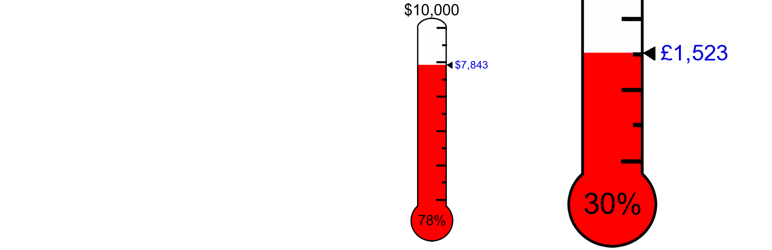
Displays a custom thermometer charting the amount of donations raised.
Easy to use
Simply use the shortcode [thermometer raised=?? target=??] to display a classic-style tracking thermometer on any post, page or sidebar.
Fully customisable
Unlimited thermometers can be made, each fully customisable to blend seamlessly with your site’s theme. Thermometers are rendered as vector-based images (SVG) that produce a visually sharp graphic. Since the plugin does not load any remote image files your page-load times will remain fast and save bandwith for users.
Automatic updating of values supported
Thermometers accept values using shortcodes from other plugins so you don’t need to worry about keeping track of updates.
Display only what you need
Optional shortcode parameters can control thermometer size, orientation, tick alignment, currency symbol and position, the thousands separator, colour and style of the fill, a shadow effect, plus more. CSS code can also be implemented for further customisation.
Additional shortcodes
The ‘raised’ and ‘target’ values are also linked to independent shortcodes ([therm_r], [therm_t] and [therm_%]) – useful for keeping multiple instances up-to-date around your site, for example if you want to keep a running total caption in your site footer/sidebar.
Always free and supported
Used by thousands of satisfied individuals and organizations. Queries and issues are resolved promptly within the support forum.
Screenshots

The Thermometer settings page.

Multiple thermometers displayed on a page/sidebar. Unique values and colours can be assigned for each.

Customisable CSS rules for thermometers.

The help page describing the various shortcode options and functionality.
How do I use dynamic values?
Insert the shortcode that produces the dynamically generated number into the thermometer shortcode with single apostrophes instead of square brackets, e.g. [thermometer raised=’sales id=”1947″‘ target=5000].
The [therm_r] and [therm_t] shortcodes show different values to the thermometers.
Values for these shortcodes are set on the Thermometer settings page or dashboard widget. If you want your thermometers to display the same values, remove the ‘raised’ and ‘target’ parameters from the [thermometer] shortcode, e.g. [thermometer width=300 align=right]. Values given in the shortcode will overrule those on the settings page.
Can I display the thermometer as a percentage of the page width?
Yes – just use the percentage symbol in the shortcode. For example, width=30%. As before, values can be set for Width OR height only. The default size is width=200px.
How do I use the alt parameter?
This option will change the title and alt text attributes of the thermometer image. To toggle off, type alt=off. To enter custom text, type alt=’your custom text’ (include apostrophes). If the option is left out the default text ‘Raised xxxx towards the xxxx target.’ will appear.
Can I remove the currency symbol?
Yes – select the empty option on the settings page dropdown menu, or enter currency=null in the thermometer shortcode, e.g. [thermometer currency=null].
How do I rotate the thermometer to be horizontal?
The thermometer orientation can be set on the settings page for your whole site, or individually in the thermometer shortcode using the parameter: [thermometer orientation=landscape]. Raised and target values will also rotate automatically.
What happens when my raised total exceeds the target?
Once this happens the thermometer will completely fill. The shortcode parameter [thermometer swapvalues=true] can also be used to swap the target and raised value locations, thus allowing you to show how far above your target your current raised total stands.
How do I change the colour fill of the thermometer?
There are two options for filling the thermometer: with a uniform colour (the default) or with a colour gradient. Either method can be set from the plugin’s settings page or via the shortcode parameters. A uniform fill can be set in the shortcode using [thermometer fill=#d7191c filltype=uniform]. Drawing a gradient fill requires the additional fill2 parameter: [thermometer filltype=gradient fill2=#eb7e80].
ChangeLog
2.2.5
- Fixed a bug where very large target values would get cut off in the SVG with the default font-size.
2.2.4
- Fixed a bug when using different filltypes across multiple thermometers on the same page.
2.2.3
- Fixed potential bug with using the gradient option.
2.2.2
- New option for a gradient colour fill in the thermometer.
2.2.1
- Fixed some deprecated warnings.
2.2
- Preparations for localization (ready for translation) -> https://translate.wordpress.org/projects/wp-plugins/donation-thermometer/
2.1.6
- Fixed minor bug following previous version.
- Added a link to the support forum.
2.1.5
- Improved parsing of shortcodes as raised values.
- Added an editable class for the entire thermometer svg on the settings page.
2.1.4
- Fixed a display bug with the thermometer fill.
- Minor code tidying.
2.1.3
- Added security updates.
- Fixed a display bug for sub-target labels.
2.1.2
- Fixed a number formatting bug introduced in v2.1.1.
- Fixed a display bug for landscape thermometers.
2.1.1
- New shortcode paramater for defining a decimal separator. Dynamically generated raised values must be consistent with the thermometer settings.
- Fixed bug where the decimal parameter was not parsed correctly.
2.1.0
- New option for a landscape orientation.
- Thermometer fills to the brim if the raised value exceeds the target.
- New shortcode parameter to swap target and raised value locations – useful if you want to show how far your raised total exceeds your target.
- Further shortcode parameters added to show/hide the target, raised and percentage values on individual thermometers.
- Fix for reading shortcode input values with a comma thousands separator.
- Improvements to the shadow effect.
- Organised the default settings page into sections.
2.0.10
- New option for a shadow effect on the thermometer
- CSS classes added for customisation of the arrow and raised bars.
2.0.9
- Added option to include decimal places for raised/target/percentage values.
- Fixed legend bug.
2.0.8
- Fixed bug for the raised shortcode parameter.
2.0.7
- Now possible to use shortcodes for the raised shortcode parameter.
- Fixed a bug where the therm_% shortcode value calculation.
2.0.6
- Modified settings field arguments and collection of default values.
- Fixed bug where therm_% did not correctly use the cumulative total of raised values.
2.0.5
- Fixed a bug where a shortcode raised value of 0 would revert to the default value.
2.0.4
- Added shortcode options for changing the default colors of the raised, target, percentage and subtarget values for individual thermometers.
2.0.3
- Added customisable CSS rules for further control over thermometer appearance.
- Added a preview of the color ramp on the settings page.
2.0.2
- Added options for placing sub-target labels on thermometer.
- Added shortcode preview tab on the settings page.
- Added ability to remove target/raised values on individual thermometers.
- Fixed bug with thermometer text colours.
- Fixed bug with raised value in dashboard widget.
2.0.1
2.0
- Major upgrade switching the thermometer to be drawn as scalable vector graphic (SVG).
- New shortcode parameters available to include multiple categories in the thermometer.
- A new shortcode ‘therm_%’ that states the percentage raised from the default global values.
- Tick marks can be placed left or right.
- Multiple target values can be set.
- An automatically generated legend can be placed below the thermometer.
- Clean uninstallation.
1.3.16
- Fixed a minor bug extracting page id.
1.3.15
- Added new dasboard widget from which raised and target values can be edited.
1.3.14
- Fill colours can now be assigned for individual thermometers using the new shortcode parameter ‘fill=‘.
1.3.13
- Fixed minor bug regarding centre alignment of the thermometer.
1.3.12
- Fixed minor bug with default values when updating from < version 1.3.
1.3.11
- Error in database changes on upgrade in 1.3.10.
1.3.10
- Various backend improvements of the code and handling of errors.
- Added more options for the thousands separator.
- Confirmed compatibility up to WordPress 4.3.*
1.3.9
- Move width and height parameters into CSS code.
- ‘px’ units can now be defined in the shortcode, instead of having to just use a number value.
1.3.8
- Fixed encoding for currency symbols in the filename.
1.3.7
- Further fix to the therm_r and therm_t shortcodes.
1.3.6
- Fixed an issue with the default display of the thousands separator.
1.3.5
- Added an option to modify the thousands separator in the thermometer shortcode. E.g. sep=,
- Added an option to move the position of the currency symbol to follow the target/raised value using the thermometer shortcode. E.g. trailing=true
- Added global currency settings to the plugin options page.
1.3.4
- Fixed a bug that was preventing absolute values of the width/height parameter working.
1.3.3
- Added the option to use the width or height parameter value as a percentage (useful for displaying thermometers consistently across various screen sizes).
1.3.2
- Bug fixed where thermometer settings were overwritten with defaults every time the plugin is reactivated/updated.
- More efficient code used for filling the thermometer.
- When percentage raised is greater than 100% the thermometer now fills completely.
- Thousand’s separator added to the thermometer alt and title captions.
1.3.1
- New ‘alt’ parameter for the [thermometer] shortcode: toggle the thermometer’s alt & title off, or use custom text.
- Added option for different raised/target value text colours.
- Fix for servers with allow_url_fopen directive set to off.
- Added a ‘donate’ link for the developer 😉
1.3
- New shortcodes for ‘raised’ and ‘target’ values ([therm_r] and [therm_t]).
- Addressed memory issues concerning the generation of images.
- A new parameter in the thermometer shortcode now allows for custom currency symbols.
- Image width now dynamically adjusts depending on the total raised.
- Target and percentage values change font size depending on string length.
- Horizontal and vertical margins added to the thermometer image.
1.2.2
- Improved the fail-safe that makes sure thermometers exist before page load.
1.2.1
- Code improvements including for align issues, the image title text and references to file paths.
1.2
- New Feature: Multiple thermometers with varying targets/amounts raised now possible.
- Target/amount raised values now moved from the settings page to the shortcode parameters.
- Included a cache feature which clears thermometer images on the server after 1 week.
1.1.2
- Fixed a bug that may have stopped the thermometer appearing in Internet Explorer.
- Helped an image resampling issue present in some browsers.
1.1.1
- Custom colour option for raised/target text added.
1.1
- Option added to use custom colours for the thermometer and percentage text.
- Accuracy of the thermometer-fill and gauge improved to the nearest target unit.
1.0