
Request For Quote plugin allows your customers to submit quotes for any product and negotiate with you for the best price.
Business buyers rarely buy from a price list. They ask for a quantity, wait for a price and then order. WPHEKA Request For Quote for WooCommerce gives them a way to do that in your store: an Add to quote button on any product, a quote list where they set quantities and a short form that sends you the request by email. You can hide prices, hide the Add to cart button or show the quote button only to logged-in customers, so the same store serves retail buyers and trade accounts. Every request is kept in WPHEKA > Request For Quote with a New, Replied or Closed status, so nothing is lost in an inbox.
For your trade buyers
- An “Add to quote” button on any product page, as a button or a link
- A quote list where buyers set the quantity for each product
- A request form with name, email and message, plus optional phone and company fields
- Guests can send a request. You can also show the button to logged-in customers only
For your store
- Hide prices across the shop, the product pages, the quote list and the quote email
- Hide the Add to cart button, so a product can only be quoted
- Show the quote button on shop and category pages as well as product pages
- Show it on every product, only on products that are out of stock or only on products in stock
- Every request is listed under WPHEKA > Request For Quote with a New, Replied or Closed status
- One email to the store for each request, with the buyer’s details, their message and the products. It goes to the site admin address or to recipients you choose
- Under WooCommerce > Settings > Emails, set the email’s recipients, subject, heading and format or switch it off
The buyer does not get a copy of the request. Reply to them from your own email.
Screenshots

The Add to quote button on a product page, next to or instead of Add to cart.
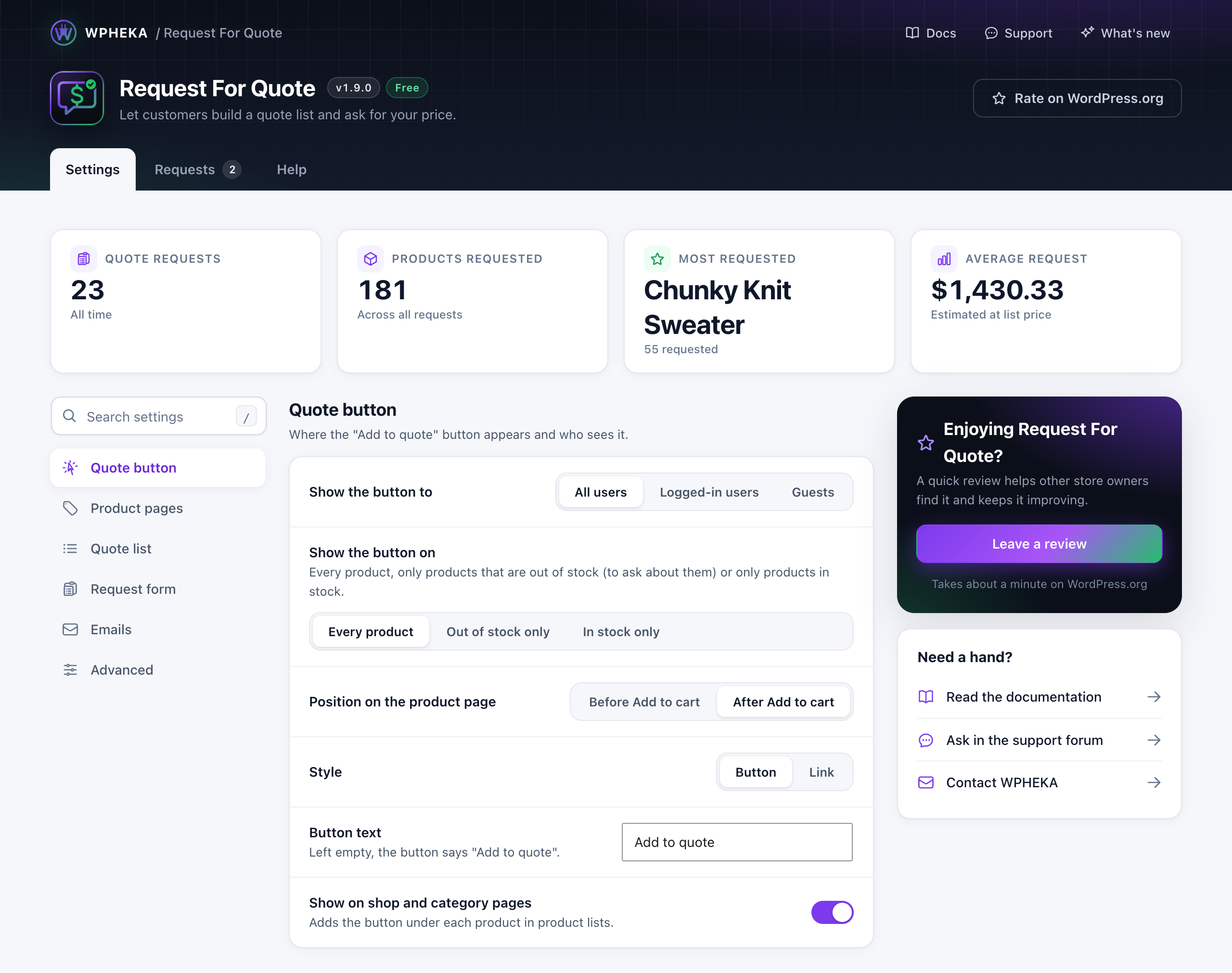
Settings: where the quote button appears, who sees it and whether prices are hidden.

The email that reaches your store for each request, with the buyer, their message and the products.
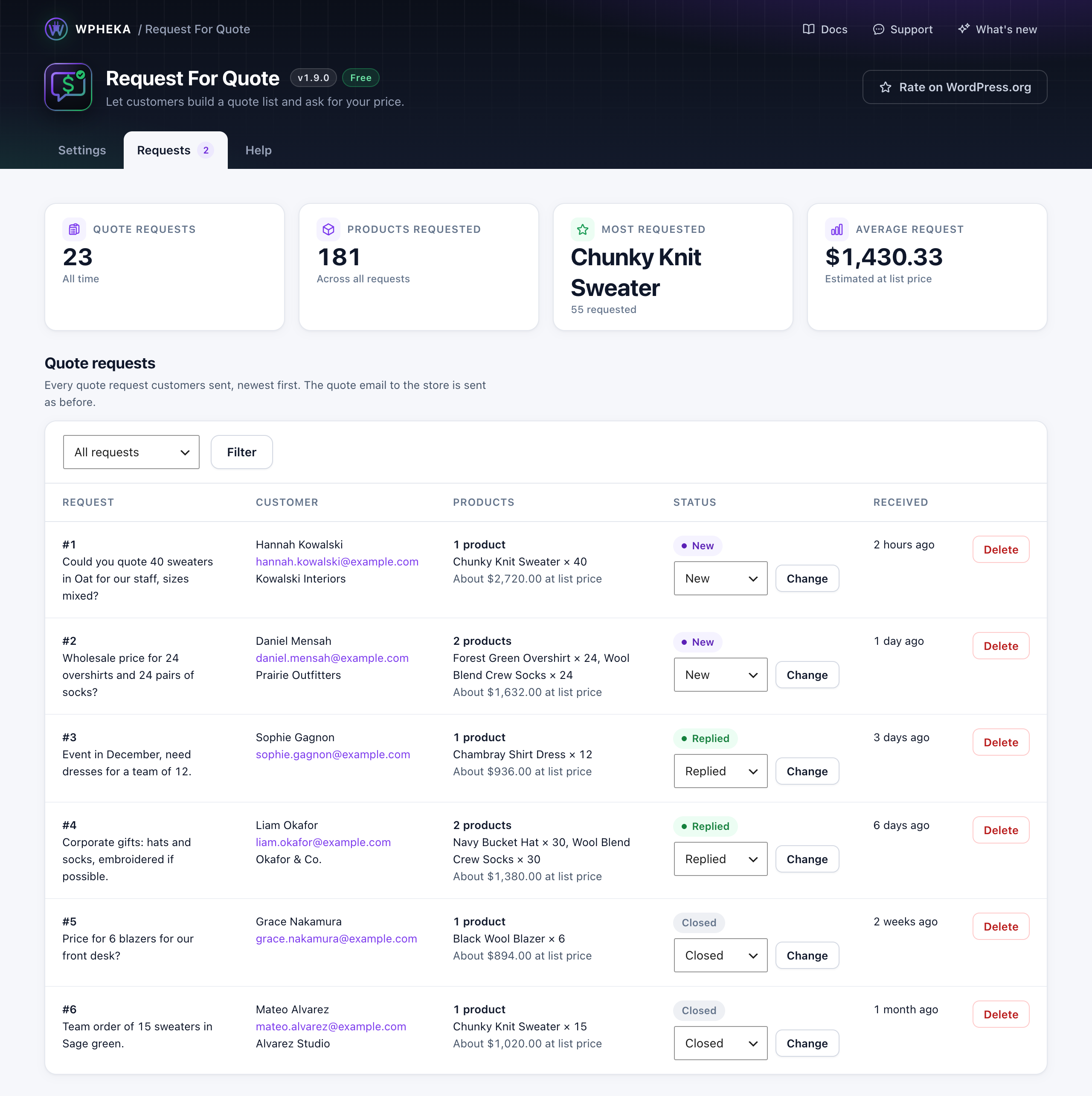
The Requests tab: every quote request with the buyer, the products, a status and the date.
How does a buyer ask for a quote?
An “Add to quote” button appears on your product pages, plus on shop and category pages if you switch that on. The buyer adds what they want, sets a quantity for each product on the quote list page, fills in the short form and sends it. The request arrives in your inbox and is listed under WPHEKA > Request For Quote.
Can I hide prices and run my store as a catalogue?
Yes. “Hide prices” removes prices from the shop, the product pages, the quote list and the quote email. “Hide the Add to cart button” leaves asking for a quote as the only way to proceed. Use either on its own or both together.
Can I show the quote button only to trade customers?
You can show it to all users, to logged-in users only or to guests only. That is enough to keep the quote route for account holders while retail visitors buy normally. There are no per-role rules yet.
Which products can be added to a quote?
On a product page: simple, variable, external and subscription products. For a variable product the buyer chooses the options, such as size or colour, before adding it. On shop and category pages the button shows for simple, external and subscription products, because a variable product needs its options chosen first. A developer can change the shop page list with the wpheka_rfq_display_for_product_type filter.
Does the buyer get a copy of their request?
No. One email goes to your store for each request, with the buyer’s details, their message and the products. Reply to the buyer from your own email. You can set the recipients, subject, heading and format under WooCommerce > Settings > Emails. You can also switch the email off.
Where do I see my quote requests?
Under WPHEKA > Request For Quote, on the Requests tab: every request with the buyer, the products, a status and the date. Mark each one New, Replied or Closed as you work through them.
Can I send a price back through the plugin?
Not yet. The plugin collects the request and keeps it in one place; you quote the buyer by email. Converting an accepted quote into an order is a manual step today.
ChangeLog
1.9.3 – 2026-11-10
- Tweak – The plugin is now called WPHEKA Request For Quote for WooCommerce.
1.9.2 – 2026-11-10
- Tweak – The plugin is now called WPHEKA Request For Quote (RFQ) for WooCommerce. The description now covers B2B quote requests, with a new FAQ and new screenshots.
- Tweak – Tested up to WordPress 7.1.4.
- Enhancement – The Docs link now opens the documentation at docs.wpheka.com. The Help tab links to the developer hooks.
- Tweak – The readme now describes the one email the plugin sends: a new-request email to the store. It no longer mentions emails to customers, which the plugin has never sent.
1.9.1 – 2026-10-29
- Tweak – Notices from WordPress and other plugins no longer show on the Request For Quote page, where they printed above the header and then jumped into place. They still show on every other screen.
- Tweak – On the Requests tab, “Status changed” and “Request deleted” show with an icon. A change that fails shows in red and is announced by screen readers.
- Tweak – The section links on the Settings tab scroll smoothly to their section.
1.9.0 – 2026-10-23
- New – A new page under WPHEKA > Request For Quote, with Settings, Requests and Help tabs. It saves with a normal form, so a save that fails says why and never shows “Changes Updated”.
- New – Quote requests are now stored. The Requests tab lists each one with the customer, the products, a status and the date. Change a request’s status (New, Replied or Closed) or delete it. Requests sent before 1.9.0 were not stored.
- New – Stats at the top of the page: quote requests, products requested, the most requested product and the average request at list price.
- New – Stored requests are included in WordPress’s personal data export and erase tools. The plugin also suggests text for your privacy policy.
- New – A setting “Delete all data when the plugin is deleted”, off by default.
- Tweak – Shop managers can now open the page and change the settings.
- Tweak – An empty button text now shows “Add to quote”.
- Fix – Out-of-stock products no longer show two Add to quote buttons on the product page.
- Fix – A product that does not exist, is not published or is hidden by the button rules can no longer be added to a quote list.
1.8.3 – 2026-10-05
- Fix – The Add to quote button shows on product pages again when “Hide Add to cart” is on. With Storefront and other themes that use WooCommerce’s standard product layout, it had disappeared together with the Add to cart button.
- Fix – The Add to quote button now shows on out-of-stock products, so “Show only on out-of-stock products” works on product pages.
- Fix – “Maybe later” on the review request now snoozes it only for the administrator who chose it, not for everyone.
- Enhancement – WordPress 7.1.2 and WooCommerce 11.1.2 compatibility.
1.8.2 – 2026-08-24
- Fix – The quote email no longer breaks WooCommerce’s email preview. Opening WooCommerce > Settings > Emails > Request For Quote showed “There has been a critical error on this website” in the preview pane, and “Send a test email” failed the same way, because the email was rendered from wp-admin where the quote session and the cart do not exist.
- Fix – The quote email now matches WooCommerce’s current email design. It hardcoded the pre-9.9 styling, so on a store using WooCommerce’s “Email improvements” design the quote email did not look like any other email from the store.
- Fix – Hiding prices no longer leaves a “Price” column heading above rows that have no price cell.
- Enhancement – WooCommerce’s email preview now shows a representative quote, with sample products and customer details, instead of an empty email.
- Fix – Plain text emails read as plain text, including product names and prices. A name like “Bed & Breakfast Package” arrived as “Bed & Breakfast Package” and prices kept their currency entity, because the text was HTML-escaped on its way into an email that has no HTML.
- Fix – Plain text emails are now plain text. With “Email type: Plain text” selected the plugin mailed a full HTML document as text/plain, so the recipient read the markup. There is now a proper plain-text template beside the HTML one.
- Fix – Sending no longer emits a PHP warning when the email is disabled or has no recipient, and correctly reports failure instead of returning an undefined value.
- Enhancement – Added an “Email template” link to the plugin’s row on the Plugins screen, going straight to WooCommerce > Settings > Emails > Request For Quote.
1.8.1 – 2026-08-24
- Security – Saving the settings now requires the capability to manage options, not just a valid form token. The check matters more in this release, because saving also clears the page cache.
- Fix – Saving settings now clears the page cache. With a caching plugin active the settings really were saved, but product and shop pages kept serving the old button, label and prices, so the change looked like it had not applied.
- Fix – The quote page is no longer stored by page caches. It renders one visitor’s quote basket, so a cached copy could be served to the next visitor.
- Fix – A rejected settings save now says why. The Save Changes button used to finish with “Changes Updated” even when nothing had been saved, and the reason was never shown.
- Enhancement – Tidied the Additional Form Fields setting. “Make phone number required” is now visibly a sub-option of “Show phone number field” and is disabled while that field is off, instead of sitting there clickable and able to require a field the form never showed.
1.8.0 – 2026-08-22
- Security – Escaped the quote table’s output and tightened validation in the public add-to-quote handler.
- Fix – On a network, activating for all sites now sets up every site, and a site created afterwards gets its own quote session table. Previously only one site was set up and later sites got nothing, with no error shown.
- Fix – On a network, settings are read from the same per-site row they are saved to. They could previously read back empty.
- Change – The review request now appears on the Dashboard rather than on every admin screen, waits until three quotes have been submitted instead of counting days, and is dismissed per user rather than for the whole site. Anyone who already dismissed it will not be asked again.
- Fix – Escaped the quote email template’s heading.
- Fix – Product images in the quote table keep their responsive attributes, so browsers can pick an appropriate size again.
- Enhancement – Declared compatible with the Cart and Checkout blocks. This plugin adds nothing to the cart or checkout and keeps its own session, so block checkout is unaffected. It previously declared itself incompatible, which showed store owners a warning that was not warranted.
- Enhancement – Adopted the WPHEKA framework for settings, the quote session table and site provisioning.
- Enhancement – Requires PHP 8.1 and WordPress 6.5. WordPress 7.1 and WooCommerce 11.0.1 compatibility added.
1.7.2 – 2026-05-27
- Feature – Added a polite 5-star review request notice for store admins, shown after 7 days and at least one quote submission. Includes “Sure, you deserve it”, “I already did”, “Maybe later” (14-day snooze) and “Don’t ask again” options.
- Fix – Made the “Your request has been sent successfully” and corresponding error message translatable via Loco Translate (previously hardcoded in the AJAX response).
- Fix – Added missing text domain to three admin settings labels (Select a page, Button, Link) so they appear in translation tools.
- Enhancement – Added “Requires PHP: 7.4” header.
- Enhancement – WordPress version 7.0 compatibility added.
- Enhancement – WooCommerce version 10.7.0 compatibility added.
1.7.1 – 2026-02-13
- Fix – Fixed “unexpected output during activation” error by removing get_plugin_data() call.
1.7.0 – 2026-02-13
- Feature – Added user type restrictions (show button to all/logged/guest users).
- Feature – Added out of stock product options (show on all/only out of stock/hide on out of stock).
- Feature – Added button position option (before/after add to cart button).
- Feature – Added after-click behavior (show link or auto-redirect to quote page).
- Feature – Added additional form fields (phone number and company name).
- Fix – Fixed “Hide Price” and “Hide Add to Cart” settings not working on product pages.
- Security – Fixed improper sanitization in plugin settings save handler.
- Security – Added proper output escaping for page dropdown in settings form.
- Security – Added missing wp_unslash() call in remove item AJAX handler.
- Enhancement – WordPress version 6.9.1 compatibility added.
- Enhancement – WooCommerce version 10.5.1 compatibility added.
1.6.1 – 2025-11-09
- Enhancement – WooCommerce HPOS (High Performance Order Storage) compatibility added.
- Enhancement – WooCommerce Version 10.3.4 compatibility added.
- Security – Fixed missing nonce verification in shop AJAX handler.
- Security – Improved data sanitization with proper wp_unslash() calls.
- Enhancement – Externalized inline JavaScript for better security practices.
- Enhancement – Added proper error handling for session class instantiation.
- Enhancement – Improved code organization and separation of concerns.
1.6 – 2024-12-03
- Enhancement – WooCommerce Version 9.4.2 compatibility added.
1.5 – 2022-06-09
- Enhancement – WooCommerce Version 6.5.1 compatibility added.
1.4 – 2021-09-02
- Enhancement – Used ‘wp or ‘wordpress’ prefixed cookies to fix caching issue with multiple hosting providers.
1.3 – 2021-08-13
- Enhancement – CSRF issues fixed.
1.2 – 2020-06-06
- Enhancement – Session cache fix added.
1.1 – 2020-06-05
- Tweak – Session class updated.
1.0 – 2020-05-03

