Disable WordPress Plugins on Specific Pages and Posts
WP Plugin Manager is a free WordPress plugin that lets you turn off any plugin on the pages, posts, or custom post types where you don’t need it. A plugin that is turned off for a page does not load at all on that page, so its PHP code, database queries, and CSS/JS files are skipped for that request. Fewer plugins loading per page means less work for your server and usually faster pages.
You choose a plugin, choose the pages or posts where it should not load, and save. To apply the same rules to several plugins at once, put them in a group. Device-based rules (desktop, tablet, mobile) and admin-area rules are available in the Pro version.
Video: a walkthrough of setting up WP Plugin Manager and disabling a plugin on a chosen page.
By default, every active WordPress plugin loads on every page, including pages that never use it. A contact form plugin loads on blog posts, a checkout plugin loads on your about page, and so on. This can lead to:
Slower page load times
Higher server resource usage
Unneeded CSS and JavaScript on pages that don’t use it
WP Plugin Manager solves this by letting you disable plugins on the specific pages and posts where they’re not required.
Key Benefits
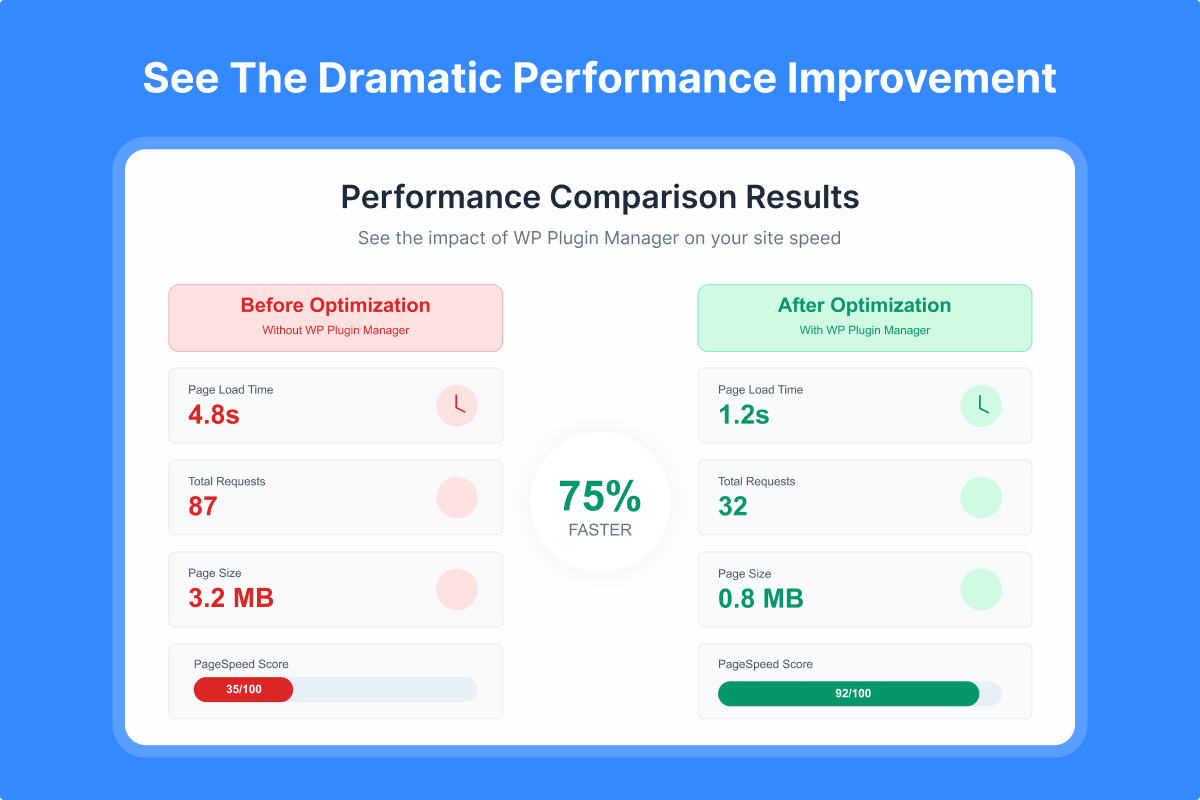
Faster pages: Plugins that don’t load can’t slow a page down. Results depend on your site and which plugins you disable.
Less server work: Skipped plugins mean fewer PHP calls and database queries per request.
Simple control: Turn plugins off per page or post from one dashboard, with no code.
Plugin groups: Set the rules once and apply them to many plugins at a time, instead of repeating the same setup for each one.
Safe: Plugin files are never changed or deleted. Re-enable a plugin at any time.
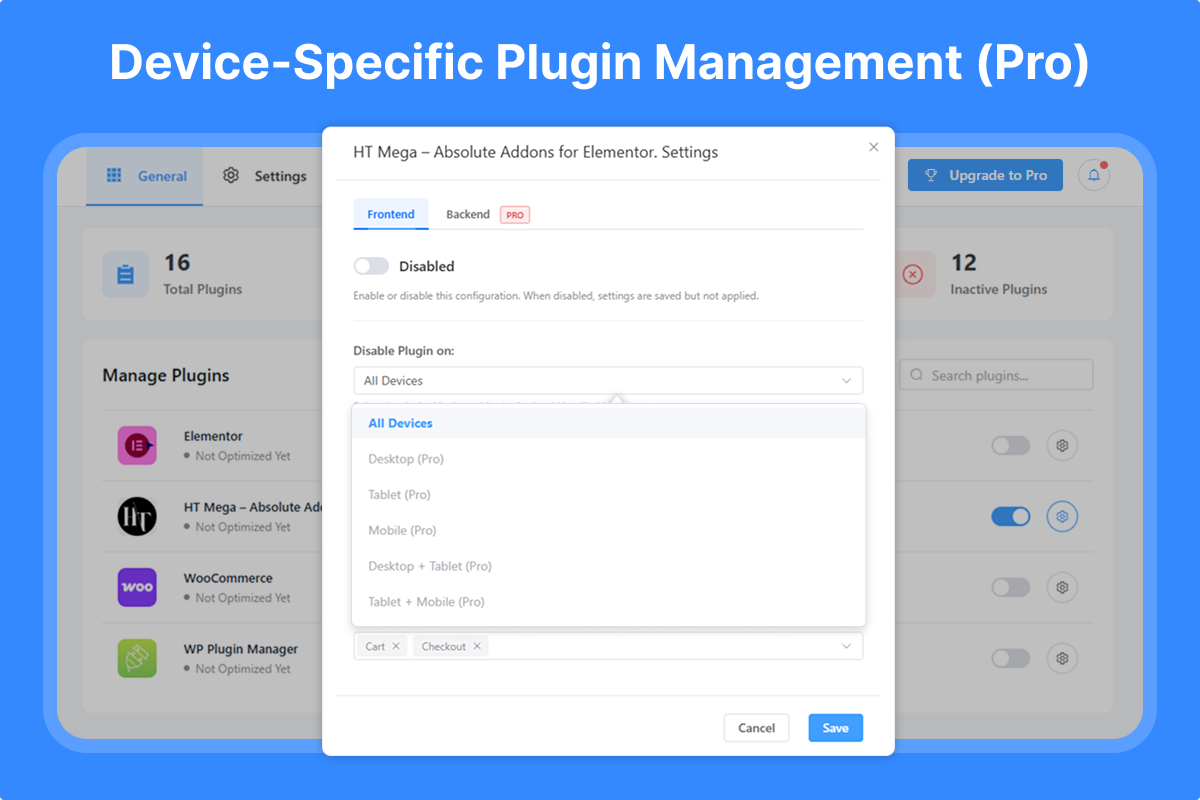
Device-specific rules (Pro): Different rules for desktop, tablet, and mobile.
How is WP Plugin Manager different from asset cleanup tools?
Asset cleanup tools remove individual CSS and JavaScript files from a page. WP Plugin Manager stops the entire plugin from loading on that page, so its PHP code and database queries are skipped too, not just its assets.
What WP Plugin Manager does not do
It does not minify, combine, or delay CSS and JavaScript.
It does not cache pages. Use it alongside a caching plugin if you need caching.
It does not delete or modify other plugins’ files.
Core Features (Free Version)
Plugin Control
* Selectively disable any plugin on specific pages or posts
* Easy toggle switches for quick plugin management
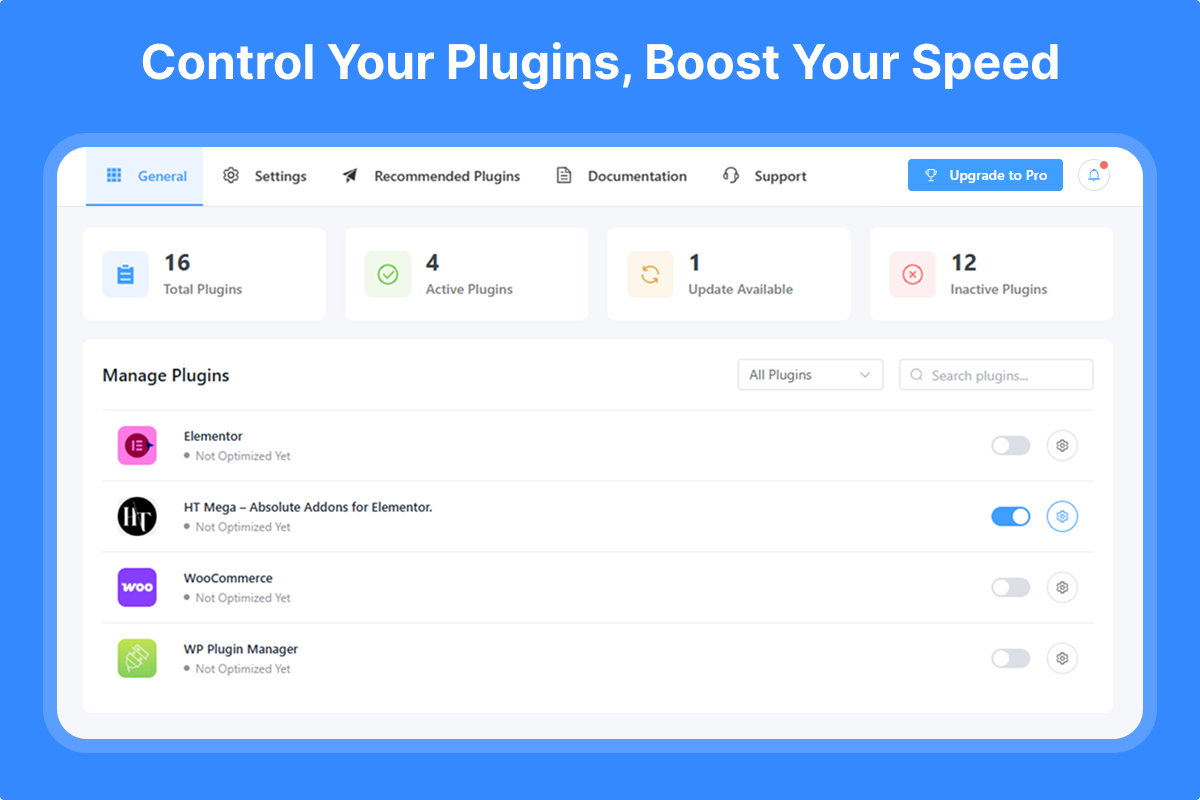
* Visual dashboard showing all plugin statuses
* Search and filter plugins instantly
Page & Post Management
* Disable plugins on individual pages
* Disable plugins on specific posts
* Bulk selection for multiple pages/posts
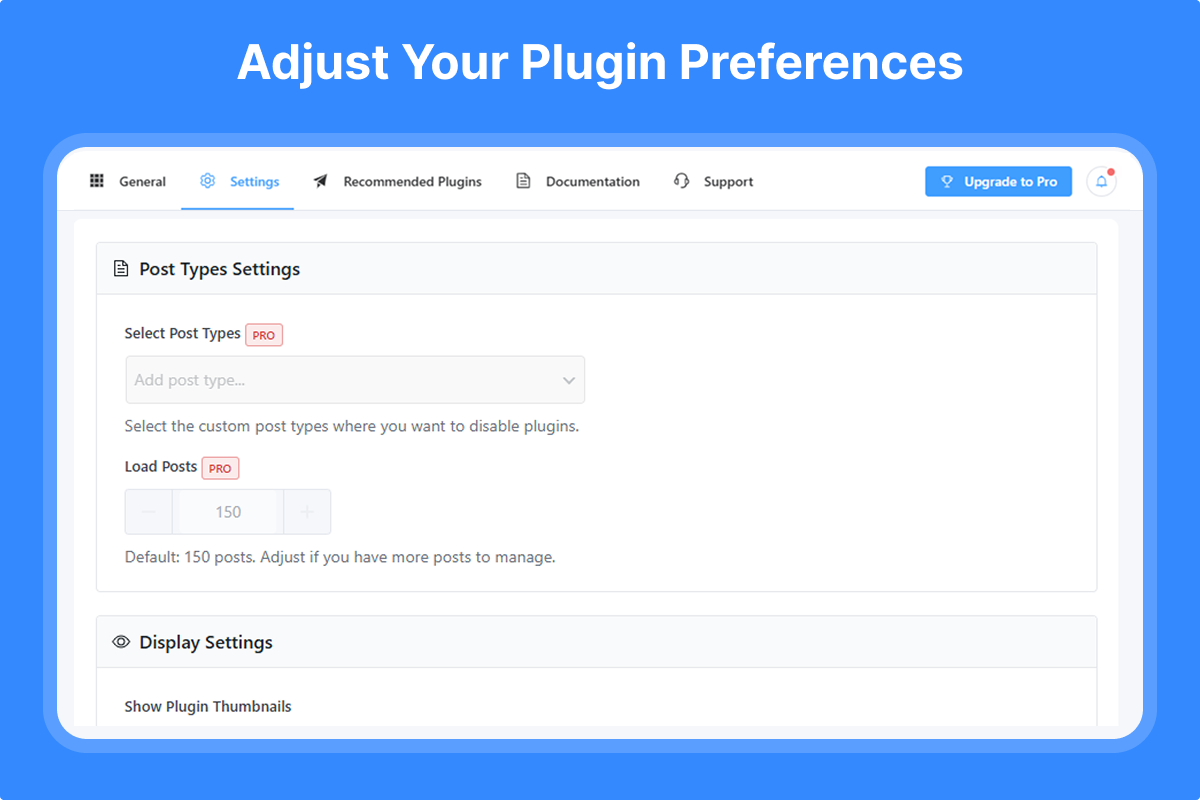
* Support for custom post types
Plugin Groups
* Create a named group, set its frontend rules once, and apply them to many plugins at a time
* Create multiple groups, each with its own rules and its own set of plugins
* A plugin can be in several groups and keep its own rules too; it is disabled wherever any of them says so
* Turn a group on or off with one click, without losing its settings
* The free version includes up to 2 groups
Multisite Support
* Network Admin settings page for super admins
* Configure plugin rules once and apply them across every site in your network
* Override the network rules on individual sites when needed
* Create plugin groups in Network Admin to apply them to every site; each site can switch a network group on or off for itself
* Network-activated plugins show up correctly in the plugin list
User-Friendly Interface
* Intuitive plugin management dashboard
* Clear visual indicators
* No coding required
* Lightweight and fast
Backend/Admin Optimization
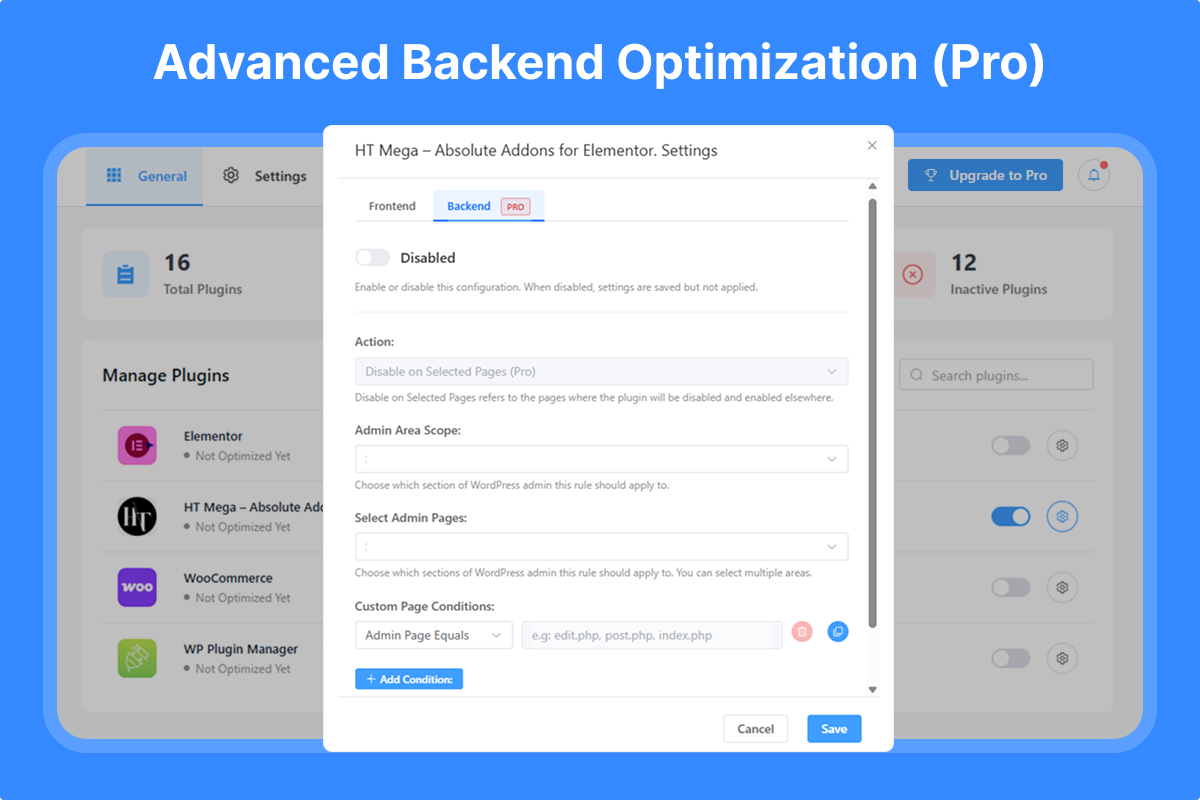
* Control plugins in WordPress admin area
* Specific admin page targeting
* Custom PHP file conditions
* Reduce admin panel load time
Explore our other WordPress solutions to enhance your website:
????️ WooLentor – Transform your WooCommerce store with 125+ widgets, 85+ Gutenberg blocks, 34+ Modules and 110+ templates. Features include wishlist, product compare, variation swatches, and multi-step checkout. The ultimate alternative to ShopReady, Kadence, and JetWidgets.
???? HT Mega – Supercharge Elementor with 135+ widgets, 795+ ready made blocks, header/footer builders, and mega menus. Create stunning websites with post grids, sliders, forms, and more. Works seamlessly like HappyAddons, ElementsKit and Essential Addons.
???? HashBar – Create unlimited notification bars for announcements, promotions, and alerts. Fully customizable with multiple display options.
???? Extensions for CF7 – Extend Contact Form 7 with database storage, conditional fields, and Mailchimp integration. Capture and manage leads effectively.
???? Whols – Professional wholesale pricing solution for WooCommerce. Set wholesale prices, minimum requirements, and custom registration fields. Alternative to Wholesale Suite and B2Bking.
???? JustTables – Display products in customizable tables with pre-built columns. Perfect for catalogs and bulk ordering.
???? Swatchly – Add beautiful color, image, and label swatches to product variations. Enhance the shopping experience with visual selection options.
???? HT Slider – Create responsive sliders with custom styling, navigation, and pagination options. Display content by ID or category.
???? HT Contact Form – Seamlessly integrate Contact Form 7 with Elementor. Drag, drop, and style your forms with ease.
How do I disable a plugin on a specific page in WordPress?
Install and activate WP Plugin Manager.
Open Plugin Manager in your WordPress admin menu.
Select the plugin you want to turn off.
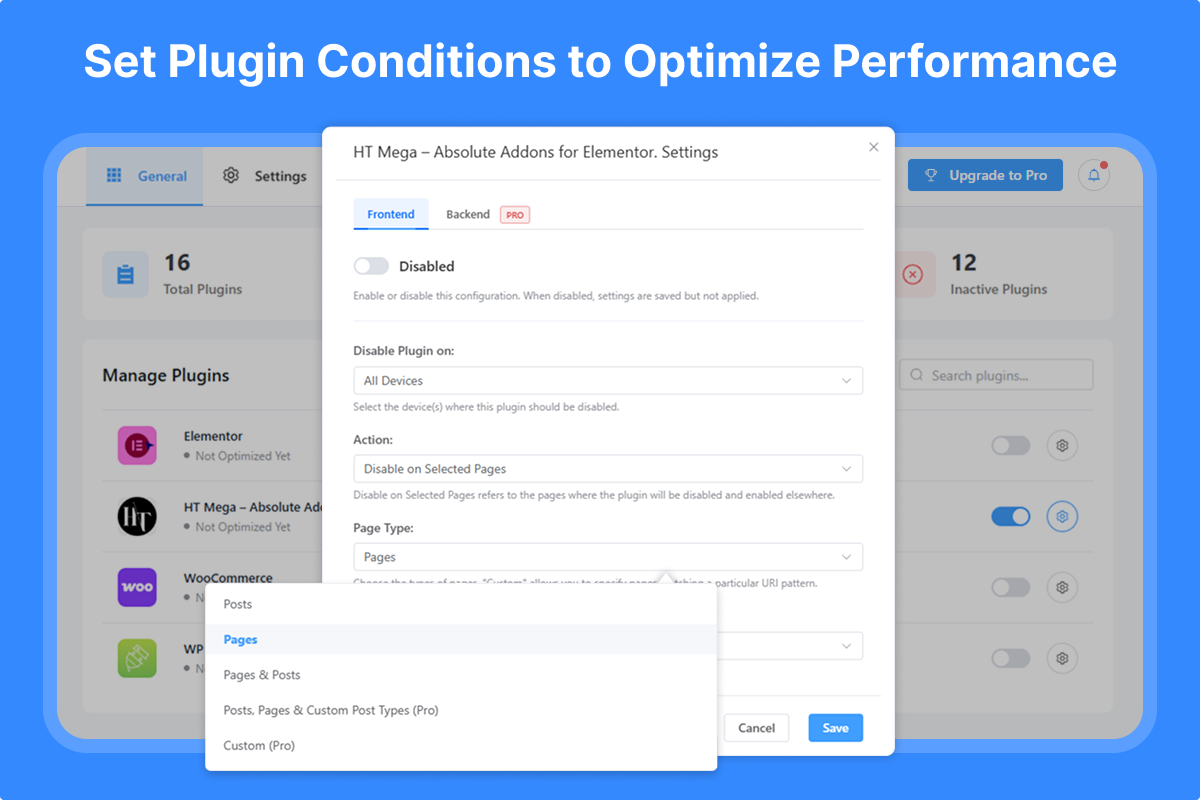
Choose the pages or posts where it should not load.
Save your settings. The plugin no longer loads on those pages.
How does WP Plugin Manager work?
WP Plugin Manager adds a small must-use plugin file (htpm-mu-plugin.php) to your wp-content/mu-plugins folder. Must-use plugins load before regular plugins, so it can compare the current page URL with your rules and stop the matching plugins from loading for that request. Your rules are stored in the database, and other plugins’ files are never changed. Deleting WP Plugin Manager removes the file.
Will this break my website?
It shouldn’t. WP Plugin Manager only controls whether a plugin loads on the pages you choose, and it doesn’t modify any plugin files. If a page stops working correctly, re-enable the plugin for that page. Be careful with plugins that other plugins or your theme depend on.
Does it work with WordPress Multisite?
Yes. Network-activate the plugin, then open Plugin Manager in the Network Admin to set rules that apply to every site in your network. Individual sites can still set their own rules for a plugin, and a site’s own rule takes priority over the network rule for that plugin.
Who can manage the network-wide rules?
Only super admins. Site admins manage rules for their own site only.
Can I use WP Plugin Manager with caching plugins?
Yes. WP Plugin Manager works at the plugin-loading level, so it can be used alongside caching plugins. If a page is served from cache, clear the cache after changing your rules so the change shows up.
Does it replace a caching or speed optimization plugin?
No. It only controls which plugins load on a page. It does not cache pages or minify files.
Does it work with all plugins?
It can be used with most WordPress plugins. Security plugins and plugins that other parts of your site depend on should usually stay active on all pages.
Can I disable plugins in the admin area?
Yes, in the Pro version. The free version applies rules to the front end of your site.
Can I set different rules for mobile devices?
Yes, in the Pro version. Device-specific targeting lets you set different rules for desktop, tablet, and mobile.
Is there a performance impact from using this plugin?
The plugin is lightweight. Rules are checked once per page request, and plugins you disable on a page are not loaded on it.
How much faster will my site be?
It depends on your site and which plugins you disable. Disabling heavy plugins on pages that don’t use them gives the biggest gain. Test your pages before and after with a speed tool such as PageSpeed Insights or GTmetrix.
Added: Plugin Groups — create a group, set its frontend rules once and apply them to many plugins at a time. A plugin can be in several groups and keep its own rules too; it is disabled wherever any of them says so.
Added: Plugin Groups on multisite — create groups in Network Admin to apply them to every site, and each site can switch a network group on or off for itself.
Tested: Compatibility with the latest version of WordPress.
Version: 1.4.17 Date: 06 October 2026
Fixed: Restricted the recommended plugins endpoints to users who can manage plugins.
Fixed: A few minor issues.
Tested: Compatibility with the latest version of WordPress.
Version: 1.4.16 Date: 09 September 2026
Added: Multisite support — configure plugin rules once at Network Admin level and apply them across every site, with the option to override on individual sites.
Fixed: Plugins activated at the network level not appearing correctly in the plugin list.
Fixed: “Optimize Now” quick action not disabling the plugin on the frontend by default.
Fixed: Selected page/post targeting not matching correctly across different site domains.
Tested: Compatibility with the latest version of WordPress.
Version: 1.4.15 Date: 23 August 2026
Fixed: A few minor issues.
Tested: Compatibility with the latest version of WordPress.
Version: 1.4.14 Date: 23 July 2026
Fixed: A few minor issues.
Tested: Compatibility with the latest version of WordPress.
Version: 1.4.13 Date: 17 June 2026
Fixed: Post type select dropdown in Settings page now hides already-selected items from the list.
Tested: Compatibility with the latest version of WordPress.
Version: 1.4.12 Date: 25 March 2026
Fixed: Plugin incorrectly disabled on child pages when parent page was selected.
Fixed: “All Pages” now applies to homepage and child pages.
Fixed: “All Posts” incorrectly firing on homepage.
Fixed: Individual post URL matching not working.
Version: 1.4.11 Date: 26 February 2026
Improved: Admin notice display.
Version: 1.4.10 Date: 01 January 2026
Fixed: A few minor issues.
Tested: Compatibility with the latest version of WordPress.
Version: 1.4.9 Date: 13 November 2025
Fixed: Admin notice display issue.
Version: 1.4.8 Date: 11 November 2025
Improved: Code cleanup – removed unused legacy code from migration to REST API.
Version: 1.4.7 Date: 23 October 2025
Improved: Minor UI update and optimizations.
Version: 1.4.6 Date: 07 September 2025
Updated: Language translation .pot file.
Fixed: API request status content translation issues.
Fixed: A few minor issues.
Version: 1.4.5 Date: 24 August 2025
Updated: Language translation .pot file.
Fixed: String translation issue.
Fixed: A few minor issues.
Version: 1.4.4 Date: 11 August 2025
Improved: Manage plugin list Style.
Fixed: Plugin Enable/Disable Confirm popup issue in Manage Plugin List.
Fixed: A few minor issues.
Version: 1.4.3 Date: 29 July 2025
Updated: Language translation .pot file.
Fixed: Infinite loading issue when an error occurs while fetching the plugin list.
Fixed: A few minor issues.
Version: 1.4.2 Date: 14 July 2025
Improved: Disabled WP Plugin Manager plugin from Manage Plugin List.
Fixed: A few minor issues.
Version: 1.4.1 Date: 15 June 2025
Added: Filter Option to optimized, Not Yet Optimized, Frontend Optimized and all plugins.
Fixed: A few minor issues.
Version: 1.4.0 Date: 21 May 2025
Improved: UI/UX for better user experience.
Tested: Compatibility with the latest version of WordPress.
Version: 1.3.1 Date: 17 April 2025
Updated: Language translation .pot file.
Version: 1.3.0 Date: 17 April 2025
Updated: Plugin text domain for improved translation support.
Tested: Compatibility with the latest version of WordPress.
Version: 1.2.9 Date: 09 February 2025
Improved: User interface for better user experience.
Version: 1.2.8 Date: 03 December 2024
Added: Option to disable/enable plugin in all Page/Post/Custom Post Type.
Fixed: “Select Pages” and “Select Posts” options do not appear after selecting “Page & Post” for the “Page Type” setting.
Version: 1.2.7 Date: 04 November 2024
Enhanced: UI/UX for a better user experience
Version: 1.2.6 Date: 03 September 2024
Fixed: Escaping issues have been resolved in recommended plugins.
Improved: Coding standards in some areas.
Updated: Language translation .pot file.
Version: 1.2.5 Date: 30 July 2024
Fixed: Escaping issues have been resolved in multiple areas.
Version: 1.2.4 Date: 02 July 2024
Fixed: Translation issue in multiple areas.
Updated: Language translation .pot file
Version: 1.2.3 Date: 03 June 2024
Tweak: Opt-in message to provide non-sensitive diagnostic data.
Version: 1.2.2 Date: 18 Feb 2024
Updated: Language translation file.
Fixed: Undefined array key “condition_type” & “device_type” in mu plugin file.
Tweak: A few enhancements on the settings page.
Version: 1.2.1 Date: 14 Jan 2024
Fixed: Undefined index HTTP_HOST issue when run on cron job
Version: 1.2.0 Date: 26 Oct 2023
Fixed: Ajax Request issue
Version: 1.1.9 Date: 06 July 2023
Updated: Translation Pot file
Version: 1.1.8 Date: 27 Feb 2023
Fixed: Nonce issue while activating plugin
Version: 1.1.7 Date: 07 Nov 2022
Capability With the Latest WordPress Version
Version: 1.1.6 Date: 27 Sep 2022
Updated: Plugin list in the Recommendations menu
Capability With Latest WordPress Version
Version: 1.1.5 Date: 07 March 2022
Improved: Typo and button
Version: 1.1.4 Date: 23 Dec 2021
Improved: MU file function
Version: 1.1.3 Date: 04 Oct 2021
Improved: Enqueueing JS/CSS file by adding version number considering caching problem