Tag Display is a flexible WordPress plugin to showcase tags with clean, modern styles and customization.
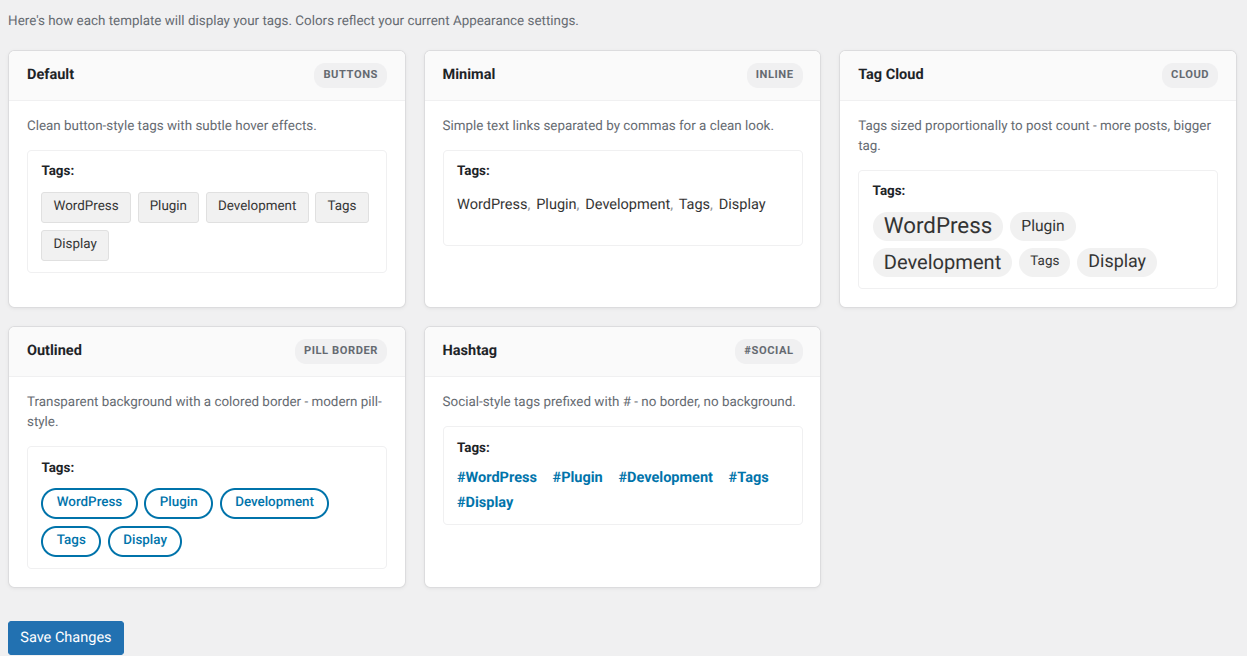
Tag Display lets you show WordPress tags anywhere on your site – choose from five ready-made templates or build your own from the theme folder.
This plugin is licensed under the GPLv2 or later.
How do I use the plugin?
Activate the plugin, then go to Tag Display in the main WordPress menu to pick a template and configure colors. From there, add tags to your posts in one of three ways:
- Shortcode – paste
[s7n_tag_display] into any post or page.
- Gutenberg block – search for “Tag Display” in the block inserter.
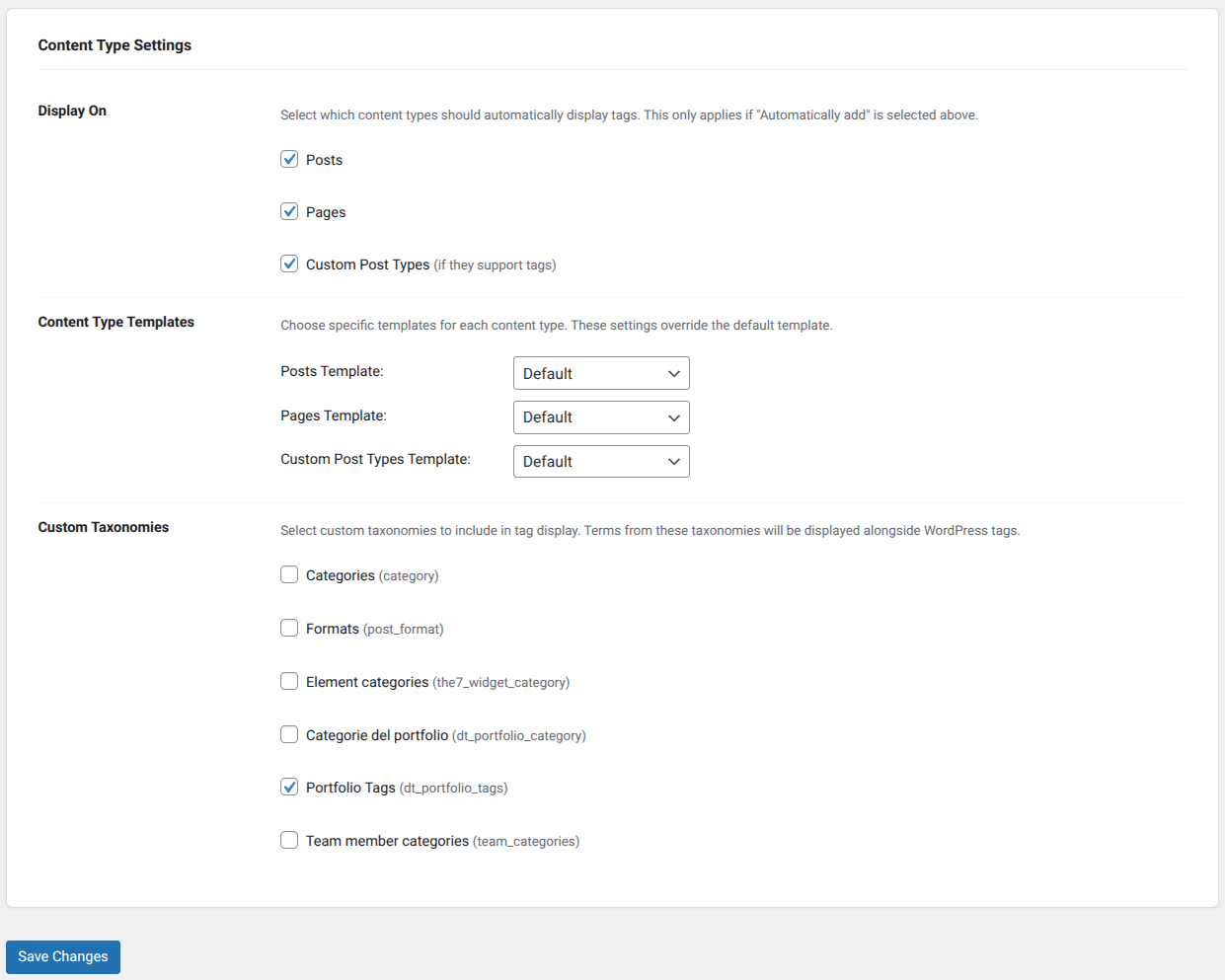
- Automatic – enable auto-display in Tag Display → Content Types and tags appear on every post without touching the editor.
Can I change the template style?
Yes. Choose between Default, Minimal, Cloud, Outlined, and Hashtag templates:
- From the settings page: Tag Display → General Settings → Default Template.
- Via shortcode:
[s7n_tag_display template="outlined"]
- Via Gutenberg block: select the block and use the Template option in the sidebar.
How do I use the Gutenberg block?
In the block editor, click the + button and search for “Tag Display”. Add the block to your post. Use the sidebar panel (Display Settings, Link Options, Title) to override the template, ordering, tag limit, and other options for that specific block – independently of the global settings.
What shortcode attributes are available?
All attributes are optional and override the global settings for that specific instance:
[s7n_tag_display template="hashtag" order="count_desc" max="8" exclude="news,draft" nofollow="true" new_tab="true" show_count="true" title="Related topics:"]
template – default, minimal, cloud, outlined, hashtagorder – alpha_asc, alpha_desc, count_desc, count_asc, random (default: global setting)max – maximum number of tags to show, e.g. max="5" (0 = all)exclude – comma-separated slugs to hide, e.g. exclude="news,uncategorized"nofollow – true to add rel="nofollow" to tag linksnew_tab – true to open links in a new tabshow_count – true to show the post count next to each tag, e.g. WordPress (12)title – custom label above the tags, e.g. title="Topics:" (empty string hides the title)
How do I limit or sort the tags?
Open Tag Display → General Settings:
- Tag Order – alphabetical (A→Z / Z→A), by post count (most/least used), or random.
- Max Tags – show only the first N tags (0 = show all).
- Exclude Tags – comma-separated slugs of tags to always hide.
These settings can also be overridden per-instance via shortcode or Gutenberg block.
How do I hide specific tags?
In Tag Display → General Settings → Exclude Tags, enter the slugs (not names) of the tags you want to hide, separated by commas. Example: news, uncategorized, draft.
To find a tag’s slug, go to Posts → Tags in the WordPress admin.
Can I display tags automatically without a shortcode?
Yes. Go to Tag Display → Content Types, enable auto-display for posts, pages, or custom post types, and choose whether tags appear before or after the content.
How do I add rel=”nofollow” or open links in a new tab?
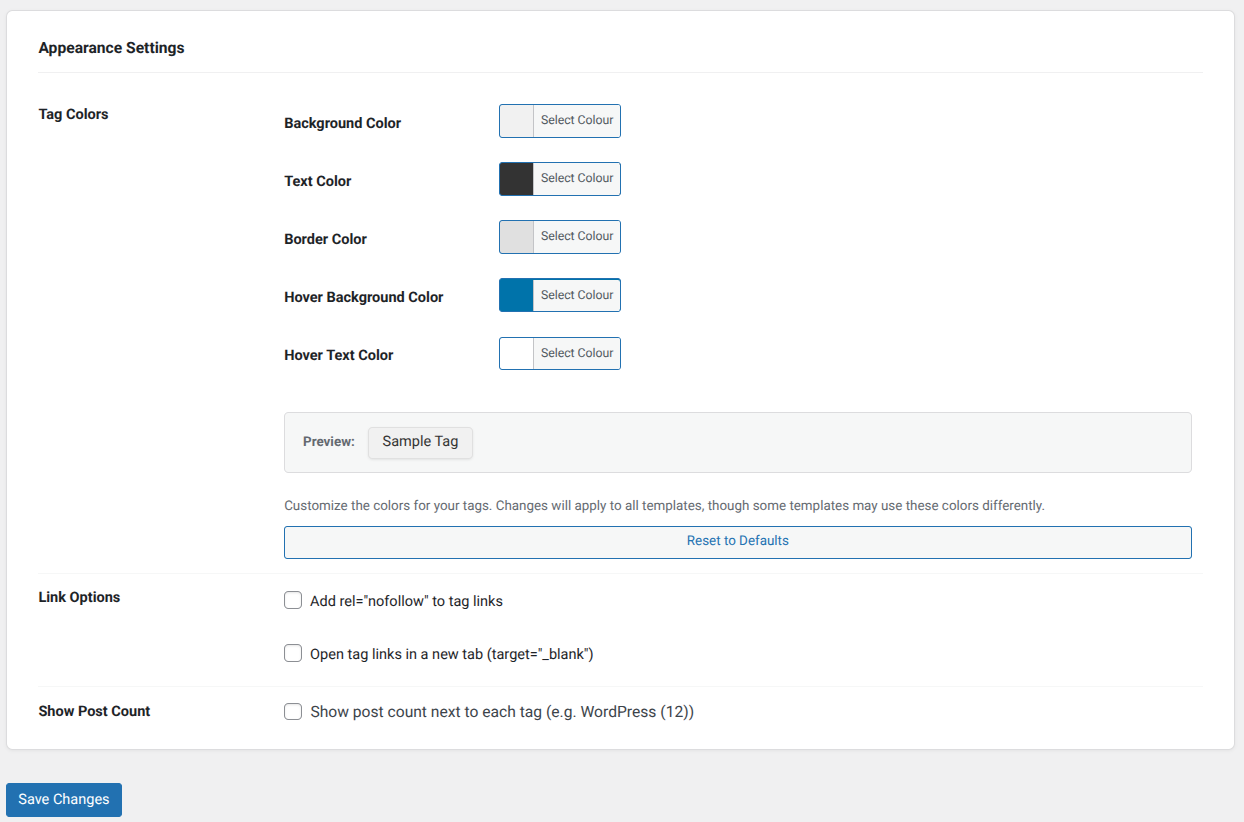
Go to Tag Display → General Settings and enable the rel=”nofollow” or Open in new tab checkboxes. These can also be set per-instance via shortcode (nofollow="true", new_tab="true") or Gutenberg block sidebar.
Can I create a fully custom template from my theme?
Yes. Place a file named tag-display-template-{name}.php in your theme (or child theme) root folder, where {name} is the template you want to override: default, minimal, cloud, outlined, or hashtag.
Example: to override the default template, create wp-content/themes/your-theme/tag-display-template-default.php.
The plugin picks it up on the next page load. A commented example file is included in the plugin’s examples/ folder.
The following variables are available in your custom template:
$tags – array of WP_Term objects (->name, ->slug, ->count)$display_title – label text above the tags$display_nofollow – boolean, whether to add rel="nofollow"$display_new_tab – boolean, whether to open links in a new tab$display_show_count – boolean, whether to show post count next to each tag
What is Smart Visibility and how do I use it?
Smart Visibility automatically adapts tag display based on how many tags a post has – improving both SEO and user experience. When the count falls below a configurable threshold, the plugin applies the behavior you choose:
- Hide – suppresses the tag block entirely (no HTML output). Best for SEO: avoids thin tag sections.
- Hidden – renders tags with
display:none so they are present in the DOM but invisible. Useful when you want to toggle them via JavaScript without a page reload.
- Collapse – renders a “Show tags” button; the visitor can expand the list on click. Best for UX on posts with few tags.
- SEO hidden – tags are visually invisible to visitors but present in the DOM for search crawlers.
To enable it, go to Tag Display → Smart Visibility, turn on the toggle, set your Minimum Tag Threshold (default: 3), and pick a behavior. When a post has at least as many tags as the threshold, it displays normally – Smart Visibility is completely transparent.
Content Density Analysis (advanced): you can also trigger Smart Visibility based on tag density – the ratio of tags to words in the post. Enable “Content Density Analysis” in the Smart Visibility tab and set a density threshold (default: 0.005, which equals 1 tag per 200 words). If the density is below the threshold, the selected behavior applies even if the tag count meets the minimum.
Per-instance override via shortcode:
[s7n_tag_display smart="true" min="3" behavior="collapse"]
smart – true to enable, false to force-disable for this instance regardless of the global settingmin – minimum tag threshold for this instancebehavior – hide, hidden, collapse, or seo; use force to bypass Smart Visibility entirely for this instance
Is it compatible with the latest WordPress version?
Tested up to WordPress 6.8. If you run into a compatibility issue, open a thread on the support forum.