

Animate any SVG image as it comes into view. Bring your logos, icons, and illustrations to life with simple, automatic animations.
| Author: | vikingplugins (profile at wordpress.org) |
| WordPress version required: | 6.0 |
| WordPress version tested: | 6.9.12 |
| Plugin version: | 1.1.0 |
| Added to WordPress repository: | 30-10-2025 |
| Last updated: | 15-12-2025 |
| Rating, %: | 100 |
| Rated by: | 2 |
| Plugin URI: | |
| Total downloads: | 548 |
| Active installs: | 10+ |
 Click to start download |
|
SVG AutoMotion makes it effortless to apply clean, performant animations to SVG graphics as they scroll into view — perfect for adding motion to brand logos, icons, and illustrations.
See examples at viking.infy.uk/svg-automotion
Key features:
– Gutenberg block and shortcode support
– Fade, rotate, scale, and slide effects
– Adjustable animation duration
– Lightweight, pure JavaScript (no dependencies)
– Works with any SVG in your media library
– Add a link to the image if needed
Usage
Using the Gutenberg Block
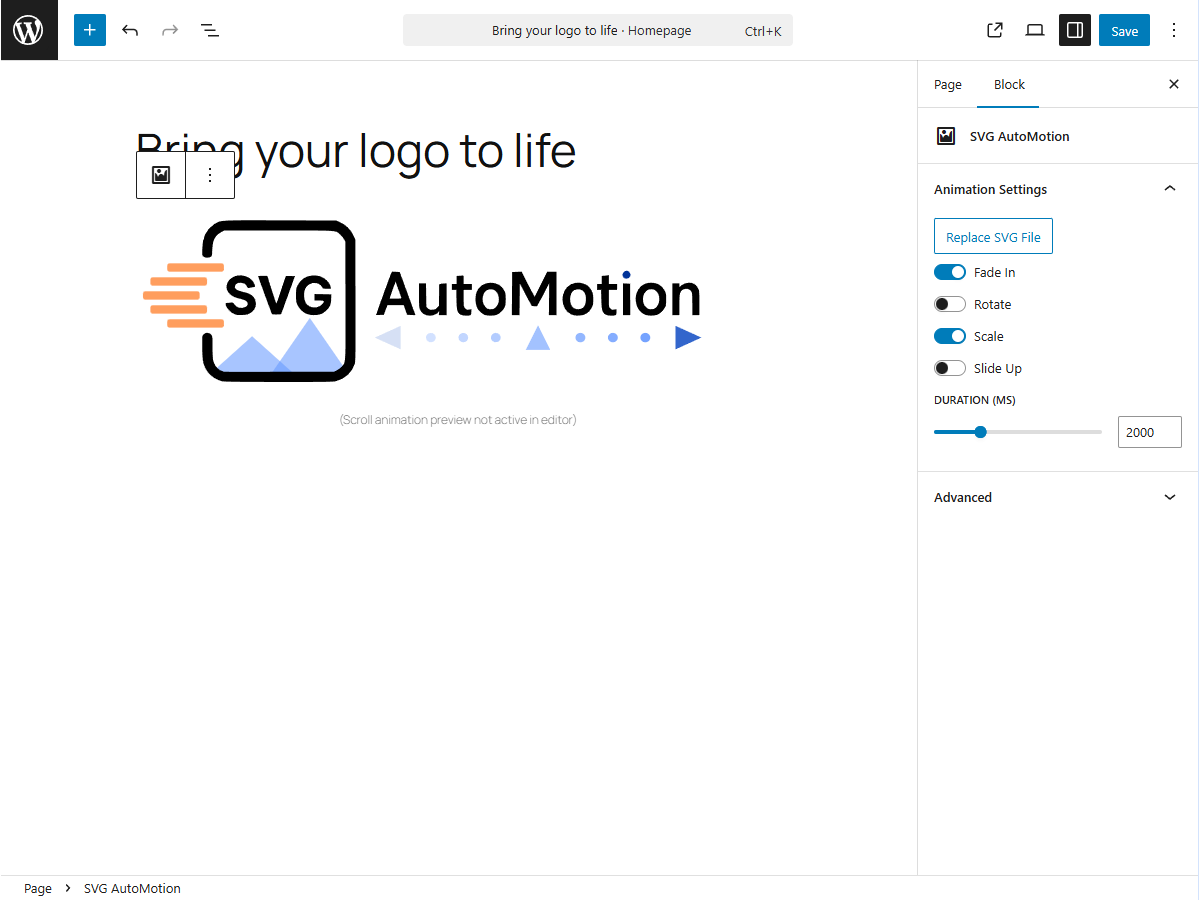
- Add a new block and search for SVG AutoMotion.
- Select your SVG image from the Media Library.
- Choose which animations to apply and set the animation duration.
- Add a link to the image if needed under link settings
- Save or preview your post to see the animation in action.
See Screenshot 1 and Screenshot 2.
Using the Shortcode
You can also insert animations anywhere using the [svg_automotion] shortcode.
Basic example:
[svg_automotion src=”2025/10/automotionlogo.svg”]
You can combine multiple effects:
[svg_automotion src=”2025/10/automotionlogo.svg” fade=”true” slide=”true” rotate=”false” scale=”true” duration=”4000″]
You can also add a link to the shortcode
[svg_automotion src=”2025/10/automotionlogo.svg” fade=”true” slide=”true” rotate=”false” scale=”true” duration=”4000″ link_url=”https://wordpress.org” link_newtab=”true” ]
Parameters:
– src — relative or full URL path to your SVG file
– fade, rotate, scale, slide — enable/disable each effect
– duration — total animation time in milliseconds
– link_url — url to link to (optional)
– link_newtab — set to true if you wish the link to open in a new tab
Screenshots
FAQ

ChangeLog