NewPath WildApricot Press enables WordPress websites to support the WildApricot membership management system.
WordPress is the world’s most popular website builder. WildApricot is the #1 rated membership management software. Now, your organization can seamlessly combine the best of both with NewPath WildApricot Press plugin.
NewPath WildApricot Press and our custom theme library enable you to build and manage your own full-featured website using just your web browser—without having to learn how to code. In fact, if you’ve ever used a layout editor like Microsoft Word or PowerPoint, you’ll be right at home with the WildApricot Press blocks in the WordPress Block Editor. Enjoy the elegance, diversity of plugins and unparalleled versatility of WordPress with the user-friendliness power of WildApricot Membership Management software. Build faster, customize more and lower the learning curve to produce the high-quality membership websites your members deserve.
NewPath Consulting has developed several add-ons for NewPath WildApricot Press that further enrich your WildApricot integration experience WordPress!
Embed a system page from WildApricot directly in your WordPress site! Fundamental WildApricot features including member profiles, events, and more can be displayed in an IFrame (Inline Frame) in a WordPress post with just the click of a button! Learn more.
Want to display a directory of your WildApricot users in WordPress? Look no further! The Member Directory Add-on for WAP allows you to show your WildApricot users directly in your WordPress site. Learn more.
What is the difference between NewPath WildApricot Press and Wild Apricot Login plugin?
NewPath WildApricot Press website is developed and maintained by NewPath Consulting. Wild Apricot Login was released and developed by Personify several years ago, but unfortunately the plugin has not been improved or expanded in several years. So NewPath rewrote the functionality, from scratch and eliminated many nasty bugs.
NewPath WildApricot Press includes full support and maintenance, regular synchronization of data for logged in users, ability to sync all system, common and membership fields. Most importantly NewPath WildApricot Press has add-on architecture to enable more functionality to be made available over time via add-on plugins and blocks.
Does it work with my theme?
It should. We make every effort to provide standard plugin code, but some themes may break with the plugin. Please let us know on our support forum if you encounter any issues. We also recommend the GeneratePress theme site library for optimal design, mobile and desktop speed, Google SEO friendliness and overall aesthetic beauty.
How do I authorize and license NewPath WildApricot Press?
Read and follow Installation for detailed steps to authorize and license NewPath WildApricot Press.
How do I set which membership statuses can access restricted pages?
To set which membership status can access restricted pages and posts, navigate to WildApricot Press and select the “Content Restriction Options” tab.
Screenshot – “Content Restriction Options” tab
Set the membership statuses that will be allowed to view restricted posts or pages.
Screenshot – allowed membership statuses
If no boxes are checked, then all members (regardless of status) will be able to view resticted posts.
How do I restrict which membership levels and membership groups can see a page or post?
On every page or post, you can select which WildApricot membership levels and membership groups can view the content of the page. Access control is set by the box on the right side of the page or post’s “Edit” screen.
Screenshot – Page or Post Access control
You can select one or more membership levels to restrict which levels have access to the post. WildApricot members who are in a checked membership level will be able to access the page or post once it is published.
Likewise, you can also set access to one or more membership groups. You can select zero or more membership groups, which will allow members in those WildApricot membership groups to access the page or post.
Access to posts and pages based on membership levels and membership groups are set inclusively. If a member is in one of the checked membership levels OR they are in a checked membership group then they can see the page or post. If they donot belong to a checked membership level or membership group, they will instead receive the global restricted message or the individual restricted message, if one was configured.
By default none of the membership levels or membership groups are checked, and as a result a page or post is not restricted. Unrestricted, published pages can be seen by all visitors, both logged-in and logged-out of the WordPress site.
How do I set which messages show when access is restricted to a page or post?
By default restricted pages show the Global Restriction Message. This message is shown to visitors who are trying to access pages which they do not have access to.
Screenshot – Default restriction message
Per Page and Post Settings
Access to pages and posts can be set with WAP, allowing members to have access to various posts and pages. These restrictions are set on the “Edit” screen of each post or page. The content editor can specify the restrictions as you write content.
Setting a custom page/post restricted message
Each page and post has a restricted message in a box called “Individual Restriction Message”. This setting overrides the default Global Restriction Message. This box appears under the main content and can float down the page depending on what page builder is in use, if any. You can modify the individual restriction message as desired on a per post or page basis. If you leave the individal resriction message blank, the Global Restriction Message will be used.
Screenshot – Individual Restriction Message
IMPORTANT: To save the custom restricted message, make sure to save or publish the page or post.
How do I configure which WildApricot common and membership fields are copied into the WordPress database?
You can specify which common, membership and system fields are synchronized into WordPress using the “Synchronization Options” tab under “Settings”. See the screenshot below for an illustration.
Screenshot – Sync Options Screen
For each field that you check off, the field will be synced to each WildApricot user on the WordPress site. The screenshot below shows some of the extra fields being checked off and thus imported into each user in WordPress:
Screenshot – Sync Options Screen 2
Now, the extra fields can be seen in each user’s WordPress profile after they login or after the daily sync is performed.
Screenshot – Membership Data in WordPress
These fields are now shared for WordPress and for other plugins, which extends the WildApricot database to every part of the WordPress plugin ecosystem. This is very powerful because now other plugins know which WildApricot user is in WordPress.
Why are some custom contact and membership fields or Membership Groups not synchronized?
Due to security features in WildApricot, any contact field that has Member access configured as “For administator access only” or membership field with Member access as “No access – Internal use” cannot be sync’d via the WildApricot API and as a result data will not come across for these fields. In a future version of the plugin, these fields will be shown in the WAP user interface as “unavailable for synchronization”.
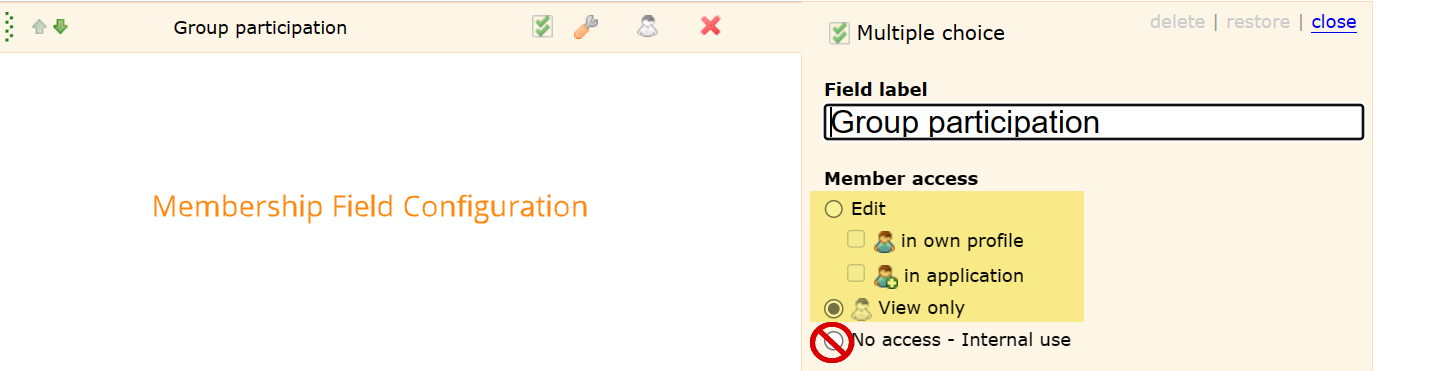
The Groups Participation membeship field MUST be set to “Edit” or “View only” for this member’s Groups to sync into WordPress and be available for checking access control when using Membership Groups.
Ensure the following options are unchecked when configuring fields you wish to sync into WordPress:
Screenshot – contact field configuration
Screenshot – membership field configuration
How often is contact and member user data synchronized?
By default no WildApricot user data is added to the WordPress user data database until a contact or member logs in for the first time into the WAP-enabled WordPress site. Once a successful login occurs the WordPress user is created with a core set of information like email address, userID, first name, last name and organization as well as membership level and membership status (if the contact is a member).
During every subseqeunt login, the WildApricot contact/member data is synchronized into the WordPress user database. Any contact and member data fields that have been updated will be synced into WordPress from WildApricot automatically as well every 24 hours for any contacts or members that have logged in.
So, after connecting your WordPress site with the WAP plugin, any updates for contacts who have already logged in successfully to your WordPress site will be automatically sync’d into WordPress during a successful login as well within 24 hours
You can view the WildApricot fields that are synchronized by viewing the WordPress user under “WildApricot Membership Details”. The default WildApricot fields can be viewed in the screenshot below.
Screenshot – WordPress User Data with WildApricot
When I delete the plugin, will there be a way to “clean” the WordPress database?
If you decide to deactivate and delete the NewPath WildApricot Press plugin, you can set several options to “clean up” in the “Plugin Options” tab. (Even though you will never want to delete WAP, right?) 🙂 You can also setup a debsugging log to troublshoot any issues you may encounter.
Screenshot – Plugin Options
By default, upon deletion of the WildApricot Press plugin, none of the data created and stored by WildApricot Press is deleted. You can remove all database and post/page data created by WildApricot Press by checking “Delete WordPress database data and post/page data”. You can remove all WildApricot users created by WildApricot Press by checking “Delete users added by WildApricot Press”. With these settings checked, you can delete the NewPath WildApricot Press plugin and perform a “clean” install of the plugin when you install again.
WAP Debug Log
In Plugin Options tab you can turn on the “Print log messages to log file” to start logging errors and warnings to the filer wp-content/wapdebug.log. This can be used to troubleshoot plugin issues and provided to support.