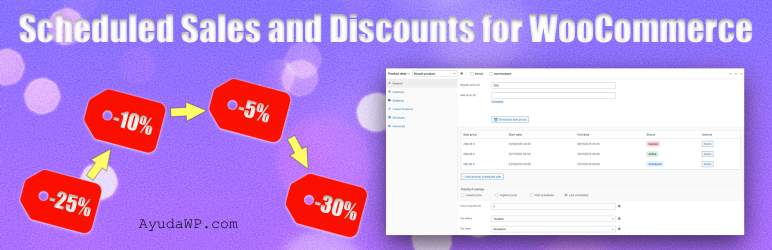
Schedule multiple sale prices for WooCommerce products with different dates. Supports dynamic pricing for discounts and peak seasonal adjustments.
Real example: Black Friday + Christmas + January Sale, all scheduled at once
Say you sell a t-shirt at 29,99 € and want three sales planned for November and beyond:
- Edit the product in WooCommerce → find the “Scheduled sale prices” section
- Add: 19,99 € from Nov 28 to Dec 1 (Black Friday)
- Add: 30% off from Dec 20 to Dec 26 (Christmas)
- Add: 12 € off from Jan 5 to Jan 15 (January sale)
- Save the product once. Done.
- Before anything goes live, the editor tells you what the EU Omnibus rules will see: Christmas at 20,99 € is not lower than the 19,99 € of Black Friday a few weeks before, so it should not be announced as a reduction, and the January sale will be measured against 20,99 €, not 29,99 €.
Every sale can be a fixed price, a percentage off or an amount off, and you see the resulting price before saving. Each sale can start and end at an exact time (hour and minute), so flash sales begin and end right when you plan them, and WordPress cron (configurable down to every 5 minutes) applies each price automatically. Sales for one product live in the product editor you already use.
Black Friday for a whole category, checked before it runs
- Go to Marketing > Sales Scheduler > Campaigns
- Pick categories or tags, the discount and the dates
- Click Preview: every product appears with its campaign price and the prior price the EU Omnibus rules will measure it against
- The preview marks the products where the sale would not be a real reduction, and the ones that already have a sale on those dates
- Untick what you don’t want and schedule it
Variable products get the sale on each variation. Each campaign shows which products it is on and whether its sale applies on each one, and the WooCommerce product list can be filtered by campaign. Products you publish later can be added to a running campaign, with the same check. Deleting a campaign removes its sale from every product and leaves your other sales alone.
Scheduled Sales, Discounts and Omnibus Price History for WooCommerce extends WooCommerce’s native sale scheduling by letting you queue up unlimited sale prices per product, each with its own dates, times and discount type. It also handles the prior price the EU Omnibus Directive asks you to show: it checks every scheduled sale before it runs, shows the right prior price on your store, and keeps a price history you can export.
Why this plugin?
- All-in-one free solution combining: multiple sales per product, percentage and fixed amount discounts, variations support, CSV import/export, activity log, overlap priority, dashboard widget and Command Palette
- EU Omnibus prior price, before and after the sale: the editor warns you while you plan a chain of sales, your store strikes through or shows the right prior price, and the price history tab is your record of which price applied when
- Integrated into the product editor, plus a campaigns tab to put whole categories on sale
- Lightweight: no build process, no external dependencies, no JavaScript frameworks
- HPOS-ready (High-Performance Order Storage) and ready for the WordPress Command Palette (Cmd+K / Ctrl+K)
- Built and maintained by a WordPress specialist with 15+ years of experience publishing plugins on WordPress.org
Key Features
- Schedule multiple sale prices per product
- Campaigns: one sale for every product of the categories or tags you choose, with an Omnibus check of each product before you schedule it
- Fixed price, percentage discount or fixed amount off, with a live preview of the final price
- Optional minimum and maximum final price, so a percentage discount never goes further than you want
- Dynamic pricing: Schedule both discounts and price increases
- Each sale has its own start and end date and time, down to the minute
- Omnibus check while you plan: each scheduled sale shows the prior price it will be measured against, counting your other scheduled sales, and warns you when it would not be a real reduction
- Omnibus on your store: the prior price struck through instead of the regular price, or a note with it, with your own text and the number of days your country asks for
- Price history: every price change of every product and variation for 13 months, searchable and exportable to CSV
- Tells you when a discount rules or currency plugin is active, since the prices they show are not in the price history
- Configurable check frequency (every 5, 10, 15, 30 minutes or hourly)
- Works with simple and variable products
- Configurable priority when sales overlap
- Import and export scheduled sales via CSV
- Activity log with configurable retention period
- Automatic deletion of expired sales
- Admin notifications when sales activate or end
- Alert notifications before sales expire
- Dashboard widget with sales overview
- Compatible with HPOS (High-Performance Order Storage)
- Automatic sale activation and deactivation via cron
- Import existing WooCommerce sales
- Clean orphaned scheduled sales from deleted products
- Command Palette integration (Cmd+K / Ctrl+K) for quick access to export and overview
Use Cases
- Plan Black Friday, Christmas and seasonal sales months in advance, all in one visit to the product editor
- Put a whole category on sale in one step, knowing beforehand which products can be advertised as a reduction
- Schedule different discounts for different promotional periods without losing track of the legally required reference price
- Implement dynamic pricing for high-demand periods (hotels, events, tickets)
- Seasonal price adjustments (peak season vs. off-season)
- Manage flash sales and special offers
- Coordinate pricing across multiple products
- Track pricing history with activity log
- Keep a record of which price applied when, ready to export if anyone asks
- Receive alerts when sales are about to end
- Automatically clean expired sales
Settings Options
- Default overlap priority (lowest, highest, first, last)
- Enable/disable activity log
- Log retention period (30-365 days)
- Automatic deletion of expired sales (never, 30-365 days)
- Sale check frequency (every 5, 10, 15, 30 minutes or hourly)
- Sale activation notifications
- Notifications before sale ends (1-30 days)
- Overlap warnings when creating schedules
- EU Omnibus prior price: strikethrough, when and where to show the note, days counted, note text, and no reduction shown while the prior price is not fully known
Requirements
- WordPress 5.8 or higher
- WooCommerce 6.0 or higher
- PHP 7.4 or higher
Support
Need private support or custom development?
Do you need one-on-one help, priority troubleshooting, or a custom feature, integration, or tweak built specifically for your site? I offer private support and custom development. Just contact me and tell me what you need.
Need help or have suggestions?
Love the plugin? Please leave us a 5-star review and help spread the word!
About AyudaWP.com
We are specialists in WordPress security, SEO, AI and performance optimization plugins. We create tools that solve real problems for WordPress site owners while maintaining the highest coding standards and accessibility requirements.
Screenshots

Add Black Friday, Christmas and January sales in seconds, right inside the product editor

See every sale at a glance — active, upcoming, and which price will apply when they overlap

Settings: pick how overlapping sales resolve and how long activity logs are kept

Notifications: get alerted when a sale activates, ends, or is about to end — never miss a campaign

Overview: every scheduled sale across your store, filterable and exportable to CSV

CSV import/export: bulk-update hundreds of sales in one upload, with downloadable template

Activity log: full audit trail of every sale event, with filters by action type

Variable products fully supported — schedule different prices per size, color or any variation

Dashboard widget: see today's active and upcoming sales without leaving WP-Admin
Does this work with variable products?
Yes, the plugin fully supports both simple and variable products. Each variation can have its own scheduled sales and priority settings.
What happens if two sales overlap?
You can configure the priority (lowest price, highest price, first scheduled, or last scheduled) both globally in settings and per product/variation. The plugin will automatically apply the sale price according to your priority setting.
Can I import existing WooCommerce sales?
Yes, the plugin includes an “Import current sale” button that converts existing WooCommerce sales into scheduled sales, allowing you to add more sales to the same product.
Can I put a whole category on sale at once?
Yes, in the Campaigns tab. Choose categories or tags, the discount and the dates, and check the preview before scheduling:
- Each product shows its campaign price and its EU Omnibus prior price.
- Products where the sale would not be a real reduction are marked.
- So are the ones that already have a sale on those dates.
To see which products a campaign is on, open its products in the Campaigns tab, or filter the WooCommerce product list by campaign. Add missing products, in the campaign row, adds the products published after it. Deleting the campaign removes only its own sale from each product.
Is there a limit of products per campaign?
No. Version 1.7.0 saved only the first 50 products of a campaign. Update, then use Add missing products in the campaign row to complete it.
Does the prior price include my discount rules or currency plugin?
No. The plugin records the prices saved in WooCommerce, in your store currency. Discounts another plugin applies on top, and prices converted to other currencies, are not recorded. The plugin screen tells you when one of those plugins is active, so you can check those prices yourself.
Can I bulk import sales?
Yes, use the CSV import feature in the settings page to bulk import scheduled sales for multiple products. You can also download a CSV template to see the required format.
Is this compatible with HPOS?
Yes, the plugin is fully compatible with WooCommerce’s High-Performance Order Storage (HPOS).
How often does the plugin check for sales to activate?
By default WordPress cron checks every hour, but you can change this to every 5, 10, 15 or 30 minutes in the Settings tab. More frequent checks make exact start and end times more precise. Note that WordPress cron depends on your site receiving traffic to run on schedule.
Can I schedule sales by exact time, not just by date?
Yes. Since version 1.3.0 each scheduled sale has a start and end time (hour and minute), interpreted in your store’s timezone. Sales created before 1.3.0 keep working: with no specific time set, they start at the beginning of the first day and end at the end of the last day.
Can I automatically delete old expired sales?
Yes, you can configure automatic deletion of expired sales after a specified period (30, 60, 90, 180, or 365 days) in the General settings tab. This helps keep your database clean.
How long are activity logs kept?
You can configure log retention from 30 to 365 days in the General settings. Logs older than the retention period are automatically deleted.
What happens to scheduled sales when I delete a product?
You can use the “Clean orphaned schedules” button in the Overview tab to remove all scheduled sales from deleted or invalid products.
Can I get notified before a sale ends?
Yes, you can enable notifications to alert you a specified number of days (1-30) before a sale expires, giving you time to plan your next promotion.
Can I schedule price increases, not just sales?
Yes! While the plugin is designed primarily for scheduling sale prices (discounts), you have complete flexibility to set any price – including prices higher than the regular price. This allows you to handle seasonal pricing adjustments, high-demand periods, or other dynamic pricing strategies.
Note: If you schedule a price higher than the regular price, the product will simply show the scheduled price without displaying a “sale” badge or strikethrough pricing.
Does this plugin work with the WordPress Command Palette?
Yes! Since version 1.2.0, the plugin registers two commands in the WordPress Command Palette (Cmd+K on Mac, Ctrl+K on Windows): “Export scheduled offers to CSV” for quick CSV downloads, and “Show scheduled offers” to jump directly to the overview page. These commands work from any admin screen (requires WordPress 6.3 or higher).
How do I show the lowest price of the last 30 days (EU Omnibus prior price)?
The Directive asks that a price reduction shows the prior price: the lowest price of the product in the 30 days before the reduction. When sales follow each other, that price is not your regular price.
- In the product editor, each scheduled sale shows the prior price it will have, counting your other scheduled sales, and warns you when a sale would not be lower than it.
- On your store, the plugin strikes through the prior price instead of the regular price, or adds a note with it.
- The Price history tab keeps every price change for 13 months and exports it to CSV.
The plugin only knows prices from when it is active on your site. When you install or update it, each product gets its current price as a starting point. Until it has recorded the whole period before a sale, the prior price is not fully known. A setting can show those sales as a plain price, with no reduction announced. It does not interpret the law for you or guarantee compliance: check that the prior price shown fits your case.
Why is the struck-through price lower than my regular price?
Because the product was cheaper in the days before the sale, and that is the price the rules measure the reduction against. If the sale is not lower than that price, the plugin shows it as a plain price, without strikethrough or note. You can go back to striking through the regular price in the Settings tab.
This applies wherever your store shows prices, cart and checkout blocks included. The product editor and the WooCommerce REST API keep the regular price you entered.
Can my theme or another plugin show the prior price?
Yes. Developers can use ayudawp_msps_get_prior_price(), ayudawp_msps_get_prior_price_note(), ayudawp_msps_strikes_prior_price() and ayudawp_msps_shows_plain_price(), or the msps_omnibus_price_note_html filter to change or remove the note.
ChangeLog
1.8.0
The struck-through price in your store is now the EU Omnibus prior price everywhere, cart and checkout blocks included, and a sale that is not a real reduction shows no strikethrough there either. The Overview tab is paginated. Fixes CSV import on Windows servers.
- New: With Strike through the prior price on, the prior price replaces the regular price wherever your store reads it, not only in the product price: the cart and checkout blocks and the mini cart, the price of variable products, the Product Sale Badge block, and themes or plugins that work out the discount on their own. A sale that is not lower than its prior price, or whose prior price is not fully known with that setting on, is shown without strikethrough there too. A variable product whose variations share one price but have different prior prices is shown without strikethrough
- New: This only happens on your store pages and in the Store API that the cart and checkout blocks use. The product editor, the WooCommerce REST API, WP-CLI and scheduled tasks keep the regular price you entered, so a tool that syncs prices through the REST API does not overwrite it with the prior price. A regular price another plugin already changed, such as a currency switcher, is left as it is. Developers can turn it off with the msps_prior_price_as_regular filter
- Improved: A sale shown without strikethrough still counts as a sale for WooCommerce: coupons that exclude sale items keep leaving it out, and it still appears in lists of products on sale
- Improved: The Overview tab shows 50 sales per page and reads only the scheduled sales, instead of loading every product with all its data. The status filter now covers every page
- Fix: Importing sales from a CSV file never worked on Windows servers (Laragon, XAMPP, IIS): the upload was rejected as if no file had been sent
For older changelog entries, please check the changelog.txt file.

