
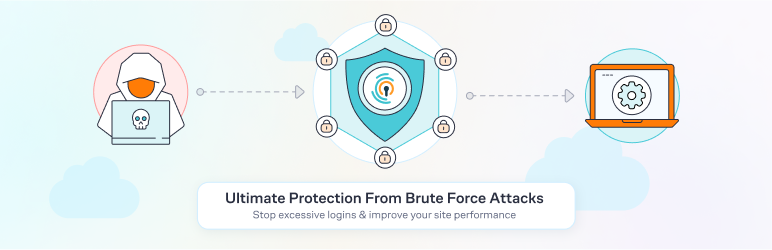
Reloaded version of the original Limit Login Attempts plugin for Login Protection by a team of WordPress developers.
| Author: | Limit Login Attempts Reloaded (profile at wordpress.org) |
| WordPress version required: | 3.0 |
| WordPress version tested: | 6.5.2 |
| Plugin version: | 2.26.8 |
| Added to WordPress repository: | 03-08-2016 |
| Last updated: | 11-04-2024 |
| Rating, %: | 98 |
| Rated by: | 1245 |
| Plugin URI: | |
| Total downloads: | 54 282 464 |
| Active installs: | 2 000 000+ |
 Click to start download |
|
Limit Login Attempts Reloaded functions as a robust deterrent against brute force attacks, bolstering your website’s security measures and optimizing its performance. It achieves this by restricting the number of login attempts allowed. This applies not only to the standard login method, but also to XMLRPC, Woocommerce, and custom login pages. With more than 2.5 million active users, this plugin fulfills all your login security requirements.
The plugin functions by automatically preventing further attempts from a particular Internet Protocol (IP) address and/or username once a predetermined limit of retries has been surpassed. This significantly weakens the effectiveness of brute force attacks on your website.
By default, WordPress permits an unlimited number of login attempts, posing a vulnerability where passwords can be easily deciphered through brute force methods.
Limit Login Attempts Reloaded Premium (Try For 7 Days)
Upgrade to Limit Login Attempts Reloaded Premium to extend cloud-based protection to the Limit Login Attempts Reloaded plugin, thereby enhancing your login security. The premium version includes a range of highly beneficial features, including IP intelligence to detect, counter and deny malicious login attempts. Your failed login attempts will be safely neutralized in the cloud so your website can function at its optimal performance during an attack.
Features (Free Version):
- Limit Logins – Limit the number of retry attempts when logging in (per each IP).
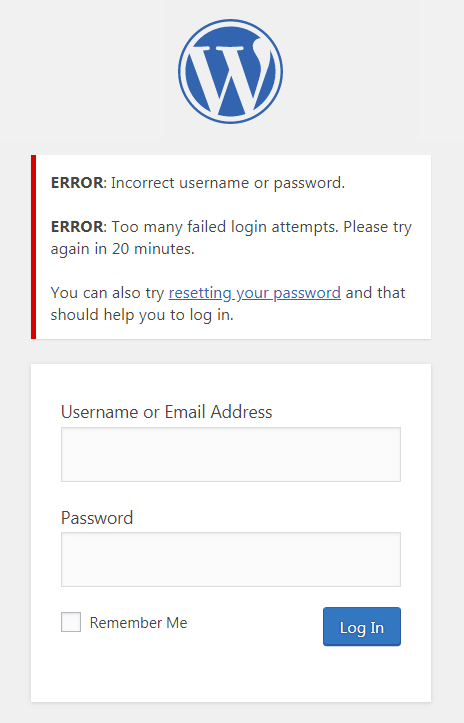
- Configurable Lockout Timings – Modify the amount of time a user or IP must wait after a lockout.
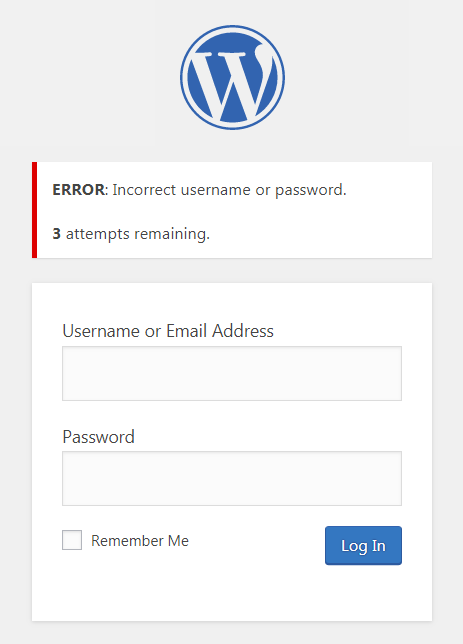
- Remaining Tries – Informs the user about the remaining retries or lockout time on the login page.
- Lockout Email Notifications – Informs the admin via email of lockouts.
- Denied Attempt Logs – View a log of all denied attempts and lockouts.
- IP & Username Safelist/Denylist – Control access to usernames and IPs.
- Sucuri compatibility.
- Wordfence compatibility.
- Ultimate Member compatibility.
- XMLRPC gateway protection.
- Woocommerce login page protection.
- Multi-site compatibility with extra MU settings.
- GDPR compliant.
- Custom IP origins support (Cloudflare, Sucuri, etc.).
Features (Premium Version):
- Performance Optimizer – Offload the burden of excessive failed logins from your server to protect your server resources, resulting in improved speed and efficiency of your website.
- Enhanced IP Intelligence – Identify repetitive and suspicious login attempts to detect potential brute force attacks. IPs with known malicious activity are stored and used to help prevent and counter future attacks.
- Enhanced Throttling – Longer lockout intervals each time a malicious IP or username tries to login unsuccessfully.
- Deny By Country – Block logins by country by simply selecting the countries you want to deny.
- Auto IP Denylist – Automatically add IP addresses to your active cloud deny list that repeatedly fail login attempts.
- Global Denylist Protection – Utilize our active cloud IP data from thousands of websites in the LLAR network.
- Synchronized Lockouts – Lockout IP data can be shared between multiple domains for enhanced protection in your network.
- Synchronized Safelist/Denylist – Safelist/Denylist IP and username data can be shared between multiple domains.
- Premium Support – Email support with a security tech.
- Auto Backups of All IP Data – Store your active IP data in the cloud.
- Enhanced lockout logs – Gain valuable insights into the origins of IPs that are attempting logins.
- CSV Download of IP Data – Download IP data direclty from the cloud.
- Supports IPV6 Ranges For Safelist/Denylist
- Unlock The Locked Admin – Easily unlock the locked admin through the cloud.
*Some features require higher level plans.
Upgrading from the old Limit Login Attempts plugin?
- Go to the Plugins section in your site’s backend.
- Remove the Limit Login Attempts plugin.
- Install the Limit Login Attempts Reloaded plugin.
All your settings will be kept intact!
Many languages are currently supported in the Limit Login Attempts Reloaded plugin but we welcome any additional ones.
Help us bring Limit Login Attempts Reloaded to even more countries.
Translations: Bulgarian, Brazilian Portuguese, Catalan, Chinese (Traditional), Czech, Dutch, Finnish, French, German, Hungarian, Norwegian, Persian, Romanian, Russian, Spanish, Swedish, Turkish
Plugin uses standard actions and filters only.
Based on the original code from Limit Login Attempts plugin by Johan Eenfeldt.
Branding Guidelines
Limit Login Attempts Reloaded™ is a trademark of Atlantic Silicon Inc. When writing about the plugin, please make sure to use Reloaded after Limit Login Attempts. Limit Login Attempts is the old plugin.
- Limit Login Attempts Reloaded (correct)
- Limit Login Attempts (incorrect)
Screenshots
FAQ

ChangeLog