

This is a simple & powerful glossary tooltip plugin, which highlight terms automatically and show tooltips, also build a glossary list page.
| Author: | Jumedeen khan (profile at wordpress.org) |
| WordPress version required: | 6.0 |
| WordPress version tested: | 7.1.5 |
| Plugin version: | 3.0.8 |
| Added to WordPress repository: | 01-06-2024 |
| Last updated: | 10-11-2026 |
| Rating, %: | 100 |
| Rated by: | 2 |
| Plugin URI: | https://glossarytooltip.com |
| Total downloads: | 6 575 |
| Active installs: | 100+ |
 Click to start download |
|
The best Glossary Tooltip plugin for WordPress automatically highlights glossary terms within your website’s content and displays their definitions via tooltips. It’s boost SEO & UX, increase user engagement, and improve conversions.
Glossary plugin automatically detects the terms on your site, turns each one into a hoverable definition, and links it to a clean glossary page. Visitors stay engaged, and search engines get the internal-link structure they love.
Readers hit a wall the moment they meet a term they don’t know — and every wall is a visitor who might click away. Use this plugin and stop losing visitors.
Here’s what the plugin gives you:
- More engaged readers — instant tooltips answer “what does that mean?” without anyone leaving the article.
- Stronger SEO — automatic internal links and a wiki-style glossary index help search engines understand and rank your content.
- Better user experience (UX) — readers learn the meaning instantly without leaving the article; friendly, clear tooltips keep them reading instead of searching elsewhere.
- Less manual work — publish a term once; it is highlighted and linked everywhere automatically, across every post type you choose.
- Full design control — match the tooltips, links, and index to your brand, not the other way around.
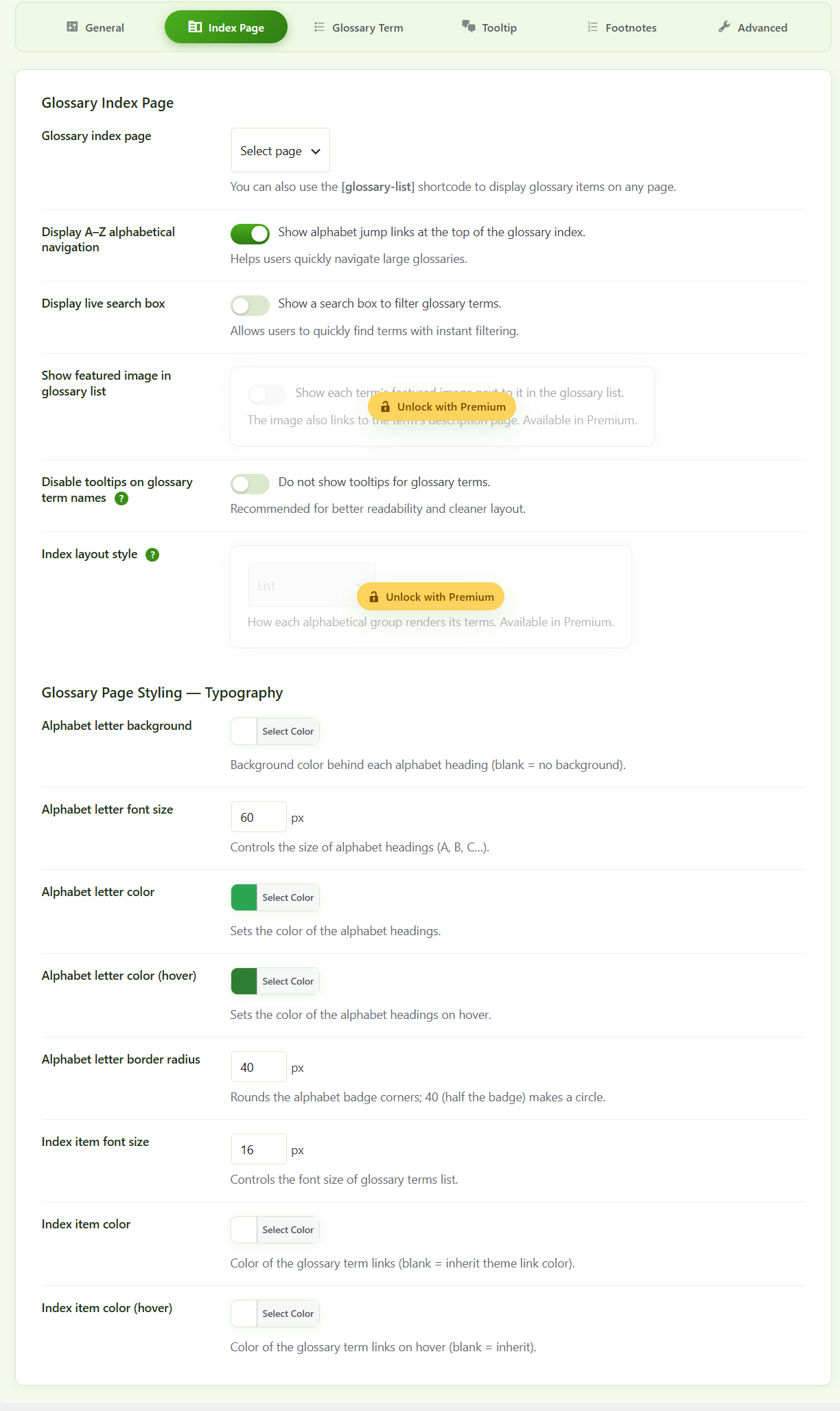
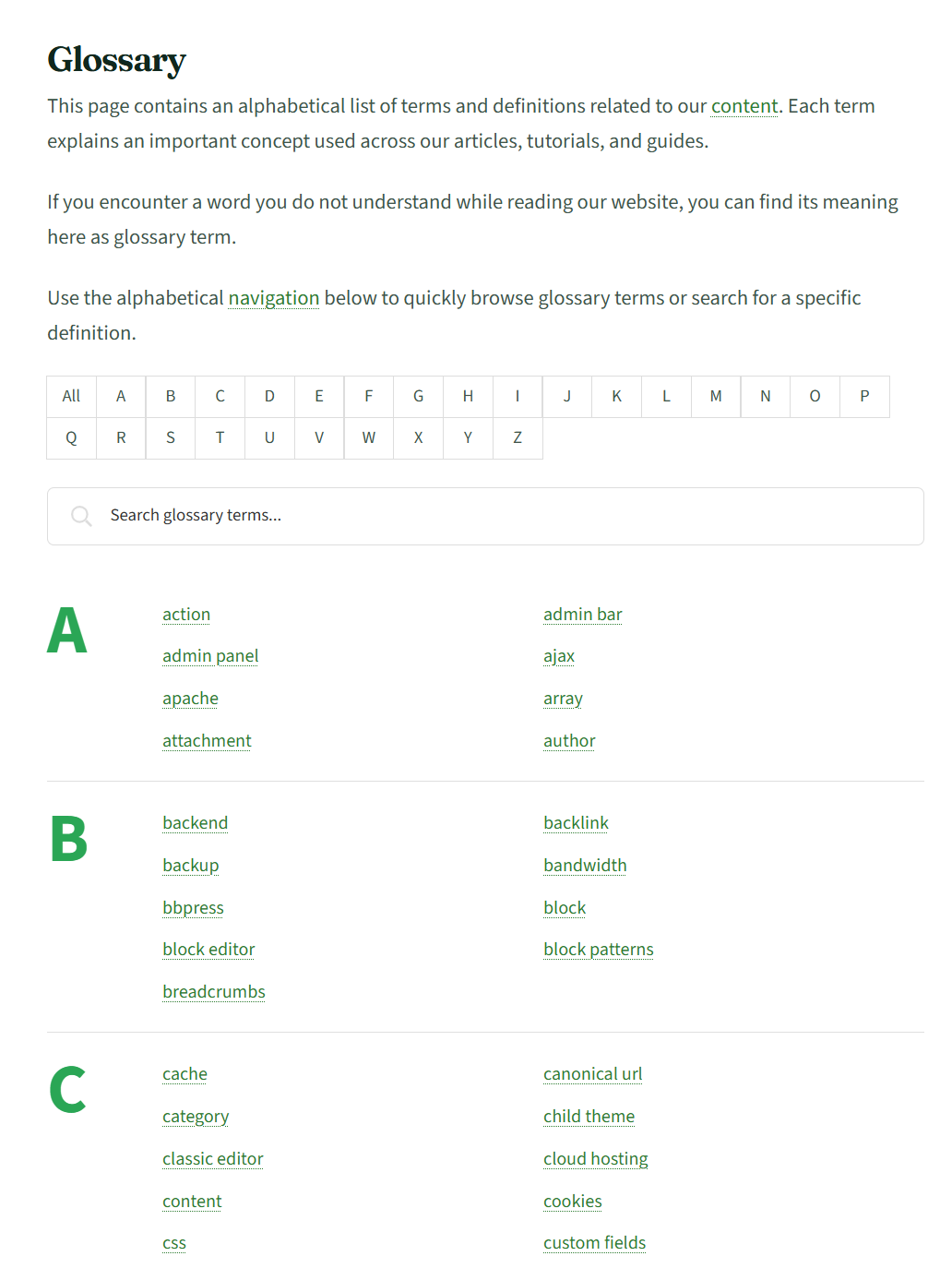
Beyond highlighting, the plugin includes a complete A–Z glossary index page (a wiki-style dictionary powered by the [glossary-list] shortcode) with alphabetical navigation, live search, categories, and flexible sorting and layout options.
It’s a natural fit for blogs, documentation sites, knowledge bases, online courses, SaaS products, and any business, medical, financial, legal, or technical website that relies on specialized terminology.
Everything described below — automatic highlighting, rich tooltips, the full A–Z index, sorting, search, performance options, and more — is included in the free version, with no usage limits and nothing locked behind an upgrade until you choose to go further.
✨ Automated highlighting
- Publish once, link everywhere — add a term and it is automatically detected and linked across every post type you select. There is no manual linking.
- Synonyms and aliases — give any term alternate spellings, abbreviations, or acronyms. Each one is recognized, highlighted, and linked to the same term.
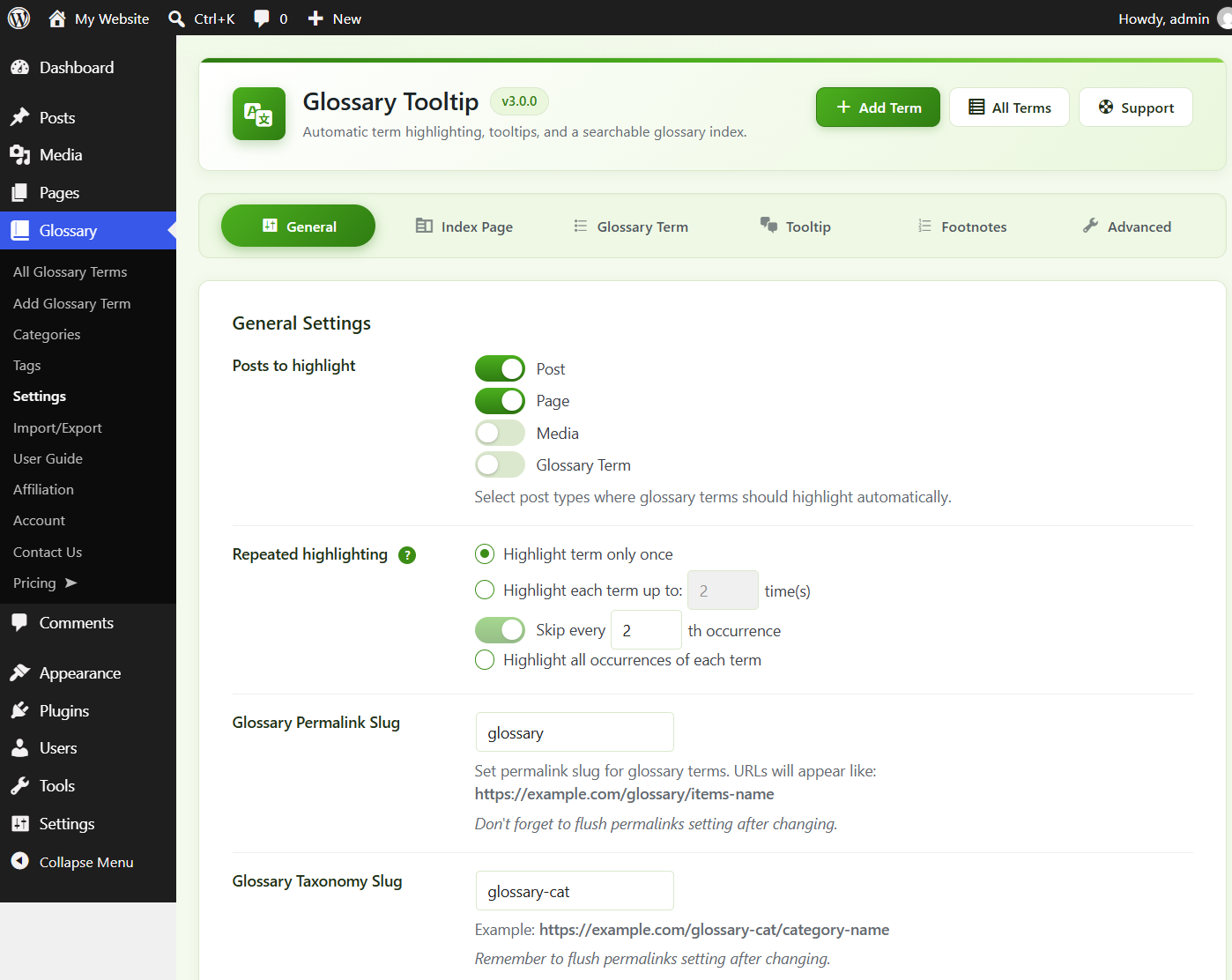
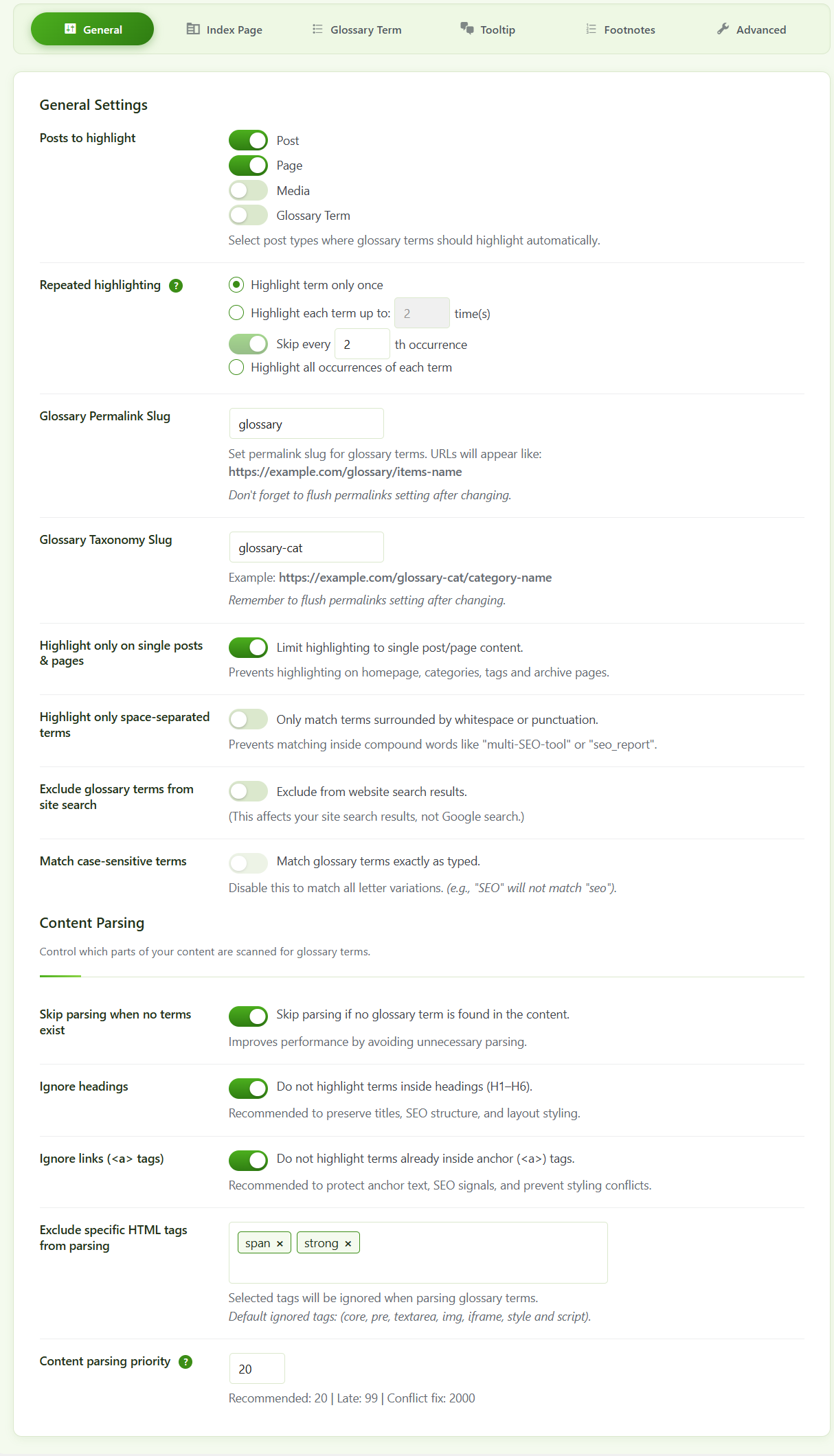
- Post-type control — choose exactly which post types (posts, pages, products, custom post types) get highlighted.
- Per-post and per-term overrides — switch highlighting or tooltips on or off for an individual post, page, or term, independent of the site-wide settings.
- Repeat control — highlight each term once, a set number of times, every Nth occurrence, or every occurrence on a page.
- Per-page first-occurrence override — on an individual post, choose to highlight each term only its first time, overriding the site-wide repeat rule for that page.
???? Tooltips
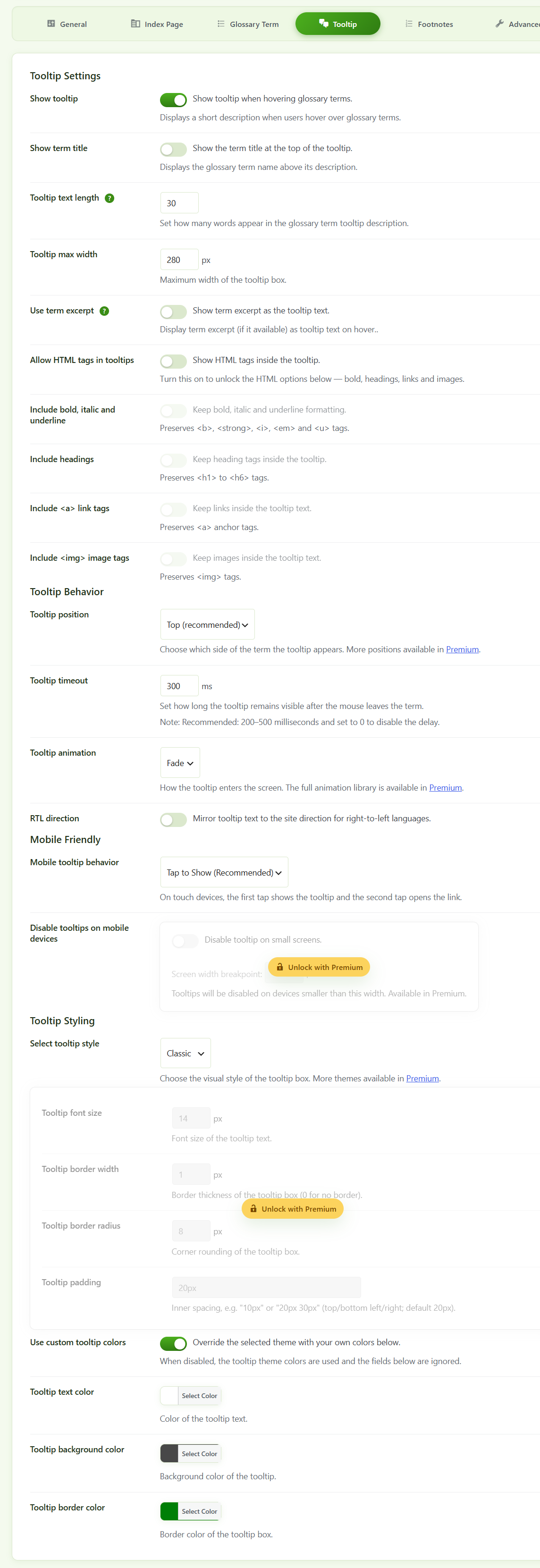
- Responsive behavior — definitions appear on hover on desktop and on tap on mobile, with a configurable mobile breakpoint.
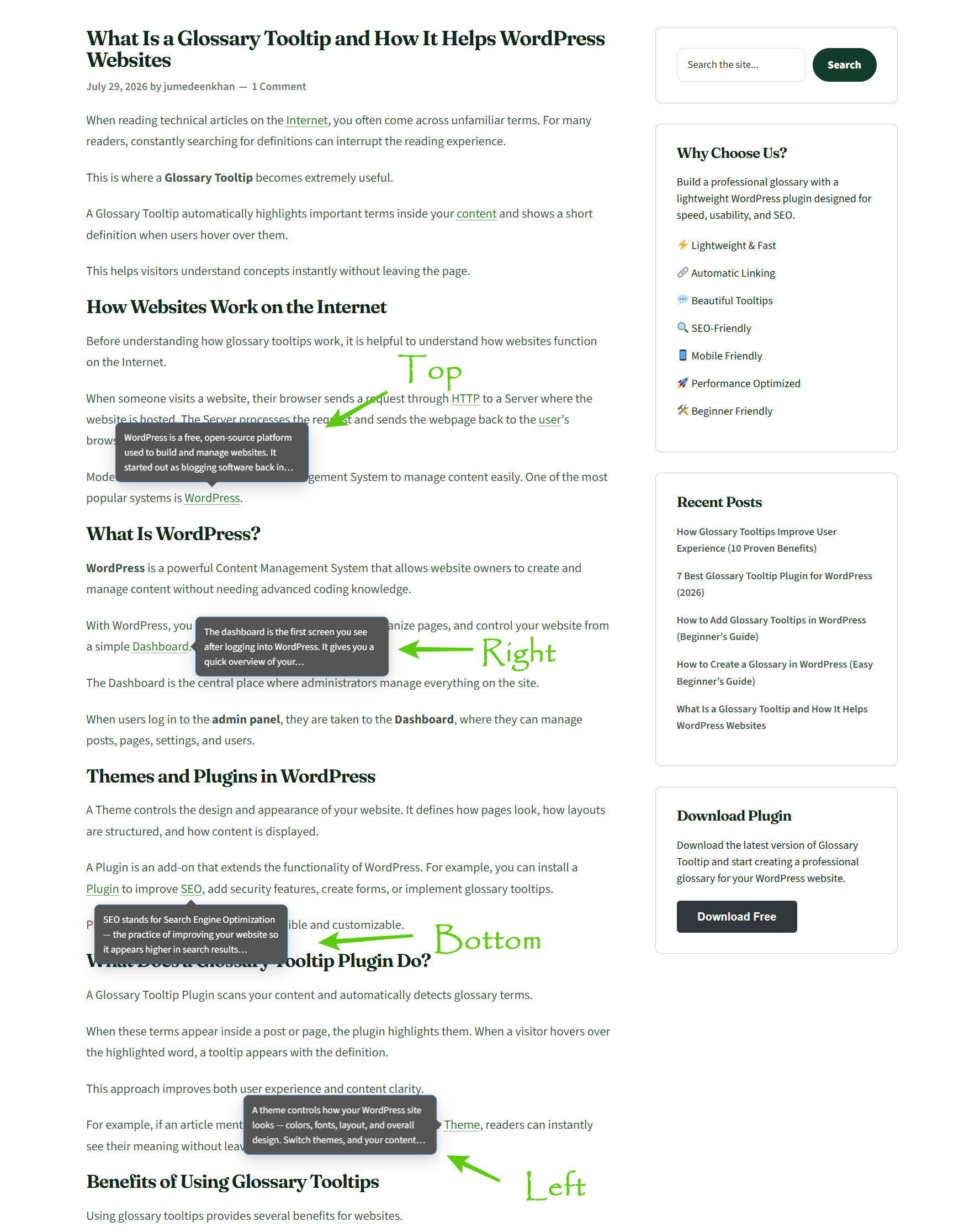
- Position and placement — place the tooltip above, below, left, or right of the term, with a fine position offset.
- Styling — choose a built-in style (Classic, Light, Dark, Minimal, Shadow) or override any style with your own text, background, and border colors.
- Sizing — set the tooltip font size, border width, border radius, and padding to match your design.
- Excerpt length — control how many words of the definition appear, based on the term’s excerpt or content.
- Accessible — tooltips work with the keyboard (focus shows them, Esc closes them) and respect reduced-motion preferences.
???? A–Z glossary index
- Full index page — display every term alphabetically via the
[glossary-list]shortcode. - Alphabetical navigation — jump straight to a letter; digits and symbols group into 0–9 and special-character sections.
- Search — a search box lets visitors filter terms as they type.
- Categories — show terms from one or several categories in a single index.
- Nested categories — include child categories automatically so sub-category terms appear in the index too. A category filter bar and a category-tree view are available with Premium.
- Sorting and layout — sort by name, date, custom order, or randomly; choose ascending or descending; show or hide letter headings; cap the number of terms per letter; and arrange terms in 1–6 columns.
???? Related terms
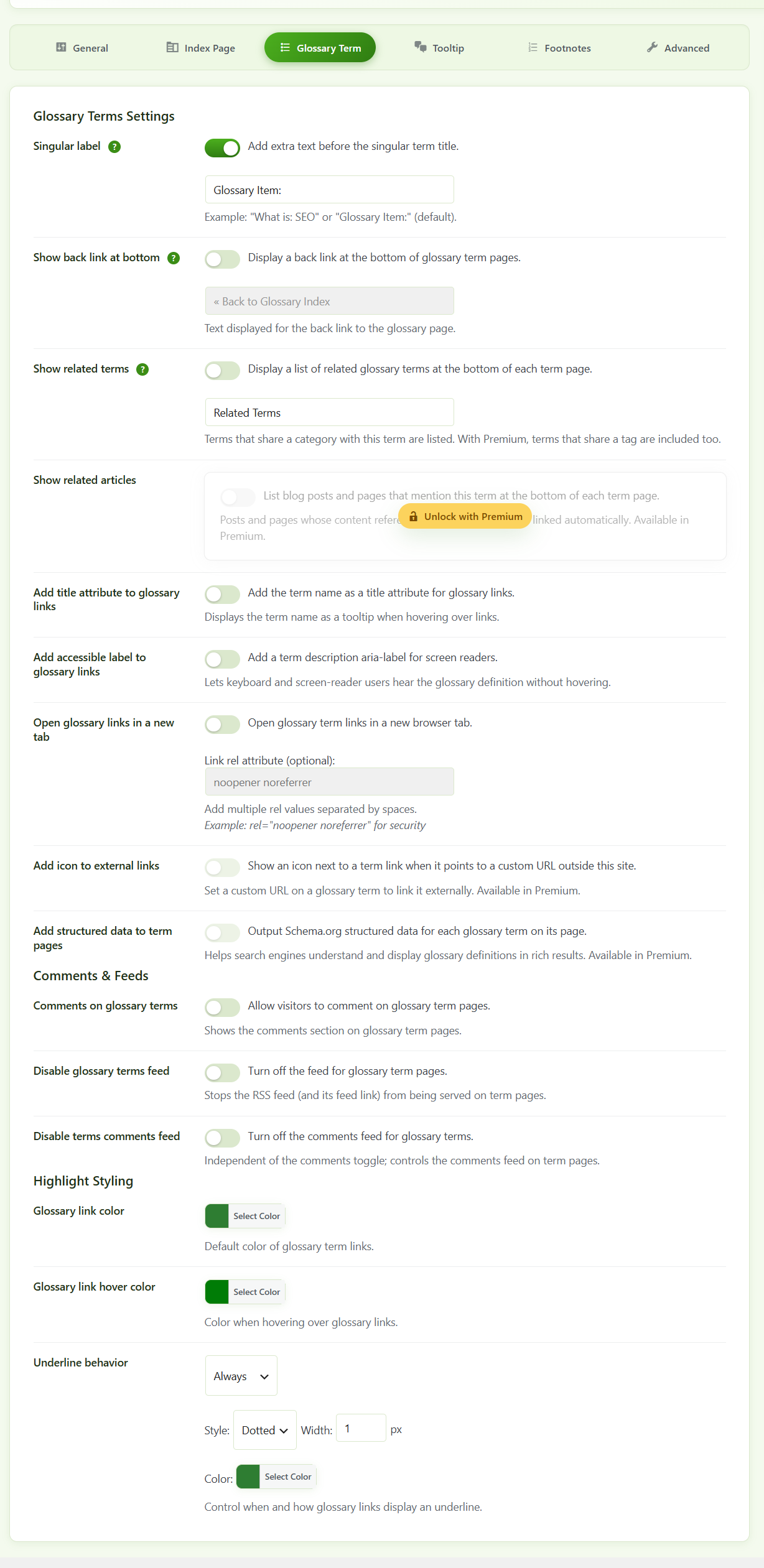
On each glossary term page, an optional “Related Terms” box lists other terms that share a category, giving visitors a natural way to keep exploring.
????️ Comments & feeds
- Comments on terms — let visitors comment on glossary term pages.
- Disable glossary terms feed — turn off the RSS feed for glossary term pages (both the feed URL and its link).
- Comments feed toggle — independently disable just the comments feed of a term, separate from the comments section.
???? Parsing control
- Exclusions — skip headings, skip text already inside links, and exclude specific HTML tags from parsing.
- Section exclusions — wrap any part of a post with
[glossary-exclude]...[/glossary-exclude]to leave it untouched, or place a single marker to skip everything after it. - Selective highlighting — with
[glossary_parse], highlight just the block of content you choose. - Term blacklist — never highlight terms from selected categories (a global “never highlight” list in the settings), handy for keeping automatic linking off certain parts of your glossary.
- Accent-aware matching — terms with accented or non-ASCII characters are matched correctly, with optional case-sensitive matching.
⚡ Performance
- Content caching — store parsed output so repeat views are served without re-parsing.
- Smart skipping — content with no matching terms is left untouched, so empty pages parse almost instantly.
- Asset delivery — load scripts in the footer and inline assets to reduce render-blocking requests.
- Main-query control — optionally limit parsing to the main article on a page.
???? Compatibility
- Themes — works with any standards-compliant theme (Twenty Twenty-Five, GeneratePress, Astra, Kadence, Blocksy, and more).
- Page builders — Elementor, Divi, Bricks, Genesis, Avada/Fusion, Beaver Builder, WPBakery, Oxygen, and Enfold/Avia.
- Table plugins — coordinates with NinjaTables and avoids interfering with heading scraping in Fixed TOC and Easy Table of Contents.
- SEO — avoids double-highlighting content that Yoast SEO re-processes internally.
- Multilingual — works with WPML and Polylang, including translatable admin strings and a bundled
wpml-config.xml. - AMP — on AMP pages, terms render as plain links with no JavaScript.
???? Settings backup and migration
Export all plugin settings as a JSON file, import them on another site, or reset everything to defaults from the Advanced tab.
Glossary terms are a standard WordPress content type, so they move between sites with the built-in Tools Export and Tools Import screens.
⌨️ Shortcodes
[glossary-list] displays the full A–Z glossary index.
category— show terms from one or more category slugs, comma-separated. Defaults toall.orderby—name,date,menu_order, orrand. Defaults toname.order—ASCorDESC. Controls both sort direction and the direction of the letter groups. Defaults toASC.letters—showorhidethe letter headings. Defaults toshow.limit— max terms per letter group, or-1for no limit. Defaults to-1.columns— arrange terms in 1 to 6 columns. Defaults to2.include_children—yesornofor including child categories.category_filter—yesornoto show a category filter bar (Premium).category_tree—yesornoto group the index by category (Premium).
Example: [glossary-list category="wordpress" orderby="date" order="DESC" columns="3"]
Use [glossary_parse] to highlight the content you wrap, e.g. [glossary_parse]This sentence gets highlighted.[/glossary_parse].
Use [glossary-exclude] to turn highlighting off for a section: [glossary-exclude]...[/glossary-exclude] for a block, or a single [glossary-exclude] marker to skip the rest of the post. The older underscore forms ([glossary_list], [glossary_exclude]) still work.
Use [glossary_footnote] to add a numbered footnote on any text: [glossary_footnote]A quick note.[/glossary_footnote] (Premium).
Use [glossary_tooltip] to show a tooltip on any text or link without a glossary term: [glossary_tooltip link="https://example.com" title="Title" content="Definition"]hover me[/glossary_tooltip]. Reference an existing term by term_id="123" or by its name/slug with term="TermName"; the term’s tooltip follows the same excerpt, length and ellipsis rules as the auto-tooltips. With Premium you can add an image (image="URL") and embed a YouTube video (youtube="VIDEO_URL_OR_ID", Business) inside the tooltip.
???? Why it stands out
- Free without the catch — automatic highlighting, tooltips, the A–Z index, live search, sorting, and performance options all work in the free version, with no usage limits.
- Built for speed — caches parsed output, inlines assets, loads scripts in the footer, and skips the parsing work when a page has no terms.
- Accessible by default — tooltips work with the keyboard (focus shows, Esc closes) and respect reduced-motion preferences.
- Plays nicely with your stack — any standards-compliant theme, the major page builders, caching and SEO plugins, AMP, and WPML/Polylang multilingual sites.
- Private by design — highlighting and tooltips are generated entirely on your own server; the free version never calls out to third-party services.
- No lock-in — glossary terms are a standard WordPress content type, so they move between sites with WordPress’s built-in export and import tools.
???? Glossary Tooltip Premium
Take your glossary to the next level with Glossary Tooltip Premium — a companion plugin that unlocks powerful features right inside the same Glossary Settings screen. Turn a simple word list into a rich, search-friendly knowledge center your visitors can explore and search with ease.
Standout Premium features:
- Modern tooltip styles — Modern, Material, Gradient, and Card designs with entrance animations, plus per-term placement and style.
- AI-generated definitions — generate a term’s definition with ChatGPT or Google Gemini right from the term editor.
- Featured images — show a term’s image inside its tooltip and in the glossary index.
- Media-rich tooltips — combine a term’s featured image with an embedded YouTube video right inside its tooltip (Business).
- Advanced live search — instant index filtering, including synonyms, abbreviations, and definitions.
- Google Translate — translate tooltips and definitions with the free Google Translate widget or server-side via the Google Cloud API.
- URL tracking — append a tracking query string (e.g.
utm_content=service) to every term link for campaign and Analytics tracking. - Exclude areas — stop auto-linking inside any element carrying a CSS class you choose.
- Tags & related terms — a Tags taxonomy and related-term links by tag.
- Category tree & filters — filter the index by category and present it as a category tree.
- Footnotes & external links — numbered footnotes (including a
[glossary_footnote]shortcode for notes on any text) and custom external term links with icon, new-tab, and nofollow options. - Advanced per-post overrides — Smart Term Control with per-term placement, style, and repeat settings.
- Whitelist & blacklist support — choose exactly which terms and categories are highlighted on each post.
- Import & export terms data — move terms, settings, and media between sites.
- Multilingual & multisite support — runs on multilingual (WPML/Polylang) sites and adds network glossary tools.
Upgrade whenever you’re ready — every Premium feature appears right inside your settings and activates the moment you connect your license.
See our: Official Website · Pricing · Docs · Demo · Video tutorials
Screenshots
FAQ


ChangeLog