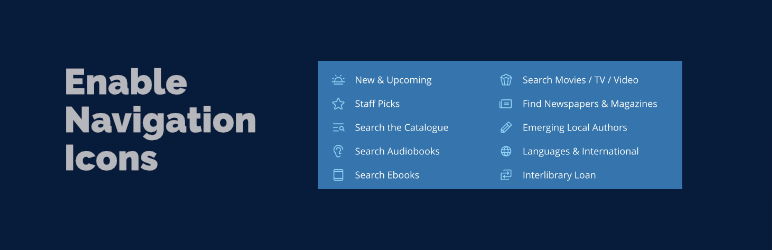
Easily add icons to Navigation Block items in WordPress.
Enable Navigation Icons makes it simple to add and customize icons for your WordPress Navigation Block items. Whether you’re building a simple menu or complex mega menu navigation, this plugin provides intuitive controls for adding beautiful icons to your navigation links.
Try it in WordPress Playground — test the plugin instantly in your browser, no installation required.
Recommended Companion Plugin: Use the Icon Block plugin to add custom icon sets and expand your icon library options. Icon Block is a powerful companion that allows you to register additional icon libraries for use with Enable Navigation Icons.
Key Features
Icon Selection
- Browse and select from a curated collection of WordPress icons
- Browse icons registered with the WordPress Icon API on WordPress 7.1+, including core’s icon set and any collection added by your theme or other plugins
- Upload and use custom SVG icons from your media library
- Paste custom SVG code directly for complete flexibility
Icon Positioning
- Position icons before or after navigation link text (left/right)
- Space between justification for full-width layouts
- Vertical alignment options (top, center, bottom) for multi-line menu items
- Fine-tune icon position with vertical offset (supports px, %, em, rem units)
Icon Styling
- Adjust icon dimensions with a slider control (supports px, em, rem units)
- Control the gap between icon and text (supports px, em, rem units)
- Choose from theme colors or set a custom color
- Rotate icons in 15 degree steps
- Flip icons horizontally or vertically
- Support for stroke-based icons with “No Fill” option (e.g., Lucide icons)
Navigation Block Default Settings
Set default icon settings at the Navigation block level that apply to all child navigation items:
- Configure size, spacing, color, position, vertical alignment, offset, rotation, flipping, and styling once for the entire navigation
- Individual navigation items can inherit defaults or use custom settings
- Works seamlessly with multiple and nested Navigation blocks
- Applies to both inline navigation items and dynamically loaded WordPress menus
This feature streamlines icon management for large navigation menus by eliminating repetitive configuration while maintaining flexibility for individual items.
Ollie Menu Designer Integration
Full support for the Ollie Menu Designer plugin’s mega menu dropdown items:
- Add icons to Ollie mega menu dropdown navigation items
- Same icon selection and styling options as standard navigation items
- Works seamlessly with Ollie themes and the Menu Designer plugin
WordPress Icon API Support (WordPress 7.1+)
On WordPress 7.1 and later the plugin integrates with the new SVG Icon API in both directions:
- Icons registered with the Icon API appear in the icon library alongside the plugin’s bundled icons
- Icons chosen from the registry are stored by name and rendered server-side, so no SVG markup is written into your post content
- The plugin’s own icon set is published as an
enable-navigation-icons collection, making it available to the core Icon block, to other plugins, and over the REST API
Icons picked from the plugin’s built-in library are also stored by name — resolved from data the plugin ships with, so this works on every supported WordPress version, not just 7.1. Your post content stays clean everywhere.
All of this is additive. Existing navigation icons keep working exactly as before, with no migration required, and the plugin continues to run normally on WordPress 6.3 through 7.0.
Supported Blocks
core/navigation – Navigation block (for setting default icon settings)core/navigation-link – Standard navigation linkscore/navigation-submenu – Submenu/dropdown navigation itemsollie/mega-menu – Ollie Menu Designer dropdown menu items (requires Ollie Menu Designer plugin)
Credits
This plugin was inspired by and incorporates code and ideas from the enable-button-icons project. Special thanks to @ndiego for his excellent work on button icon functionality, which served as a foundation for implementing navigation icon features.
Screenshots
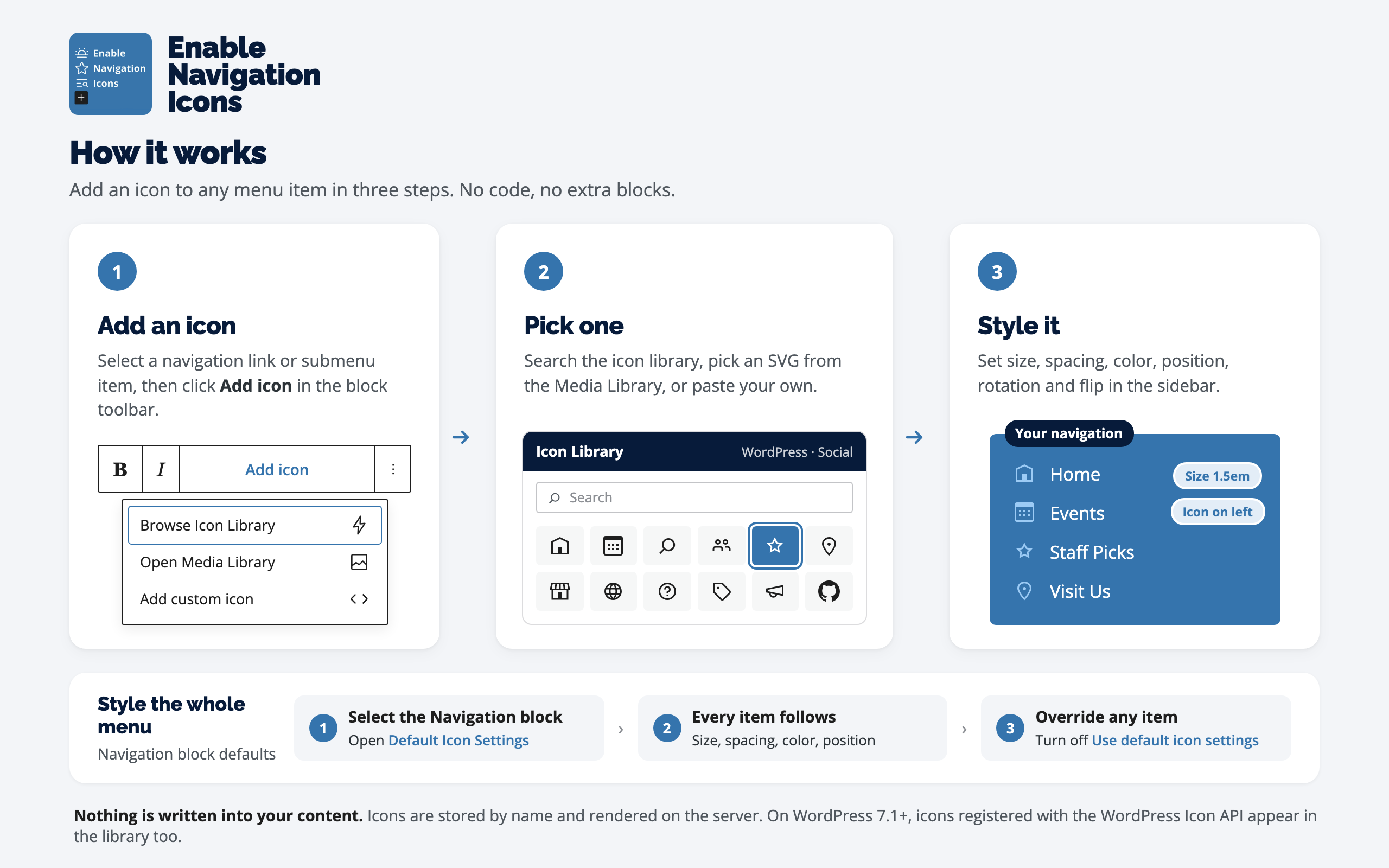
How it works: add an icon from the block toolbar, pick one from the library, the Media Library or your own SVG, then style it per item or for the whole menu from the Navigation block.

A header menu with icons before each label, icon-only social links, and the hover color on Events.

Select a menu item and click Add icon in the block toolbar to browse the icon library or paste SVG code.

The Icon Library: 297 built-in icons by category, plus icons registered with the WordPress Icon API on WordPress 7.1 and later.

Icon settings for one item. The Instagram link hides its label, so only the icon shows on the site while screen readers still announce "Instagram".

Default Icon Settings on the Navigation block apply to every item in the menu.

Default icon and hover colors in the Navigation block's Styles tab.

Paste your own SVG, such as a Lucide icon, and check it in the preview before inserting it.
Where are the icon settings?
Select a menu item and look for Icon settings in the block sidebar’s Settings tab. Menu-wide defaults are under Default Icon Settings on the Navigation block itself. Colors are in the Styles tab: Default Icon Color and Default Icon Hover Color on the Navigation block, and Icon and Icon hover on an item that doesn’t use the defaults.
Some options are missing from the settings panel
Only the most common options are shown at first. Open the panel’s ⋮ menu to add the others: space between, no icon fill, vertical alignment, offset, rotation and flipping. Any option that already has a value is always shown.
Why is there no “Open Media Library” option?
WordPress blocks SVG uploads by default, so the option only appears on sites that allow them, for example with an SVG upload plugin. You can still paste SVG code with Add custom icon.
Are icon-only links accessible?
Yes. Hide label (icon only) hides the text visually but keeps it in the page, so screen readers still announce the link by its label. In the editor the label shows faded while the item is selected, so you can still edit it.
Does the hover color work for keyboard users?
Yes. The hover color also applies when the item has keyboard focus.
Does it work with any theme?
It works with any theme that uses the Navigation block, which includes all block themes.
Does it work with menus saved as Navigation menus?
Yes. Icons work on items inside a saved Navigation menu as well as on items added directly to a Navigation block, and the Navigation block’s defaults apply to both.
Do I need WordPress 7.1?
No. The plugin requires WordPress 6.9. WordPress 7.1 adds the Icon API, which brings more icons into the library and shares the plugin’s icons with the rest of the site.
Is SVG code saved into my posts and templates?
Not for icons picked from a library: those are stored by name and rendered when the page loads. Custom SVG code and Media Library icons are stored with the item, because there is nothing else to look them up from.
What happens if I deactivate the plugin?
Icons stop being shown and the menu items show just their labels. The icon settings stay in the block attributes, so icons come back if you reactivate the plugin.
Can I add my own icon sets?
Yes. Icon sets registered for the Icon Block plugin appear in the library, and on WordPress 7.1 and later so does any collection registered with the WordPress Icon API.
Does it work with the Ollie Menu Designer plugin?
Yes. Its mega menu dropdown items get the same icon options as standard menu items, and follow the Navigation block’s defaults.
ChangeLog
1.0.2
Adds icon-only menu items and an icon hover color, and makes the plugin lighter on every page. Existing icons render exactly as before; nothing needs to be migrated.
New
- Hide label (icon only): hide a navigation item’s text visually while screen readers still announce it, so icon-only links such as social profiles stay accessible. Available per item and as a Navigation block default. In the editor the label is shown faded while the item is selected, so it can still be edited.
- Icon hover color: give icons a different color on hover and keyboard focus, per item or as a Navigation block default.
- The icon settings panels now work like core’s block settings: common options are always visible, the rest can be added from the panel menu, every option can be reset on its own, and “Reset all” restores the defaults. Options you have already set are always shown.
Fixes
- Custom stroke-based SVG icons (such as Lucide) no longer disappear on the front end. Their stroke attributes were being removed by the SVG sanitizer, although the editor preview showed them correctly.
- Custom SVG icons with cut-out shapes keep their holes (
fill-rule is now preserved).
- An icon color containing
$ followed by a digit no longer corrupts the menu markup.
- After a plugin update, browsers now load the updated stylesheet instead of a cached copy (the stylesheet was versioned by the theme’s version).
- The icon stylesheet is printed once per page instead of once per navigation block type.
- No more failed Icon API requests when opening the icon library on WordPress versions without the Icon API.
- No more component deprecation warnings in the editor console on WordPress 6.9 and 7.0.
Performance
- Registering the bundled icons with the WordPress Icon API is about 50 times faster: icons are registered by file and only read and sanitized when used, instead of all ~300 being sanitized on every page load.
- The editor script is about 25% smaller (308 KB to 238 KB): it now uses WordPress’s built-in serializer instead of bundling React’s server renderer, and no longer loads lodash.
Compatibility
- Requires WordPress 6.9 or later (previously 6.3). Tested up to WordPress 7.2.
1.0.1
- Fix the distributed plugin package including the repository’s version control directory, which inflated the download from roughly 170 KB to 916 KB. No functional changes.
1.0.0
First stable release. Adds support for the WordPress Icon API introduced in WordPress 7.1, alongside new rotation and flip controls. Existing icons are unaffected and no migration is required.
WordPress Icon API support (WordPress 7.1+)
- Browse icons registered with core’s SVG Icon API directly in the icon library, including WordPress core’s own icon set and any collection registered by your theme or another plugin
- Icons chosen from a collection are stored by name and rendered on the server, so no SVG markup is written into your post content
- The plugin’s bundled icon set is published as an
enable-navigation-icons icon collection, making all 297 icons available to the core Icon block, to other plugins, and over the REST API
Cleaner post content on every supported version
- Icons picked from the built-in library are now stored by name and resolved from data the plugin ships with, so post content stays free of SVG markup on WordPress 6.3 and later, not only on 7.1
- Content remains portable between sites running any supported WordPress version
New icon controls
- Rotate icons, in 15 degree steps, per navigation item or as a Navigation block default
- Flip icons horizontally and vertically, matching the core Icon block’s controls and CSS class names
- Rotation and flipping combine correctly, and both work for built-in, custom, and collection icons
Fixes and improvements
- Fix editor interface strings not being translatable: text domains are now correct throughout and JavaScript strings are included in the translation template
- Fix icon size and rotation not applying to the editor preview for icons rendered from a collection
- Only download the icon registry when it is actually needed, rather than on every editor load
- Match the core Icon block’s render model, using the CSS
rotate property and box-sizing on icon SVGs so shared icons render consistently wherever they appear
- Two bundled icons that core’s SVG sanitizer could not represent are now published correctly
Compatibility
- Tested with WordPress 7.1
- Requires WordPress 6.3 or later, and continues to run unchanged on 6.3 through 7.0
- Existing navigation icons keep working exactly as before, with no migration and no changes to the CSS classes themes target
0.2.1
- Confirm compatibility with WordPress 7.0
- Update npm dependencies
- Remove legacy WordPress 6.1 fallback code (minimum version is 6.3)
0.2.0
- Add icon vertical alignment option (top, center, bottom) for multi-line menu items
- Add icon vertical offset for fine-tuning icon position (supports px, %, em, rem units)
- Add WordPress Playground support for local development and testing
- Fix icon size and spacing not applying to submenu/dropdown items rendered as button elements
- Update Node.js to 22 LTS and update npm dependencies
0.1.1
- Fix submenu icon not appearing on parent item when children have their own icons
- Fix icon injection for submenu items rendered as button elements (click-to-open mode)
- Fix icon styles leaking from parent submenu into child navigation items in editor and frontend
- Fix block error when adding custom icon to navigation item with no existing icon
0.1.0
- Initial release
- Icon selection (library, media, custom SVG)
- Icon positioning (left/right, space between)
- Icon styling (size, spacing, color, no fill option)
- Navigation block default settings
- Support for core/navigation-link and core/navigation-submenu blocks
- Support for Ollie Menu Designer mega menu blocks

