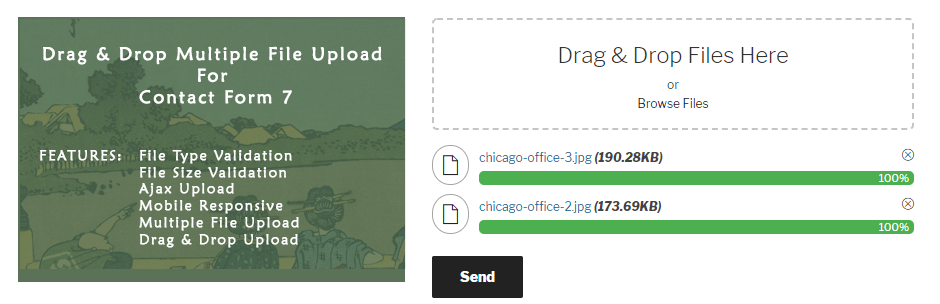
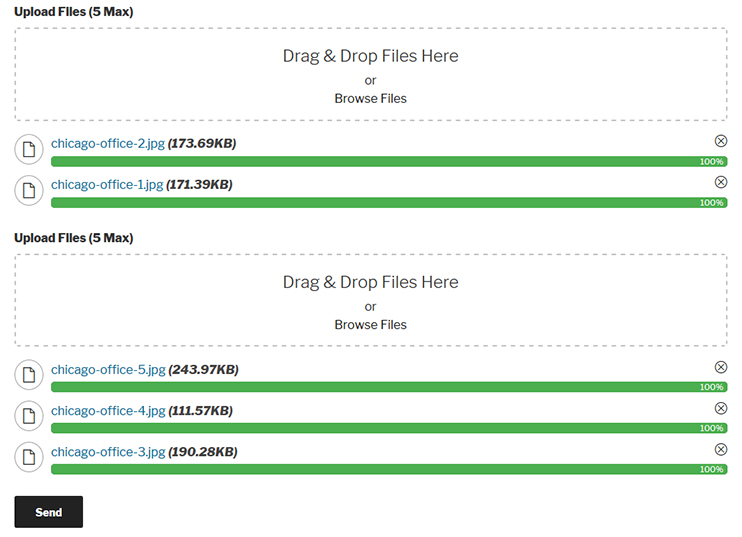
Drag and Drop Multiple File Upload is a simple, straightforward WordPress plugin extension for Contact Form 7, which allows the user to upload multiple files using the drag-and-drop feature or the common browse-file of your webform.
Drag and Drop Multiple File Upload for Contact Form 7 is an independent plugin, not affiliated with or endorsed by the developers of Contact Form 7.
Send files as email attachment or as a links. (see note below)
Support multiple languages
Mobile Responsive
Cool Progress Bar
Compatible with any browser
PLUGIN GUIDE – FREE VERSION
Note: On Free version, all uploaded files moves to a temporary folder (“/wp-content/uploads/wp_dndcf7_uploads”) then attaches the file to the mail and sends it. After that “Drag & Drop File Upload” removes the file from the temporary folder 1 hour after the submission. ( same process with the default “file” upload of Contact Form 7 – See here )
To adjust or disable the auto-deletion feature, we suggest upgrading to the PRO version for more options (see below).
⭐ Premium Features ⭐
Check out the available features in the PRO version.
Upload Large File – Supports uploading large files.
Image Preview – Displays thumbnails for images.
Auto Delete Files – Automatically deletes files after a set time (hours, weeks, days, months, etc)
Zip Files – Compress uploaded files into a ZIP archive
Save Files to Media Library – Store files in the WordPress media library.
Change Upload Directory – Customize the default WordPress upload directory.
Upload Folder – ???? Choose a custom folder to store files:
✅ Contact Form 7 Fields: Use any field name
✅ Generated Date & Time: Timestamp-based folders
✅ Random Folder: Auto-generated letters & numbers
✅ By User: Requires login to store files in the user’s email or first name.
✅ Custom Folder: Manually input a folder name
✅ Dynamic Folder: User (name, id), Post (id, slug), CF7 field
Send as Attachments, Zip, or Links – Flexible file delivery options.
Chunked Uploads – Upload large files in smaller chunks to avoid timeouts.
Max Total Size – Set the maximum combined size for all uploaded files.
Parallel Upload – Limit simultaneous uploads to optimize server performance.
Custom Filename – Create custom filename patterns using variables such as {filename}, {cf7-field-name}, {ip_address}, {random}, {post_id}, {post_slug}, and more.
Color Options – Customize colors for file size, progress bar, filename, and more.
Prevent Duplicate – Disable button to prevent duplicate submissions.
Custom Theme – Switch between “Dark” or “Light” themes.
Form Entries – Store form entries in WordPress admin.
Order Files for WooCommerce
An extension that attach files to existing WooCommerce orders, allowing both customers and admins to upload and manage files easily.
Easy File Upload & Approval Easy File Upload & Approval – A simple file management plugin that lets users effortlessly upload and submit files for review through a clean and simple drag-and-drop interface.
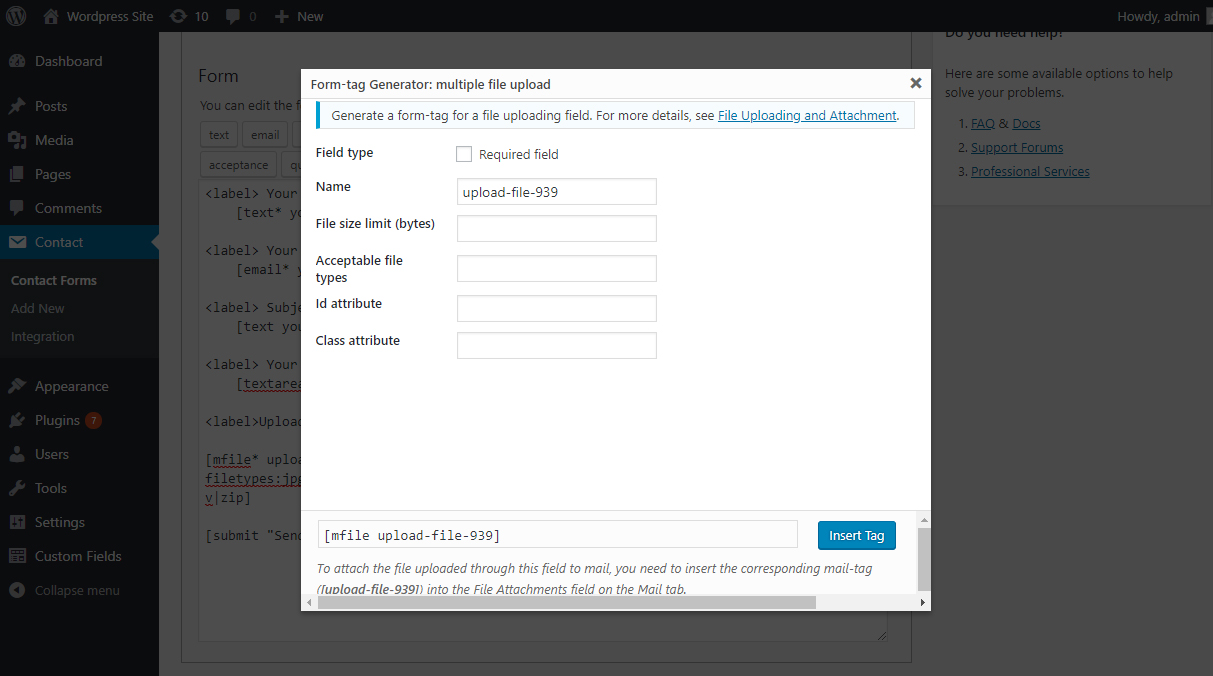
To limit file size in multiple file upload field generator under Contact Form 7, there’s a field File size limit (bytes).
You can also manually add limit parameter in existing [mfile] tag.
Example: [mfile upload-file-433 limit:20971520] – This limit the user to upload upto 20MB only.
Please take note it should be Bytes you may use any converter just Google (MB to Bytes converter) default of this plugin is 5MB(5242880 Bytes).
How can I limit the number of files in my Upload?
You can limit the number of files in your file upload by adding this parameter max-file:3 to your shortcode :
Example: [mfile upload-file-344 max-file:3] – this option will limit the user to upload only 3 files.
How can I Add or Limit file types
You can add or change file types in cf7 Form-tag Generator Options by adding jpeg|png|jpg|gif in Acceptable file types field.
Example : [mfile upload-file-433 filetypes:jpeg|png|jpg|gif]
How can I change text in Drag and Drop Uploading area?
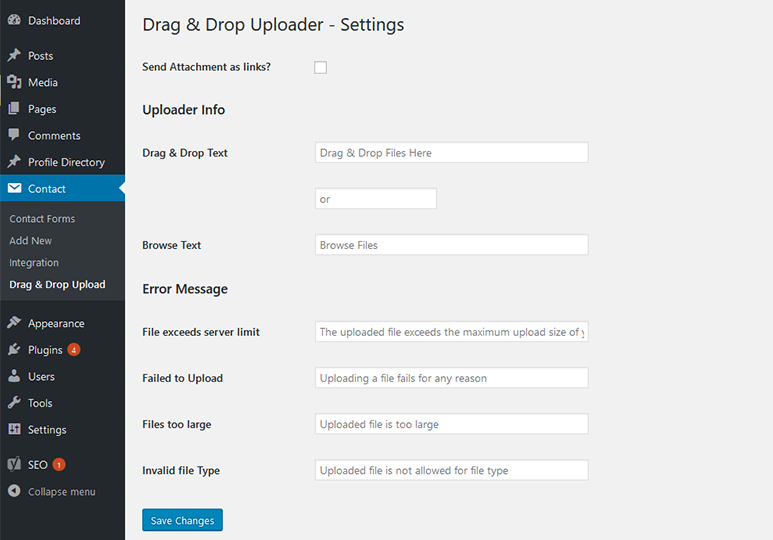
You can change text Drag & Drop Files Here or Browse Files text in WordPress Admin menu under Contact > Drag & Drop Upload.
How to Display Links in an Email
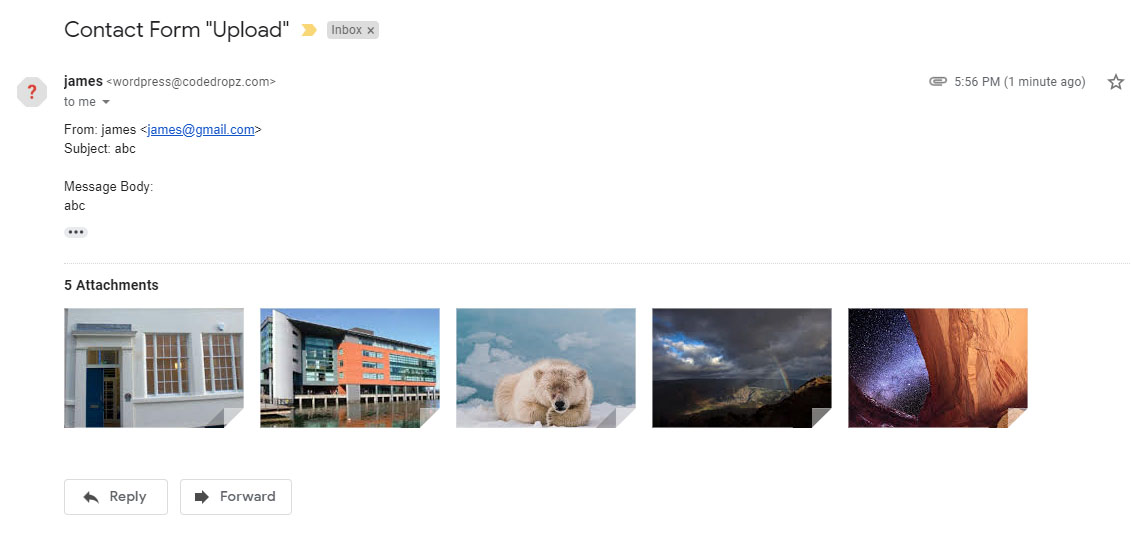
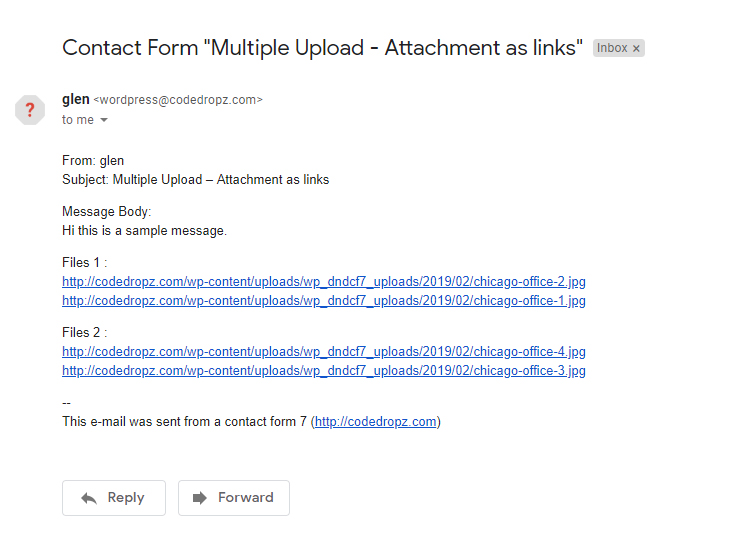
Some email servers have limitations on file attachment sizes (e.g., Google allows a maximum of 20-25 MB). Attaching large files to emails can be problematic. Consider using this option to display links in the email instead of attaching the files.
Go to WP Admin Contact -> Drag & Drop Upload settings then check “Send Attachment as links?” option.
To manage mail template, go to Contact Forms edit specific form and Select Mail tab. In Message Body add generated code from [mfile]. ( Example Below )
In order to attach files to email you will need to check and make sure “send as file(s) as links” option is unchecked.
Go to WordPress admin menu “Contact -> Edit {specific_form}” click or hover the cf7 form you want to edit.
In “Edit Contact Form” page click “Mail” tab and in the bottom you will see “File attachments” field, on this field add your upload field name (ie: [upload-file-xxx]), you will find the upload name in “Form” tab generated from [mfile] shortcode.
If attaching multiple files from a different file upload just add all the upload fields name. (see example below)
File attachments: [upload-file-111] [upload-file-222]
Improved – Added sanitization for admin settings/options and escaped localized script data for better security and data handling.
1.3.9.7
Improved : Change htacess generated file to support apache 2.2 & 2.4
Security Fix : Unauthenticated Arbitrary File Upload via Non-ASCII Filename Blacklist (Thanks to Leonid Semenenko via WordFence)
Security Fix : Unauthenticated Limited Arbitrary File Read via mfile Field (Thanks to Osvaldo Noe Gonzalez Del Rio via WordFence)
Security Vulnerability : Fix Unauthenticated Arbitrary File Deletion (Thanks to Bao Nguyen)
1.3.9.6
New : Replaced cookies with localStorage for unique upload folder generation.
Security : Unauthenticated Arbitrary File Upload (Reported by Thomas Sanzey via WordFence) – user able to upload “php5 – php8” for non ascii filename by bypassing extensions present in the blacklists.
1.3.9.5
Hot Fix: Minor spelling mistakes.
1.3.9.4
Fixes: Change shutdown hook to cron events in order to fix this issue. Support Link
Fixes: Move the js cookie generation from wp_footer hook to wp_add_inline_script. Support Link
Improvement: Minor fixes and improvement.
1.3.9.3
Security: Fixed vulnerability issues reported by WordFence (reported by shark3y) – unauthorized modification of data due to a missing ownership check in the dnd_codedropz_upload_delete() function.
Security: Fixed an unauthenticated limited arbitrary file upload issue allowing .phar and .svg files when using blacklist mode with file types set to *. (by WordFence via andrea bocchetti)
1.3.9.2
Fixed – File Upload required fields conflicts with Conditional Fields for CF7.
Fixed – Typo error in Cf7 field editor.
Fixed – Multiple errors showing in upload field.
Check – WordPress 6.8.3 compatibility.
1.3.9.1
Fixed : Security issues related to cookie (Thanks to WordFence)
Bug : Fixed or Replace crypto.randomUUID() error on non https. Support Link
1.3.9.0
Security: Fixed security issues reported by Wordfence “Remote Code Execution via PHAR File Upload if changing the filename something like poc.phar”.
Bug Fix: Modified script for compatibility on “conditional field for Contact Form 7”.
1.3.8.9
Check: Verified compatibility with WordPress 6.8.
Security: Enhanced security measures.
Bug Fix: Fixed an issue with file deletion from PHAR archive when associated Flamingo entries are deleted.
1.3.8.8
Fixes – Fixed Vulnerability issues reported by Phat RiO – BlueRock (via Wordfence)
Unauthenticated Arbitrary File Deletion
Unauthenticated PHP Object Injection via PHAR to Arbitrary File Deletion
Added – Solution to prevent file deletion when flamingo message is deleted from the admin.
Fixed – Cookie issues prevent from caching. Support Link