
A simple WordPress booking calendar plugin with time slots, custom form fields, and email notifications.
| Author: | Creavi (profile at wordpress.org) |
| WordPress version required: | 6.0 |
| WordPress version tested: | 7.1.5 |
| Plugin version: | 1.9.0 |
| Added to WordPress repository: | 15-07-2025 |
| Last updated: | 18-11-2026 |
| Rating, %: | 100 |
| Rated by: | 5 |
| Plugin URI: | |
| Total downloads: | 4 728 |
| Active installs: | 100+ |

Click to start download
|
Creavi is a beautiful, free WordPress appointment booking plugin for service businesses. Let customers choose a service, select a specialist, and book an available time on your website. Google Calendar and Outlook sync, built-in secure video conferencing, email reminders, shared staff schedules, and booking approval are included, with no plugin-imposed service or booking limits.
Use a booking button, an embedded calendar, or a Service Catalog with categories and provider selection. Suitable for salons, clinics, consultants, coaches, personal trainers, fitness studios, and yoga instructors.
Try the live booking demo | Read the documentation | Ask a support question
Give customers a clear way to book
- Show services as a simple list or organise them into categories, with optional images and your own labels.
- Let customers select a provider and see available times that fit the service duration.
- Place a calendar directly on a page or open it from a booking button. Both layouts work on mobile.
- Match your site with colour, layout, wording, and calendar-language controls beside a live preview.
Keep staff schedules and connected calendars aligned
- Link several services to one staff calendar. A booking blocks overlapping times across those services.
- Connect Google Calendar or Outlook to create appointment events and block connected-calendar busy times.
- Set weekday hours, days off, minimum notice, and rolling booking windows in days or months.
- Choose 10, 15, 20, 30, 60, or 90-minute appointments and optional 5–60 minute buffers.
- Use visitor-local or business timezones, with 12 or 24-hour display.
Manage appointments from WordPress
- Confirm bookings automatically or review requests before approval, separately for each service.
- Approve or reject pending requests from the booking list or individual booking screen.
- Review rescheduling or cancellation of upcoming appointments and choose customer notifications.
- Send editable customer and admin emails, separate reminders, and calendar attachments.
- Collect contact details, custom answers, and consent with configurable forms.
- Export selected bookings to CSV or Excel, and choose an optional retention period for old records.
Start with an editable Elementor demo page
Choose from nine demo pages for salons, yoga studios, dental clinics, consultants, coaches, and sales demos, including the Instagram Brand Consultant design.
Imports create draft pages with images, services, and catalogs. Set real content and availability before publishing. Demo pages require Elementor V4 atomic elements and global classes. Regular shortcodes work without Elementor. More demos are coming soon.
Add booking to your existing website
- Inline calendar:
[creavibc_booking_inline id="123"]
- Popup booking button:
[creavibc_booking_button id="123"]
- Service Catalog:
[creavibc_service_catalog id="123"]
Replace 123 with the service or catalog ID. Shortcodes work with the block editor, Elementor, and other builders. Booking Profile and Service Hero blocks are also included.
Offer in-person, phone, or online appointments with your own meeting link or a generated video meeting.
Screenshots

Online appointment booking for a business coach, with service details, available dates, time slots, and the selected appointment.
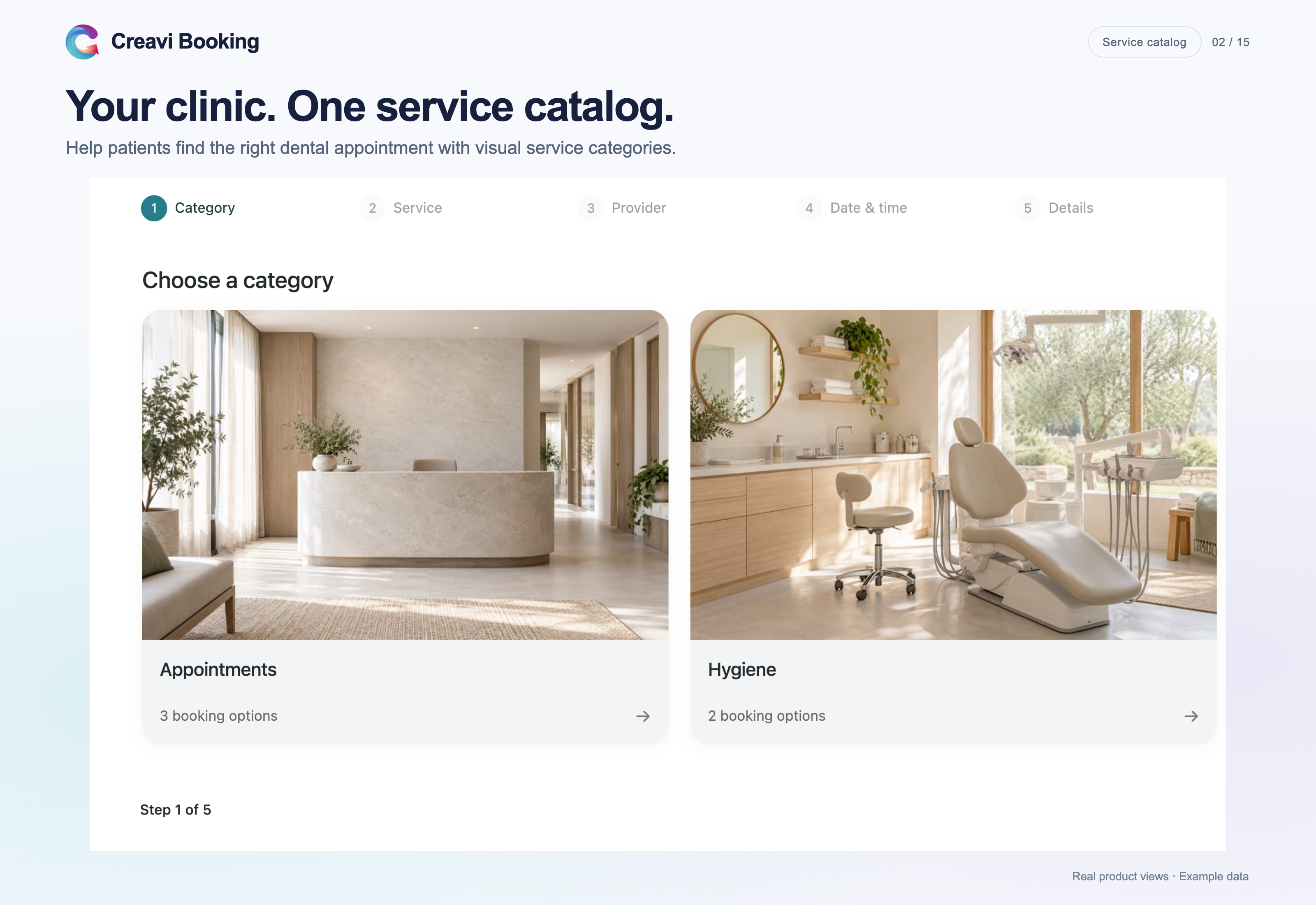
Dental clinic Service Catalog with image categories for treatments and hygiene appointments.

A sales demo page with a dark, single-column booking calendar.
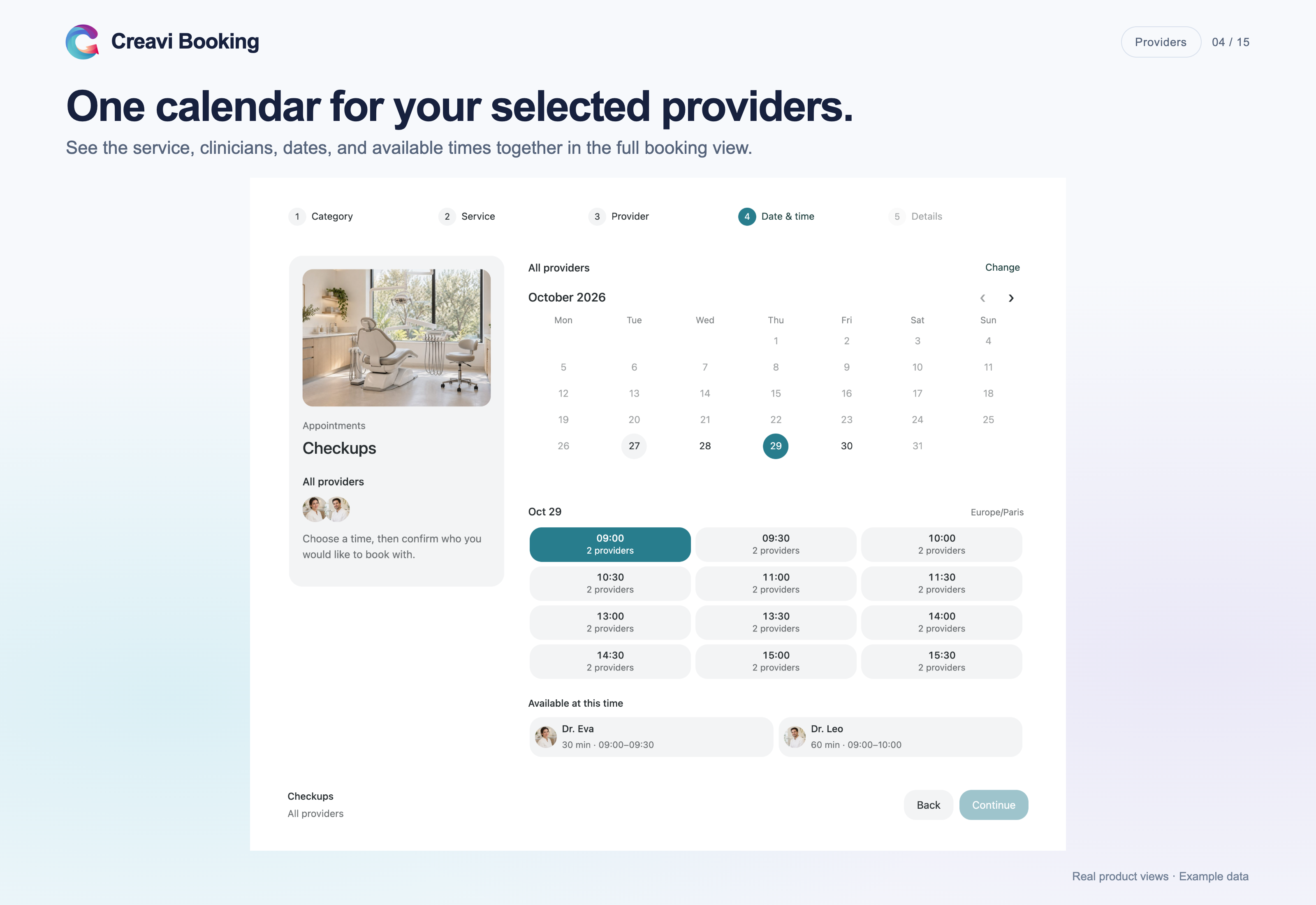
Provider selection and combined availability in a full dental appointment calendar.
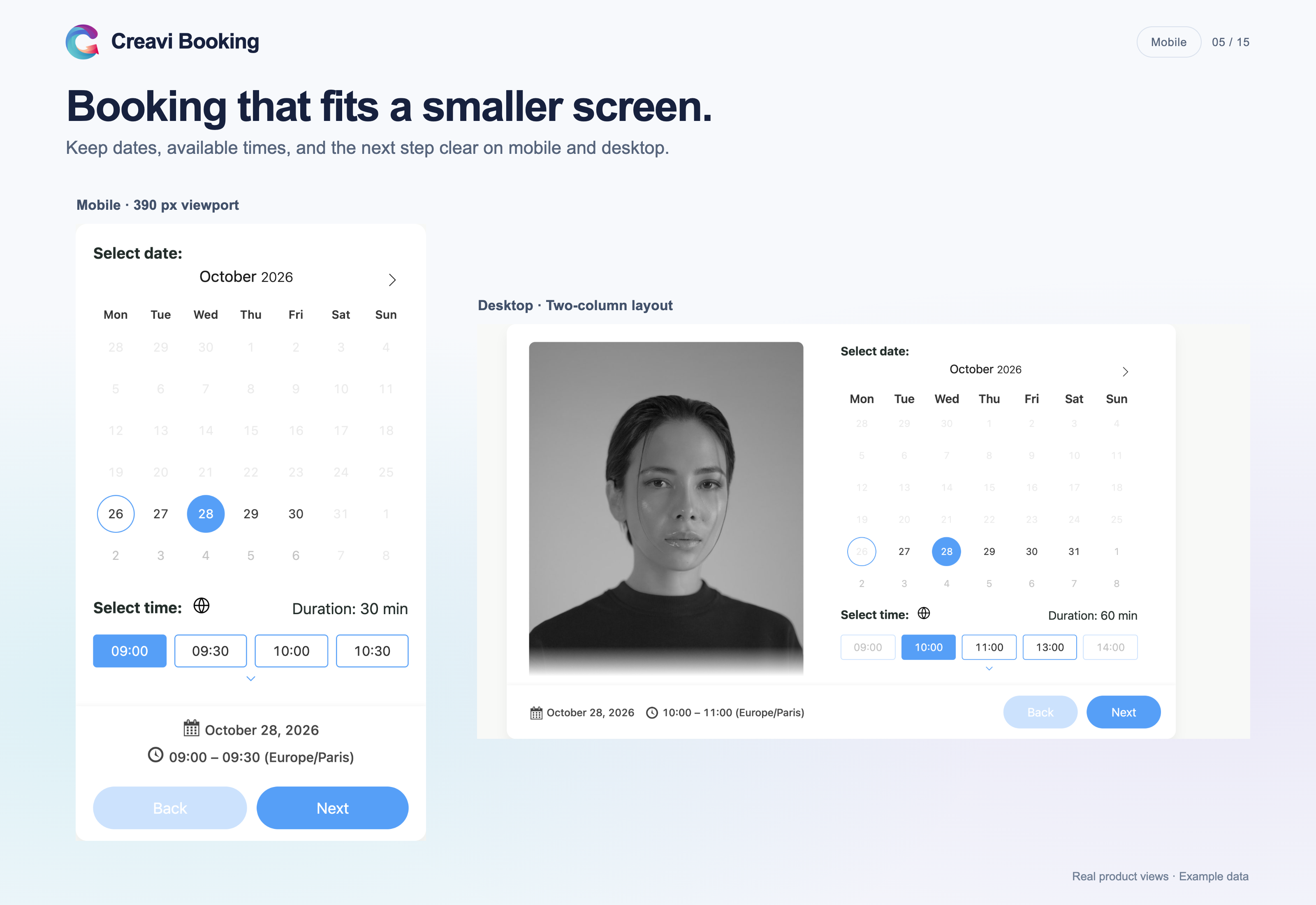
Responsive appointment calendars on mobile and desktop.
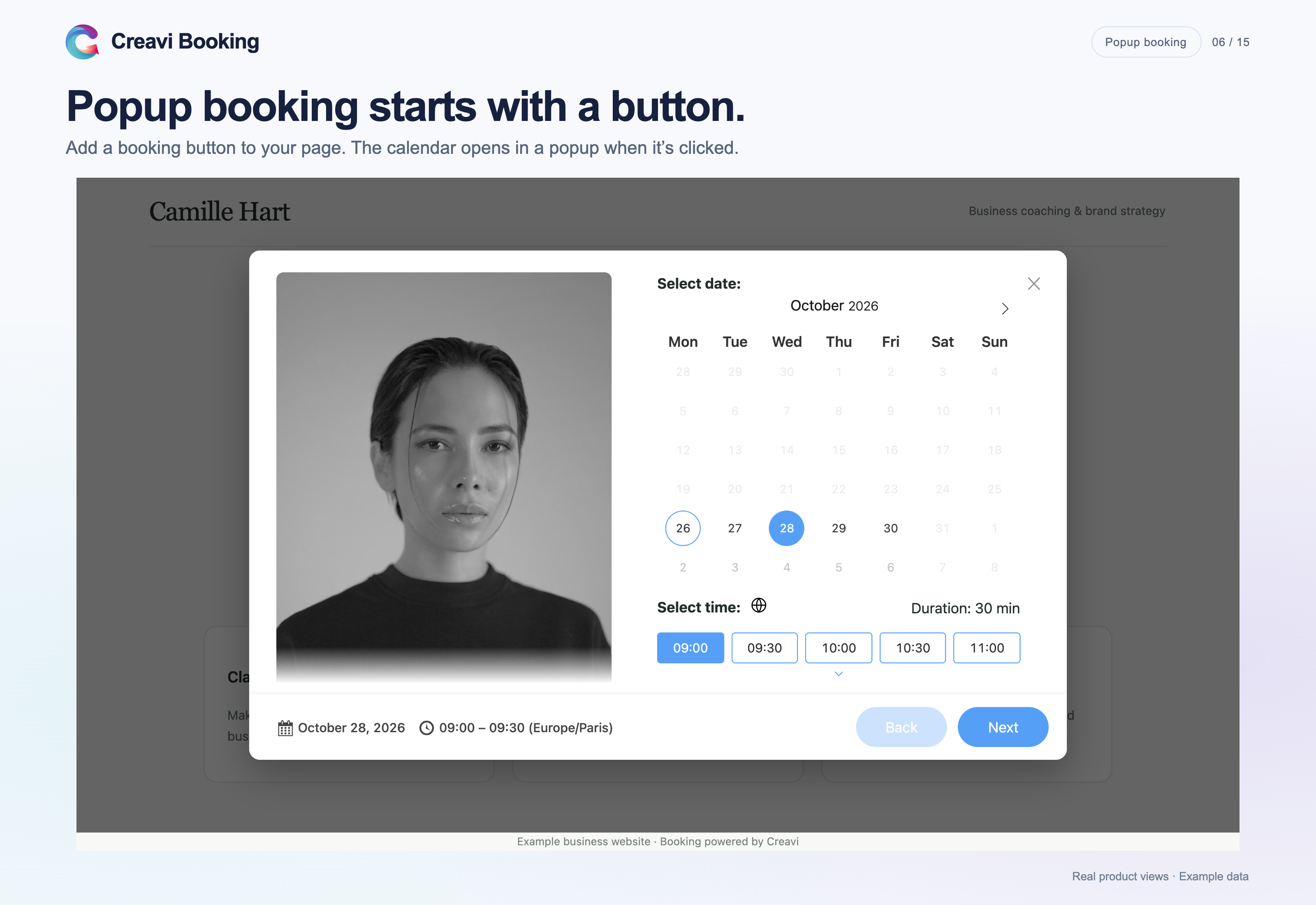
A booking button opening the appointment calendar in a popup.
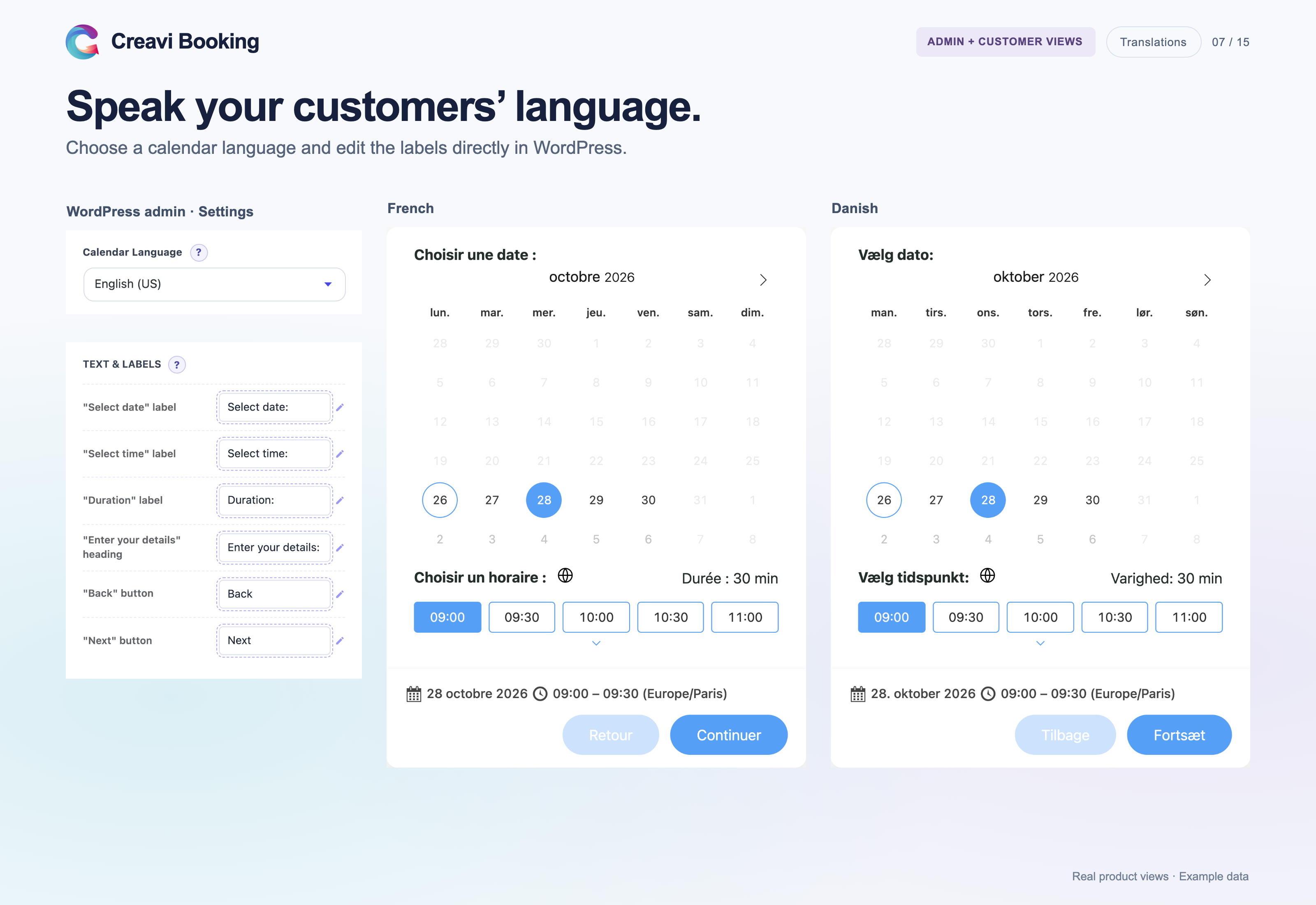
Editable calendar labels and language controls beside French and Danish calendars.
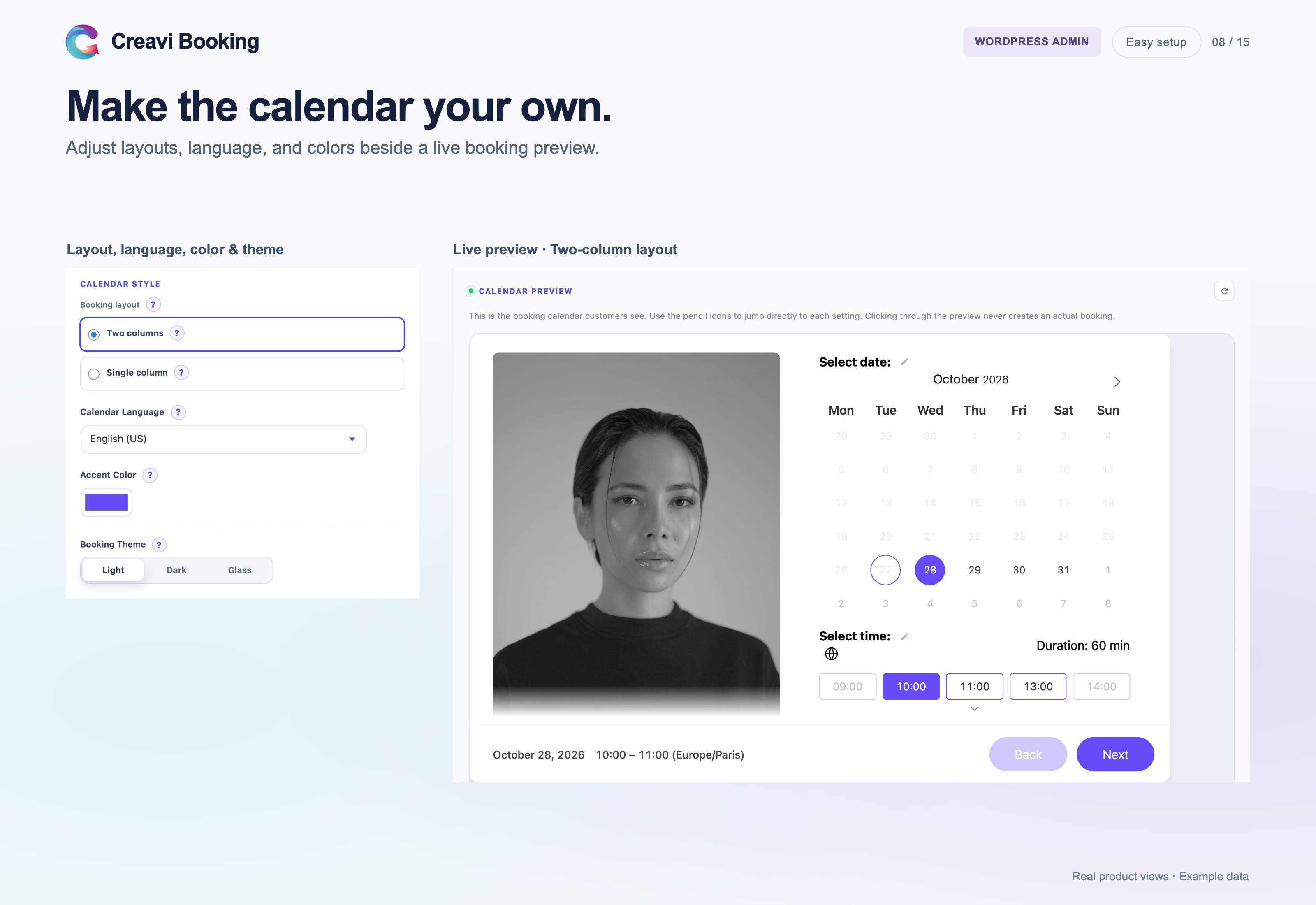
Calendar design settings and a live booking preview in WordPress.

Availability controls for booking windows, minimum notice, timezones, durations, and buffers.

Booking management with pending requests, approval and rejection, rescheduling, and cancellation.
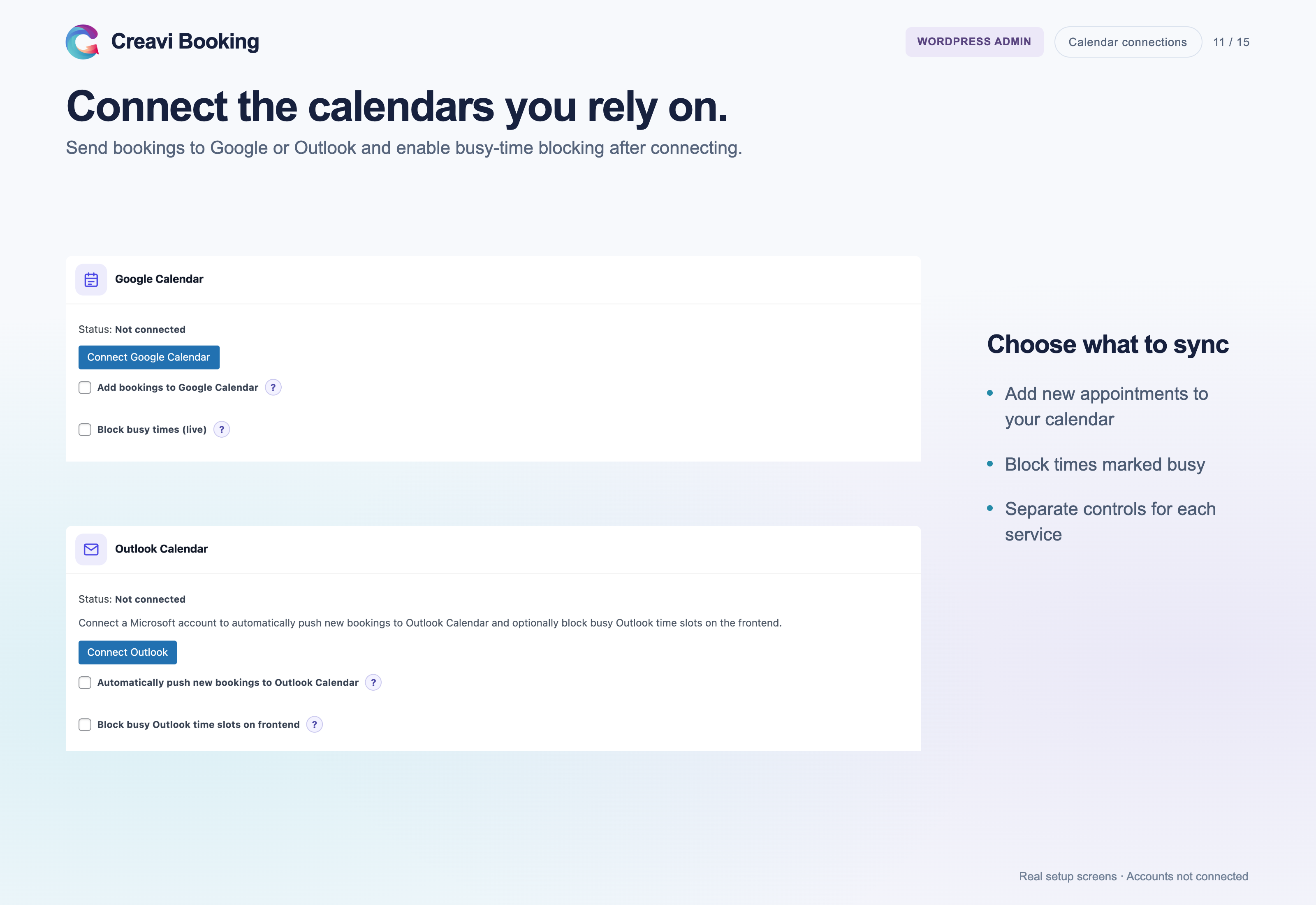
Google Calendar and Outlook connection and busy-time settings; the example accounts are not connected.
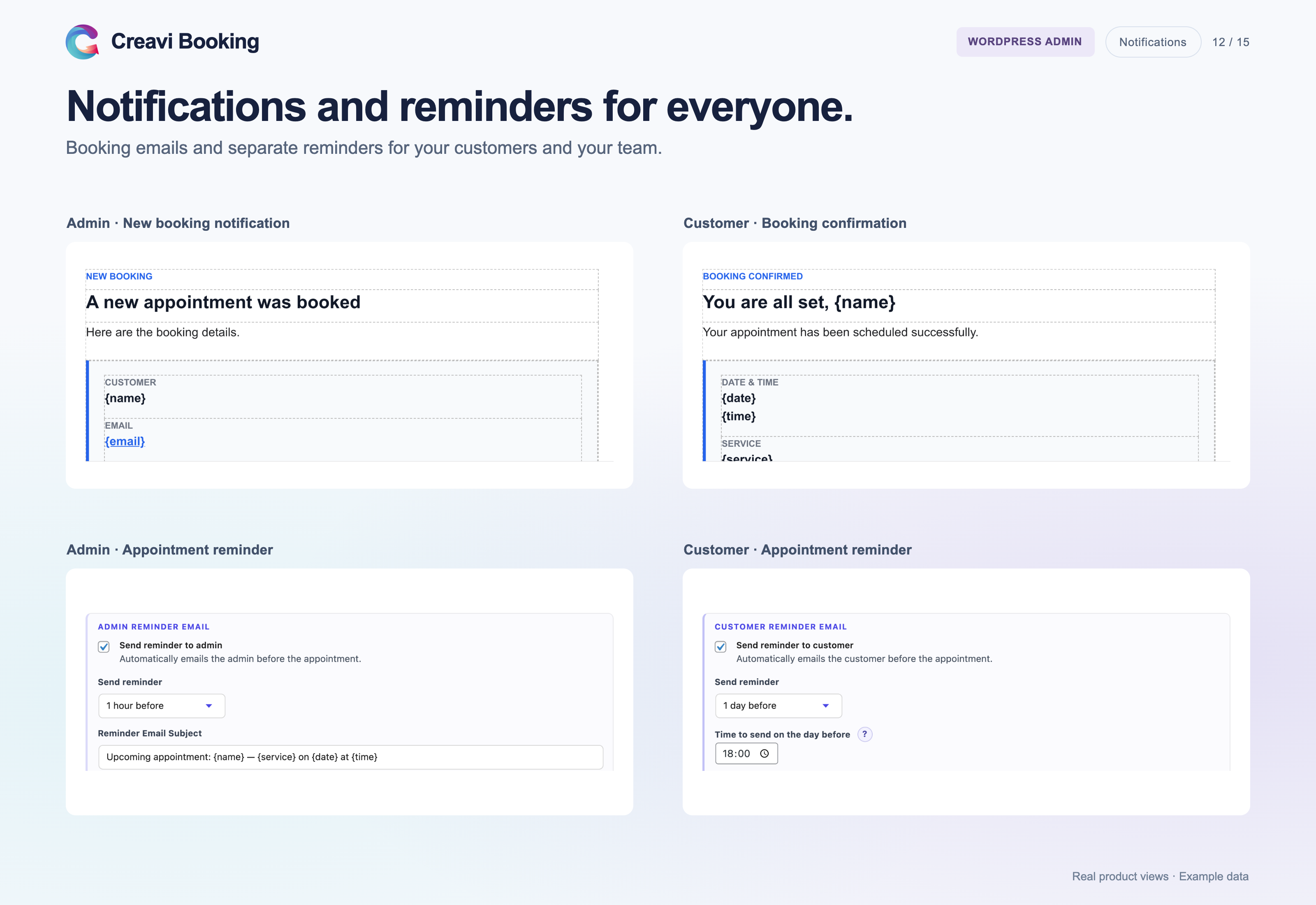
Editable administrator and customer emails with separate reminder schedules.
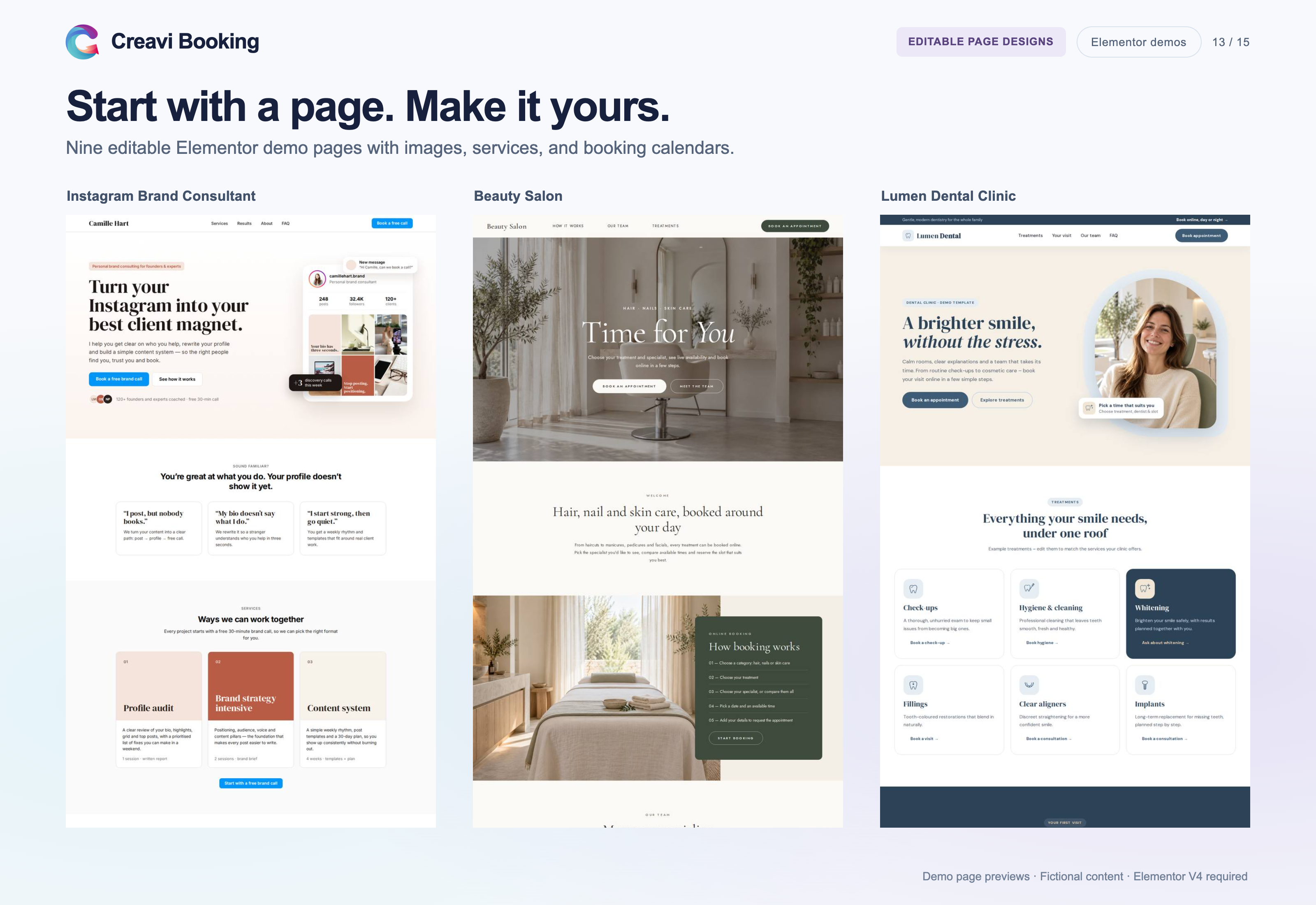
Three of nine editable Elementor demo designs, including Instagram Brand Consultant, Beauty Salon, and Lumen Dental Clinic.
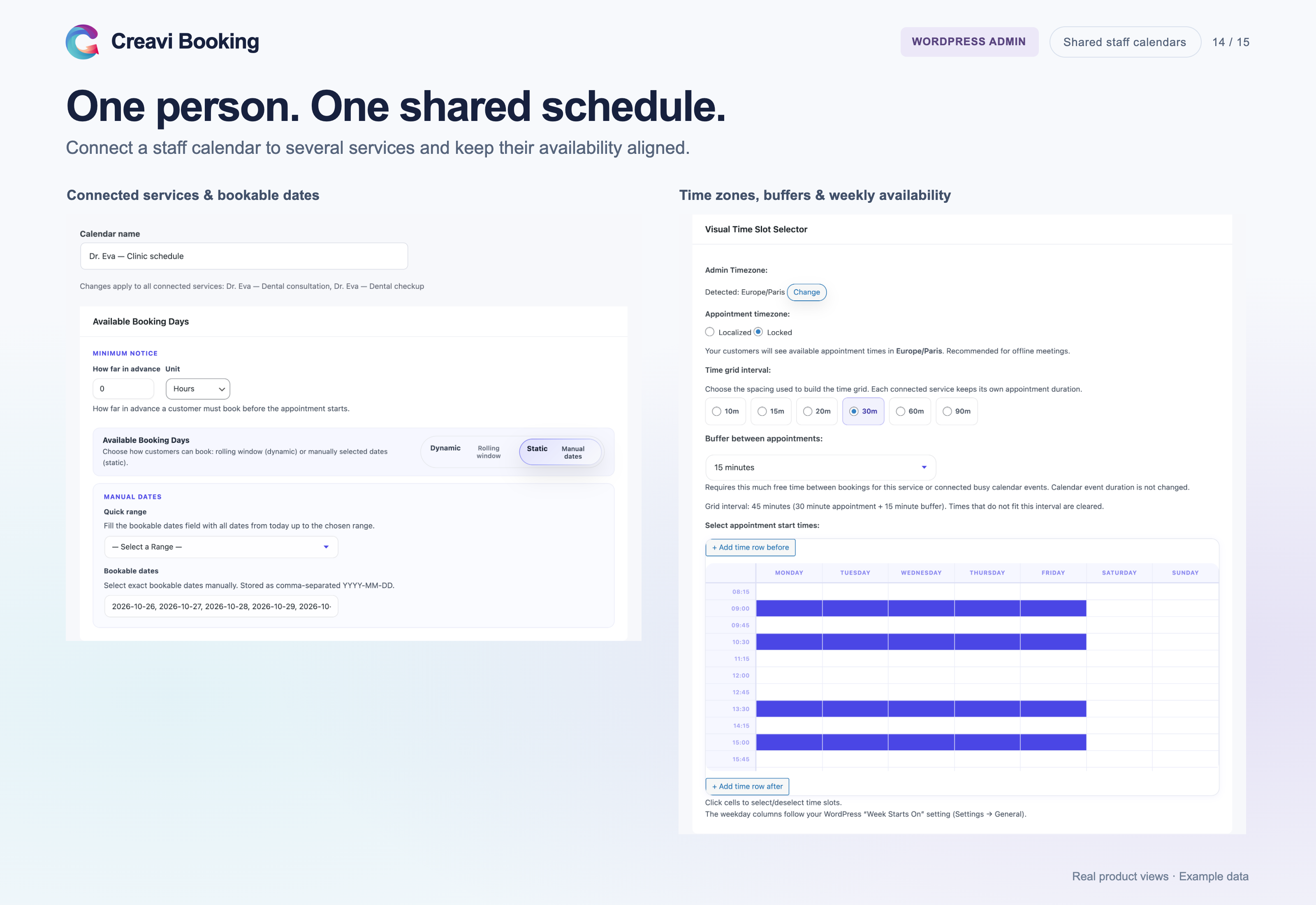
A shared staff calendar showing connected services and common availability controls.
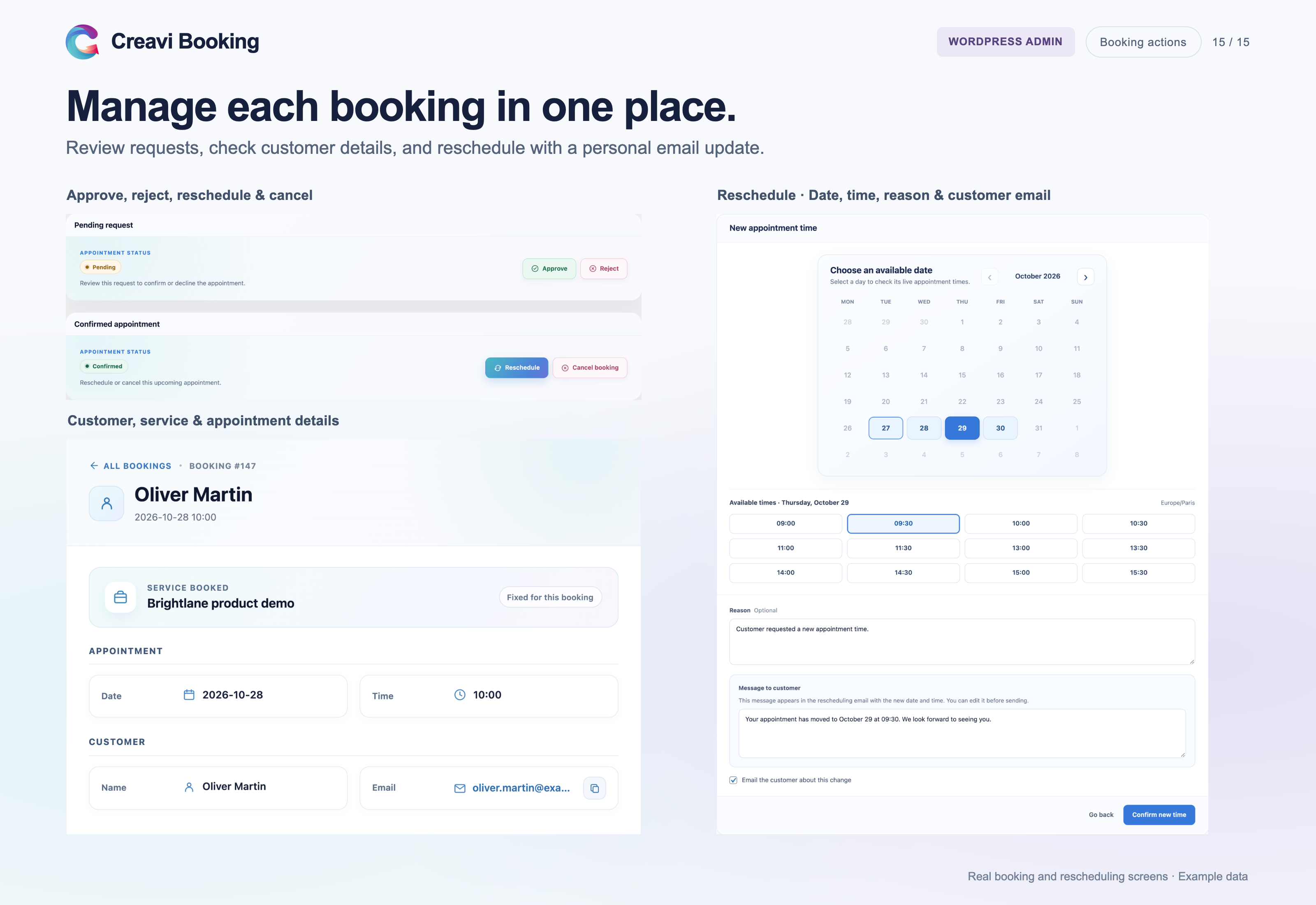
Individual booking action panels: approve or reject a request, or reschedule or cancel a confirmed appointment.
When does guided setup open automatically?
On a fresh installation, setup opens after an administrator individually activates the plugin with no saved services. It does not interrupt plugin updates, bulk or network activation, or repeat activation after the first prompt. Existing services, including drafts, prevent the automatic opening. You can always open Creavi Booking → Service setup manually.
Can I leave setup and continue later?
Yes. Continue, Back, and Save & exit save setup progress for your WordPress account. Publishing creates a regular service; copy its shortcode into an existing page. You can then use the full service editor for individual start times, forms, emails and calendar connections. Publishing a service does not create or publish a website page.
Can I open service setup again after finishing?
Yes. Creavi Booking → Service setup stays available after the first run. Opening it after finishing starts the normal wizard for another service. Unfinished setup resumes where you left it, including the optional email-updates screen after publication. Opening setup does not create a service; Publish service does.
Do I need to subscribe to finish setup?
No. Select Skip on the Email updates screen to finish without subscribing. Booking notifications, calendars and the published service work independently of this optional subscription.
Can I use appointments longer than 90 minutes or offer one fixed time per day?
Yes. Open a service, go to Available time → Appointment duration → Custom, and set hours and minutes or linked First start time and End time. Durations range from 1 minute to 24 hours, including overnight appointments. An optional booking label can describe a rehearsal, full day or another service. Select the bookable dates in Available days and offer just one start per applicable weekday for a fixed daily appointment. Changing duration, break or first start clears the weekly grid selections; choose your starts again before saving.
Where can I change the calendar layout or hide headings?
Open the service and go to Calendar design. Choose Booking layout → Single column to show Calendar arrangement: Calendar above · times below, Wide calendar · one row of times, or Calendar left · times right. The right-hand time slots form one vertical column; narrow blocks stack the calendar and times. In Text & Labels, use Hide beside optional labels. All switches start off. Required form labels, Back and Next remain visible. Save the service to apply these choices to both the website and popup.
Is Creavi appointment booking free?
Yes. Calendar connections, staff schedules, reminders, approval, exports, and demos are included. There are no plugin-imposed service or booking limits; capacity depends on your hosting. Website, email, and calendar providers remain separate services.
Does it sync with Google Calendar and Outlook?
Yes. Connected calendars can receive booking events and block busy times. Google and Outlook sync is included without a separate Creavi calendar-sync subscription.
Can one staff member offer several services without double bookings?
Yes. Connect those services to the same staff calendar. Its shared availability, existing appointments, and buffer settings are used across the linked services to prevent overlaps.
Can I connect Nextcloud, MXroute or another calendar provider?
Yes. Nextcloud and MXroute connect through CalDAV, the calendar connection standard supported by Creavi. You can also connect other providers that offer a compatible CalDAV calendar. Provider setup guides: Nextcloud and MXroute.
Open Creavi Booking > CalDAV calendars, enter the host’s HTTPS address and calendar credentials, find the calendars, and choose which calendars block busy times and which receives confirmed bookings. Assign the connection to a service or shared staff calendar. MXroute uses mailbox credentials; Nextcloud supports app passwords. Connection credentials are stored encrypted on your WordPress site. If a selected calendar cannot be checked, booking confirmation pauses for affected services. Calendar write failures keep the WordPress booking and offer retry/review. Manage booking changes in Creavi; external edits are protected from being overwritten during updates.
CalDAV requests go directly from your WordPress server to the calendar host you configure. The host receives calendar-read requests and, when enabled, booking events containing the service name, booking reference and booking times. Its own terms and privacy policy apply. Google and Outlook connections are independent of CalDAV.
Do I need Elementor to use the plugin?
No. Booking buttons, inline calendars, and Service Catalog shortcodes work without Elementor. The nine imported demo page designs require Elementor with V4 atomic elements and global classes enabled.
Can I approve, reschedule, or cancel bookings?
Yes. Manual approval lets you review requests while their slots stay reserved. Approve or reject pending requests, or reschedule and cancel upcoming confirmed appointments with optional customer notifications.
Can customers book in their own timezone?
Yes. Choose visitor-local or fixed business timezones, with 12 or 24-hour display. Calendars support the website language and 67 regional choices. Labels are editable per service.
Can I customise the booking form and emails?
Yes. Edit contact, consent, and custom fields, including number and date questions. In the service’s Notifications section, choose Minimal, Branded or Card, adjust branding, and edit customer/admin confirmation and reminder emails in the live preview. Subjects and templates support placeholders such as {name}, {service}, {date}, and {time}. Existing templates remain unchanged until you choose to edit or redesign them.
Are automated appointment reminders included?
Yes. Customer and admin reminders have separate schedules and templates. They use WordPress mail and scheduled tasks; quiet sites should use regular server-triggered WordPress Cron for timely reminders.
Can I connect an AI assistant?
Yes, through optional restricted REST API and MCP connections. The native owner MCP connection requires WordPress 6.9 or later and the official MCP Adapter 0.6.1 or later. Customer booking requires HTTPS, selected public services, and a supported AI host.
ChangeLog
1.9.0
- Added guided service setup with Service, Availability, Display and Notifications steps, saved progress, staff-calendar selection, meeting options, shortcode copying and booking preview. Setup opens once on a fresh individual activation with no saved services and remains available from the menu.
- Added optional Creavi email updates with unchecked consent, Skip, verified signup status, retry and unsubscribe. Publishing and booking work independently of subscribing.
- Added post-publication actions for another service, Service Catalog, editable Elementor demo pages and tailored-page help. Demo imports can reuse the published service without replacing its availability or booking settings.
- Added direct CalDAV connections, calendar discovery, busy-time checks, and confirmed booking event creation, rescheduling and cancellation, with editable event details.
- Added encrypted CalDAV credentials, selected busy calendars, booking destinations, delivery retry/review feedback and protection for externally edited calendar events.
- Unified Google, Outlook and CalDAV settings in Calendar integration, with service-level calendar selection, booking event controls and clearer connection/busy-check feedback.
- Added custom appointment durations from 1 minute to 24 hours, linked start/end controls, optional booking labels, and rolling booking windows up to 10 years. The original six duration presets remain available.
- Refined the weekly start-time grid, duration and break controls, compact customer slots, full-day time ranges, and time format settings. Grid changes clear start selections and show a reminder to choose them again.
- Added Single column calendar arrangements: calendar above times, wider calendar with one scrollable time row, or calendar left with a vertical time column on the right. Narrow blocks adapt to a stacked layout; Two columns keeps its existing layout.
- Added aligned Hide switches beside optional Select date, Select time, Duration and Enter your details labels. All switches default to off, including on existing installations. Hiding Select time also hides its globe; required form and navigation labels stay visible.
- Protected calendar year inputs, day cells, borders and controls against unwanted theme and page-builder styles, with matching frontend and admin previews.
- Added Minimal, Branded and Card email layouts with shared branding, logo sizing, colours, footer and an optional booking-details accent line.
- Added inline email wording and subject editing, positioned paragraphs, replacement-tag hints, Desktop/Mobile previews and test emails for customer/admin confirmations and reminders. Existing custom templates remain supported.
- Improved reschedule emails with the customer’s saved meeting link, address or phone details, the host’s own call link, a customer preview and one editable message. Removed the previous appointment block and separate reason field from these emails.
- Improved expandable event details, service navigation icons, hover states and booking menu order.
- Fixed edited widget and Custom duration labels losing literal backslashes. Preserved existing shortcodes, saved settings, schedules, email wording and booking duration snapshots when upgrading from 1.8.1.
1.8.1
- Fixed secure video appointments retaining the original call time after rescheduling. A new meeting is created with the updated time and booked duration.
- Send the new customer and host call links in their respective notifications and calendar attachments. Customer notification is required when rescheduling secure video calls.
- Keep the original appointment unchanged if the video meeting cannot be created or the booking cannot be saved.
1.8.0
- Added nine draft Elementor demo pages with images and booking content, including Instagram Brand Consultant. Requires V4 atomic elements and global classes.
- Added per-service approval, booking-screen action buttons, reviewed rescheduling and cancellation, notifications, and change history.
- Refined inline and popup calendars with expandable slots, thin scrollbars, soft fades, stable spacing, and improved live previews.
- Recheck availability before approval, prevent duplicate confirmations, and flag failed calendar-event delivery. Existing shortcodes and settings remain supported.
- Clarified demo labels and admin news button styling.
Full release notes, including the published 1.7.0 entry, are preserved in changelog.txt in the plugin download.
