Popup Box is a flexible WordPress Popup plugin that helps you create different types of popups and modal windows with rich customization options and advanced display control.
It’s built for website owners who need a reliable popup builder, not just a marketing-only tool.
With Popup Box, you can design popups for content display, user interaction, announcements, forms, or promotions – and control exactly when, where, and how they appear on your website.
In this short video, you can find a quick overview of how to create a popup in WordPress.
What You Can Build with Popup Box
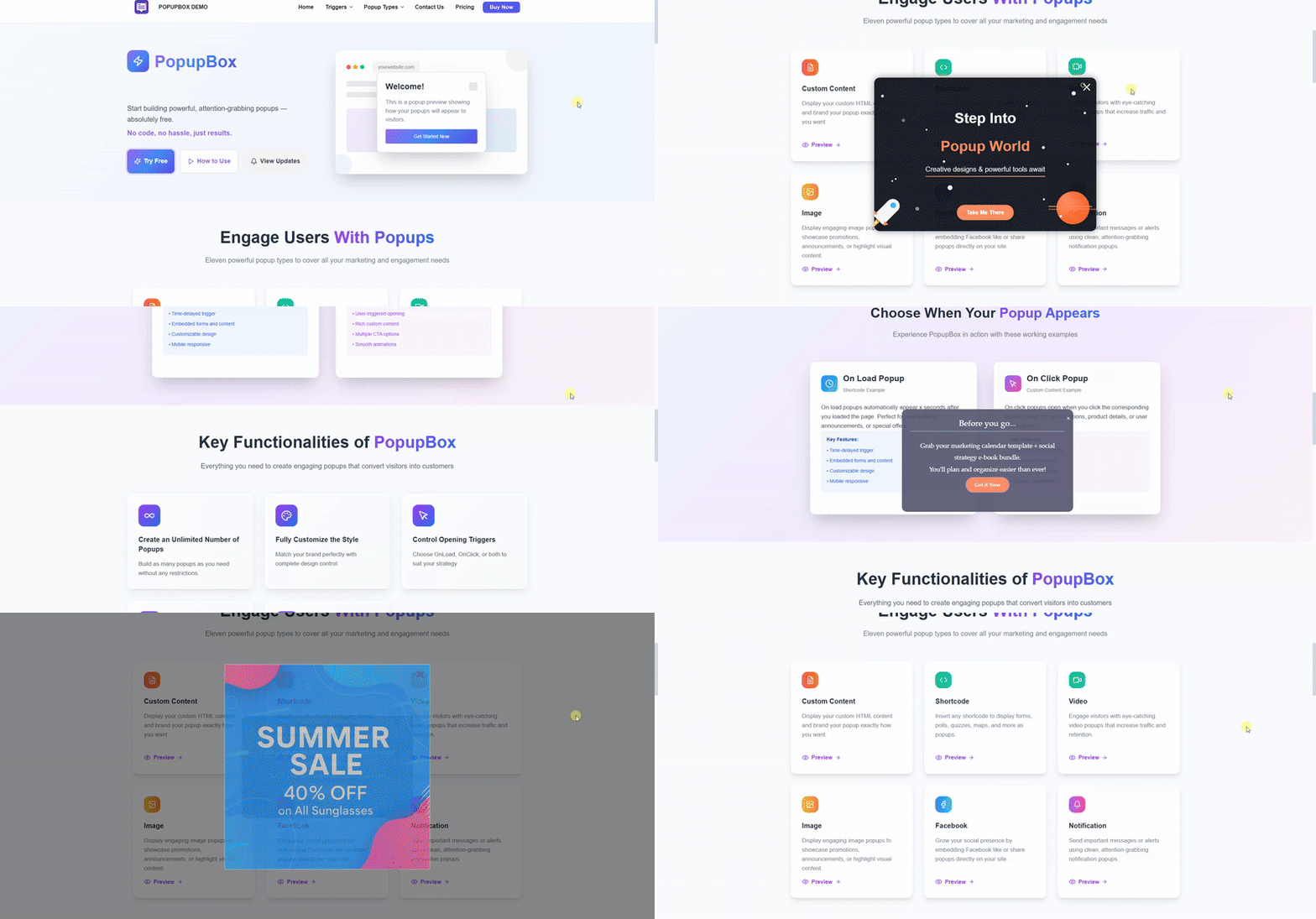
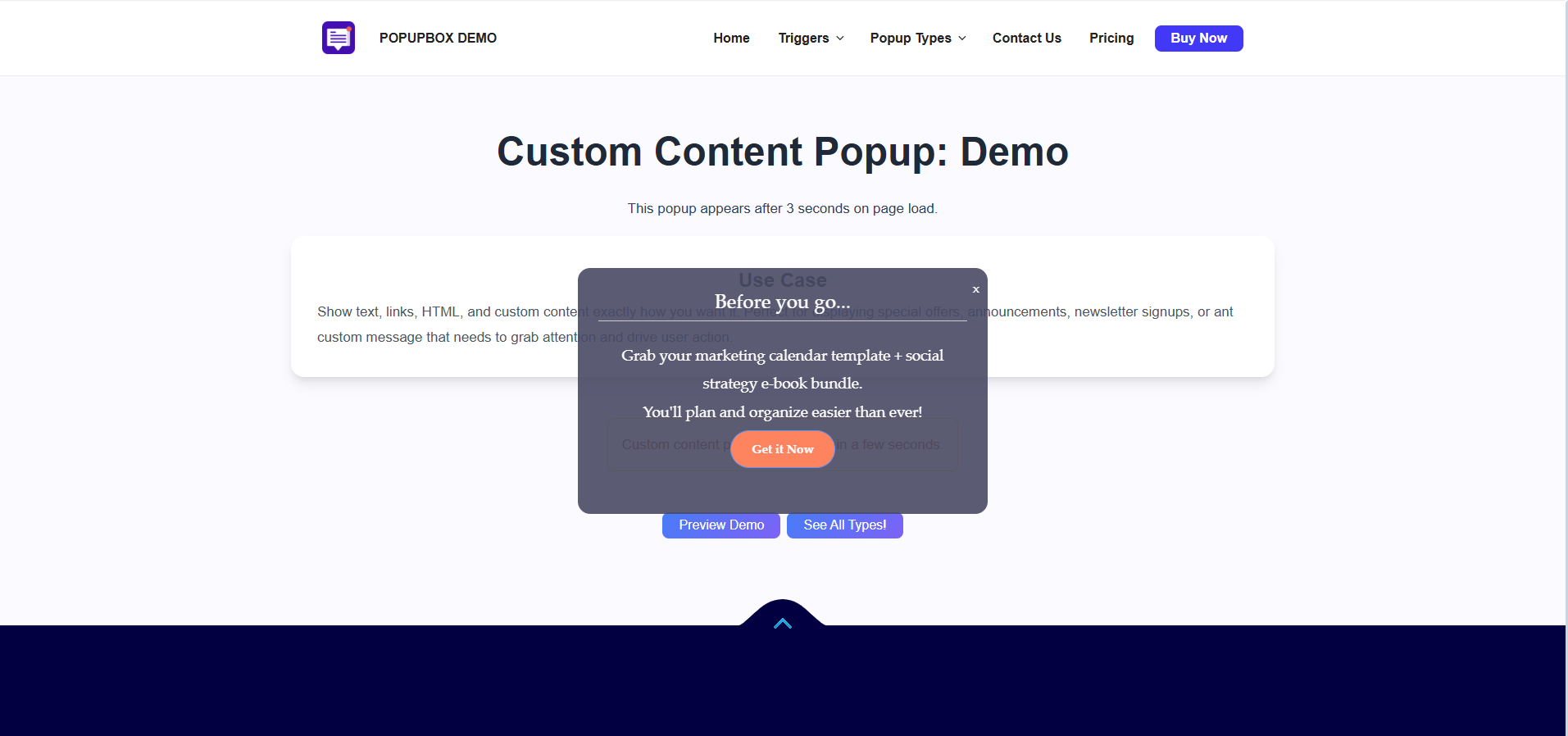
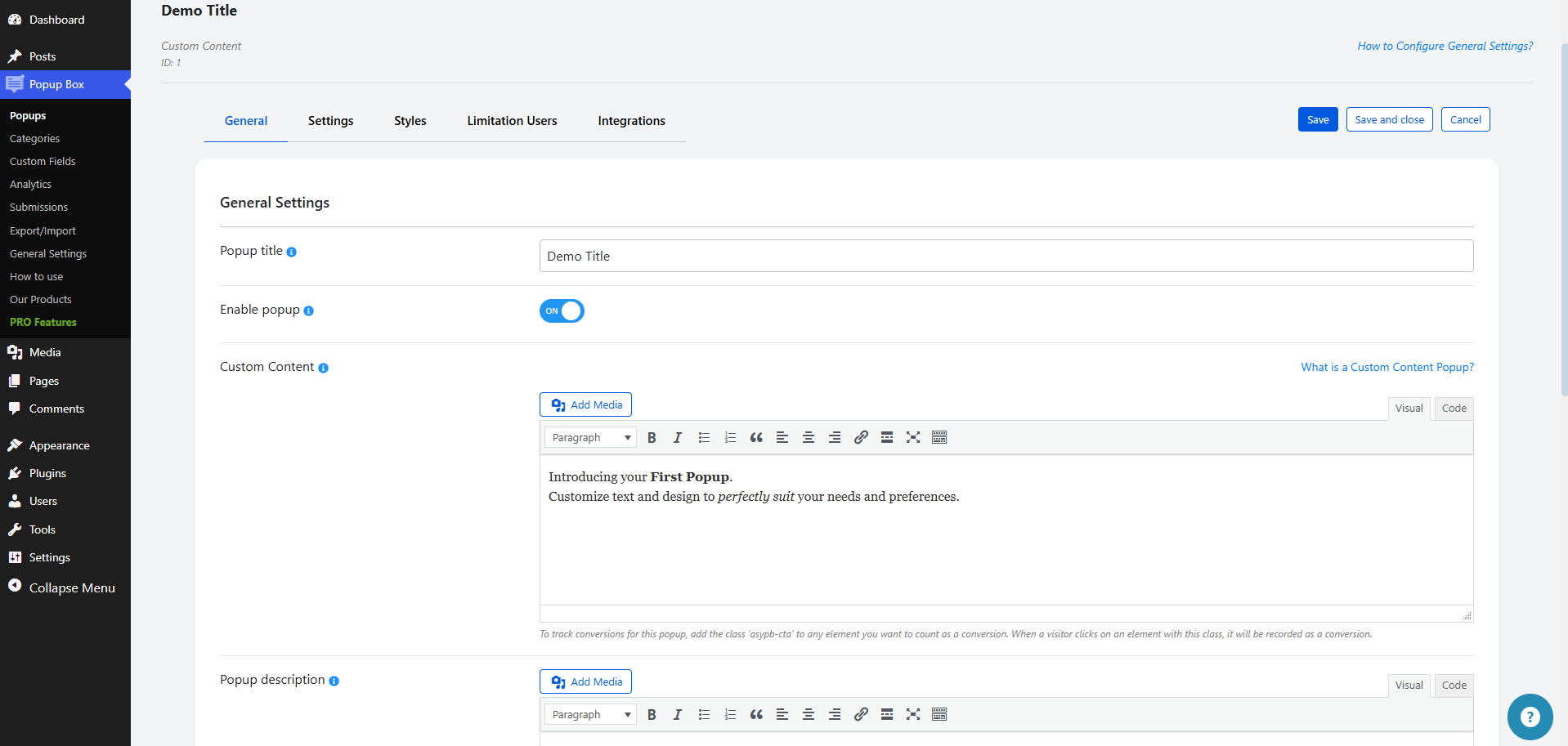
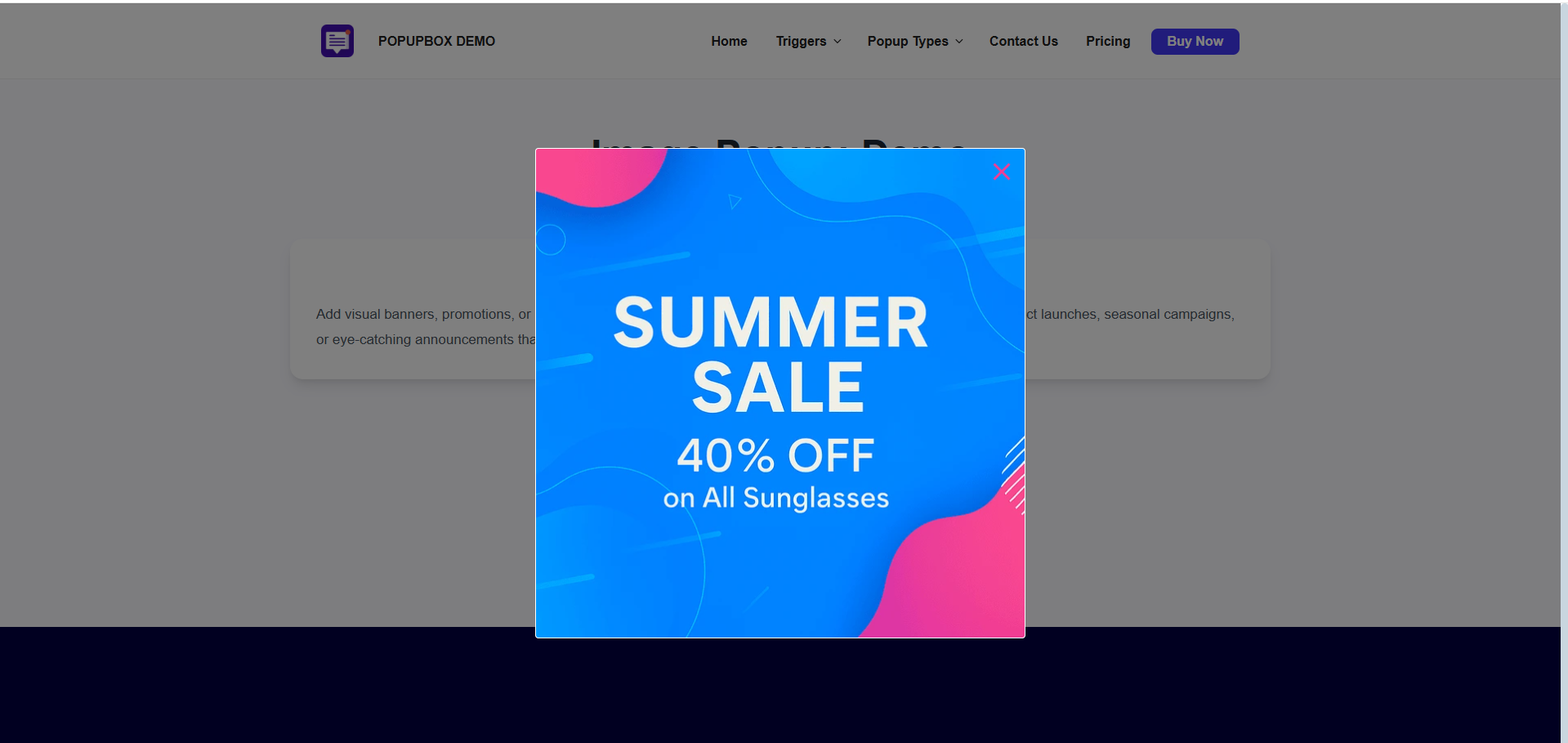
Popup Box allows you to create a wide variety of modal popups and overlays without limitations:
You can also use Popup Box to create popups for seasonal campaigns and special events, such as Christmas popups, Black Friday popups, Cyber Monday popups, or other time-based announcements and otions.
This flexibility makes Popup Box suitable for blogs, business websites, landing pages, and online stores.
Popup Triggers & Display Rules
Popup Box allows you to control exactly when your popups appear by using different trigger types:
On page load – show a popup automatically when the page finishes loading
On click – open a popup when a visitor clicks a selected button or element
Exit intent – trigger a popup when visitors are about to leave the page
On hover (Pro version)_ – display a popup when a user hovers over a specific element
Inactivity (Pro version) – show a popup after a visitor stays inactive for a defined time
After visiting X pages (Pro version) – display a popup based on the number of pages viewed
Scrolling to elements (Pro version) – trigger a popup when users scroll to a selected section
Free vs Pro – What’s Included
Free Version
The free version of Popup Box includes everything you need to create and display basic popups:
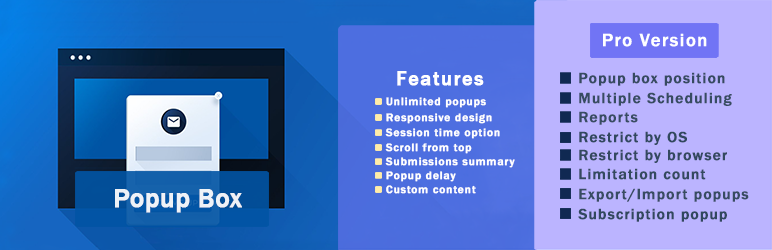
Popup Box Pro extends the free version with advanced popup types and display controls:
Includes ALL Free version Features and
Subscription popup
Yes or No popup
Video popup
Iframe popup
Contact form popup
Send file after subscription
Popup box position
Multiple Scheduling
Close triggers
Enable redirection
Reports
Restrict by OS
Restrict by browser
Limitation count
Export/Import popups
User role permission
Limit by country
MailChimp Integration
Campaign Monitor Integration
ActiveCampaign Integration
GetResponse Integration
ConvertKit Integration
Sendinblue Integration
MailerLite Integration
Coupon Popup
Countdown Popup
Cookie Popup
Exit Intent Popup
Woocommerce Product Popup
After Visiting X Pages Trigger
Inactivity Trigger
Scrolling To Element Trigger
WooCommerce & Website Use Cases
Popup Box can be used as a flexible WooCommerce popup and general WordPress popup plugin for different website scenarios.
It allows you to create product popups, announcement popups, and promotional popups that support user interaction without disrupting the browsing experience.
Whether you’re running an online store, a business website, or a content-driven site, Popup Box helps you display relevant popup content based on user actions and page context.
Popup Box works smoothly with WooCommerce and general WordPress setups:
Show product popups and special offers
Display coupon and countdown popups
Create announcement and notification popups
Embed forms, videos, or external content
You decide how popups support your website – without forcing a specific workflow.
Customization & Styling Options
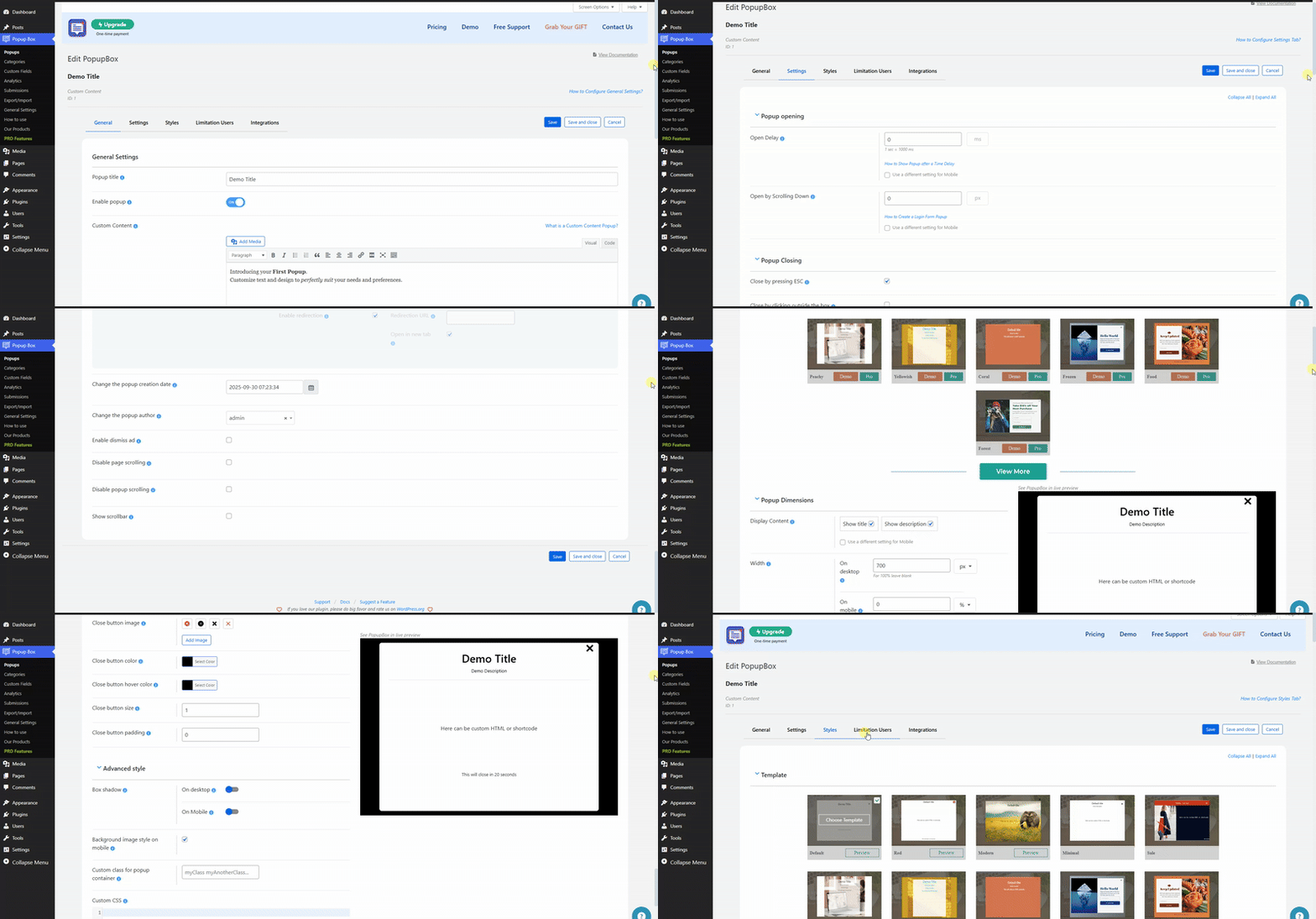
Popup Box comes with 5+ pre-built themes to help you get started quickly, while still allowing deep customization for each popup.
Every popup type includes its own specific styling and behavior options, so you can fine-tune the design and appearance based on the popup’s purpose.
Customize every part of your popup:
Popup size, position, and animations
Colors, borders, and typography
Custom CSS for advanced styling
Responsive behavior for desktop and mobile
Preview changes before publishing
Why Choose Popup Box
Popup Box lets you create unlimited popups without restrictions and gives you the freedom to build popups using custom HTML or shortcodes from other WordPress plugins.
You can control popup behavior using flexible triggers, allowing popups to be used for content display, user interaction, or promotional purposes without forcing a specific workflow.
Popup Box works smoothly with most WordPress themes and plugins, making it easy to integrate into existing websites.
Integrations & Compatibility
MailChimp
Campaign Monitor
ActiveCampaign
GetResponse
ConvertKit
Brevo
MailerLite
reCAPTCHA
You will be able to preview the changes before saving them.
1. How many popups can I build with the PopupBox plugin?
Unlimited! Incredible, isn’t it? No matter you are a user of the free or premium version, you can create and activate an unlimited number of popups. You can insert several modal popups on a single age, as well as on different webpages. The option is perfect for those who want to target their website visitors differently based on conditions such as the Country they are living in, Browser they are using, so on.
2. Can I pop up more than one modal on the same webpage?
Yep! Now, you might be wondering why should I pop up several popups on the same webpage. Purposes are plenty!
Firstly, you can show your subscription forms as soon as the page is loaded, then you can provide your advertising offer after a specified time delay with the help of the Open Delay option. Moreover, you can display a modal when the user clicks on the assigned CSS element(s) such as buttons, titles, and so on.
3. Is the plugin mobile-friendly?
Sure, by all means! The modals created with our WordPress popup builder plugin fit smoothly and flawlessly on all mobile devices and gadgets. Hurry up and create your first amazing and responsive p form with us!
4. How can I configure my modal form to open on its own (automatically)?
It is easy as pie! Please go to the General tab of the given modal form, and choose the On-page load variant from the Popup trigger dropdown. After the configuration, your modal form will be displayed oon as the webpage(where it is located) is loaded. And voila, your amazing WordPress popup is ready!
5. How to redirect visitors after clicking on the modal form?
Simply by enabling the Actions while clicking on the popup option and ticking on the Enable redirection suboption. All you need to do is provide the redirection URL and choose whether open it on a new tab ot – isn’t that amazing!
6. Can I pop up my module after a specific amount of time?
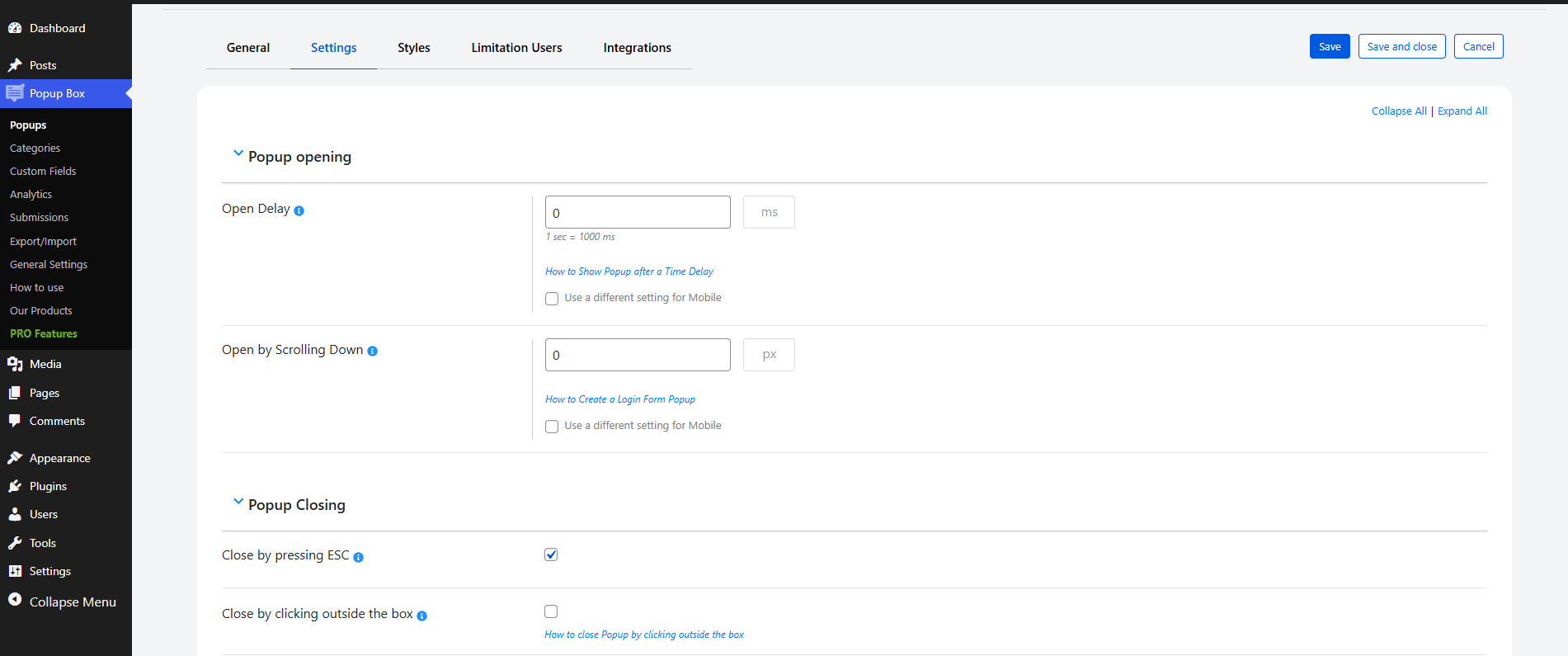
Sure, you can! To do that, you need to go to the Settings tab of the given modal form and enable the Open Delay option. Indicate the time in milliseconds and your modal window will be displayed on the age after that specified time delay. A perfect option for those who want to target only those website visitors who have already spent some determined time on your website.
7. Can I set a popup to show after clicking on some elements?
Yes! Please go to the General tab of the given modal and select the On-click method as a Popup trigger. The modal form will be displayed when the visitor clicks on the specified CSS element(s). Assign element with the help of the CSS selector(s) for trigger click option. Isn’t it therefore fair to say that our Popup Maker plugin is the #1 best WordPress popup plugin?
8. Can I set a popup to be closed in a few seconds on its own (automatically)?
Of course, you can! To do that please go to the Settings tab of the given popup, scroll a little bit and enable the Autoclose Delay (in seconds) option by giving a value to it. Indicate the time in seconds your WordPress popup will be closed after that specified time delay.
9. Can I insert a third-party shortcode inside my popup?
Yep! Display any form within your modal window such as contact form, quiz, poll, survey and etc. You just need to choose the Shortcode type while adding a new modal and paste the shortcode on the esponding field. Make your website more flexible!
10. Why should I buy the Premium package?
As you read each word of this page you have already known that the possibilities with the pro package are plenty. Aside from that, one thing’s certain, the super-quickly support team is behind your back and idered a significant component of your purchase. The decision is totally yours!
11. How to upgrade to the Premium version without losing my data?
Simply and effortlessly! Either you are switching from the free to pro, or the latest version of the pro to the newest one, all your settings/configurations will remain unchanged. In a word, you just need to k on the Upgrade button while deactivating the plugin from the Plugins section of your WP website. Please check out this detailed tutorial of the Popup Box WordPress plugin.
12. Something does not work or I have a suggestion/pre-sale question. What should I do?
Contact us! Either write on our FREE support forum or reach out to use with our contact form. Either way, our ful customer care specialists will contact back you quickly and will do their best to satisfy all your needs.
13. Can I customize the popup the way I want?
This is not even a question! Surely, you can customize the best popups the way you wish. Choose one of our premade themes, change the background color, image, text, and everything that you can think of. Can’t anything of your taste? You are free to add your custom CSS code to get your preferred design.
14. I am using a Cache plugin. What should I know in terms of plugin functionalities?
Please make sure the cache is not generated on the page where the plugin is enabled, before contacting the Support Team. Clear all the caches.
If you are using a Cache plugin, then make sure that it does not store a strong cache and that the webpage where the plugin is enabled does not become static(HTML).
Check whether the Deactivate PHP cache is ticked from the settings of the cache plugin or not.
If yes, then please deactivate it.
No matter whether you are a guest or a logged-in user. The code works in the same way in both cases.
The same is about the mobile version.
You can disable the cache-generating process by deactivating the option from the cache plugin (if it has one).
After clearing the caches, try to check the case with either the Incognito mode or another browser/device.