Create blog posts automatically using the OpenAI API – It's ChatGPT directly on your site!
The scheduled AI writer for WordPress. Generate posts on a schedule with your own AI keys, see what each one costs before it runs, and get drafts to review by default.
WP-AutoInsight writes a post, illustrates it, fills in the SEO fields and saves it as a draft for you to review. There is no platform subscription: you connect your own account with OpenAI, Claude, Gemini, Perplexity, or 300+ models through OpenRouter, and you pay that provider for what you use. The plugin shows an estimate of what one post costs at the length and model you picked, before it runs.
Automatic publishing is available and optional. You turn it on yourself, for the whole site or for a single topic.
Key Features
-
Generate content in more ways than you’d expect
- Write full blog posts from a keyword list, automatically or on demand
- Build a Topic Library: reusable topics that generate posts on their own schedule, from hourly to weekly, each with its own prompt and model
- Turn voice notes or meeting recordings into draft posts. Upload audio, get a structured article
- Create infographics from any existing post, saved directly to your Media Library
- Pull research-backed content through Perplexity Sonar, complete with clickable source citations
-
Choose the AI. Pay the AI directly.
- Supports OpenAI, Anthropic Claude, Google Gemini and Perplexity models, plus 300+ models through OpenRouter with one key. Switch models anytime you want
- Advanced: connect one custom OpenAI-compatible endpoint (Ollama, Groq, DeepSeek, Mistral, Together and similar), or add a model ID your provider released before the plugin listed it
- See the estimated cost of one post next to the length slider and next to every model. The estimate says what it includes and the date of the prices it uses, and reads “cost unknown” when no price is known
- Pick a fallback provider: if your primary is rate-limited or down, the post finishes on the second one
- Give any keyword group its own model or length; everything else inherits your defaults
- Your API keys, their actual rates. No markup, no lock-in
-
Posts you can work with
- The model is asked for the length you chose and told to finish inside it, with sections that fit that length and short paragraphs
- It is told not to invent statistics, quotes, prices or firsthand experience. Add “Facts to use” to a topic or a single post and it builds on those and cites only links you supplied
- Each topic knows the titles it already produced and is asked for a different angle
- Optional answer-focused structure for how-to and reference content: question headings answered up front, key takeaways and a short FAQ. It is off unless you turn it on
-
Drafts by default
- Content saves as a draft by default. Automatic publishing is a setting you choose, globally or per topic
- The Generation Log tracks every job: which model wrote it, what it cost, what failed and why
- Bulk SEO refresh rewrites the title, SEO description and focus keyword of posts that are already published, so it changes live posts. It only runs when you start it
- Set tone, audience, keywords, categories and length once. The plugin follows them
-
Works with everything already on your site
- Native Gutenberg block output. Not an HTML blob in a classic editor
- Yoast SEO and RankMath: focus keywords, meta descriptions, and social excerpts generated automatically
- Featured images via OpenAI GPT Image, Stability AI, or Gemini image generation, in the style you choose
-
For developers
- Store API keys in wp-config.php for maximum security, or use WordPress 7.0’s native Connectors API
- Configurable per post type, clean option names, no proprietary lock-in
Configuration
API Keys
You’ll need at least one of the following API keys:
* OpenAI API key (for GPT models and GPT Image)
* Claude API key (for Claude models)
* Gemini API key (for Google’s AI)
* Perplexity API key (for web-grounded content with citations)
* OpenRouter API key (for 300+ models from many vendors with one key)
* Stability AI key (optional, for alternative image generation)
For enhanced security, add your API keys to wp-config.php:
php

define('OPENAI_API', 'your-key-here');

define('CLAUDE_API', 'your-key-here');

define('GEMINI_API', 'your-key-here');

define('PERPLEXITY_API', 'your-key-here');

define('OPENROUTER_API', 'your-key-here');

define('STABILITY_API', 'your-key-here');

define('CUSTOM_API', 'your-key-here'); // custom OpenAI-compatible endpoint
Content Settings
- Pick your model under Connections > API Keys
- Set tone, language and audience under Content > Keywords & Templates
- Add keyword groups and templates on the same screen, or topics under Topics
- Choose Content Length and whether new posts are drafts under Settings > General
- Turn featured images on or off under Media > Images
- Set up email notifications under Connections > Scheduling
External services
This plugin sends data to the AI service you configure, and only when a post, image, transcript, rewrite or connection test is requested. It contacts no service you have not given a key or an address for, with one exception noted under OpenRouter.
- OpenAI (api.openai.com): prompts built from your keywords, topics, templates and site name; audio files for transcription; image prompts. Terms, privacy.
- Anthropic (api.anthropic.com): the same text prompts. Terms, privacy.
- Google Gemini (generativelanguage.googleapis.com): text and image prompts. Terms, privacy.
- Perplexity (api.perplexity.ai): text prompts, with a header naming this plugin. Terms, privacy.
- OpenRouter (openrouter.ai): text prompts, with your site address and the plugin name as attribution headers. Searching the model catalog, and a daily refresh while an OpenRouter key is saved, fetch OpenRouter’s public model list without sending your key. Terms, privacy.
- Stability AI (api.stability.ai): image prompts. Terms, privacy.
- A custom endpoint you enter: text prompts go to that address and nowhere else. Its operator’s terms apply.
Support
For support, feature requests, or to contribute to development:
* Read the Documentation
* Visit the WordPress support forum
* Submit issues on GitHub
* For custom integrations or consulting: phalkmin@protonmail.com
* Support development:
Screenshots
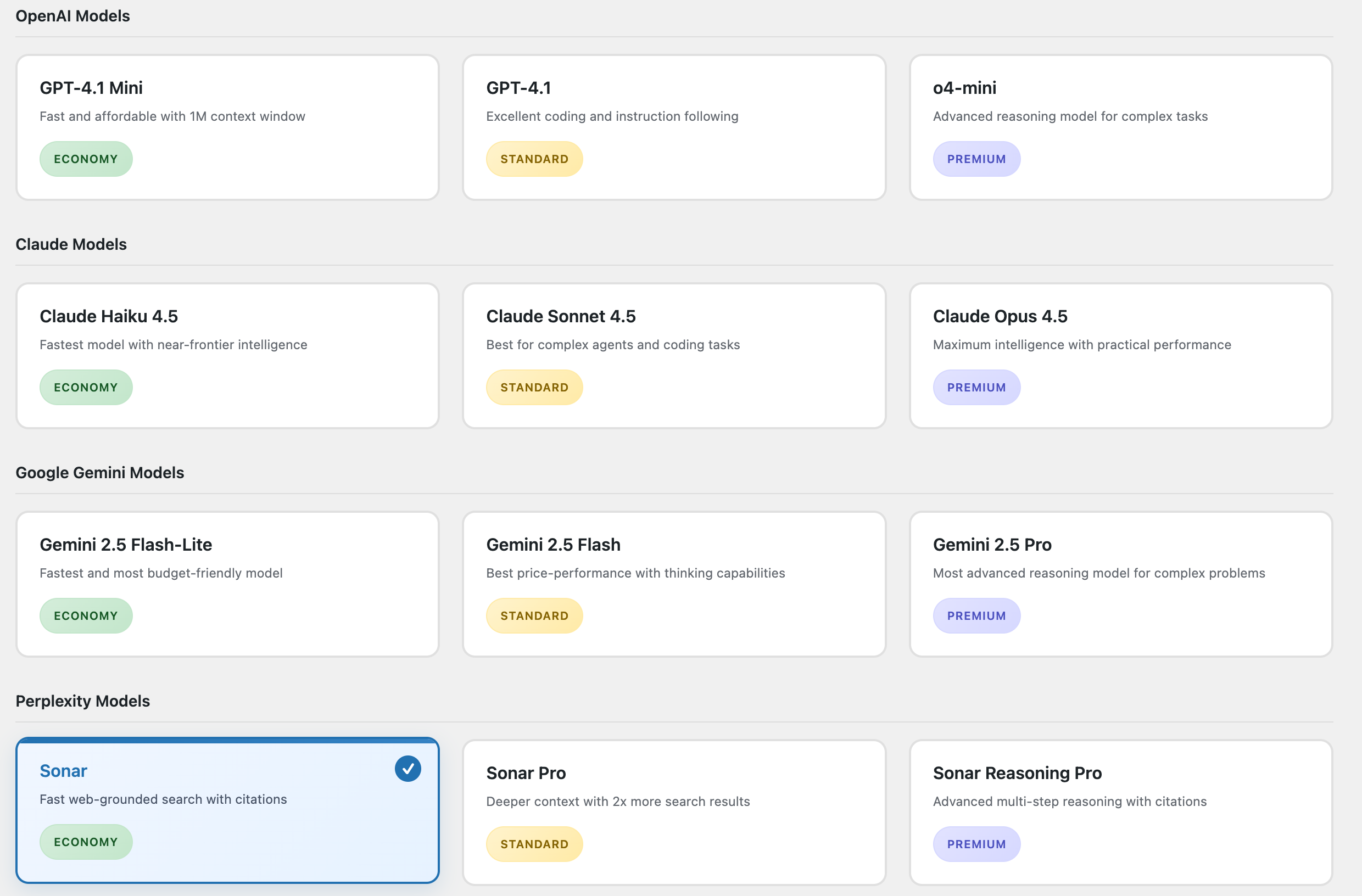
Plugin settings page - Configure API key, keywords, and other options.
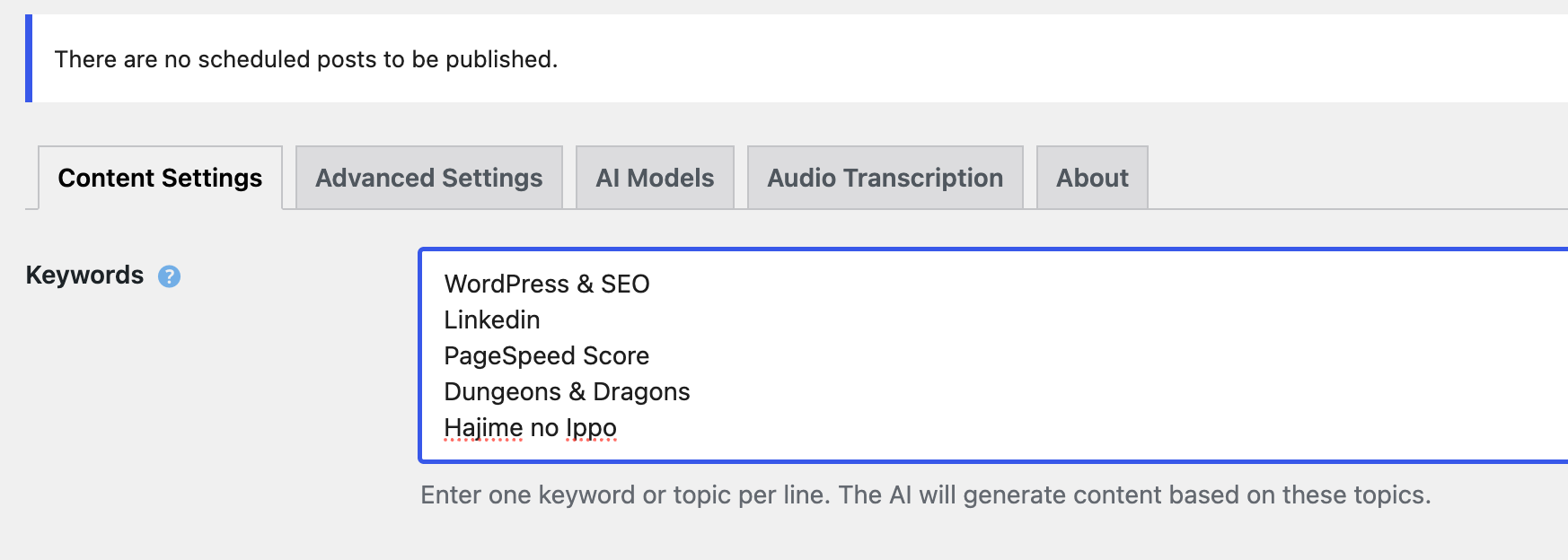
Example generated blog post using Gutenberg blocks.
How do I get an OpenAI API key?
To use OpenAI models (GPT-5.4 mini, GPT-6 Luna and others), sign up at OpenAI and get your API key:
1. Go to https://platform.openai.com/api-keys
2. Sign up or log in to your account
3. Click “Create new secret key”
4. Paste the key under WP-AutoInsight > Connections > API Keys and click Save Connection Settings
How do I get a Claude API key?
To use Claude models (Haiku, Sonnet, Opus), you need an Anthropic API key:
1. Visit https://console.anthropic.com/
2. Create an account or sign in
3. Go to API Keys section
4. Generate a new API key
5. Paste it under WP-AutoInsight > Connections > API Keys and click Save Connection Settings
How do I get a Gemini API key?
To use Google’s Gemini models, get your API key from Google AI Studio:
1. Go to https://aistudio.google.com/app/apikey
2. Sign in with your Google account
3. Click “Create API key”
4. Paste the key under WP-AutoInsight > Connections > API Keys and click Save Connection Settings
How do I get an OpenRouter API key?
OpenRouter gives you many vendors’ models behind one key:
1. Go to https://openrouter.ai/settings/keys
2. Sign up or log in, then create an API key
3. Paste the key under WP-AutoInsight > Connections > API Keys and click Save Connection Settings
3. Add it under WP-AutoInsight > Connections > API Keys
4. Pick a model from the shortlist, or search the catalog and add any other
Paid models need credits on your OpenRouter account. OpenRouter charges a fee when you buy credits; that fee is noted under the cost estimate and is not part of it. Free models are labelled experimental: they share a small daily request limit and one post uses 2 to 3 requests.
Can I use a local model or another OpenAI-compatible service?
Yes. Under Connections > API Keys, the “Custom OpenAI-compatible endpoint” card takes a base URL, a model ID and an optional key:
– A public service must use https://
– An address on the server itself or its private network (for example Ollama on http://localhost:11434/v1) needs the “Local endpoint” checkbox. “localhost” means the server WordPress runs on, not your own computer
– A local endpoint may run without a key
– The key is sent only to the address you entered; redirects are not followed
– On multisite only a network administrator can change the endpoint
You are responsible for that service’s terms and for how it handles the prompts and posts sent to it. No price is known for a custom endpoint, so its cost shows as unknown.
How is the cost per post estimated?
The estimate covers the title (or title and SEO) call plus the article text, at the length and model you chose, using the token prices stored with each model and the date they were checked. For OpenRouter it uses the catalog’s current prices. It does not include the featured image, a repair after a cut-off reply, or a retry on the backup provider. It is an approximation: the Generation Log shows what each finished job actually used.
How do I get a Stability AI API key?
For image generation fallback with Stability AI:
1. Visit https://platform.stability.ai/
2. Create an account and sign in
3. Go to API Keys in your account settings
4. Generate a new API key
5. Paste it under WP-AutoInsight > Connections > API Keys, in the Image-only Providers section
How do I select AI models?
- Go to WP-AutoInsight > Connections > API Keys
- Each provider with a key lists its models, with the estimated cost of one post at your current length
- Select a model and click Save Connection Settings
- A keyword group or a topic can use its own model; everything else uses this one
How can I customize the generated content?
You have extensive customization options:
– Keywords: Set keyword groups and templates under Content > Keywords & Templates
– Tone: Choose Professional, Conversational, Warm, or describe your own
– Categories: Select WordPress categories for posts
– Length: Choose how long posts should be under Settings > General; the cost estimate follows the slider
– Audience and facts: Say who you write for in Content settings, and give a topic or a single post “Facts to use”
– SEO: Enable automatic SEO metadata generation
– Images: Toggle featured image generation on/off
Can I use audio files to create blog posts?
Yes. Transcription uses your OpenAI key:
1. Turn on audio transcription under Media > Audio
2. Upload an audio file to your Media Library and open it
3. Click “Create Post from Audio”, or “Transcribe Only” to read the transcript first
4. The result is a draft post with the audio player embedded
5. Supports MP3, WAV, M4A, WebM and FLAC files up to 25MB
How do I create infographics from my posts?
The infographic feature analyzes your content and creates visuals:
1. Open any existing post for editing
2. Open the “WP-AutoInsight Tools” box in the editor sidebar
3. Click “Create Infographic”
4. The AI analyzes your content and generates a visual infographic
5. The image is saved to your Media Library and attached to the post. Insert it where you want it
Can I rewrite existing posts with AI?
Yes, use the AI rewrite feature:
1. Edit any existing post
2. Open the “WP-AutoInsight Tools” box in the editor sidebar
3. Click “Rewrite with AI”
4. The new text replaces what is in the editor. Nothing is saved yet, and Undo brings the old text back
5. Review it, then update the post
How do I manually create posts?
- Dashboard: click “Generate Now” to create a post with the source, template and model shown
- Post list: use the “Create AI Post” button on the Posts screen
- Bulk Generate: paste a list of keywords under Content > Bulk Generate, one post each
- Topics: click “Run Now” on any topic
Is it possible to schedule automatic content generation?
Yes:
1. Add a topic under Topics with its own prompt and frequency, from hourly to weekly. Pause, resume or run it at any time
2. Or use the older single schedule under Connections > Scheduling, which rotates through your keyword groups
3. Posts are saved as drafts unless you choose to publish
4. Optional email when a scheduled post is created or fails
Which post types are supported?
You can configure which post types show AI tools:
1. Go to Settings > General
2. Select from available post types (Posts, Pages, Custom Post Types)
3. AI buttons and tools will appear for selected post types
4. Default is set to standard WordPress Posts
How secure are my API keys?
WP-AutoInsight keeps keys out of the places they usually leak:
– Store API keys in wp-config.php (or WordPress Connectors on WordPress 7.x) so they never sit in the database; the Connections tab shows which source is in use
– Keys saved through the settings screen are stored as plain WordPress options, like most plugins do; treat database backups accordingly
– Keys are redacted from the debug log and never rendered back into the settings form
– Every provider call uses HTTPS
What’s the difference between the AI models?
Each provider offers different strengths:
– OpenAI: Excellent for creative and versatile content
– Claude: Great for analytical and structured content
– Gemini: Strong at factual and research-based content
– Perplexity: Generates web-grounded content with real source citations, ideal for research-heavy or news-adjacent posts
– OpenRouter: One key for models from many vendors, including low-cost open models
– Cost Tiers: Economy (fast/cheap), Standard (balanced), Premium (highest quality)
How does Perplexity work differently from the other providers?
Perplexity searches the web in real time before generating content, then includes source citations alongside the text. Instead of generating from training data alone, it pulls from current sources and references them in the post. You can choose how citations appear: as inline hyperlinks, a references section at the bottom, or both. You can also set a recency filter to limit sources to the last day, week, month, or year. A Perplexity API key with an active paid plan is required.
Can I use multiple AI services together?
Yes, you can configure multiple API keys and switch between models:
– Add keys for different providers under Connections > API Keys
– Choose different models for different types of content
– The plugin automatically uses the appropriate service based on your selection
Does the plugin work with SEO plugins?
Yes, WP-AutoInsight integrates with popular SEO plugins:
– Yoast SEO: Automatic meta descriptions, focus keywords, and social previews
– RankMath: Compatible with meta field generation
– Turn on “Generate SEO metadata automatically” under Settings > General
What happens if content generation fails?
WP-AutoInsight includes robust error handling:
– Error messages say what went wrong and which screen to open
– An optional backup provider finishes the post when your main one is rate limited or down
– Content is saved as drafts to prevent data loss
– Error logging helps with troubleshooting
– Email notifications for scheduled generation failures
How do I get support?
Multiple support channels available:
– Documentation: https://wpautoinsight.phalkmin.me/
– WordPress Forum: https://wordpress.org/support/plugin/automated-blog-content-creator/
– GitHub Issues: https://github.com/phalkmin/wp-autoinsight
– Direct Contact: phalkmin@protonmail.com
ChangeLog
4.6.0
- Requires WordPress 7.0 or newer. Sites on older WordPress versions stay on 4.5.3.
- Better posts by default: length-aware structure and rules against invented statistics, quotes, prices and firsthand experience. New installs default to about 900 words. Existing lengths are preserved; upgrades without a saved length keep the old default and get a one-time cost comparison.
- Cost estimates beside the length slider, models, Composer and per-group overrides explain what they include.
- OpenRouter: one key for 300+ models, with a curated shortlist and catalog search. Free models are labelled experimental.
- Advanced: one custom OpenAI-compatible endpoint (Ollama, Groq, DeepSeek and similar) with HTTPS, local-endpoint and no-redirect safeguards, plus custom model IDs on the built-in providers.
- “Facts to use” on topics and single posts, recent titles to avoid repeated angles, an Audience setting, and optional answer-focused structure (off by default).
- Added GPT-6 Luna, GPT-6.1 Terra and GPT-6.1 Sol; Claude Haiku 5.5, Sonnet 5.5 and Opus 5.5; Gemini 3.5 Flash-Lite, 3.6 Flash and 3.8 Flash. Retired models automatically use their replacements, including in scheduled topics; previous generations are labelled legacy.
- The Generation Log records each job’s title, body word count and model, SEO, featured image, fallback, tokens and estimated cost. Rewrite with AI and Infographic also appear with their usage.
- Clearer failures for reasoning-only replies, and out-of-credits replies (402) can use your backup provider.
- A WordPress.org review request appears after 5 successful posts and 14 days; snooze it twice or dismiss it permanently.
- For developers: registry-added providers can generate text through the shared transport; saved model choices include their provider (
provider::model); new filters abcc_model_flags and abcc_provider_request_body.
- Security: custom keys are bound to the endpoint origin, with stricter DNS and form-validation safeguards. Fixed: regeneration keeps the original brief, blocked replies cannot become posts, and legacy upgrades retain their length.
- Plain-language progress and error messages, per-post cost estimates on Bulk Generate and topics, and fixes for a repeated title heading and phone-width layout.
- Provider Health says why a provider is not working, the Topics table shows each topic’s model, Bulk Generate clears finished keywords, and saving Connections never turns on a backup provider you did not choose.
4.5.3
- Fixed: featured images and infographics on OpenAI had failed since October 23, 2026, when OpenAI shut down GPT Image 1. The default is now GPT Image 2.5 Flare, and saved selections of retired image models are sent as their replacement automatically.
- Fixed: Gemini “Pro (higher quality)” images, broken since Google shut down the preview model in June 2026. The option now uses the released model, and Gemini 3.1 Flash-Lite Image is offered as the cheapest choice.
- Fixed: an out-of-credits reply from a provider (HTTP 402) now says so instead of suggesting the model is gone.
- Changed: Perplexity requests now identify the plugin to Perplexity with an integration header (community contribution).
4.5.2
- Fixed: the setup wizard was stuck on an empty screen for new installs and on “Restart setup wizard” (broken since 4.3). The first step shows again, and providers with a saved key are recognized on restart.
- Fixed: admin notices no longer show up as unreadable white text inside the wizard header.
- Fixed: going back to the Topic step after creating a topic no longer leaves Continue disabled; restarting the wizard no longer resets your chosen model.
- Fixed: “Manage at Settings → Connectors” links now open the WordPress 7.1 Connectors screen.
- Fixed: the dashboard Composer could publish a post with Draft selected; its fields now show exactly what runs.
- Fixed: Rewrite with AI no longer saves on the server or produces code fences and model notes; the result lands in the editor for you to review, save or undo.
- Fixed: provider health now updates from the wizard test, the daily check and real generations; Validate works for wp-config and Connectors keys.
- Fixed: Gemini 2.5 posts failing on hidden thinking tokens; Perplexity reasoning leaking into posts; code samples and lists flattened into paragraphs.
- Fixed: featured-image alt text without an SEO plugin, visible image failure reasons, infographics attached without a loopback request and without replacing the featured image.
- Fixed: topics gain optional focus keywords and local-time dates; auto-pause counts real failures; stuck “Queued” jobs are failed with a WP-Cron hint; bulk stops after a key error.
- Fixed: restarting the wizard kept Publish; Reset keeps API keys; many copy, i18n and accessibility fixes.
- Security: job status scoped to the creator; API keys redacted from debug logs.
- Fixed: regressions found in the 2026-10-10 hunt, before the tag: bulk SEO jobs wrongly failed as stale, a false “WP-Cron has not fired” dashboard warning, three content-converter cases that lost text, health writes from typed keys, and a dozen smaller fixes.
- Changed: Perplexity requests now identify the plugin to Perplexity with an integration header (community contribution).
4.5.1
- Fixed: turning AI off in WordPress (7.0+) now also stops scheduled topics and queued jobs; they resume when AI is back on.
- Fixed: after an automatic update, scheduled posts no longer run with new defaults before an administrator visits the dashboard.
- Fixed: on sites using a server cron job, each scheduled post now runs as its own background job.
- Security: scheduled posts become drafts when their author can no longer publish; audio tools check that you can edit the selected file.
For the full changelog of earlier versions, see CHANGELOG.txt.

