Auto WebP Converter & Logger is the smartest, safest way to serve next-gen images on WordPress.
Most optimization plugins slow down your site with external API calls or crash your server by processing huge files. Auto WebP Converter is different. It runs entirely on your server using the native PHP GD library, featuring a unique Smart Memory Guard that calculates available RAM before processing to prevent crashes.
No. The plugin processes new uploads only. We focus on optimizing your future workflow without overwhelming your server with bulk operations.
What image formats does this plugin convert?
It currently supports JPG, JPEG, and PNG images.
Can I delete the original images after conversion?
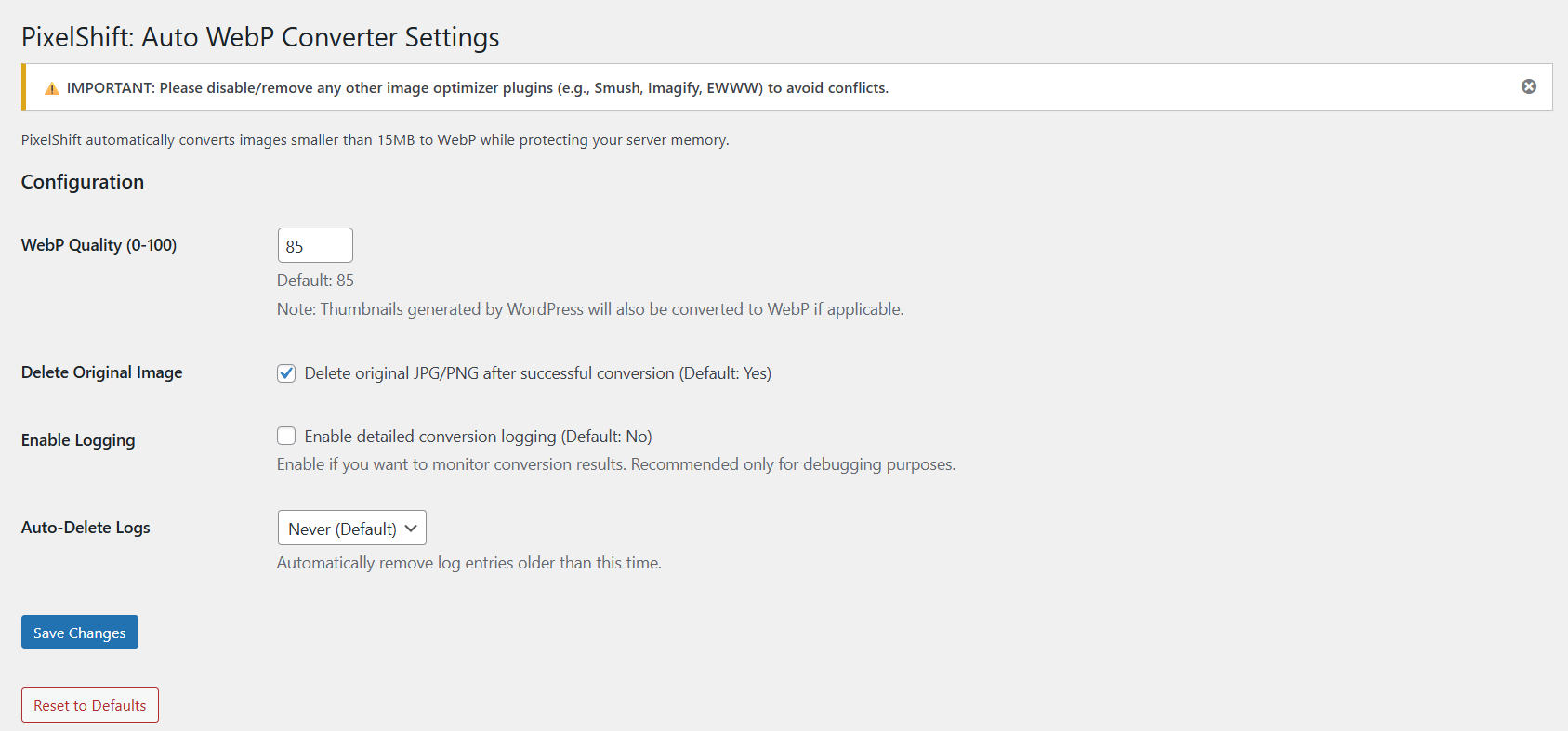
Yes. In the settings, you can check “Delete Original Image”. If checked, the original JPG/PNG is removed to save disk space. If unchecked, both the original and the WebP version are kept.
Will this work if I don’t have an API key?
Yes! This plugin does not use APIs. It uses your server’s built-in image processor (GD Library).
What happens if the uploaded file is too large?
For server stability, images larger than 15MB are automatically skipped. The event is logged if you have logging enabled.
Where are the conversion logs saved?
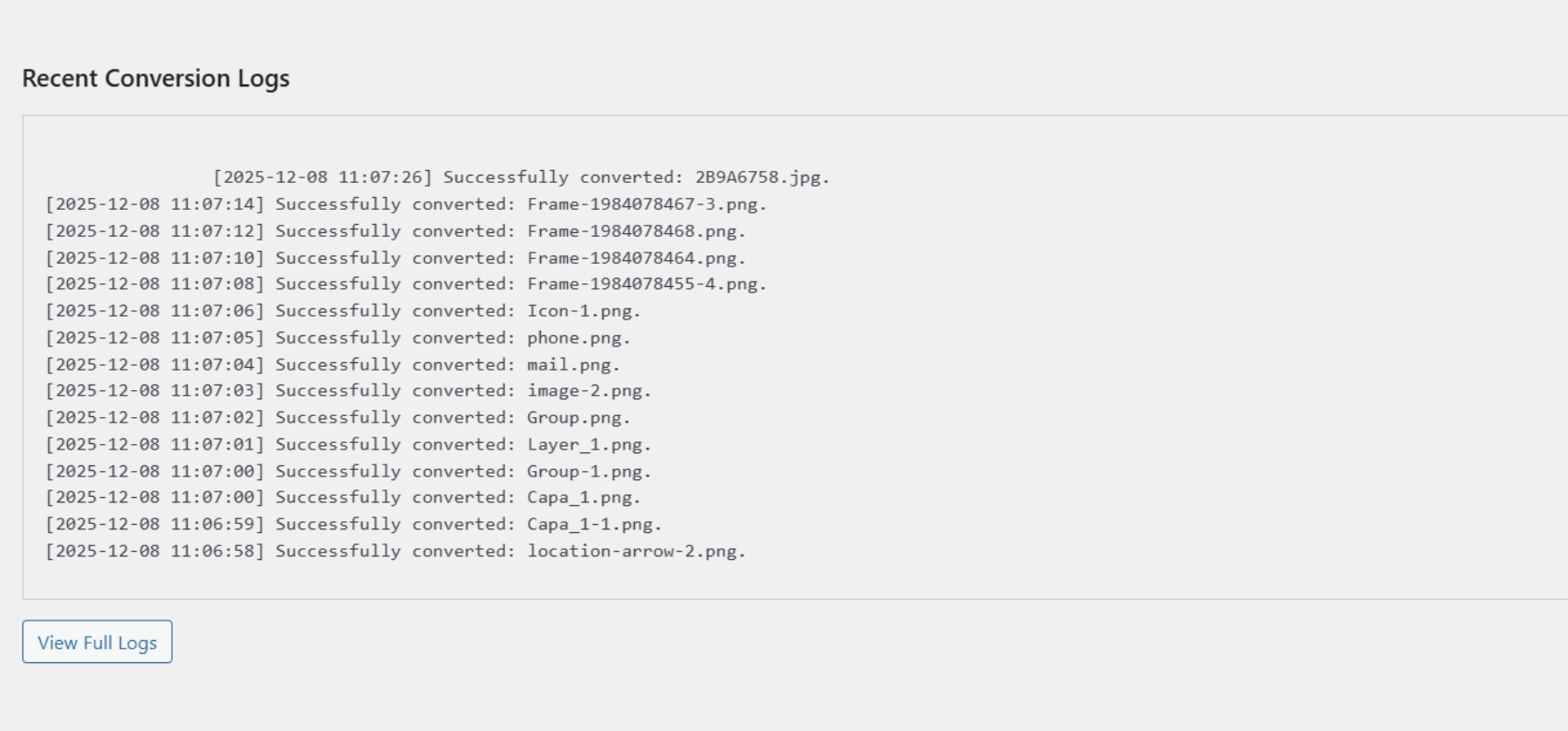
Logs are stored in a secure folder: /wp-content/uploads/auto-webp-converter-logger/. This folder is protected via .htaccess to prevent public access.
Will this work with third-party upload plugins?
Yes. The plugin hooks into the core WordPress upload process, so it generally works with plugins like Instant Images or frontend uploader forms, ensuring the correct MIME type is saved.
What happens if I uninstall the plugin?
Your images stay safe! The plugin generates standard WebP files. If you uninstall it, your existing WebP images remain on your site and continue to work.
Does this work on WordPress Multisite?
Yes. It is fully compatible with Multisite networks. Each site in the network gets its own isolated log folder.
Why are my images not converting?
Check GD: Ensure your host has php-gd enabled.
Check Logs: Enable logging in settings. If an image requires more RAM than your server allows, the plugin skips it to prevent a crash.
Check Conflicts: If you have Smush or EWWW active, the plugin pauses to avoid double-compression issues.
Can I rename the plugin folder?
No. The folder must remain auto-webp-converter-logger to ensure you receive future updates from the WordPress repository.