
Enterprise-grade WordPress security: WAF, brute force protection, malware scanner, 2FA, honeypots, AI crawler control, and post-breach recovery.
Atlant Security protects a WordPress site from the first byte of a request to the clean-up after a break-in: a firewall with rate limits, brute-force and two-factor login protection, a file and database malware scanner, hardening that is verified on your own server, alerts, a visitor log and an audit log, and a post-breach recovery toolkit. Everything runs on your server, with no external dependencies.
Every setting is one search away. Type in the box at the top of the plugin menu, or press “/”, and it finds any setting on any of the plugin’s pages and takes you straight to it.
Layered Defense
- Early-request firewall – the WAF, rate limiter and IP block list inspect every request at
init priority 0, before the page is built and before other plugins handle it.
- Logins and accounts – lockouts, CAPTCHA, a custom login URL, 2FA, session security, password and REST API policies.
- Content and configuration – hardening, security headers, AI crawler control and honeypots.
- Outbound and data – SSRF prevention and malware scanning of files and the database.
- Response and recovery – alerts, logs and the Post-Breach Command Center.
Features
Security Dashboard
A protection status strip shows at a glance the firewall mode (with a one-click “Switch to Block” while it only logs), login lockouts, two-factor coverage, rate limits, logging, the security headers grade, the last malware scan, whether PHP can run in uploads, and GeoIP, each linking to its page. Below it: visitors online now (refreshed every 15 seconds), requests, bots and blocks in the last 24 hours, a traffic chart, top IPs and top pages.
Web Application Firewall (WAF)
39 rules in 8 categories: SQL injection, XSS, path traversal and file inclusion, remote code execution, PHP object injection, SSRF, WordPress-specific probes (.env, .git, backups, debug logs, readme files) and scanner fingerprints. Request values are decoded twice more after PHP’s own URL decoding, and HTML entities and \u and \x escapes are resolved, before matching, so encoded payloads are caught. Log Only, Block or Tarpit mode; high-severity matches can block the attacking IP for as long as you choose.
Rate Limits
Sliding-window limits per visitor IP for 10 kinds of request: front-end pages, logins, search, feeds, sitemaps, the REST API (signed-in and anonymous), WooCommerce checkout, XML-RPC and WP-Cron. The WAF page shows every limit, lets you change it, and counts the requests throttled in the last 24 hours. Uses APCu when available.
Brute Force Protection
Progressive lockouts (5 minutes, then 30 minutes, then 24 hours) after a number of failures you set, with generic login errors that do not reveal whether a username exists. Unlock one IP, or clear every lockout, in one click; every page that can lock you out explains how to get back in. Author ID scans are blocked, and author archive URLs can be rebuilt from display names so they no longer publish login names.
CAPTCHA and Custom Login URL
Cloudflare Turnstile or Google reCAPTCHA v2 or v3 on the login, registration and lost-password forms, off until you choose a provider. Move wp-login.php to a secret address; the plugin asks you to whitelist your own IP first.
Two-Factor Authentication (2FA)
Authenticator apps (Google Authenticator, Microsoft Authenticator, Authy, 1Password and any TOTP app) set up by QR code or key, or codes by email, with 10 recovery codes; require it per role. A password alone never gets in: the session a password-only login creates is revoked on the server before the code is asked for. Anyone who has set up 2FA is asked for a code on every login, each account allows 10 wrong codes in 15 minutes, and API logins for 2FA accounts need an application password.
Malware Scanner
Scans PHP files in WordPress core, plugins, themes, uploads and mu-plugins, checks wp_options and post content for injected scripts, and flags newly created administrator accounts. Core files are verified against the official WordPress.org checksums. 17 signatures cover eval, base64, gzinflate and ROT13 backdoors, web shells (WSO, b374k, China Chopper), crypto miners, card skimmers, malicious redirects, hidden iframes and PHP files in uploads. The scan runs in batches in the background, picks up again after a page reload, can be cancelled, and can run daily on a schedule. Quarantine with one-click restore, a false-positive list with Undo, and CSV export of every finding.
Hardening, Verified on Your Server
One-click hardening (disable XML-RPC and the file editor, hide the WordPress version, block REST API user listing and author scans, force SSL for wp-admin, automatic updates, block PHP execution in uploads) with Enable and Disable buttons, and “How to fix” instructions for what the plugin cannot change itself. Checks report what is actually true: “Block PHP in Uploads” writes the rule into the uploads .htaccess, then requests a test file to confirm the server obeys it, and gives nginx and IIS sites the snippet to paste. A Vulnerability Audit lists everything still open.
Security Headers
HSTS, X-Frame-Options, X-Content-Type-Options, Referrer-Policy, Permissions-Policy, Content-Security-Policy (report-only or enforced), Cross-Origin-Resource-Policy and Cross-Origin-Opener-Policy, with every CSP directive and Permissions-Policy feature configurable and a preview of the exact header that will be sent, plus a letter grade. Removes X-Powered-By.
Session Security
HttpOnly, Secure and SameSite cookies; each session bound to the browser that created it (by User-Agent, and optionally by IP); a limit on concurrent sessions; an optional idle timeout; and a “Who is logged in” list with “Log out everywhere” for each account.
Honeypots and AI Crawlers
Hidden-link traps, a fake login page, and comment and Contact Form 7 fields that only bots fill in. Search engines and the AI crawlers you allow are never banned. Allow or block 20 known AI and LLM crawlers (GPTBot, ClaudeBot, Google-Extended, Bytespider and others) one by one, through robots.txt and with a 403 at the request level.
Outbound Monitor (SSRF Prevention)
Logs every outgoing HTTP request with the plugin or theme that made it, blocks requests to private and internal addresses including cloud metadata endpoints, and can enforce a domain allowlist.
Cron Guard
Takes a snapshot of the scheduled tasks and flags new or unusually frequent ones, a common way for malware to reinstall itself, while recognising every task WordPress core schedules. Detects wp-cron.php floods and helps you move to a real system cron.
Alerts
Email, Slack and custom JSON webhooks, off until you enable them, filtered by a minimum severity. Alerts cover malware, PHP files uploaded through the media library, new administrators, two-factor lockouts, unexpected scheduled tasks, blocked outbound requests, failed two-factor emails, login lockouts, firewall auto-blocks and honeypot bans. Each kind is sent at most once per 15 minutes (lockouts, blocks and bans once per 6 hours) with a count of what was held back, so an attack produces a summary, not a flood. “Send test” shows the mail server’s or webhook’s own answer, a Recent alerts table records what was sent where, and an optional daily digest sums up the day.
Visitor Log and Audit Log
Every request with its IP, country (with the free MaxMind GeoLite2 database), method, page, browser and status, kept for 30 days by default and searchable over the whole period: date ranges, country, method and HTTP status filters, sortable columns, and a CSV export that follows the filters. The audit log records administrator actions (users and roles, plugins and themes, blocks, unlocks and whitelisting, exports) and can be searched, filtered by action, user and date, and exported.
Post-Breach Command Center
The recommended order of response in one place: audit administrator accounts, terminate all sessions, rotate the secret keys and salts, lock the site down, scan the database, reinstall WordPress core and plugins, force a password reset for every user, deactivate plugins, clear caches, and download an incident report. Results stay on screen after the logout these actions cause.
Why Atlant Security?
- Status you can trust – a check passes only when the plugin has verified it on your server, not because a checkbox is ticked.
- One plugin, not five – firewall, logins, scanning, hardening, alerts, logs and recovery share one block list and one whitelist.
- No external dependencies – no CDN, external fonts or telemetry; outside services only for the features you switch on (see External Services).
- Safe Mode – one line in wp-config.php pauses every blocking feature if you lock yourself out.
- Your data, your choice – nothing is deleted on deactivation; deleting the plugin asks whether to keep its data.
- Accessible and multisite-ready – labelled controls, keyboard focus rings and phone layouts; activation and uninstall cover every subsite.
External Services
The plugin contacts these services only when you switch on the feature that needs them.
Cloudflare IP ranges
Used to check that a request really comes from a Cloudflare edge server before the visitor IP in its CF-Connecting-IP header is trusted.
- Data sent: none; the plugin downloads Cloudflare’s public IP range lists.
- When: weekly (cron
aswp_refresh_cloudflare_ips), only while Cloudflare integration is on.
- Endpoints: https://www.cloudflare.com/ips-v4 and https://www.cloudflare.com/ips-v6
- Cloudflare Terms of Use, Cloudflare Privacy Policy
MaxMind GeoLite2 database
Downloads the GeoLite2-Country database, which is stored on your server and used to show visitor countries.
- Data sent: your MaxMind license key, to authenticate the download. No visitor data.
- When: when you download it, then weekly (cron
aswp_update_geoip_db), only while GeoIP is on and a license key is set.
- Endpoint: https://download.maxmind.com/app/geoip_download
- MaxMind GeoLite2 EULA, MaxMind Privacy Policy
Google IP ranges
Lets requests from Google’s published IP ranges through the plugin’s protections when they also identify as Googlebot or another Google crawler.
- Data sent: none; the plugin downloads a public JSON list of Google IP ranges.
- When: weekly (cron
aswp_refresh_google_ips), only while Google integration is on.
- Endpoint: https://www.gstatic.com/ipranges/goog.json
- Google Terms of Service, Google Privacy Policy
Microsoft Bing IP ranges
Lets requests from Bingbot’s published IP ranges through when they also identify as Bingbot.
- Data sent: none; the plugin downloads a public JSON list of Bingbot IP ranges.
- When: weekly (cron
aswp_refresh_microsoft_ips), only while Microsoft integration is on.
- Endpoint: https://www.bing.com/toolbox/bingbot.json
- Microsoft Services Agreement, Microsoft Privacy Statement
WordPress.org core checksums
The malware scanner compares WordPress core files with the official checksums; matching files are skipped and changed ones are reported.
- Data sent: your WordPress version and locale. No site or visitor data.
- When: during a malware scan with “Use core checksums” on (the default), at most once a day per WordPress version.
- Endpoint: https://api.wordpress.org/core/checksums/1.0/
- WordPress.org Terms, WordPress.org Privacy Policy
WordPress.org secret keys
Generates new secret keys and salts for the “Rotate Secret Keys” action on the Post-Breach page.
Slack
Posts alerts to the Slack channel of the incoming webhook you enter.
- Data sent: the alert subject, description and severity, your site URL, and the IP address involved. No cookies or other visitor data.
- When: for each alert at or above your minimum severity, and once a day if the daily digest is on, while Slack alerts are on; and whenever you click “Send test”.
- Endpoint: the Slack incoming webhook URL you enter (https://hooks.slack.com/services/…).
- Slack Terms of Service, Slack Privacy Policy
Custom webhooks
Sends alerts as JSON to the URL you enter, for any monitoring or alerting system.
- Data sent: the alert subject, description and severity, your site URL, a timestamp, and the IP address involved. No cookies or other visitor data.
- When: as for Slack: alerts and the daily digest while webhook alerts are on, and whenever you click “Send test”.
- Endpoint: the URL you enter; its terms and privacy policy are those of the service you choose.
Google reCAPTCHA
Off by default. When you choose reCAPTCHA v2 or v3 as the CAPTCHA provider, it protects the login, registration and lost-password forms you select.
- Data sent by the visitor’s browser: Google’s reCAPTCHA script is loaded from https://www.google.com/recaptcha/api.js, and Google receives the visitor’s IP address and its usual reCAPTCHA signals.
- Data sent by your server: the visitor’s response token, your secret key and the visitor’s IP address, to https://www.google.com/recaptcha/api/siteverify.
- When: only on those forms, only while reCAPTCHA is the chosen provider.
- Google Terms of Service, Google Privacy Policy
Cloudflare Turnstile
Off by default. When you choose Cloudflare Turnstile as the CAPTCHA provider, it protects the login, registration and lost-password forms you select. Cloudflare states that Turnstile does not track users across sites.
- Data sent by the visitor’s browser: the Turnstile script is loaded from https://challenges.cloudflare.com/turnstile/v0/api.js, and Cloudflare receives the visitor’s IP address and its usual Turnstile signals.
- Data sent by your server: the visitor’s response token, your secret key and the visitor’s IP address, to https://challenges.cloudflare.com/turnstile/v0/siteverify.
- When: only on those forms, only while Turnstile is the chosen provider.
- Cloudflare Terms of Service, Cloudflare Privacy Policy
Screenshots

Security Dashboard: the protection status strip, visitors online now, requests, bots and blocks, live visitors, traffic and top IPs.

Settings search: type a word to find any setting on any page and jump straight to it.
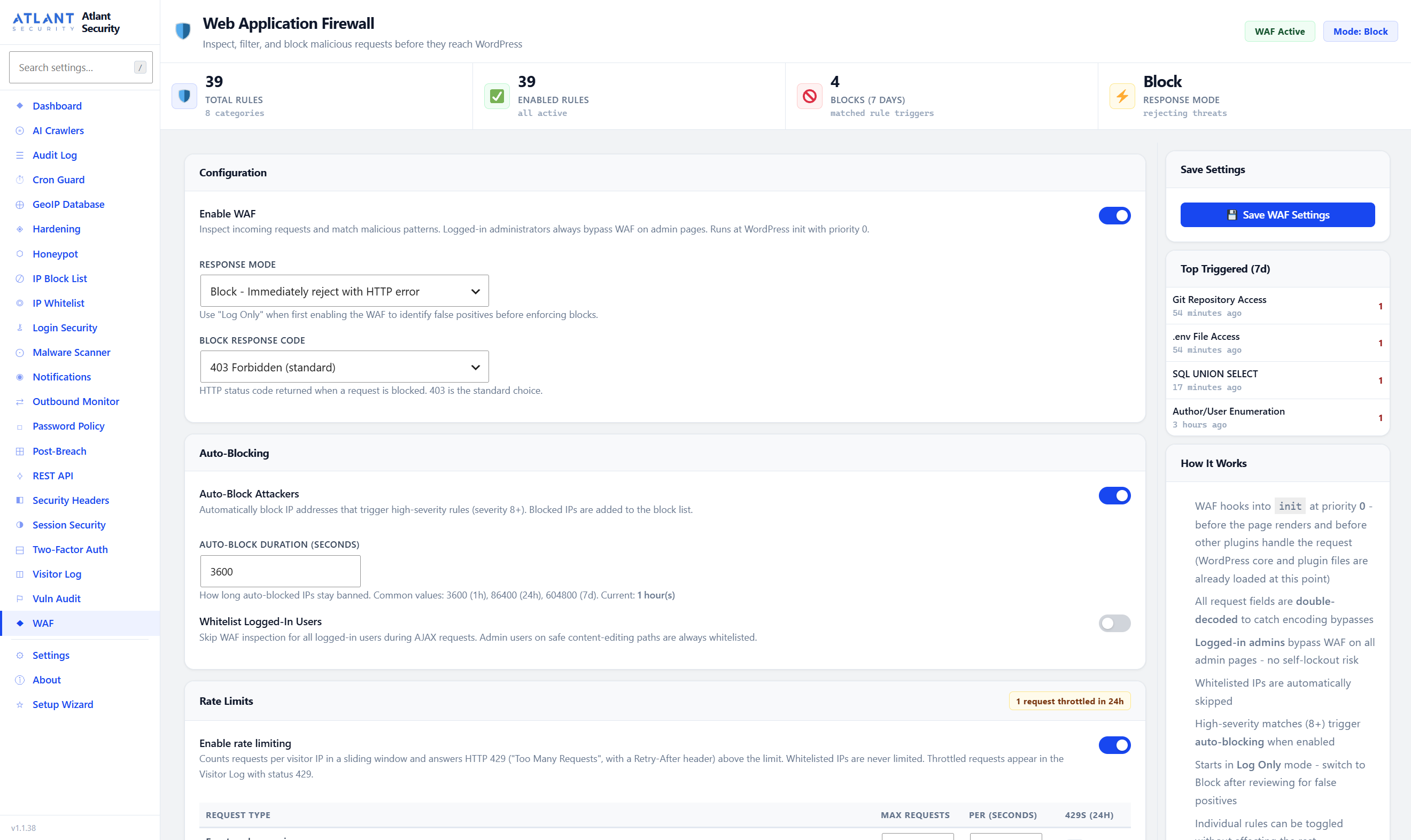
Web Application Firewall: mode, block response, auto-blocking and rate limits.

Malware Scanner: file and database findings, progress, and the false-positive list.
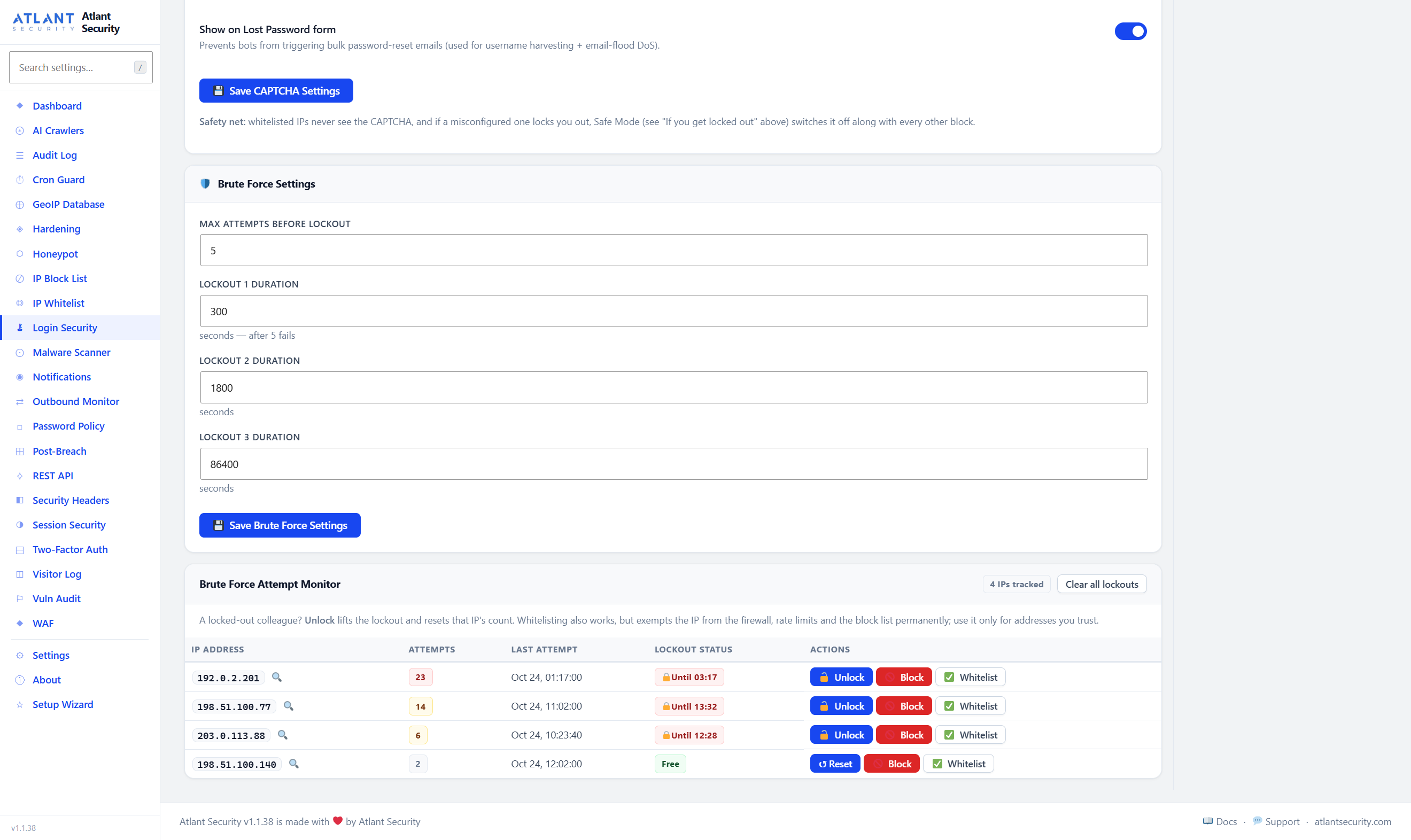
Login Security: brute-force lockout settings and the attempt monitor with Unlock, Reset, Block and Whitelist.
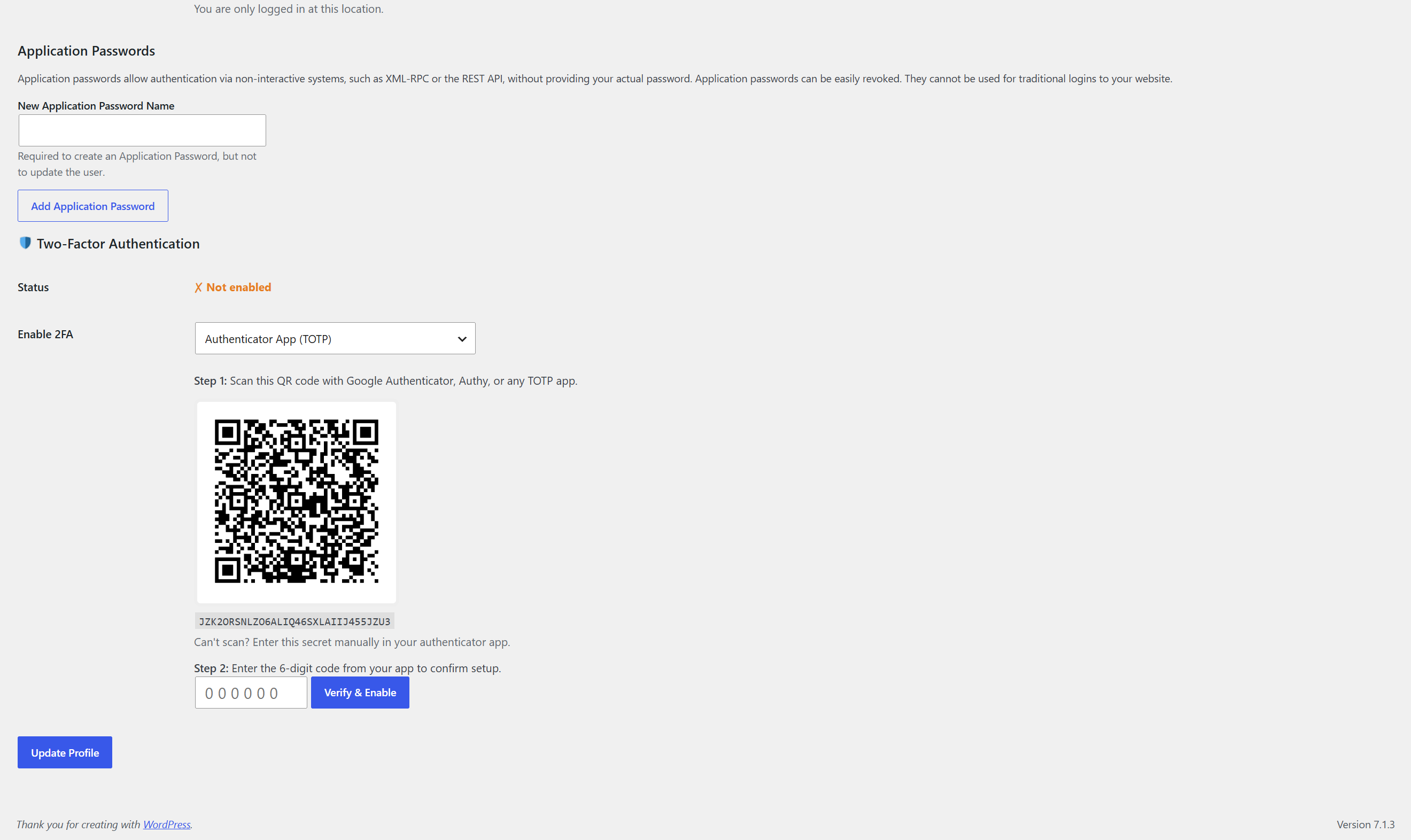
Two-factor setup in the user profile: scan the QR code with any authenticator app.
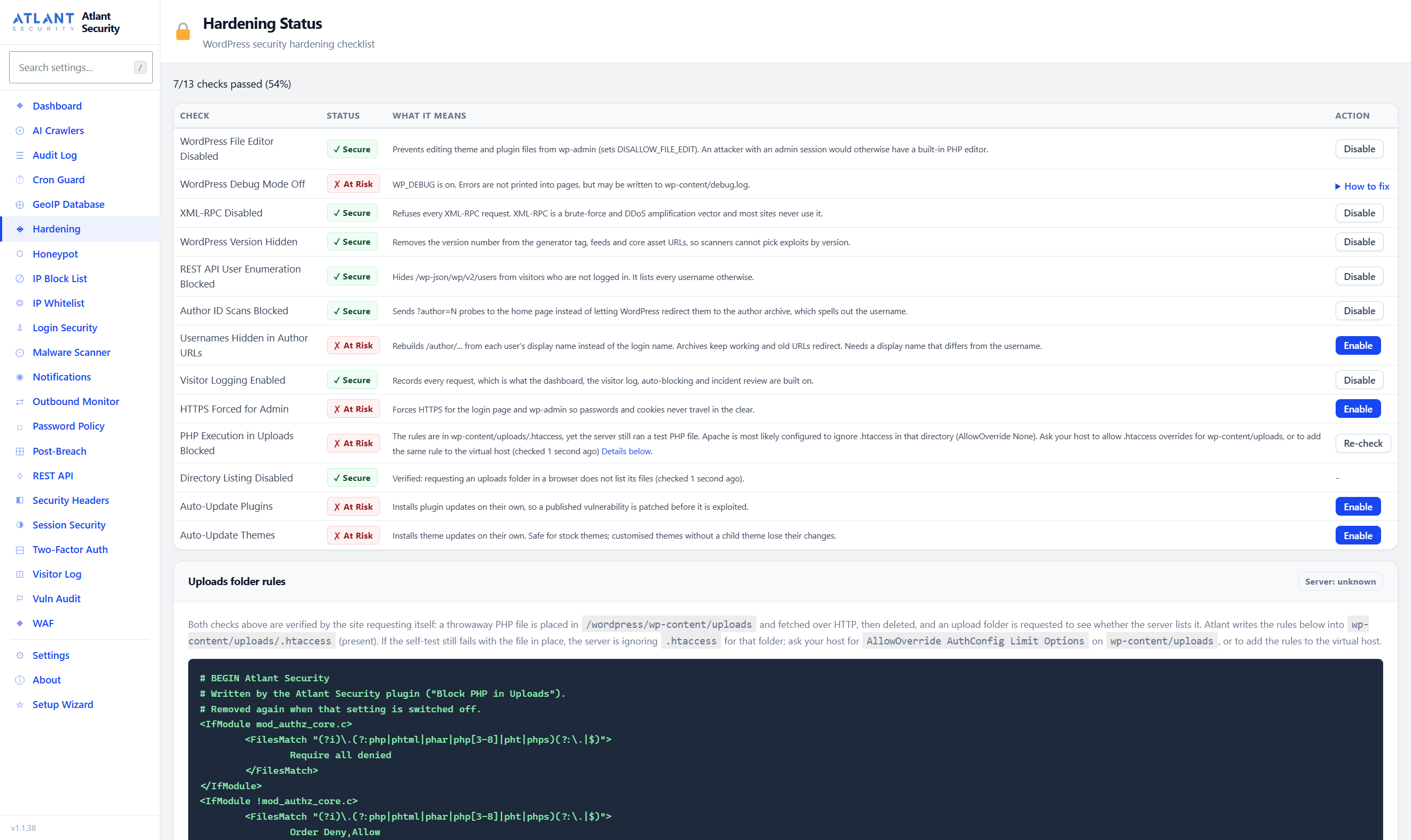
Hardening Status: each check verified on the server, with Enable, Disable, Re-check and How to fix.
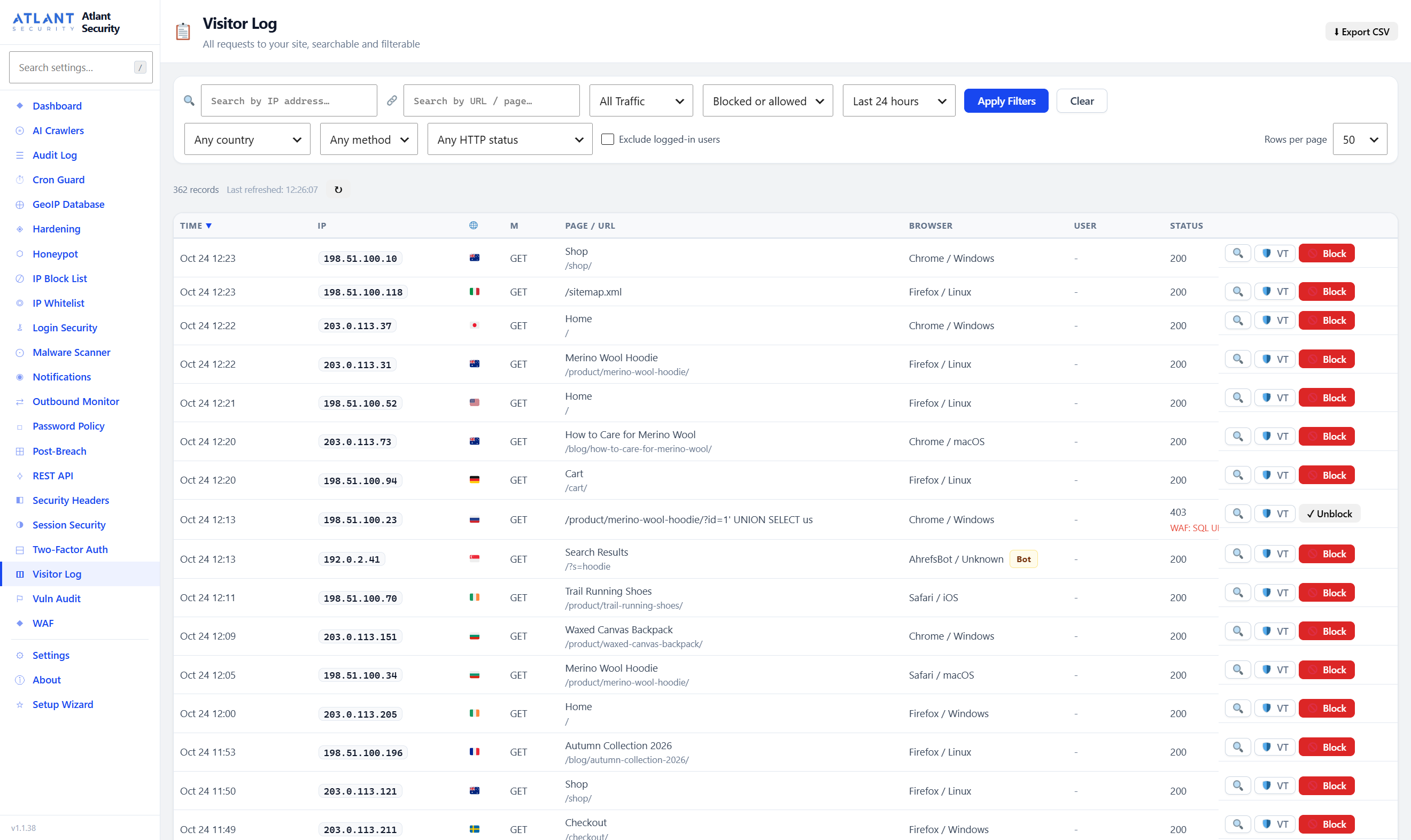
Visitor Log: search, date range, country, method and status filters, sortable columns and CSV export.
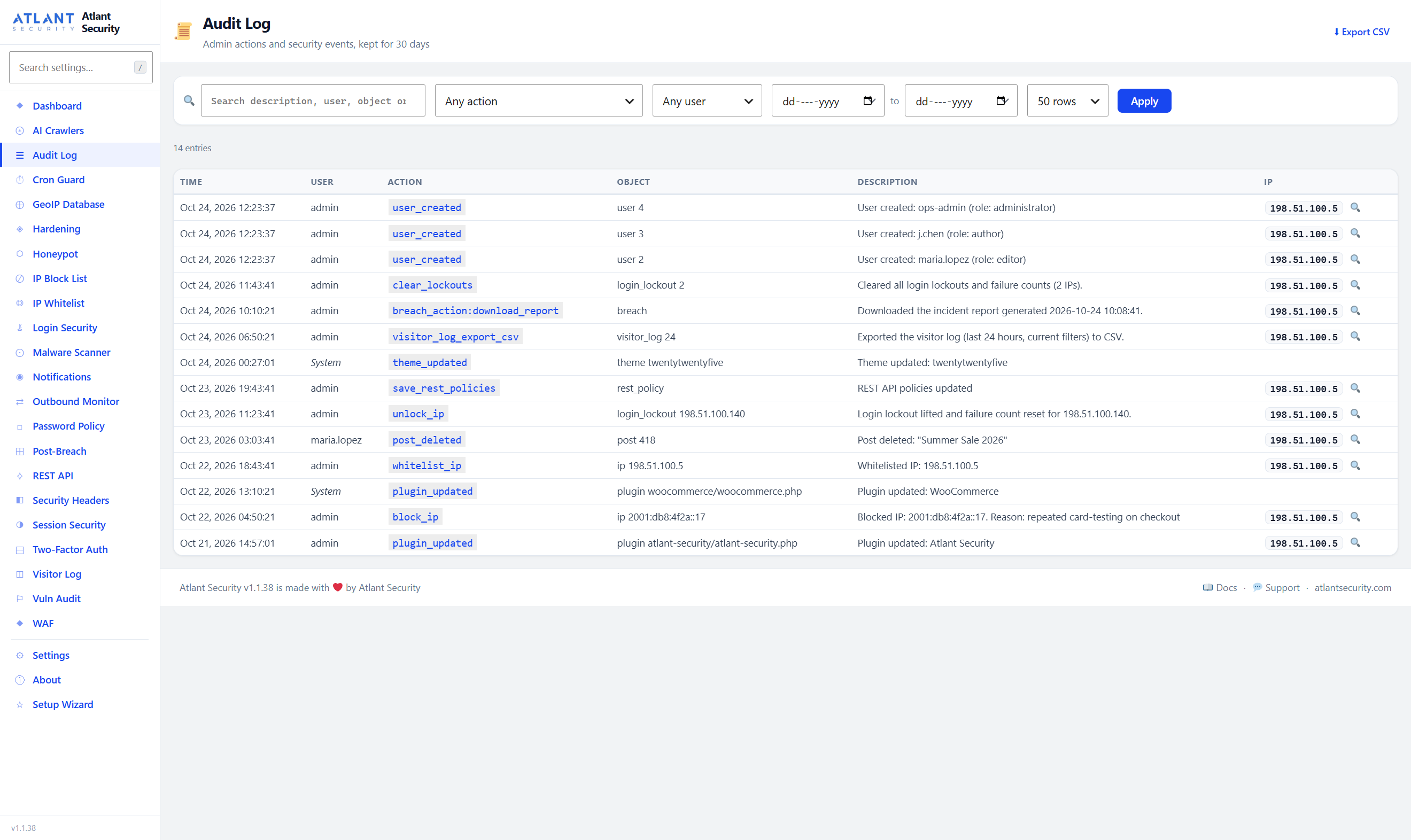
Audit Log: every administrator action, searchable and filterable, with CSV export.
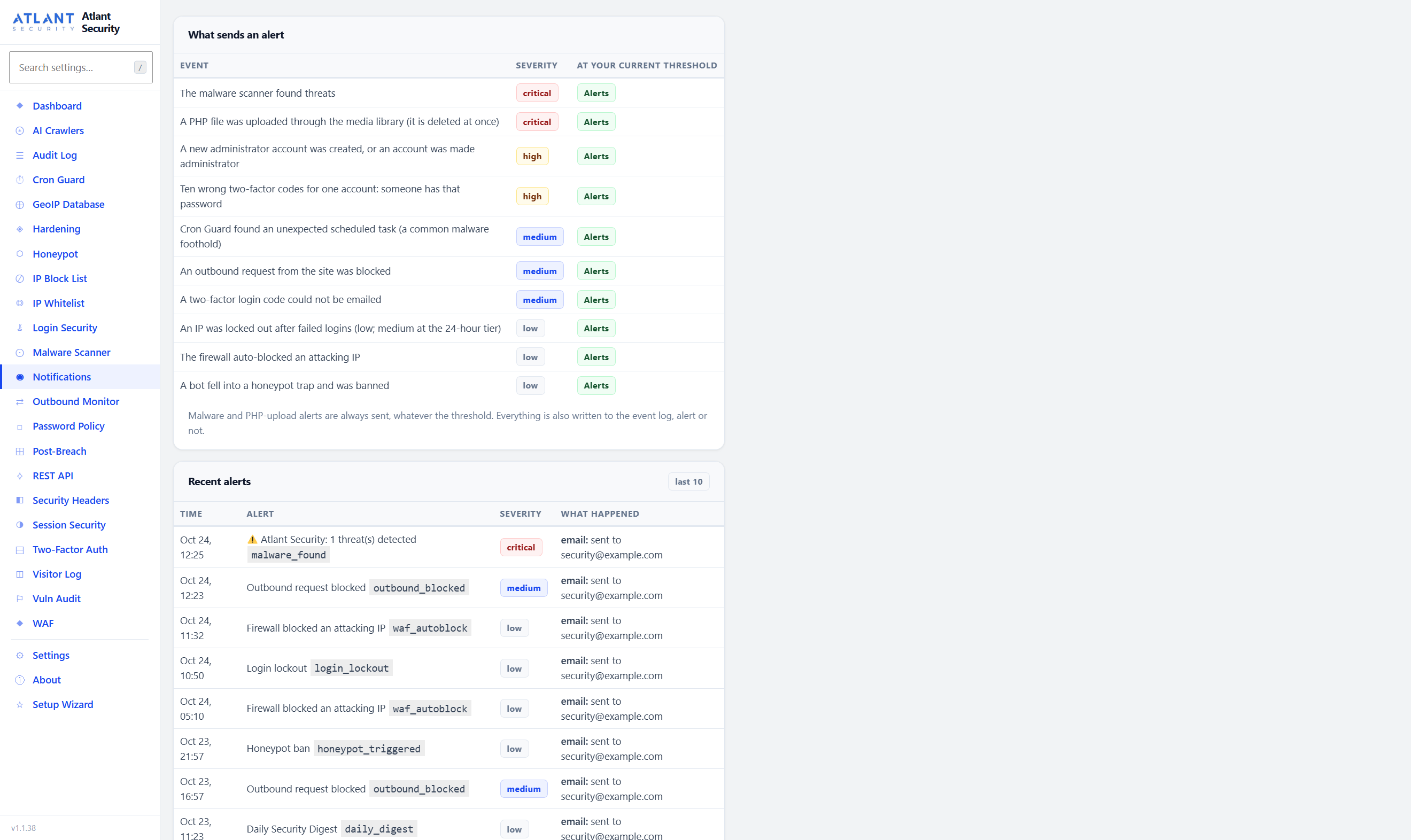
Notifications: what sends an alert at your threshold, and a record of every alert sent.
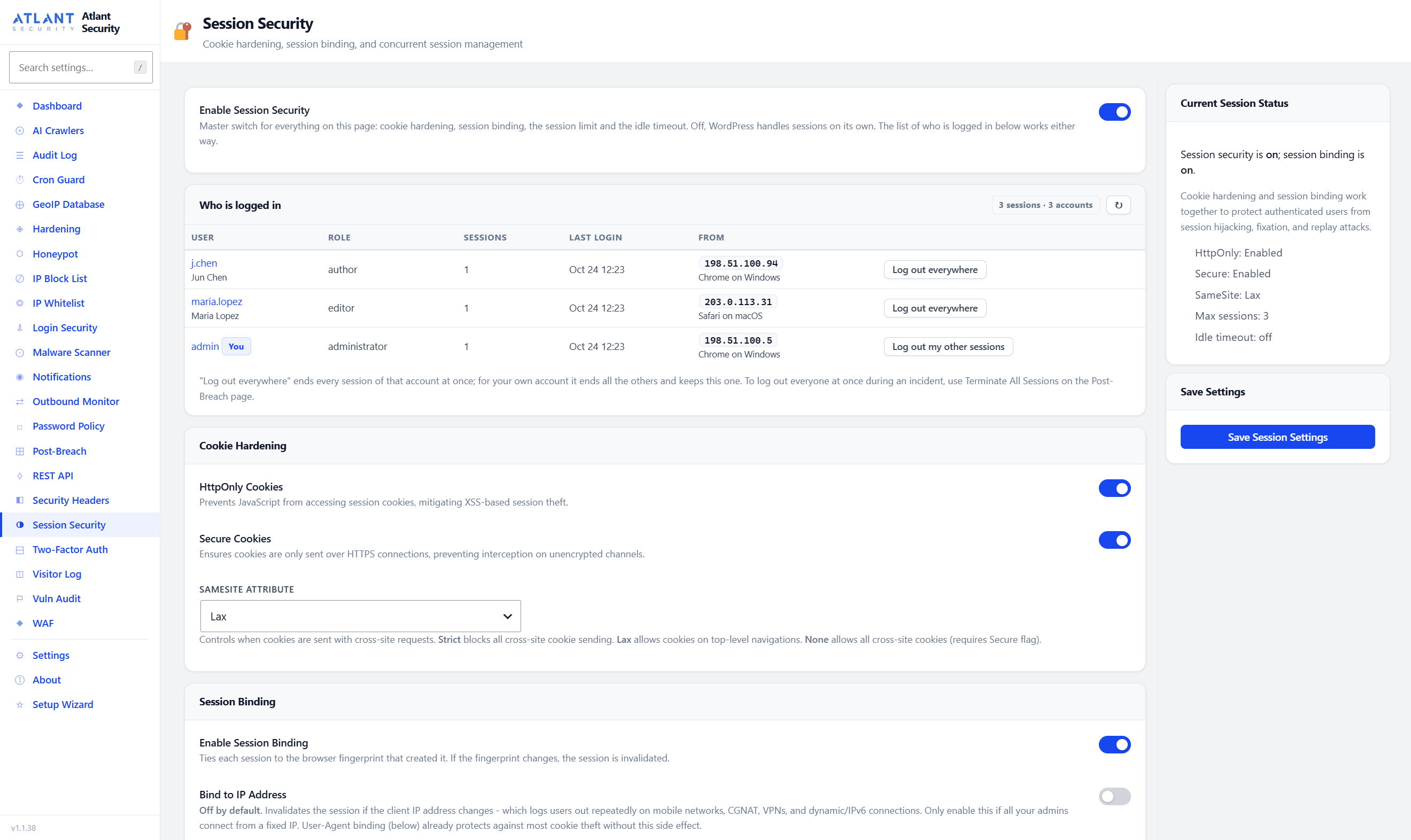
Session Security: who is logged in, with Log out everywhere for each account.

Post-Breach Command Center: the recommended response order and the emergency actions.
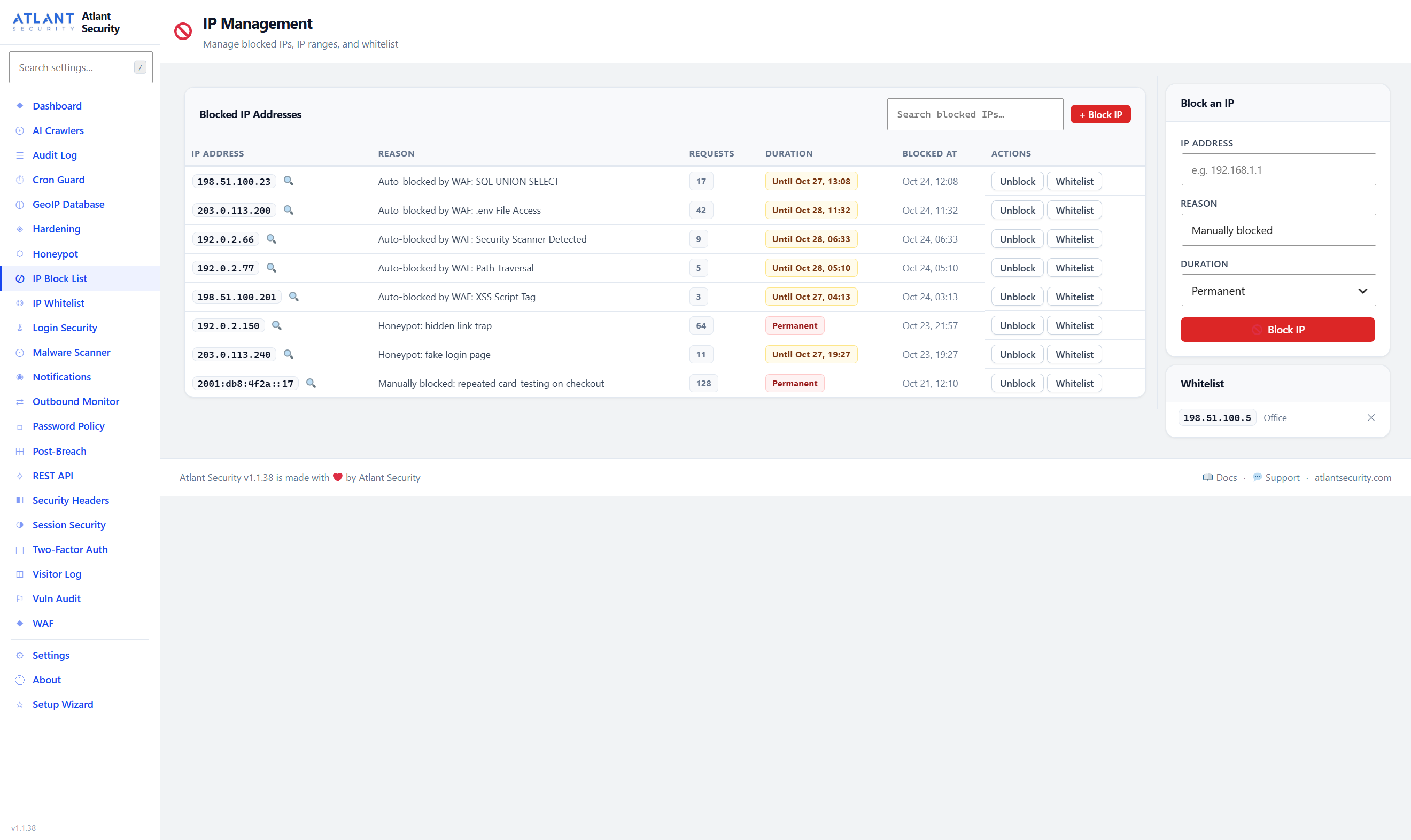
IP Block List: blocked addresses with reason, hit count and expiry, next to the whitelist.
How do I find a setting?
Type in the search box at the top of the plugin menu, or press “/” on any plugin page. It searches every setting, panel and page as you type; choose a result to jump to it, and the setting is highlighted.
I locked myself out
Add define( 'ASWP_SAFE_MODE', true ); to wp-config.php: it pauses every blocking feature while keeping the admin area available. If another administrator can still log in, they can lift your lockout under Login Security > Brute Force Attempt Monitor (Unlock) or remove your IP from the IP Block List. As a last resort, rename the folder wp-content/plugins/atlant-security over FTP (for example to atlant-security-off), log in, rename it back, and whitelist your IP.
Does it work with WooCommerce?
Yes. Customers log in, register and reset their passwords on the My Account and checkout pages, which the custom login URL does not touch, and the CAPTCHA can be switched on for each of those forms under Login Security. Customers who use two-factor authentication enter their code on the login page at your custom address and then return to My Account. A theme that replaces WooCommerce’s forms must keep their hooks for the CAPTCHA to appear; Login Security shows whether it has.
The firewall is blocking my page builder (Elementor, Divi)
Switch the WAF to Log Only, repeat what was blocked, then check Top Triggered on the WAF page, or look for “WAF log only” in the Visitor Log, to see which rule matched. Page builders can trigger false positives with the encoded content in their save requests. Logged-in administrators are not inspected on admin pages.
Users keep getting logged out unexpectedly
This happens when Session Binding is set to bind to the IP address, which is off by default because mobile networks, VPNs and IPv6 change addresses constantly. Go to Session Security and turn off “Bind to IP Address”, keeping User-Agent binding on. “Exempt Administrators” lifts every session restriction for administrators.
Will I get an email for every blocked attack?
No. Each kind of alert is sent at most once per 15 minutes, and login lockouts, firewall auto-blocks and honeypot bans at most once per 6 hours; repeats in between are counted and reported in the next alert or a summary. Choose the minimum severity on the Notifications page, which lists every event that can send an alert.
Email alerts are not arriving
Click Send test next to the address on the Notifications page: it waits for the answer and shows the mail server’s own error, if there is one. WordPress sends mail with PHP’s mail() by default, which many hosts block; an SMTP plugin such as WP Mail SMTP or FluentSMTP routes it through a proper mail provider.
Does two-factor authentication work with the WordPress mobile app, Jetpack or XML-RPC?
Yes, with an application password. Those tools cannot ask for a code, so accounts with 2FA must use an application password (Users > Profile > Application Passwords) for XML-RPC and other API logins. Accounts without 2FA are unaffected.
The Hardening page says PHP still runs in the uploads folder
The plugin writes the blocking rule into wp-content/uploads/.htaccess and then tests it. If PHP still runs, the server ignores .htaccess there: nginx and IIS never read it, and Apache can be set not to. The Hardening page shows the rule for your host to add to the server configuration, and Re-check tests again.
Cron Guard flagged a scheduled task
Cron Guard compares the scheduled tasks with the snapshot taken when it started and flags new or very frequent ones. If you recognise the task (a plugin you just installed, for example), click Approve; if you do not, remove it and run a malware scan. Tasks scheduled by WordPress core and by Atlant Security itself are never flagged.
Will this slow down my site?
No. The firewall runs once per request at init priority 0 against a fixed rule set, the rate limiter uses APCu when available, and the visitor log adds one INSERT and a handful of small lookups per request. Pages served from a page cache or a CDN never reach WordPress, so they cost nothing and are not inspected.
The malware scanner reported a file I trust
WordPress core files and plugins installed from WordPress.org are compared with WordPress.org’s checksums, and unmodified files are never reported. For any other file, check it, then click Mark as False Positive: that finding is not reported again unless the file changes. If a plugin keeps PHP files in the uploads folder on purpose, add that folder under Malware Scanner > Scan Settings: every other check still runs on those files.
The malware scan is running slowly
Lower “Files per Batch” to 20 or 30 on shared hosting. The scanner works in batches to avoid timeouts and keeps running in the background if you leave the page. Files larger than 5 MB are skipped.
How does the honeypot protect legitimate crawlers?
Three ways: trap URLs are listed as Disallow rules in robots.txt, hidden links carry rel=”nofollow”, and 30 known search engine, social media and uptime-monitoring bots are recognised by their user agent and receive a 404 instead of a ban. AI crawlers you have allowed are protected too.
Does this plugin work with multisite?
Yes. Activation, deactivation and uninstall cover every subsite, and each site has its own settings and logs. Session lists are limited to each site’s own users, and network super admins are never listed to site administrators.
What happens to my data when I deactivate the plugin?
Nothing is deleted on deactivation. When you delete the plugin, a dialog asks whether to keep or remove all its data; you can also set this under Settings > Delete data on uninstall.
ChangeLog
1.1.48 – Support Links
- Changed: the plugin’s Support links (admin footer, Plugins page, About page) now lead to the support forum on WordPress.org, where all support is given.
1.1.47 – Custom Login URL Fixes
Thanks to the user who reported this.
* Fixed (important): with the Custom Login URL on, the login page could look broken. It was shown to WordPress, the theme and other plugins as an ordinary page until late in loading it, so anything that checks “is this the login page?” (WordPress’s is_login() or $pagenow) left out its login-page styling and features there, and page optimizers treated it as a front-end page. The page also lost which screen it was showing, so its body class was “login-action-” instead of “login-action-login”, and the “session expired” box in wp-admin did not close after logging in. The address is now recognised as the login page from the start, as WPS Hide Login does it, and the page keeps its state. This plugin’s security headers are still sent on it.
* Fixed: a redirect or link to another page whose address merely mentioned wp-login.php (for example your own login page with ?redirect_to=…wp-login.php) was replaced by the secret login address, which broke that page and showed the secret address. Only addresses of wp-login.php itself are changed now.
* Fixed: on sites with plain permalinks (no pretty URLs) the secret login address was the server’s “not found” page on Apache, so only a whitelisted address could log in. The address is now yoursite/?your-slug there, which every server passes to WordPress, and the Login Security page shows it. The same goes for sites whose permalinks start with /index.php/. The old form still works where it did.
* Changed: a login slug can no longer be a name WordPress reads from addresses (such as “s” or “p”).
1.1.46 – Fixes From a Forum Report
Thanks to the user who reported these.
* Fixed (important): the site no longer goes down when the server makes one of the plugin’s files unreadable. Hosting malware scanners such as Imunify360 disable a file they flag by setting its permissions to 000, and the malware scanner’s own file, which holds the patterns it searches for, could be taken for malware. The site then showed a critical error until the permissions were changed back. Now the plugin keeps running without that part (a page that needs it says so), and a notice on every plugin page names the file and says how to replace it with a clean copy (a file the host disabled may really be infected, so setting it back to 644 is not the fix). If it is one of the few files the whole plugin needs, the plugin does not start and a notice says why. That file also no longer contains the names of web shells and crypto miners as plain text, so host scanners have less reason to flag it.
* Fixed: “Hide Usernames in Author URLs” did nothing, and “Rebuild author URLs from display names” answered “error”: the part of the plugin that does this was never started (since 1.1.31). It works now. If the setting was already on, author URLs that still show a username are rebuilt from display names once, the next time an administrator opens wp-admin, and the old URLs redirect to the new ones. On multisite an account that is not one site’s alone (it belongs to other sites too, or is a super admin) is changed only when a network administrator clicks Rebuild, and keeps its old URL on every site. The Hardening page and the Vulnerability Audit now check the URLs themselves instead of the setting.
* Fixed: Vulnerability Audit “No PHP Files in Uploads” failed on the empty index.php that “Directory Index Files Present” asked you to add. An index.php with no code in it now passes, as it already did in the malware scanner, and the index advice suggests index.html.
* Fixed: switching a header on from the Vulnerability Audit (for example HSTS) seemed not to work, because the page showed the earlier audit after a reload. The audit now runs again after Enable. When a header’s setting is on but the header still does not arrive, the row says why (for HSTS usually that WordPress does not see the site as HTTPS, for example behind a proxy) instead of offering Enable again. The same goes for the Server header and “HTTPS Forced for Admin Panel” rows.
* Fixed: “How to fix” text was cut off on the Vulnerability Audit and Hardening pages.
* Fixed: the Discard button on the “unsaved changes” bar was invisible (white on white).
* Fixed: the notice about proxies and Cloudflare added in 1.1.44 was hidden by the plugin’s own page styles. It now shows at the top of the plugin’s pages.
* Changed: the GeoIP page’s steps for creating a MaxMind license key match MaxMind’s current account portal.
1.1.45 – Backup Ways Through Two-Factor Login
Thanks to the user who reported this.
* Fixed (important): recovery codes could not be entered on the two-factor login page. The code field held 8 characters and recovery codes have 19, so the codes saved at setup never worked there. The page now has a “Use a recovery code” link and a field that fits, and accepts codes with or without the dashes, with spaces, and in capitals.
* New: “Email code as a backup for authenticator app users” (Two-Factor page, off by default). When on, users of an authenticator app who lose their phone can choose “Email me a code instead” on the login code page and get a one-time code at their account’s email address, which also lets them set up a new phone. It is off by default because it lets the mailbox stand in for the phone. After an account’s email address changes, the user approves the new address on their profile page with the app or a recovery code before backup codes go there. Logins by recovery code or emailed backup code are written to the audit log.
* Fixed: “Resend code” no longer emails a code to users for whom it cannot work.
1.1.44 – Instructions for Sites Behind Cloudflare
- New: when your own page load shows that the site is behind Cloudflare, Settings now says under “Site is behind Cloudflare” what the plugin saw and what to do. If the switch is off, it tells you to switch it on: Cloudflare sends each visitor’s address with every request, and nothing has to be set up there. If Cloudflare is not sending that address, it names the Cloudflare setting to check (Rules > Settings > Managed Transforms > Remove visitor IP headers). If another proxy on your server stands between Cloudflare and WordPress, it links to Cloudflare’s guide for nginx and Apache. Where everything already works, it says so.
- New: the same notice now warns when your IP Whitelist holds a Cloudflare server instead of your own address, which stops covering you once the plugin sees your real address.
- Unchanged: how a visitor’s address is worked out. This release only adds instructions.
1.1.43 – Audit Fixes, Part 2
The remaining fixes from the code audit of 1.1.41. Two things work differently after this update:
* Changed: Post-Breach “Force Password Reset” now requires the emailed reset link, and refuses the REST API, XML-RPC and application passwords until the password is changed. The old password used to keep working. The site must be able to send mail. Whoever starts the reset stays logged in.
* Changed: “Trust Google” and “Trust Bing” cover only the addresses the two companies publish for their crawlers, no longer all of Google Cloud and Azure.
* New: when your own request shows that the site is behind Cloudflare or another proxy the plugin has not been told about, its pages now say so and name the setting to change (one click for Cloudflare). Until then every visitor can look like one address, or like the server itself, as before. Detecting this without a setting is planned for a later release.
* Fixed: the Outbound Monitor blocked requests to services on the local network with no way to allow one, and in Safe Mode too. A service you add to the allowlist with its port (for example search.internal:9200) is now allowed although its address is internal, and Safe Mode blocks nothing. Internal addresses written as IPv6, and redirects that lead to one, are now caught.
* Fixed (security): the firewall inspected only part of a request, and several rules could be sidestepped. It now reads field names, JSON and raw bodies and nested values, within a time limit. Rules that matched ordinary sentences and common API clients were corrected. Passwords in a blocked request are no longer written to the log, and this update removes stored ones.
* Fixed (security): ordinary code earlier in a file could make the malware scanner report real malware below it as clean. PHP’s own parser now tells code from text. Two new signatures, 19 in all. A changed core file counts as a finding and raises the alert. A scan no longer stalls on one long line, carries on after a crash, lists files it could not check, reads must-use plugins first, and no longer reports its own results.
* Fixed (security): two-factor login could be bypassed over XML-RPC. Email codes are no longer replaced while you type one, recovery codes are shown at enrolment, and switching two-factor off or renewing recovery codes needs a current code.
* Fixed (security): login lockouts count a whole IPv6 /64, show their message, and no longer grow while someone keeps trying. Five wrong guesses at one account from one address now lock that account for that address, even when someone logs in to another account from it in between. The recovery link is shown and can be renewed.
* Fixed: the password policy now covers Add New User, the REST API and WooCommerce’s account forms. “Suggest Passphrase” meets it, and so do WordPress’s own suggested passwords (16 characters or more of three kinds pass the “must contain” rules). With reCAPTCHA v3, a script that fails to load no longer blocks the login form. “Block new login” ended the wrong session.
* Fixed (security): REST policies could be bypassed by changing the case of the route, lost the backslashes of a pattern when saved, and refused logged-in users their own profile. Sitemap and feed limits no longer throttle search engines.
* Fixed (multisite): a site administrator could run network-wide Post-Breach actions and quarantine shared files, deactivation broke other sites’ permalinks, and one site’s “delete data” removed every user’s two-factor secrets.
* Fixed: “Reinstall Plugins” could replace a premium plugin with a WordPress.org plugin of the same folder name. Cron Guard’s “Remove” reported success while the task stayed. Requests to wp-cron.php could grow the database. “Disable XML-RPC” still answered pingbacks. The setup wizard’s alerts step did not switch alerts on. CSV exports could open cells as formulas. Long values were missing from the audit log. A Trusted Proxy entry with nothing after its slash (10.0.0.0/) made every address a trusted proxy; it now matches nothing.
1.1.42 – Audit Fixes, Part 1
The first of several releases fixing what a full code audit of 1.1.41 found. Update now.
* Fixed (critical): Post-Breach “Rotate Secret Keys” could write a wp-config.php that no longer loads, taking the site down, or leave each key defined twice. The file is now rewritten with PHP’s own parser, checked before it replaces the original, and keeps its permissions. The next rotation also removes doubled keys left by an earlier one. Where the keys are not written out in wp-config.php (they come from the environment, another file, or sit inside other code), the rotation now stops and says so.
* Fixed (security): a blocked IP address was only refused while the visitor log was recording that request. With logging off, and for some kinds of request, it was served. Blocked addresses are now refused first, before the firewall, whatever the logging settings. That includes logged-in users who are not administrators.
* Fixed (security): several ways the custom login URL gave away its secret address to a visitor who did not know it.
* Fixed (security): the 1.1.41 change to the login CAPTCHA was incomplete. The login page still answered a right and a wrong password differently when the CAPTCHA had not been solved. Both now get the same answer.
* Fixed (lockout): with Emergency Lockdown and the custom login URL both on, a logged-out administrator saw “Site Temporarily Offline” at the login address. The login page and the two-factor step now stay reachable. Lockdown also stops WooCommerce orders, sign-ups and comments, which it used to let through, and closes the REST API to everyone except administrators signed in through the browser and whitelisted addresses.
* Fixed (important): clearing the “Fake Login Slug” on the Honeypot page blocked every visitor to the home page. An empty or already-used address is now refused, and a stored empty one is ignored.
* Fixed (security): the honeypot blocked visitors whose browser was sent to a trap address by another website. Those requests now get a plain 404. A comment sent from an expired form is refused without blocking the commenter.
* Fixed (important): number settings accepted 0 or an empty field, which meant “delete all logs every hour” (log retention), “lock out on the first wrong password” (max attempts) and “block for ever” (auto-block duration). Every number is now kept inside its range, when saved and when read.
* Fixed: “Force SSL for Admin” did nothing while the Hardening page and the Vulnerability Audit showed it as secure. It now redirects wp-admin and the login page to HTTPS once an administrator has opened wp-admin over HTTPS, and both pages report what WordPress is actually doing.
* Fixed: the Vulnerability Audit reported “modified core files” on sites whose language differs from their WordPress package (the scanner was corrected in 1.1.40, this check was missed), and listed every administrator as never having logged in.
1.1.41 – CAPTCHA on WooCommerce Forms
- New: Turnstile or reCAPTCHA on WooCommerce’s login form (on My Account and at checkout), its registration form and its lost-password form, each with its own switch under Login Security. They are checked only once the CAPTCHA has appeared on My Account, so a theme that replaced WooCommerce’s forms without their hooks cannot lock customers out, and Login Security shows where and when it was last seen. Suggested by a user.
- Fixed (security): with the custom login URL on, the “Lost your password?” link under WooCommerce’s login forms pointed to the secret login address, showing it to every visitor of My Account and checkout and leading to the WordPress login form instead of WooCommerce’s reset form. The link now stays on My Account, and the custom login URL no longer replaces login, registration or password-reset pages set by other plugins.
- Fixed (security): on wp-login.php the CAPTCHA was checked only after a correct password, so the extra wait for the CAPTCHA provider told an automated tool which password was right, and it then needed one solved CAPTCHA per account instead of one per guess. The CAPTCHA is now checked before the password: right and wrong passwords take the same time and get the same message.
- Fixed: a failed CAPTCHA said “Login failed. Please check your credentials”, so people did not know to complete it. It now says the security check failed.
1.1.40 – Fewer False Alarms From the Malware Scanner
Thanks to the two users who sent their scan results.
* Fixed (important): where the site language differs from the language of the installed WordPress package (an English package on a site set to Italian, for example), every scan reported wp-includes/version.php and wp-config-sample.php as modified core files, critical with high confidence. The scanner asked WordPress.org for the checksums of the site language instead of the package’s own, which is how WordPress itself checks. Each file is now compared with its package’s list, and with the English list, before anything is reported.
* New: plugin files identical to the same version on WordPress.org are skipped, so unmodified plugin code, such as the sign-in redirect in UpdraftPlus’s Google Drive connector, is no longer reported. Premium, custom and modified plugins are scanned as before.
* Fixed: “PHP in Uploads Directory” no longer fires for PHP that belongs there: empty index.php placeholders (“Silence is golden”) and the templates WPML compiles into uploads/cache/wpml/twig/. Other folders that hold PHP on purpose can be listed under Scan Settings. Every other check still runs on these files, and PHP uploaded through the media library is still removed.
* New: switches for both WordPress.org checks under Malware Scanner > Scan Settings.
1.1.39 – Outbound Monitor Settings Save Again
- Fixed (important): nothing on the Outbound Monitor page could be saved. Save Allowlist, and the unsaved-changes bar’s “Save now” on that page, always failed with “No allowlist data provided.”, because the page sent the domain list under a different name from the one the server read. The domain list, Mode, “Block Private/Internal IPs” and “Enable Outbound Monitoring” now save; that last switch was never stored even before this. Thanks to the user who reported it.
- Fixed: with Outbound Monitoring or Cron Guard switched off, its page could not load its data or save, so the module could not be switched back on there.
1.1.38 – No False Cron Alarms, Honest Log Only Counts, Tidier Pages
- Fixed (important): Cron Guard flagged the plugin’s own scheduled tasks and WordPress core tasks as unexpected, and 1.1.37 emailed an alert about each. They are now recognised; any other new task is still flagged.
- Fixed: in Log Only mode the firewall recorded matching requests as blocked, so the logs, dashboard, digest and incident report counted attacks as blocked that had been let through.
- Fixed: many layout problems on the dashboard, logs, notices and footer; browser and system names in the visitor log; alert subjects; a stray “User role changed” audit entry.
1.1.37 – Find Any Setting, Read Your Logs, Get the Alerts You Asked For
- New: a search box at the top of the plugin menu finds any setting on any page. Suggested on the support forum.
- Fixed: email, Slack and webhook alerts only ever fired for malware scans. Lockouts, new administrators, two-factor lockouts, firewall auto-blocks, honeypot bans and more now raise alerts, throttled so a site under attack gets a summary. “Send test” and a Recent alerts table were added.
- New: the Visitor Log reaches its whole retention period with filters and paging, and the Audit Log can be searched, filtered and exported to CSV.
- Fixed (important): the database part of the malware scan never checked wp_options or post content. Reloading mid-scan no longer restarts it.
- Fixed: Post-Breach actions that log you out now say so; unsaved changes warn before you leave a page; accessibility and phone layout improvements.
1.1.36 – Settings That Said “Secure” Without Doing Anything, Plus Lockout Recovery
- Fixed (security): “Block PHP in Uploads” never did anything while two pages reported it as secure. It now writes the rule, verifies it with a test request, and reports what happened. “Directory Listing Disabled” is verified the same way.
- Fixed: saving Settings could switch the firewall from Tarpit to Block; Visitor Log CSV export ignored filters; “Exclude Known Bots” was never read; the About page made claims the code did not back.
- New: Unlock buttons for login lockouts, confirmation before whitelisting, one recovery box on every page that can lock you out, a protection status strip on the dashboard, a Rate Limits panel, configurable CSP and Permissions-Policy, and warnings before settings that can break a site.
1.1.35 – Two-Factor Login Could Be Completed With the Password Alone
1.1.34 was held back by the WordPress.org automated security review and never reached any site, so this release also carries the QR code fix listed under 1.1.34 below.
* Fixed (security, reported by the WordPress.org automated security review): a two-factor login could be completed with the password alone. WordPress creates the login session and its cookies before the plugin is told about the login; the plugin then cleared the cookies from the browser but left the session itself valid on the server. Anyone holding the password could keep the cookies from that first response and use them without ever entering a code. The session a password-only login creates is now revoked on the server before the code is asked for, so those cookies no longer work anywhere.
* Fixed (security): users who set up two-factor authentication voluntarily, when their role did not require it, were never asked for a code at all. Anyone with a second factor is now challenged on every login; the “require 2FA” setting only decides who must enrol.
* Fixed (security): XML-RPC accepted a bare password for accounts with two-factor authentication, because that route never asks for a code. Those accounts must now use an application password (Users > Profile) for XML-RPC and other API logins, which Jetpack and the mobile apps support. Accounts without 2FA are unaffected.
* Fixed (security): the correct password alone was enough to reset the brute-force counter for that IP address and to evict the account’s other sessions under the session limit, before the second factor was checked. The challenge now runs ahead of both.
* New: a limit of 10 incorrect codes per account in 15 minutes, counted across every login attempt. The old limit was per attempt, and anyone with the password could start a new attempt at will. Reaching the limit records a “2fa_locked” event, triggers your alerts, and tells the user to change their password, because whoever entered those codes had it.
* Codes are compared in constant time, and codes typed with spaces (as some apps display them) are accepted.
1.1.34 – Two-Factor QR Codes Now Scan
- Fixed (important): the QR code shown when setting up an authenticator app (Google Authenticator, Microsoft Authenticator, Authy and others) could not be scanned. QR codes above a certain size must carry a small “version information” pattern, and the built-in generator never drew it, so the code’s own data was written into that space and no scanner could read the result. A setup link is always long enough to need that size, so this affected every site. Typing the setup key in by hand still worked, which is how 2FA could be enabled at all.
- Fixed: one of the two copies of the QR code’s format information was drawn back to front. Most scanners fall back to the other copy, but it was still invalid.
- Fixed: on sites with a long title, setting up 2FA failed outright with “Request failed”, showing neither a QR code nor the key to type in. The setup link is now kept within what a QR code can hold, and if a code ever cannot be drawn the key is still shown for manual entry.
- Fixed: switching the method dropdown away from “Authenticator App” and back generated a new secret, so a code you had already scanned would never be accepted.
- Fixed: a site title containing “&” or an apostrophe appeared in the authenticator app as “&” or “‘”, and a colon in the title could confuse the app’s account name.
- Verified against an independent QR decoder for every code size the plugin produces, and against the published TOTP test vectors. If 2FA setup failed for you before, simply run it again.
1.1.33 – The Setup Wizard Runs on Activation Again
- Fixed: activating the plugin did nothing visible. The Setup Wizard now opens once, only for the administrator who clicked Activate, never during bulk or network activation or on a configured site. A dismissable prompt on the Plugins list and dashboard covers the cases the redirect skips.
1.1.32 – Author URL Repair: Rebuild, Rollback, and a Fix for Broken Slugs
Thanks to Francesco for the detailed report.
* Fixed (important): “Hide Usernames in Author URLs” could write an empty or meaningless slug for display names in non-Latin scripts. They are now transliterated first; where the server cannot (no PHP intl), the slug is left alone and the Hardening page says why.
* New: every slug change is verified after writing and rolled back if another plugin altered it; “Rebuild” and “Restore original author URLs” buttons; old author URLs redirect to the new ones; enabling the setting warns first.
1.1.31 – Author Enumeration: The Block Now Actually Runs
- Fixed (important): “Block Author Enumeration” did nothing on almost every site, because WordPress core’s canonical redirect ran first. It now runs ahead of core (renamed “Block Author ID Scans”), uses a temporary redirect, and stands down on plain permalinks where ?author=N is the archive itself.
- New: “Hide Usernames in Author URLs” rebuilds author archive URLs from display names. Off by default.
1.1.30 – Hardened Against Fatal Errors From Unexpected Hook Arguments
- Fixed: fatal errors when WordPress or another plugin passed an unexpected argument type to a hook the plugin listens to (multisite network_site_url() with a null scheme, site_url( null )). Every hook callback now validates its input.
1.1.29 – Full Audit Release
A top-to-bottom review of every module; migrations run on their own after updating.
* Fixed (security): stored XSS in the Post-Breach database scan results; the first visitor after an update had their IP removed from the block list.
* Fixed: ASWP_SAFE_MODE now pauses every blocking feature (it skipped the WAF, login lockouts, REST policies and honeypot bans).
* Fixed (2FA): “Disable 2FA” did nothing; admins can reset another user’s 2FA; email-code failures are surfaced; TOTP secrets encrypted at rest.
* Fixed: dead buttons (REST Add/Edit Policy, Outbound Save Allowlist, scan settings, whitelist remove, “+ Block IP”); CAPTCHA save no longer wipes the secret; re-running the wizard keeps custom settings.
* Fixed: false positives (WooCommerce checkout rate limit, code samples in posts, browser updates logging users out, CAPTCHA on non-wp-login forms, outbound monitor killing WP-Cron).
* New: scheduled background scans; quarantine warns before touching core, the active theme or plugins, with one-click Restore. Multisite activation, deactivation and uninstall cover every subsite. Performance work across logging and the dashboard.
1.1.6 to 1.1.28
- Security: fixes from a full external audit in 1.1.7 (an IP-block bypass over IPv4-mapped IPv6, outbound-request and webhook SSRF, web-accessible quarantine and key backups, 2FA enrolment and disable weaknesses), and a 2FA bypass during a forced password reset (1.1.18).
- Lockouts fixed: the scanner quarantining its own files (1.1.10), valid logins bouncing at the custom login URL (1.1.16), HTTP 429 on wp-login.php (1.1.14), required 2FA locking out users who had not enrolled (1.1.19), a lockdown or forced reset that could not be lifted (1.1.17, 1.1.18).
- Changed for new installs: notifications are opt-in (1.1.26), session IP binding and the idle timeout are off (1.1.24, 1.1.25), vendor bots and AI crawlers are allowed unless you block them (1.1.8).
- Scanner: fidelity ratings, confidence levels, the quarantine review step and “Mark as False Positive” (1.1.6, 1.1.11, 1.1.12).
- Also fixed: lockdown behind page caches (1.1.20), “Hide WP Version” breaking asset caching (1.1.22), brute-force settings not saving (1.1.23), the REST policy editor (1.1.25), the daily digest switching itself off on update (1.1.27), the GeoIP download button (1.1.28), times shown in the site timezone (1.1.13), core reinstall (1.1.15).
1.1.0 to 1.1.5
- New: CAPTCHA (reCAPTCHA v2/v3, Cloudflare Turnstile); CSV export of scan findings; HMAC-signed custom-login grace cookie; enforced 2FA for required roles; always-on SSRF blocking; trusted proxy IPs; About page; denser admin layout.
1.0.0 to 1.0.9
- Initial release and its follow-ups: WAF, brute-force protection, malware scanner, post-breach recovery, IP blocking, visitor and audit logs, hardening, rate limiter, real-time dashboard, setup wizard, inner sidebar navigation, GeoIP, custom login URL, password policy, honeypot, security headers, two-factor authentication, notifications, AI crawlers, REST API policies, session security, outbound monitor and cron guard. Prefix migration to aswp_ with automatic database migration.

