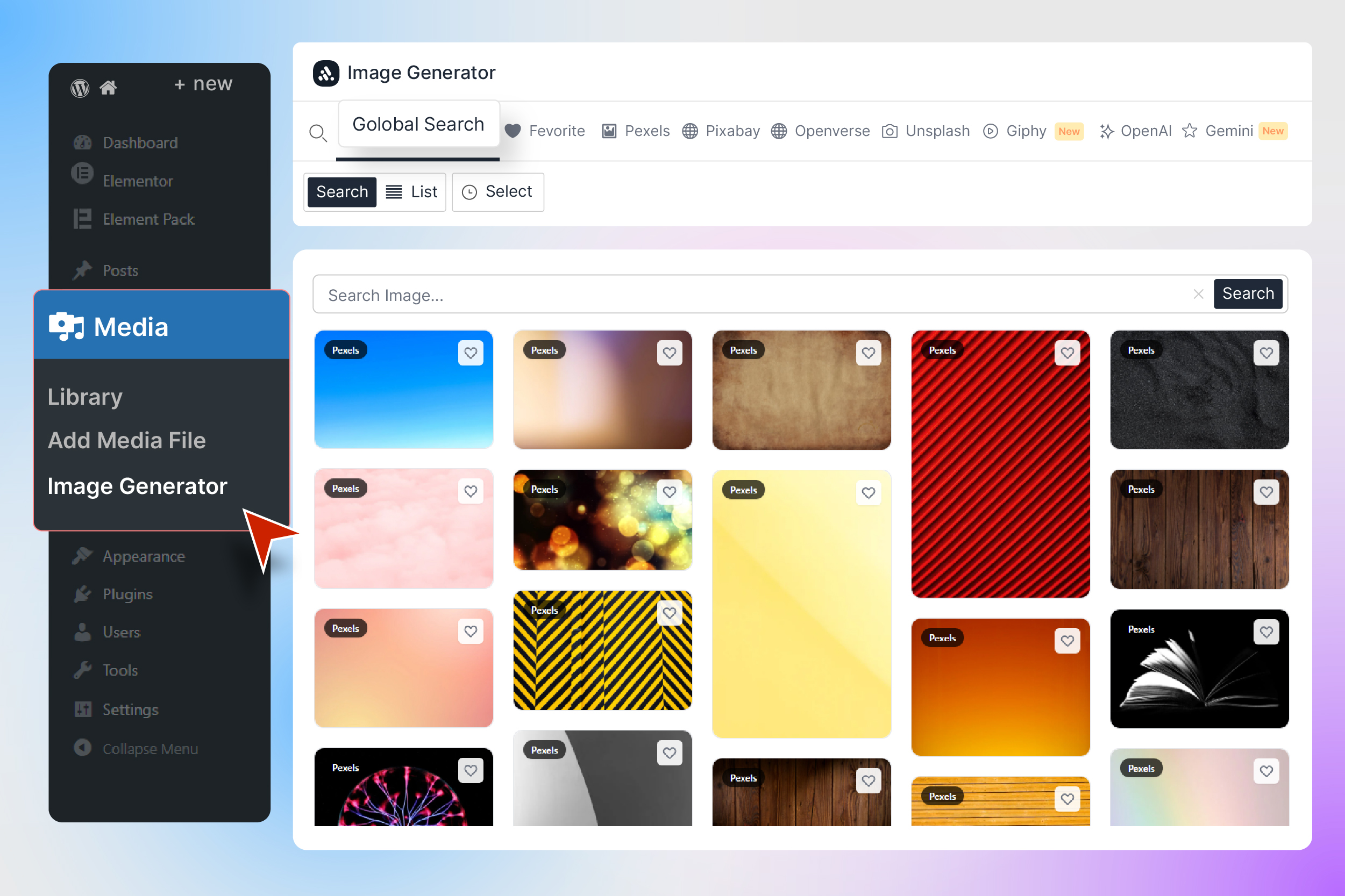
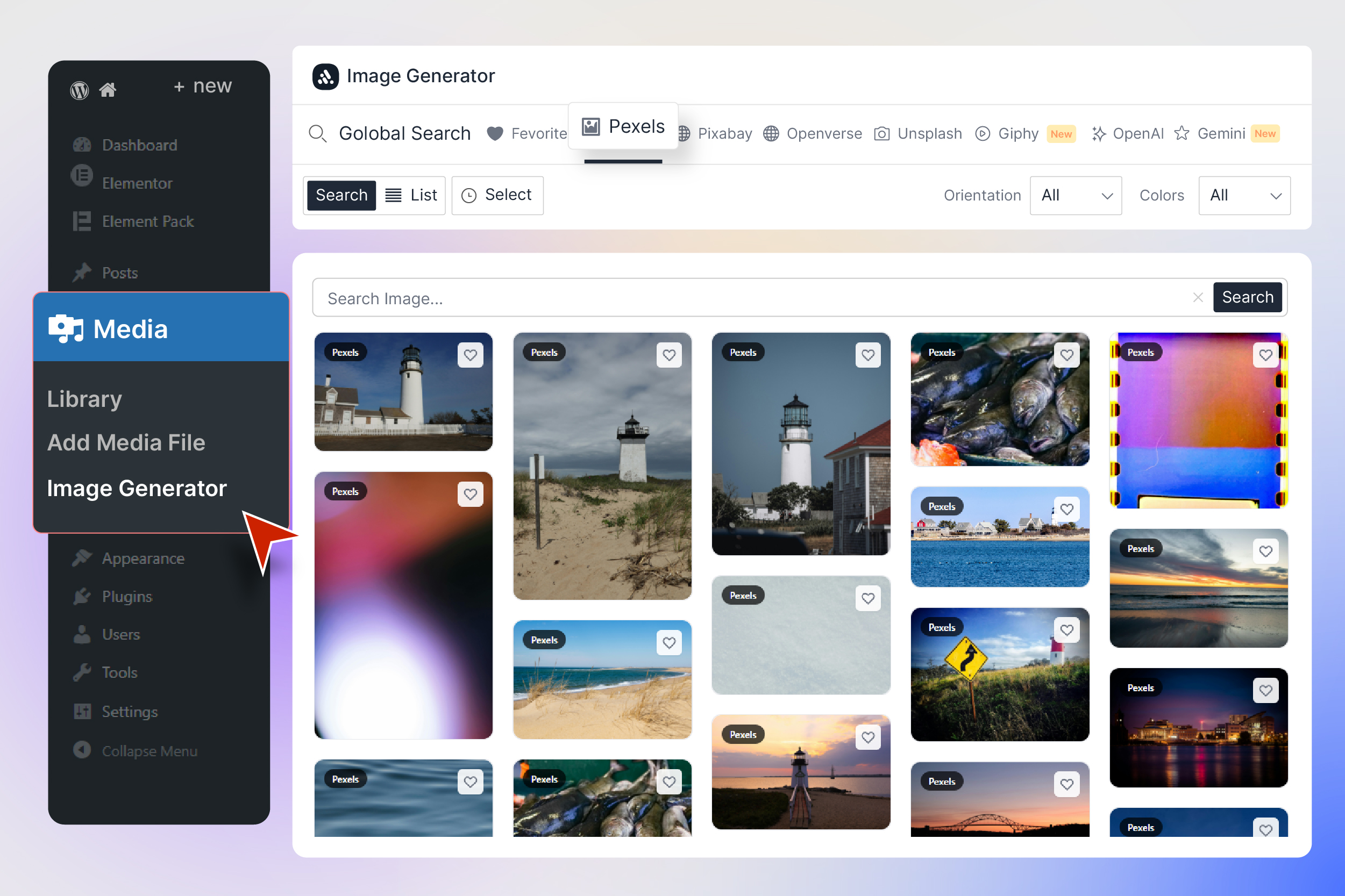
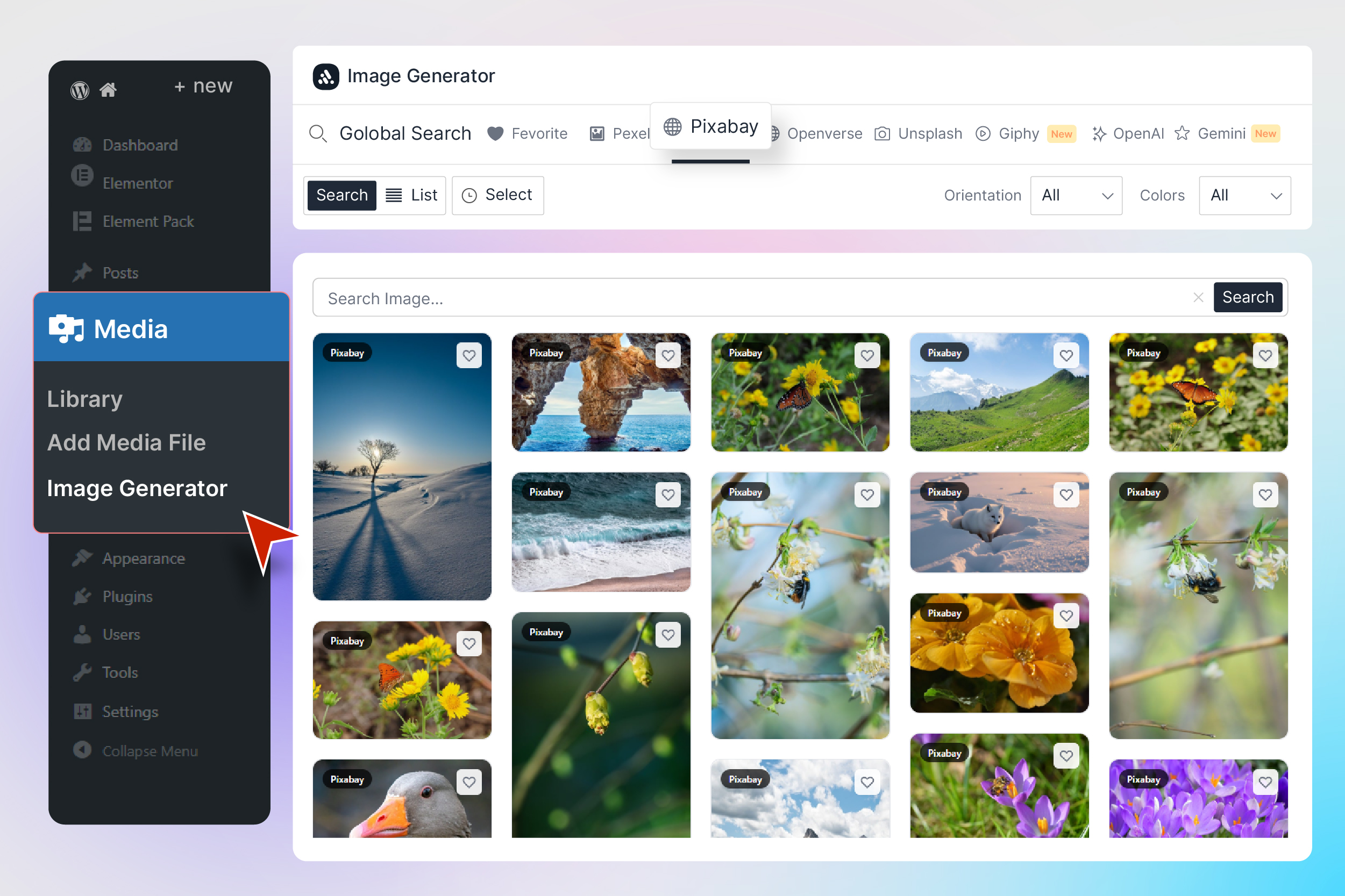
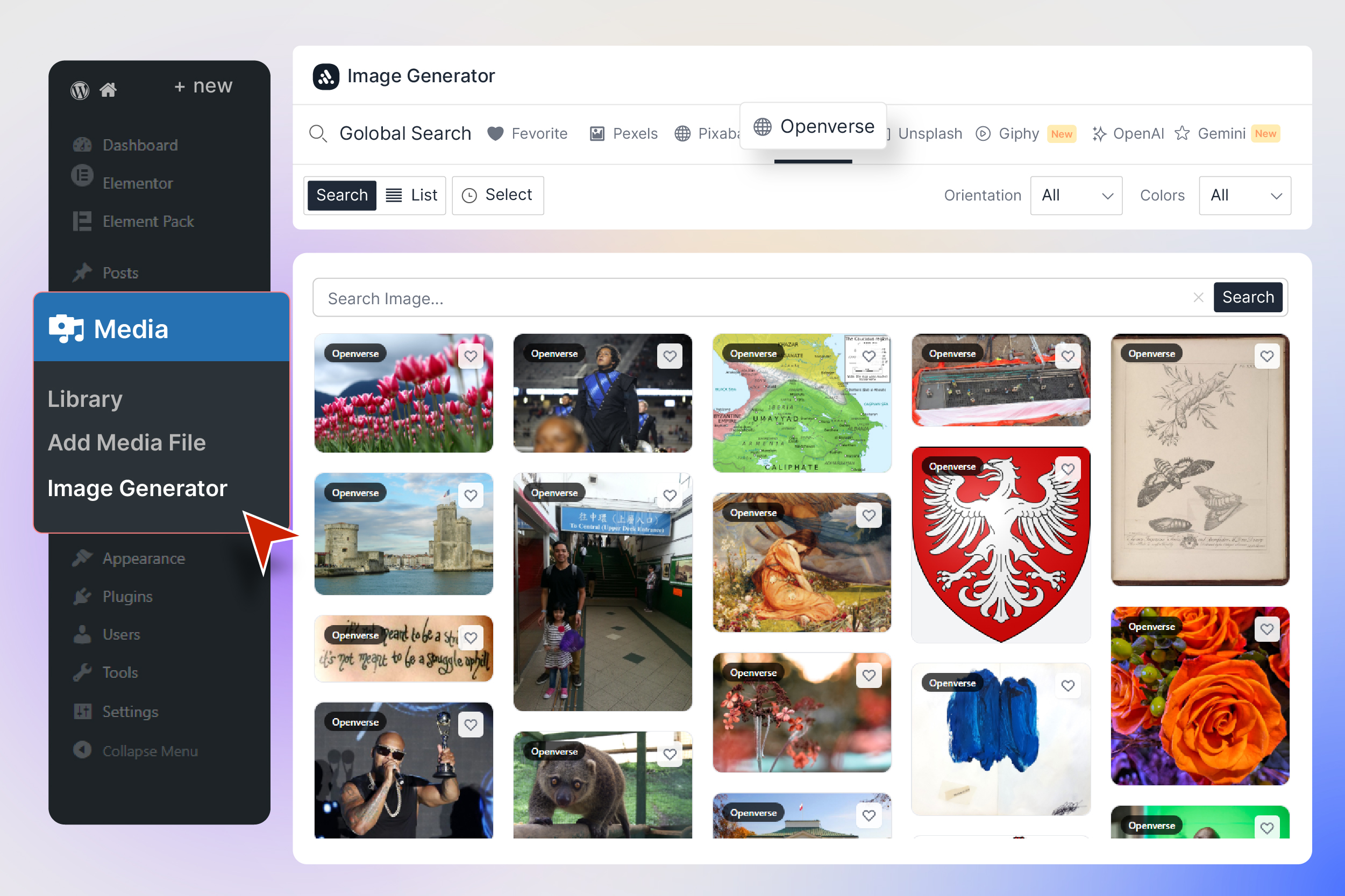
Choose right WordPress plugin from thousands others in a moment
AI Image Generator by ChatGPT
The AI Image Generator WordPress plugin is a powerful tool that utilizes artificial intelligence to automatically generate captivating images for your …
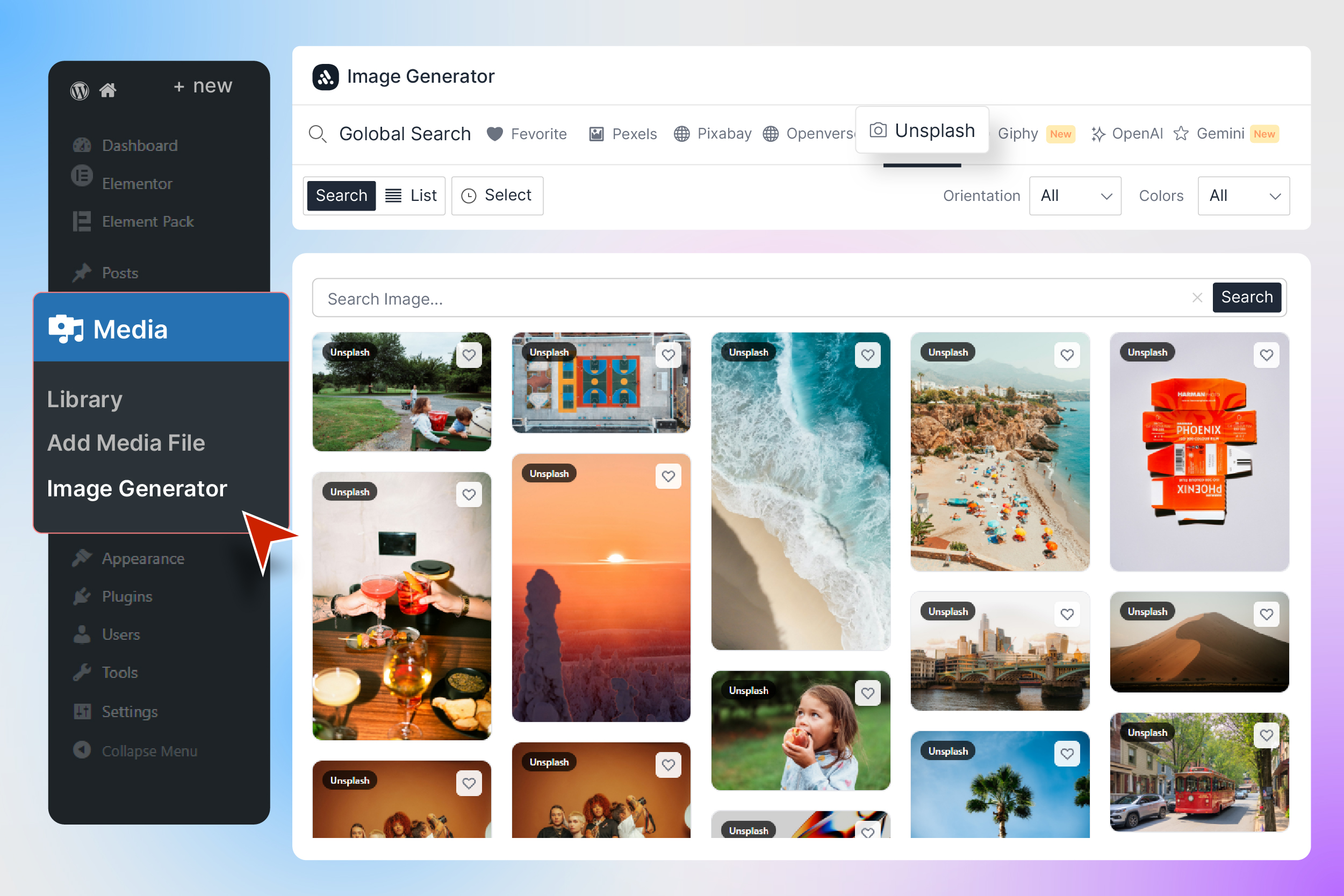
Instant AI Image Generator is the most powerful and complete image management plugin for WordPress. Stop wasting time searching for images across multiple websites, downloading them to your computer, and re-uploading to WordPress. With Instant AI Image Generator, you can search, preview, and import millions of free images directly into your WordPress Media Library — all without ever leaving your dashboard.
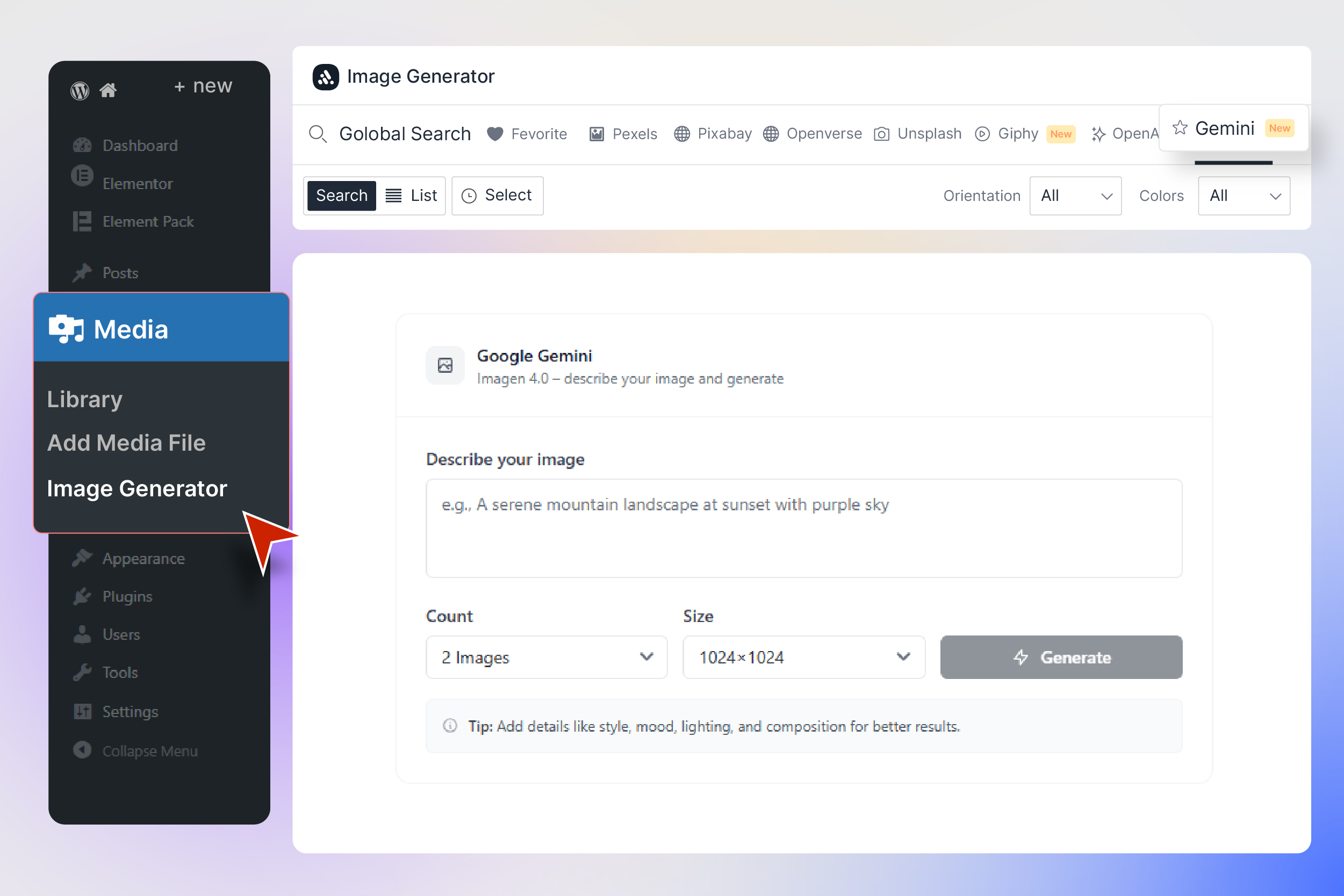
???? Search across 6+ image sources including Pixabay, Pexels, Wikimedia, Unsplash, Openverse, and Giphy — all from a single, unified search bar. Or use the AI-powered image generation with OpenAI GPT Image and Google Gemini Imagen to create completely unique images from text descriptions.
Finding the right image for your blog post, page, or product shouldn’t be a chore. Traditional workflows require you to open a new tab, search a stock photo website, download the image, switch back to WordPress, upload it, and then insert it. That’s 6 steps for a single image.
With Instant AI Image Generator, it’s just 2 steps: Search → Import. Done.
Whether you’re a blogger crafting your next viral post, an agency building client websites, a WooCommerce store owner adding product images, or a content creator who needs fresh visuals daily — this plugin transforms your workflow and saves you hours every week.
Instant AI Image Generator integrates seamlessly into both the WordPress Media Library page and the WordPress Media Modal (the popup that appears when you click “Add Media” or set a Featured Image). This means you can access millions of images from anywhere in WordPress — while editing a post, creating a page, or managing your media.
✨ Key Features
???? Global Search — One Search, All Sources
Search across all enabled image providers simultaneously with the Global Search tab. Type your keyword once, and instantly see results from Pixabay, Pexels, Unsplash, Openverse, and Giphy combined in a beautiful masonry grid. No more switching between tabs — find the perfect image faster than ever.
???? 5+ Free Image Sources
Access millions of royalty-free, high-quality images from the world’s best stock photo libraries:
???? Pixabay — Over 4.2 million free stock photos, illustrations, and vectors
⬛ Unsplash — The internet’s source for freely-usable high-resolution photos
???? Openverse — Open-licensed images from WordPress, Flickr, NASA, Wikimedia, and 10+ more sources
???? Giphy — The world’s largest library of animated GIFs with smart animation control
???? AI Image Generation
Create completely unique, one-of-a-kind images using artificial intelligence:
OpenAI GPT Image — Generate stunning AI images from text prompts using OpenAI’s latest image generation model
Google Gemini Imagen 3.0 — Create photorealistic images with Google’s cutting-edge Imagen 3.0 model with customizable size (512px to 2048px) and batch generation (1-4 images)
⬇️ One-Click Import to Media Library
Every image you find can be imported directly to your WordPress Media Library with a single click. No downloading, no uploading, no FTP — just click “Import” and the image appears in your Media Library instantly, ready to use in posts, pages, and products.
????️ WordPress Media Modal Integration
Access Instant AI Image Generator directly from the WordPress Media Modal — the popup that appears when you set a Featured Image, add media to a post, or use any media selector. A dedicated “Instant Images” tab appears right alongside “Upload Files” and “Media Library” for seamless workflow integration.
????️ Smart Image Metadata
When importing images, the plugin automatically sets:
Alternative Text — Image title from the source for better SEO and accessibility
Image Title — Human-readable title for organization
Caption with Attribution — “Photo by [Author Name]” for proper credit
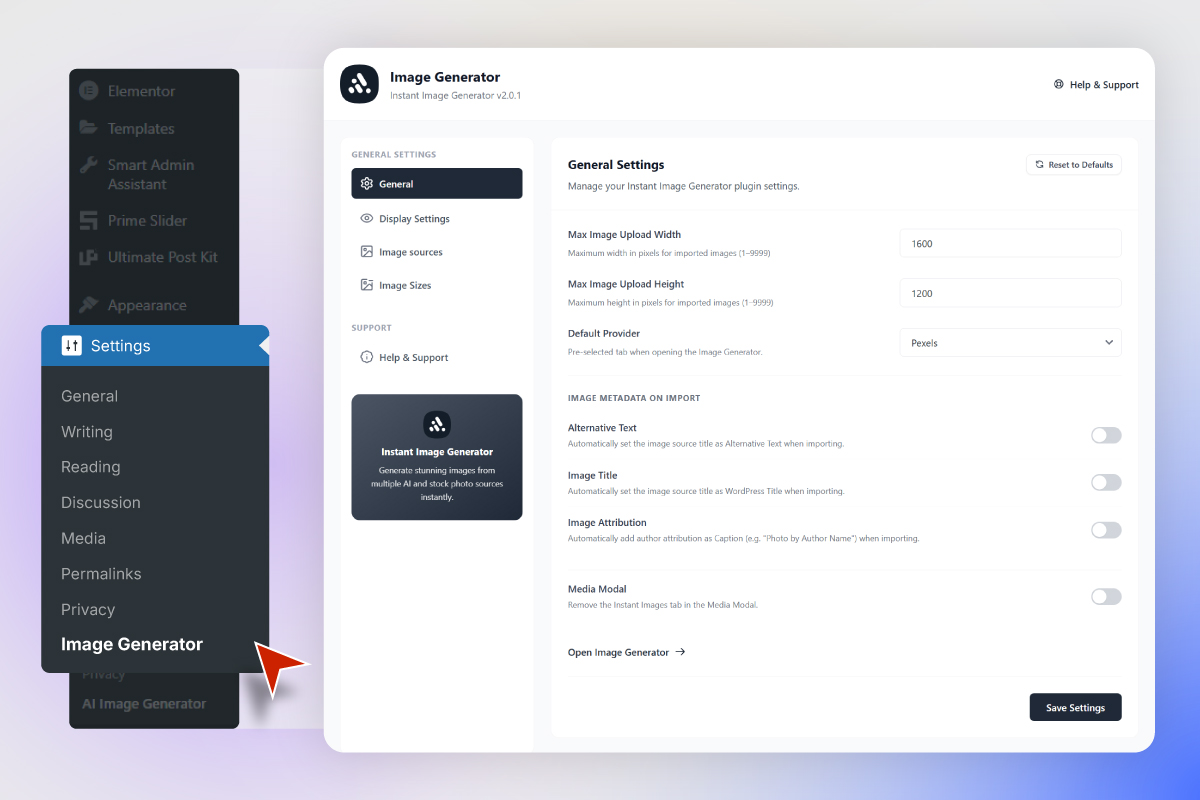
Each metadata field can be individually enabled or disabled in General Settings
????️ Advanced Filtering
Every image source has provider-specific filters to help you find exactly what you need:
Pixabay — Filter by Order (Popular/Latest), Type (Photo/Illustration/Vector), Category (20+ categories), Color (14 colors with visual swatches), and Orientation
Openverse — Filter by Source (WordPress, Flickr, NASA, SpaceX, Wikimedia, and 10+ more) and Orientation (Square/Tall/Wide)
Giphy GIFs are displayed as still thumbnails by default to save bandwidth and reduce visual noise. Simply hover over any GIF to see it animate. A visual “GIF” badge indicates animated content. Preview modal shows the full-size animated version.
???? Batch Selection & Import
Need multiple images at once? Use the batch selection feature to select multiple images across any provider, then import them all to your Media Library in one operation with a beautiful progress indicator.
❤️ Favorites & Bookmarks
Found an image you love but don’t need right now? Add it to your Favorites with one click. Your bookmarked images are saved locally and accessible anytime from the dedicated Favorites tab.
???? Search History
Your recent searches are automatically saved and displayed as suggestions when you click the search bar. Navigate search history with keyboard arrows and select with Enter for lightning-fast repeat searches.
????️ Full-Size Image Preview
Click any image to open the preview modal with a large, high-resolution view. The modal features:
Full-size image display on a dark background
Sidebar with title, author info, and action buttons
General Settings:
* Max Image Upload Width & Height
* Default Provider selection
* Alternative Text auto-fill toggle
* Image Title auto-fill toggle
* Image Attribution (Caption) toggle
* Media Modal tab visibility
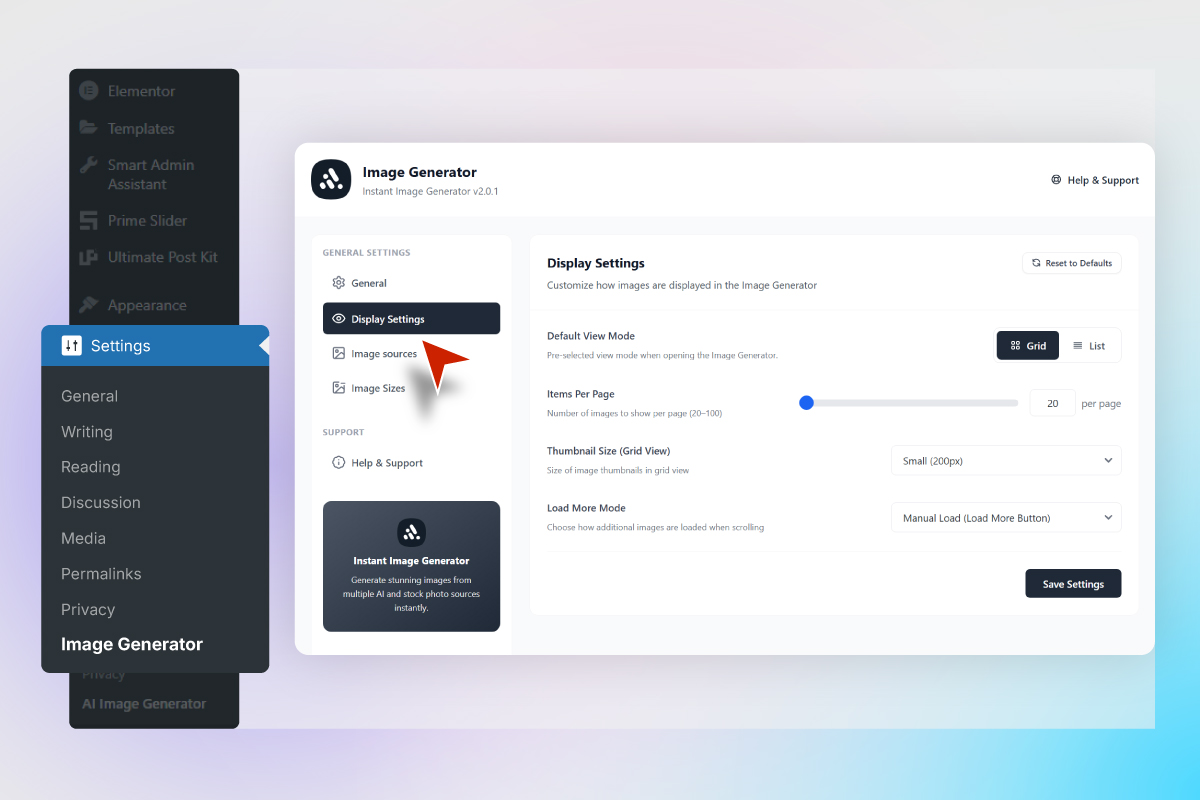
Display Settings:
* Default View Mode (Grid/List)
* Items Per Page (20-100 with slider)
* Thumbnail Size (Small/Medium/Large)
* Load More Mode (Auto Scroll / Manual Button)
Image Sources:
* Enable/disable individual providers
* Drag-and-drop provider ordering
* Global Search on/off toggle
* Provider order reflects in Image Generator tabs
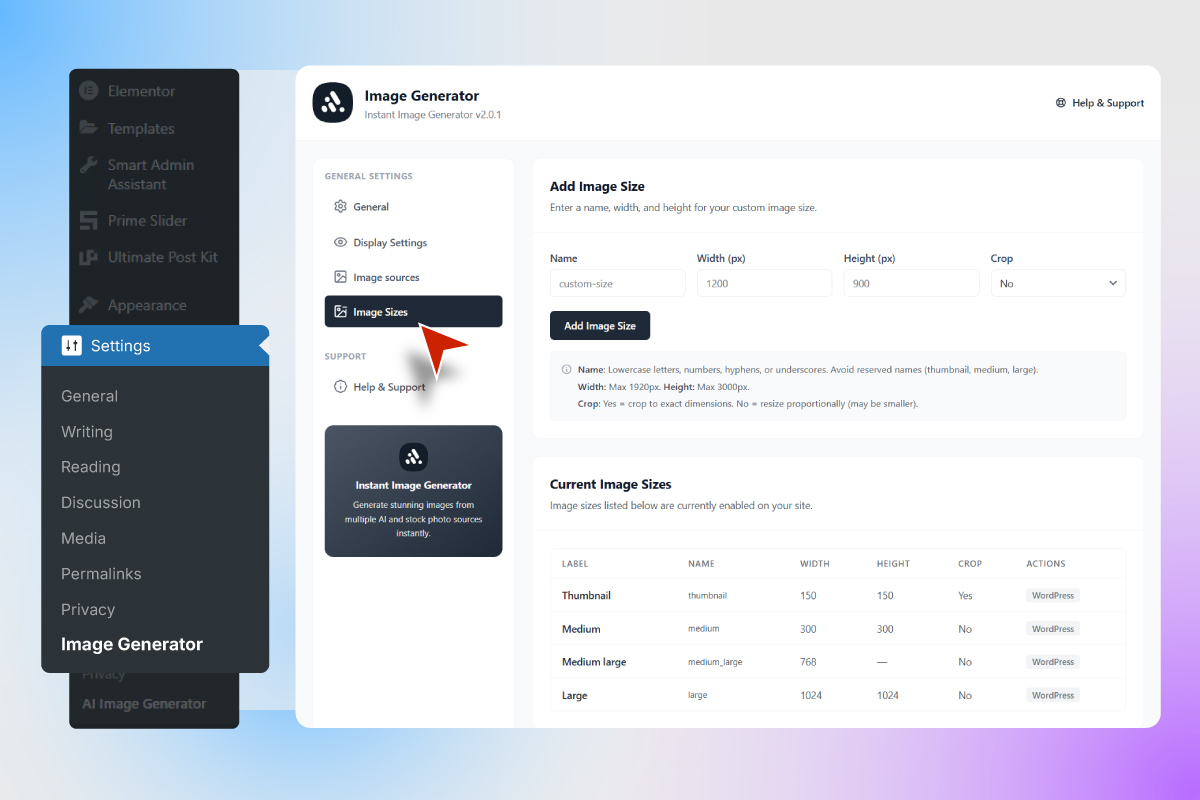
Custom Image Sizes:
* View all WordPress registered image sizes
* Add custom image sizes with Name, Width, Height, and Crop
* Delete custom sizes (WordPress defaults are protected)
???? Beautiful, Modern UI
Built with React and Tailwind CSS, the plugin features a stunning, responsive interface that looks great on any screen size. Professional card-based layouts, smooth transitions, color-coded provider tabs, masonry image grids, and skeleton loading states provide a premium user experience.
???? Secure & Lightweight
All API communications secured with WordPress nonces
API keys stored securely in WordPress options
No external tracking or analytics
Loads assets only where needed
Clean, optimized React bundle
???? Perfect For
???? Bloggers — Find the perfect header image in seconds
???? Designers — AI-generate unique visuals from text descriptions
???? Social Media Managers — Find trending GIFs and images instantly
???????? Developers — Add placeholder images during development
Checkout our other Plugins ????
Explore the best free addons for Elementor and Gutenberg to boost your site with advanced blocks, sliders and eCommerce tools.
Element Pack – Build responsive websites from scratch with an all-rounder package of 300+ widgets and 2700+ ready-to-use assets for Elementor.
Prime Slider – The revolutionary slider builder addon for Elementor with a next-gen superb interface and 50+ unique slider designs.
Ultimate Post Kit – Best blogging addon for building a quality blogging website with fine-tuned post layouts, carousels, sliders and lists.
Ultimate Store Kit – The only eCommerce addon for answering all your online store design problems in one package for WooCommerce and EDD.
Pixel Gallery – The first Elementor-based WordPress gallery addon offering 60+ flexible and customizable gallery builder widgets.
ZoloBlocks – Mind-blowing dynamic block plugin for Gutenberg with powerful and advanced features offering a greater web design experience.
Augmented Reality Viewer – Bring your products to life with immersive 3D and AR experiences directly inside your WordPress website.
Dark Reader – Instantly transform your website into a sleek, eye-friendly dark mode experience with smooth and elegant styling.
Instant AI Image Generator – Generate AI-powered images or import visuals instantly from popular platforms like Unsplash, Openverse, Pixabay, Pexels and Giphy — all from one place.
Live Copy Paste – Seamlessly copy and paste sections, widgets and entire pages across domains with zero hassle.
One Accessibility – Make your website inclusive and accessible to everyone with essential accessibility enhancements and compliance-ready tools.
QR Code Generator & Scanner – Create and manage dynamic QR codes directly from your WordPress dashboard for smarter engagement and tracking.
Smart Admin Assistant – Enhance your WordPress dashboard with productivity-focused tools and smart site management features.
Spin Wheel – Engage visitors with an interactive spinning wheel that offers discounts, coupons and promotional rewards.
Swift Checkout for WooCommerce – Simplify the WooCommerce checkout process to improve user experience and boost conversion rates.
Visit BdThemes to learn about our services, Elementor page builder-based products, informative blogs and documentation.
Not for all sources! Wikimedia Commons and Openverse need no key at all. Pexels, Pixabay, Unsplash and Giphy ship with a shared BdThemes key, so they work out of the box — you can replace it with your own key at any time in AI Image → Dashboard → Image Sources. Only the AI generators, OpenAI (GPT Image) and Google Gemini, require you to add your own API key. All API keys are free to obtain from their respective developer portals.
2. Are the images free to use? Can I use them commercially?
Yes! All images from Pixabay and Pexels are released under their respective free licenses that allow commercial use without attribution (though attribution is appreciated). Unsplash images are free for commercial and non-commercial use. Openverse images carry Creative Commons licenses — check individual image licenses before commercial use. Giphy GIFs are subject to Giphy’s terms of service. AI-generated images (OpenAI/Gemini) are subject to the respective AI provider’s usage policies.
3. How does the WordPress Media Modal integration work?
When the plugin is active and the “Media Modal” setting is enabled (it’s ON by default), an “Instant Images” tab automatically appears in the WordPress media selector popup. This is the same popup that appears when you click “Add Media” in the classic editor, “Set Featured Image,” or use any media selection button. You can search and import images directly from this popup without leaving the page you’re editing.
4. What happens when I import an image?
When you click “Import,” the plugin downloads the image from the source and uploads it directly to your WordPress Media Library. The image is saved in your /wp-uploads/ folder just like any manually uploaded image. Depending on your settings, the plugin can automatically set the Alternative Text (for SEO), Title, and Caption (with author attribution like “Photo by John Doe”). The filename is generated from the image title for clean, SEO-friendly URLs.
5. Can I control what metadata is added to imported images?
Absolutely! In AI Image → Dashboard → General Settings, you’ll find three toggle switches under “Image Metadata on Import”:
Alternative Text — When ON, automatically sets the image’s source title as the WordPress Alt Text (great for SEO and accessibility)
Image Title — When ON, sets the source title as the WordPress attachment title
Image Attribution — When ON, adds “Photo by [Author Name]” as the image caption
Each toggle works independently, so you can enable or disable any combination you prefer.
6. How does Global Search work?
Global Search is a powerful feature that searches all your enabled image providers simultaneously. When you type a keyword in the Global Search tab, the plugin sends requests to Pexels, Pixabay, Unsplash, Openverse, and Giphy at the same time and combines the results into a single masonry grid. Each image shows a provider badge so you know where it came from. If you disable a provider in your Dashboard settings, it’s automatically excluded from Global Search results.
7. How do I generate AI images with OpenAI or Gemini?
First, add your API key in AI Image → Dashboard → Image Sources (for OpenAI or Gemini). Then navigate to the Image Generator page and click the OpenAI or Gemini tab. Enter a descriptive text prompt (e.g., “A serene mountain lake at sunset with reflections”) and click Generate. For Gemini, you can also choose the image shape (square, 4:3 or 16:9) and number of images (1-4). Generated images can be imported to your Media Library with one click, just like stock photos.
8. Can I reorder the image source tabs?
Yes! Go to AI Image → Dashboard → Image Sources. You’ll see all your providers listed as cards with drag handles. Simply drag and drop the cards to rearrange them, or use the up/down arrow buttons for precise positioning. The order you set here is reflected in the Image Generator page tabs. You can also enable or disable the Global Search tab separately with its own toggle at the top of the section. Click “Save Settings” to persist your changes.
9. What is the GIF animation control feature?
To improve page performance and reduce visual clutter, Giphy GIFs are displayed as still thumbnails by default. When you hover your mouse over a GIF, it comes alive and starts animating. A small “GIF” badge with a play icon appears on each GIF card so you can easily identify animated content. In the full-size preview modal, GIFs always play at their full animation. This feature helps keep the gallery fast and responsive even when browsing hundreds of GIFs.
10. Does the plugin slow down my website?
No. The plugin only loads its assets (JavaScript and CSS) on admin pages where they’re needed — the Dashboard settings page, the Image Generator page, and admin pages where the WordPress Media Modal is available. It adds zero frontend code to your public-facing website. Your visitors will never notice the plugin is installed. The React-based interface is optimized for performance with lazy loading, debounced search, and efficient image rendering.
Fixed: Incorrect image generation prompts and upload limit validation.
Fixed: Dashboard crashes and UI issues.
Performance: Improved provider search caching and request handling.
Performance: Added a 45-second limit for Block Editor image generation.
Changed: Updated permissions for Image Generator and AI image generation.
Changed: Improved dashboard accessibility and isolated plugin styles.
2.2.0 [16th August 2026]
Added: External services section in the readme documenting every third-party service the plugin contacts, what data is sent and when, with links to each service’s terms and privacy policy — covers Pixabay, Pexels, Unsplash, Openverse, Wikimedia Commons, GIPHY, OpenAI, Google Gemini and UI Avatars, and states which calls come from the server and which from the browser
Added: Source code section in the readme documenting the build tooling and rebuild steps for the compiled build/ bundle
Added: Uncompressed React/Tailwind source (src/) and build configuration are now shipped with the plugin
Removed: BdThemes news feed dashboard widget and all of its remote requests to bdthemes.com and dashboard.bdthemes.io
Removed: Dependency on the external ui-avatars.com service — fallback author avatars are now generated locally in the browser as an SVG, so no request leaves your site for them
Fixed: Tested up to now uses the major WordPress version (7.0) in both the readme and the plugin header
Fixed: Readme now states the correct Gemini model (Imagen 4.0) and which providers actually require your own API key
Fixed: Readme Description trimmed under the 2500-word limit so the External services and Source code sections are no longer truncated off the plugin page
2.1.8 [10th August 2026]
Updated: Admin API Biggopti removed
2.1.7 [8th August 2026]
Fixed: Security issue where data returned by the promotions API could be injected as script into the WordPress admin area
Fixed: Promotion links and images are now restricted to http(s) and mailto addresses
Updated: Security improved
2.1.6 [23rd May 2026]
Added: Export & Import settings page in the dashboard — back up or migrate plugin configuration (general, display, image sources, custom sizes, and optional API keys) as a JSON file
Updated: OpenAI image generation migrated from deprecated DALL·E 3 to GPT Image (gpt-image-1) after OpenAI retired DALL·E models
Updated: Made compatible with WordPress version 7.0
Fixed: Block toolbar OpenAI fallback aligned with the same GPT Image API request format
2.1.5 [14th May 2026]
Fixed: Security issue fixed ( Thanks to ParkHyunWoo )
2.1.4 [14th May 2026]
Fixed: Admin notice styling and handling
2.1.3 [19th April 2026]
Updated: Plugin display name to Instant AI Image Generator – Create & Import Images in readme and plugin headers (WordPress.org naming guidelines)
Fixed: Block apiVersion set to 3 for WordPress 7+ block editor requirements
Fixed: Translation calls in admin/feed.php use the ai-image text domain as a string literal
2.1.2 [7th April 2026]
Fixed: Scoped Tailwind Preflight to .ai-image-wrap only — prevents base style resets from bleeding into wp-admin buttons, headings, and other global elements
Fixed: Link color inside the plugin UI now explicitly set to WordPress blue (#2271b1) after preflight inherits parent color
Fixed: .search-input-field scoped under .ai-image-wrap to avoid unintended global style matches
Improved: Tailwind global preflight disabled via corePlugins — scoped equivalent in ai-image-preflight.css replaces it for the plugin root only
Improved: All Tailwind utilities now use .ai-image-wrap as the important selector for consistent specificity
2.1.1 [17th March 2026]
Added: Dashboard feed widget with styled RSS posts, banner image, badges, and footer links on the WordPress dashboard
Fixed: Overflow issue hiding download dropdown button next to import button on image cards
Fixed: Z-index layering so dropdown menus appear above all card elements including preview icon
Fixed: Hover stability for import button and action buttons – more reliable interaction
Improved: Better flex layout for author name and action buttons to prevent overflow
Improved: Author name now properly truncates with ellipsis when space is limited
2.1.0 [3rd March 2026]
Added: Wikimedia Commons image provider tab support in dashboard and Global Search