WP Adminify: The Ultimate White Label WordPress Plugin with Admin Menu Editor, Login Customizer, and Custom Dashboard Solution
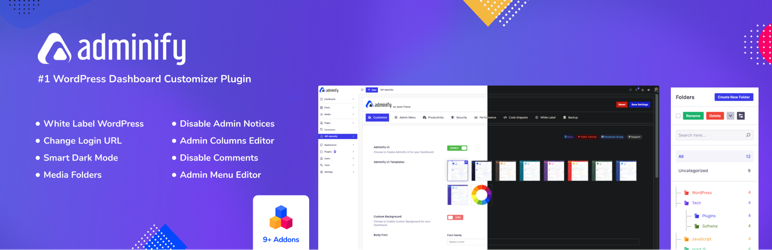
Ever wondered how to modify the default WordPress admin dashboard? WP Adminify is the most suitable White Label WordPress plugin and Admin Menu Editor solution on the market, specifically developed for WordPress agencies, freelance developers, and power users. This all-in-one WordPress admin customizer plugin offers you to completely rebrand the WordPress dashboard, transform the user experience, and create a branded client dashboard for your customers or personal websites. With over 60 powerful features, WP Adminify gives you control over customizing your WordPress dashboard, from the login screen to the smallest admin menu item, dramatically boosting productivity and enhancing security.
Why WP Adminify is the Best WordPress Dashboard Customizer
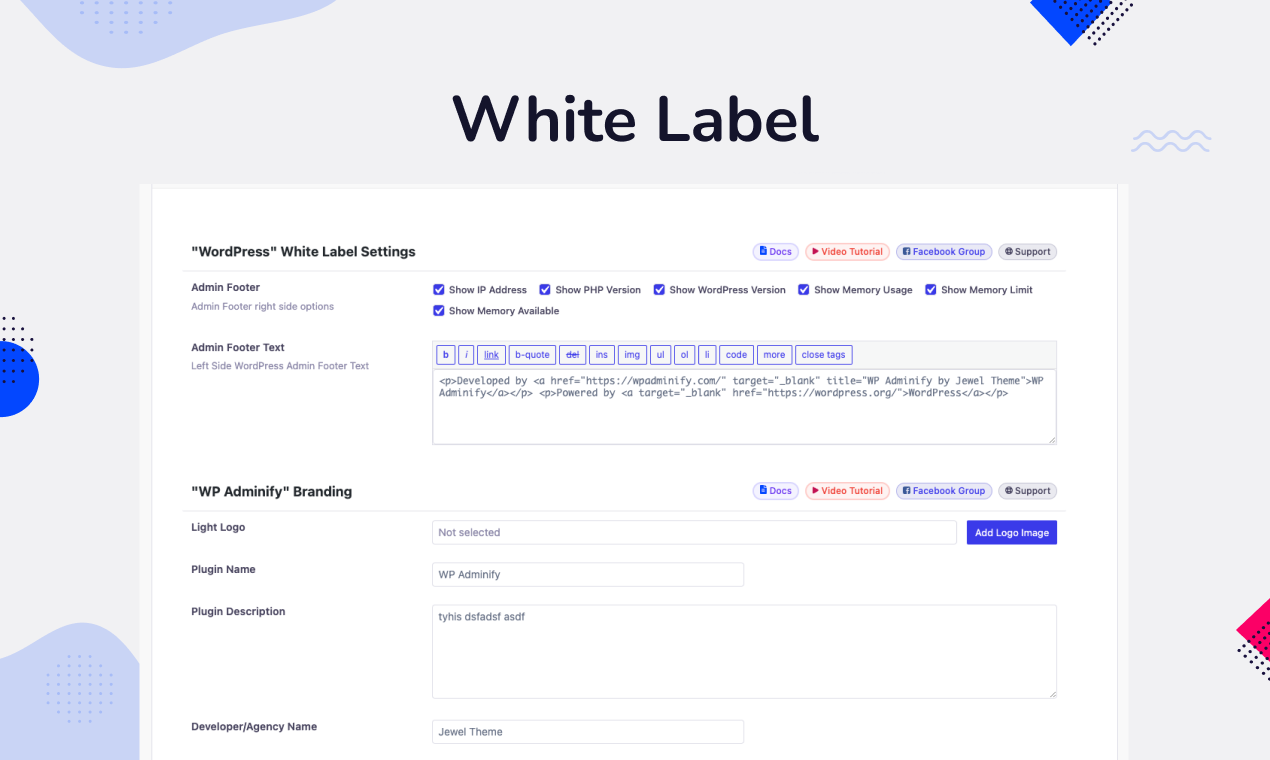
✅ Complete White Label WordPress Solution: Remove every trace of WordPress branding. Rebrand the admin panel with your own logo, change admin menu labels, customize the admin footer text, replace the “Howdy” text, and create a fully white labeled WordPress experience that presents your agency as the platform provider.
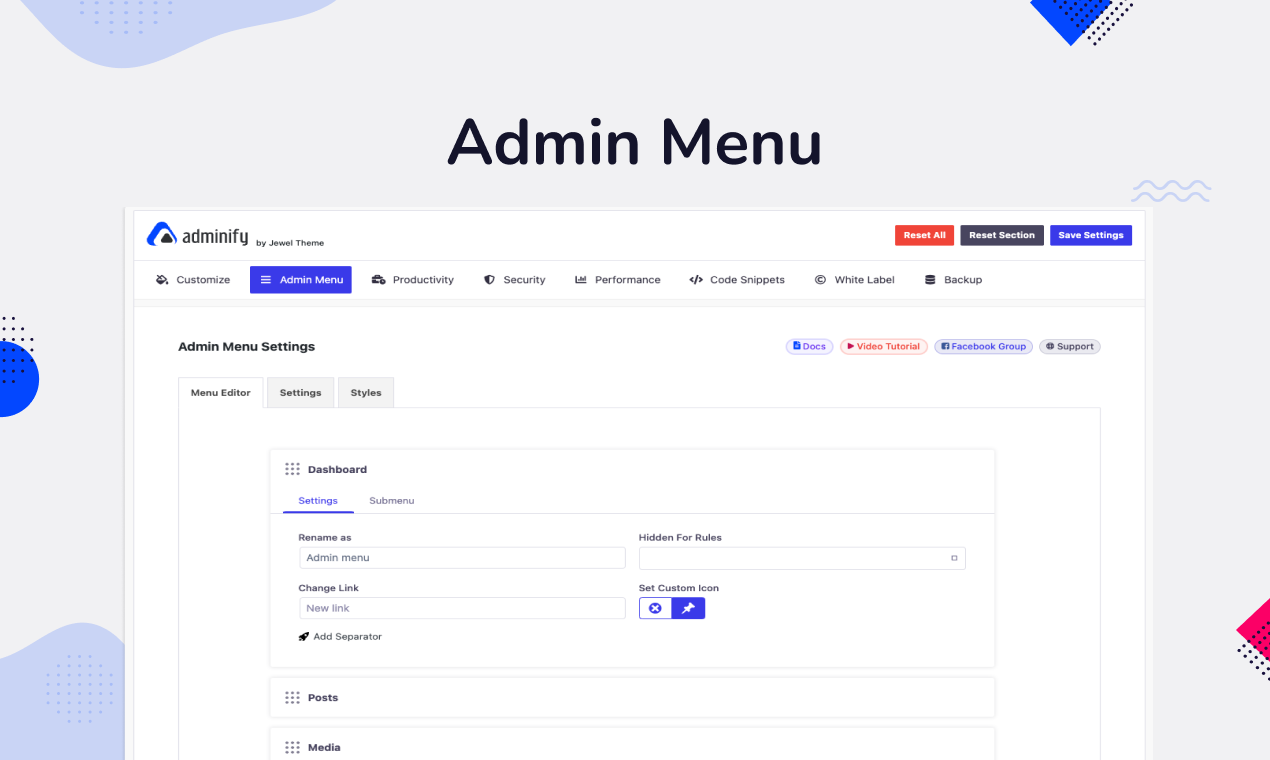
✅ Powerful Drag & Drop Admin Menu Editor: The most intuitive Admin Menu Editor available. Visually rearrange, rename, add new menu items, hide unnecessary elements, and create a custom admin menu structure with role-based visibility rules. Simplify navigation for clients and prevent them from accessing complex areas like themes and plugins.
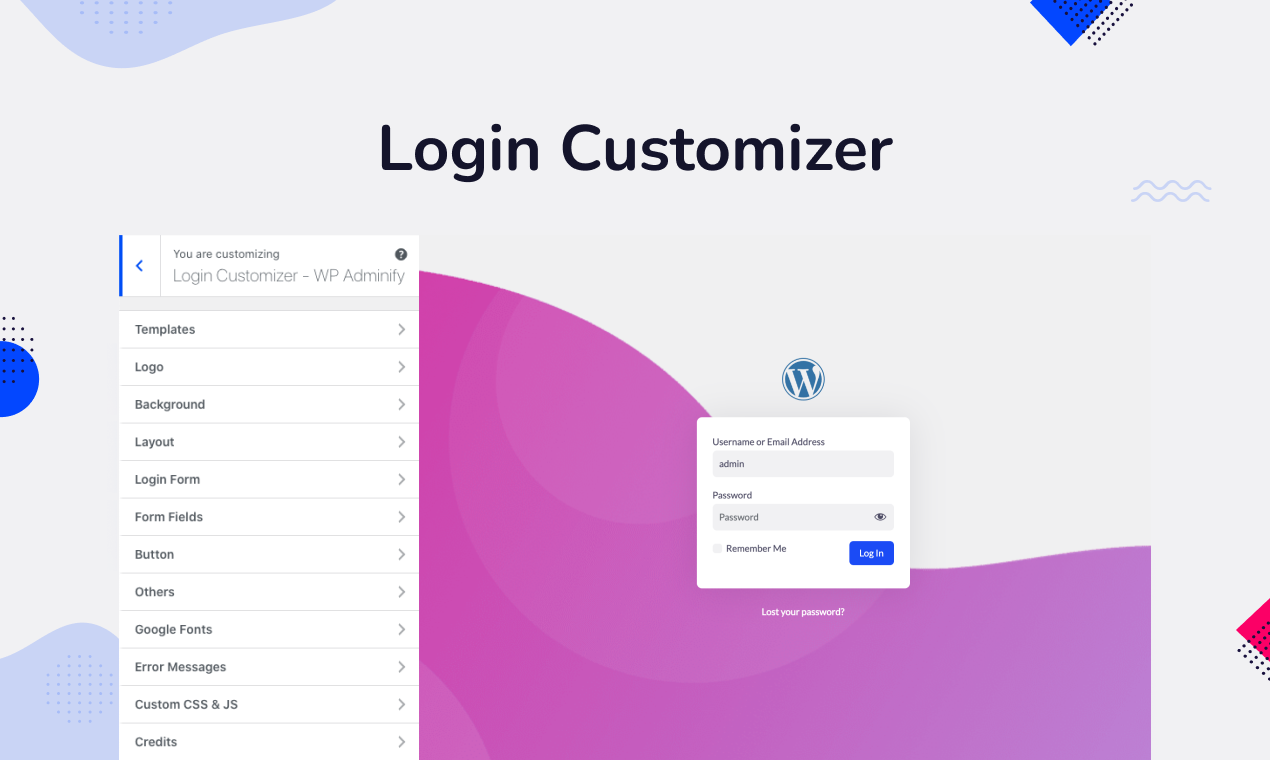
✅ Custom Login Page Designer (Login Customizer): Extend your white label WordPress strategy to the login screen. Our Login Customizer module (Loginfy) allows you to design a stunning custom login screen with background images, custom logos, form styling, animations, and custom CSS. Make a powerful first impression with a branded login page.
✅ WordPress Dashboard Customization: Choose from multiple modern UI templates (Light, Dark, Modern) to instantly transform your WordPress admin dashboard. Enable dark mode for WordPress, schedule light/dark mode switching, and customize colors and fonts to create a truly custom WordPress dashboard.
✅ Advanced Productivity Features: Organize your entire media library with folders and subfolders, replace media files without changing URLs (upcoming), hide annoying admin notices, remove the welcome panel, duplicate posts and pages, and add custom dashboard widgets for RSS feeds or client information.
✅ Security Tools: Harden your WordPress security. Change the login URL from /wp-admin to something unique, set custom login redirects and logout redirects based on user roles, disable comments globally across your site, disable XML-RPC, restrict REST API access, and clean up unnecessary scripts from the <head> section.
✅ Admin Columns Editor: Gain complete control over your post and page list views. This powerful addon allows you to customize admin columns, add new columns for custom fields (ACF, MetaBox, Pods), remove default columns, and make columns sortable and filterable. Perfect for managing WooCommerce products, orders, and any custom post type efficiently.
Detailed Feature Breakdown
WP Adminify is packed with features designed for every aspect of WordPress admin customization.
White Label Admin Area: Replace the WordPress logo in the admin bar and menu. Upload a custom favicon for the admin area. Change the “WordPress” name in the title tag.
Custom Admin Footer Text: Remove the “Thank you for creating with WordPress” text and replace it with your own branded footer text, links, or copyright information.
Admin UI Templates: Apply beautiful, pre-designed skins to instantly change the entire look and feel of your WordPress dashboard. Options include Light, Dark, Gradient, and Glass morphism styles.
Light and Dark Mode: Offer users a choice or enable auto-scheduling. Set independent logos for light and dark modes for a seamless white label experience.
Custom CSS and JavaScript: For developers who need ultimate control, add your own custom CSS to style every element of the admin area or custom JavaScript to modify functionality, all without touching theme files.
Visual Drag & Drop Interface: Intuitively manage your admin menu. Drag to reorder menu items, drag submenus to create top-level menus, or drag items out to hide them completely.
Create Custom Menu Items: Add new menu items that link to internal admin pages, external URLs, or custom admin pages created with page builders.
Role-Based Menu Visibility: Show or hide specific menus and submenus for different user roles. Perfect for creating a simplified client dashboard for subscribers, customers, or editors by hiding complex menus like “Themes”, “Plugins”, “Tools”, and “Settings”.
Custom Icons for Menu Items: Assign custom Dashicons or upload your own SVG icons to any menu item for improved visual recognition and branding.
Separators and Dividers: Add custom separators to group menu items logically and improve the navigation structure.
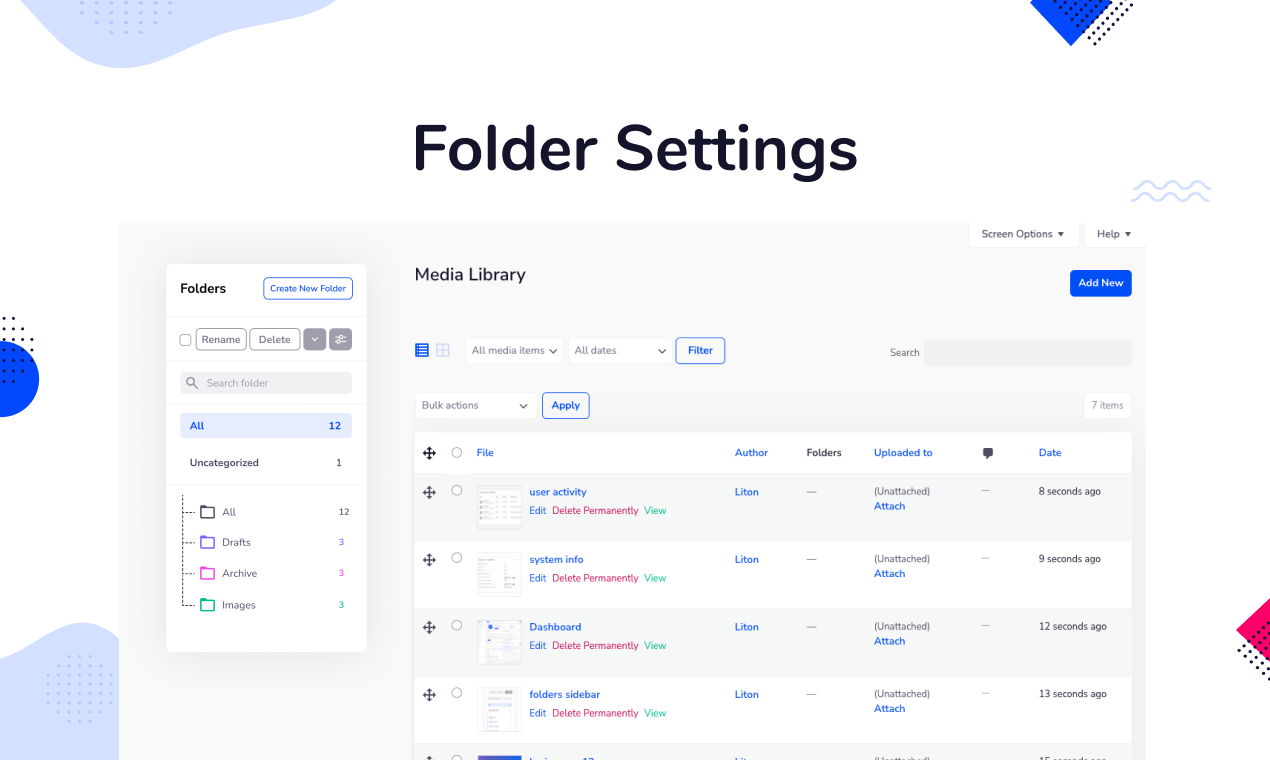
Drag & Drop Folders: Finally, organize your media library! Create folders and subfolders and simply drag and drop files into them. This is essential for sites with thousands of images.
Folder-Based Filtering: Quickly find files by browsing through your folder structure instead of scrolling through an endless list.
Bulk Move Files: Select multiple files and move them to a new folder in one action.
???? Media Replace Feature: (upcoming) A groundbreaking productivity tool. Replace any existing image or file in the media library while retaining its URL, file ID, and date. This is critical for SEO (prevents broken links) and for quickly updating images without needing to find and replace them in every post.
Admin Notices Manager: Disable all promotional and update notification nags from WordPress core and third-party plugins. Clean your dashboard and create a focused Admin Panel.
Remove Welcome Panel: Instantly remove the default “Welcome to WordPress” panel from the dashboard.
Hide Screen Options & Help Tabs: Remove the “Screen Options” and “Help” tabs from the top of admin screens for a cleaner interface.
Duplicate Posts, Pages, & CPTs: Add a “Duplicate” action to the post list for any post type, allowing you to clone content with a single click.
Custom Dashboard Widgets: Add, remove, or modify widgets on the WordPress dashboard. Add custom text widgets, RSS feed widgets, or iframe widgets to display relevant information for you or your clients.
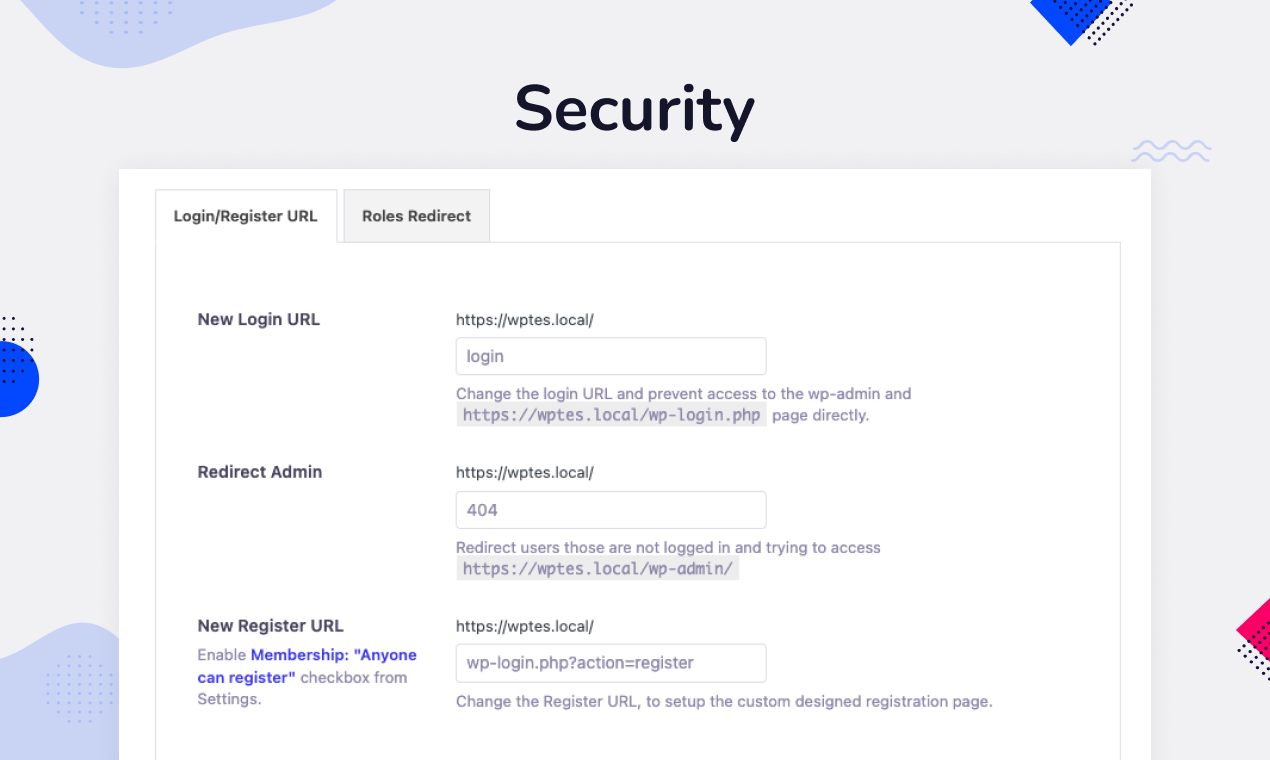
Change Login URL: Increase your security by changing the default WordPress login URL (wp-login.php or /wp-admin) to a custom slug of your choice, helping to prevent brute force attacks.
Login Redirects & Logout Redirects: Control exactly where users are sent after they login or logout based on their specific user role. Send customers to their account page, admins to the dashboard, etc.
Disable Comments Globally: Turn off the native WordPress comment system site-wide. This removes comment fields, hides admin menu items, and closes comments on existing posts.
Control Heartbeat API: Modify the interval or disable the WordPress Heartbeat API in specific areas (dashboard, post/edit pages, frontend) to reduce server load and CPU usage on high-traffic sites.
Disable Embeds: Disable WordPress oEmbeds to improve security and prevent external sites from embedding your content without permission.
Clean Up Head Section: Remove unnecessary code like RSS feed links, RSD (Really Simple Discovery) links, WLW Manifest, shortlink, generator tag, and emoji scripts to reduce bloat and improve security.
Add/Remove/Reorder Columns: Take full control of the list views for posts, pages, and all custom post types. Add new columns for any data point, remove unnecessary columns, and reorder them to match your workflow.
Custom Field Support: Display values from Advanced Custom Fields (ACF), MetaBox, Pods, and other custom field plugins directly in your admin list tables.
WooCommerce Integration: Customize columns for WooCommerce post types. Show product SKU, stock status, price, or weight directly in the product list for quick management.
Sortable & Filterable Columns: (upcoming) Make your custom columns sortable A-Z or numerically and add custom filters to the top of the list tables for powerful data management.
???? Expansive Addon System
WP Adminify’s functionality is extended through dedicated addons, many of which are free.
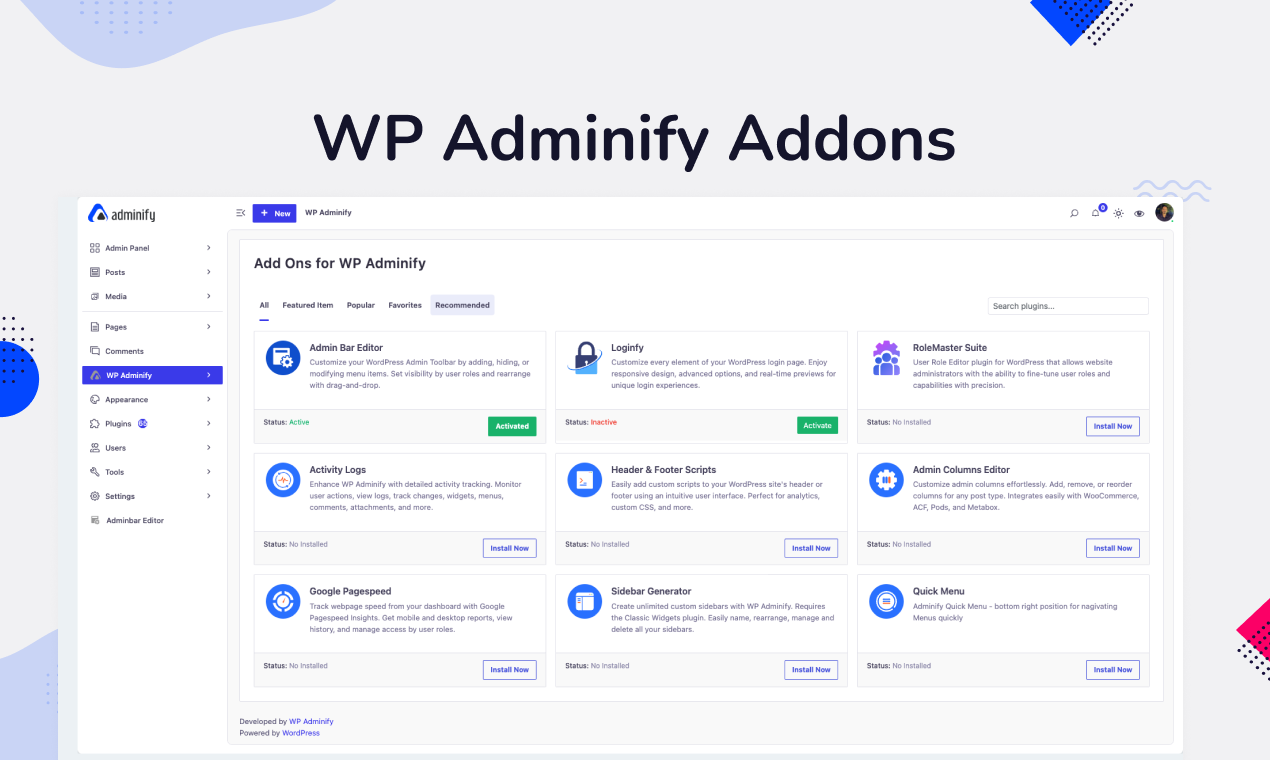
Admin Bar Editor: Customize the WordPress admin toolbar that appears at the top of the site when logged in.
Activity Logs: Track every user action on your site, including logins, post changes, option updates, and plugin activity.
Google PageSpeed Insights: Check your website’s performance score directly from your WordPress dashboard and get actionable recommendations.
RoleMaster Suite (User Role Editor): A comprehensive tool to create, edit, clone, and manage user roles and capabilities with precision.
Header & Footer Scripts: Easily add Google Analytics, Facebook Pixel, custom CSS, or any other script to your site’s header or footer without editing theme files.
Sidebar Generator: Create unlimited custom widget-ready sidebars and assign them to specific pages, posts, or conditions.
Yes. The free version includes white label options for the logo, admin footer text, and admin bar. The Pro version unlocks the complete white label WordPress toolkit with advanced branding controls.
Can I rebrand WordPress completely?
Yes. Adminify can rebrand WordPress across the login screen, admin area, and toolbar. Combine the white label settings, admin footer text, and a custom admin panel skin, then use the Admin Bar Editor addon for a fully custom WordPress admin. Pro adds even more rebrand WordPress options for agencies.
How do I hide admin notices?
Enable the Notices module to hide admin notices from plugins, themes, and core updates, or disable admin notices for specific roles so clients never see upgrade nags. Agencies often disable admin notices on every client site. The hide admin notices toggle covers the block editor too.
Does Adminify include dark mode?
Yes. Turn on admin dark mode from the toolbar toggle, or schedule WordPress dark mode by time of day. It is a complete WordPress dark mode for the admin area, including the block editor, and it pairs with every WordPress admin theme skin.
Can I customize the WordPress login page?
Yes. The login customizer (Loginfy) styles the entire custom login screen: logo, background color, form styling, and buttons. The login page customizer includes a live preview, so you see the custom login page as you build it, with every change shown instantly on the custom login screen. You can also change the WordPress login URL for extra security.
Can I change a WordPress username?
Yes. The built-in username changer renames any username directly – no database edits, no new account needed. The username changer works on every account, including administrators.
Can I customize the admin menu for clients?
Yes. Use the admin menu editor with role based menu controls to rename, reorder, and hide admin menu items, build custom menu structures, restrict admin access for specific roles, then set login redirects so clients land on their own custom dashboard.
Can I build a client dashboard or client portal?
Yes. The dashboard customizer, admin menu editor, and white label settings combine into a clean client dashboard or client portal – a custom WordPress admin experience where clients only see what they need. Swap the welcome panel for the dashboard widgets they actually use.
Can I hide admin bar items?
Yes. The Admin Bar Editor addon lets you hide admin bar items – or restyle the whole bar – per user role.
Can I add custom columns to post lists?
Yes. The admin columns editor works on all list views. Pull in custom fields from ACF, MetaBox, Pods, and WooCommerce without code.
Can I redirect users after login or logout?
Yes. Set login redirects and logout redirects per role – point the logout redirect to any URL, pair it with a custom login URL, and send each role to the right page after signing in. Logout redirects can differ per role.
Can I disable comments?
Yes. Disable comments globally with one switch – comments globally disappear from posts, pages, and media.
Can I organize the media library into folders?
Yes. Create unlimited media folders and subfolders, filter by folder, and bulk move files. Media library folders even work inside the Elementor and Classic Editor pickers. Need to swap a file? Media Replace keeps the original URL intact, and the media replace tool works right from the grid view.
Can I duplicate posts and pages?
Yes. One-click duplicate for posts, pages, custom post types, and taxonomies – each duplicate post keeps its content, template, and metadata.
Will this plugin slow down my website?
No. Adminify only loads its assets on admin-facing pages. Your frontend site speed is not affected.
Is it compatible with my theme and other plugins?
Adminify is designed to be compatible with standard WordPress themes and most popular plugins, including WooCommerce, Elementor, and ACF – all styled to match the Adminify admin interface. Check the changelog for specific compatibility additions.
Do I need coding skills to use it?
No coding required. Adminify provides a point-and-click settings interface for every admin customization option. Custom CSS and JavaScript fields are available for developers who want more control over the admin panel without editing theme files.
Where do I report security bugs found in this plugin?
Please report security bugs found in the source code of this plugin through the Patchstack Vulnerability Disclosure Program. The Patchstack team will assist with verification, CVE assignment, and notifying the plugin developers.
Fixed: Gravity Forms “New Form” and “Create Form” crashed the browser tab (“Aw, Snap!”) in the Adminify UI.
Adminify – 4.3.4 (07-11-2026)
Fixed: Download Monitor screens rendered blank with Hide Admin Notices on — DLM’s notice-clearing left Adminify’s wrapper unclosed, swallowing the page.
Adminify – 4.3.3 (12-10-2026)
Fixed: Elementor screens such as System Info and Form Submissions no longer render partially with page scrolling locked while Hide Admin Notices is on.
Adminify – 4.3.2 (17-09-2026)
Security: Security Update.
Adminify – 4.3.1 (20-08-2026)
Improved: WordPress 7.1 compatibility.
Improved: The Gutenberg Editor Logo option is now hidden on WordPress 7.1 and newer, where WordPress no longer provides the editor button it replaced. It keeps working on older versions.
Improved: The Infinite Scroll for Media Library option is now hidden on WordPress 7.1 and newer, where the Media Library already scrolls infinitely and each user can opt out from their own profile. It keeps working on older versions.
Improved: Dark mode in the block editor.
Improved: Disabled buttons now look disabled instead of appearing fully active.
Improved: Heartbeat intervals longer than 2 minutes are now marked as not recommended, and the post editor is capped at 2 minutes so post locks and autosave keep working.
Fixed: Custom Gravatar images now show up on Settings > Discussion and for users who do not have a Gravatar.
Fixed: The Light/Dark switcher in the admin bar now looks and works correctly on the Site Editor and Customizer screens.
Fixed: With Adminify UI on, publishing a post now updates the browser address bar, and the editor’s back button returns to the post list.
Fixed: The block editor pre-publish panel no longer leaves a duplicate Publish button showing above it.
Fixed: The Control Heartbeat API interval settings now take effect. Picking 15 or 30 seconds previously changed nothing at all.
Fixed: Disabling the Heartbeat API no longer stops autosave and the session expiry check from loading, and the post editor setting now applies on WordPress installed in a subdirectory.
Improved: Adminify UI with Admin Bar Editor Secondary menu hidden for logo-out icon show.
Fixed: The tabs inside the Admin Page setting boxes now look like proper tabs instead of plain links.
Fixed: The code editor box for Custom CSS/JS now has a visible border again.
Fixed: Free version after update auto deactivate issue fixed.
Fixed: Adminify UI Admin Menu reload with auto collapse issue fixed.
Fixed: Footer text overlap content issue fixed.
Adminify – 4.2.26 (12-08-2026)
Fixed: On phones and tablets, the menu items at the bottom of the sidebar were hidden behind the browser bar and could not be reached on sites with a lot of plugins. The menu now scrolls all the way to the last item.
Fixed: With the Two Step menu, opening a menu or a sub-item after scrolling down the sidebar hid the panel heading, so there was no way back to the main menu. The heading now always stays at the top of the panel.
Improved: On phones and tablets, the sidebar now slides closed by itself after you tap a menu or submenu link, so you land straight on the page you picked.
Adminify – 4.2.25 (11-08-2026)
Fixed: The “Set featured image” button in the media library popup is now visible on mobile devices when the Adminify UI is enabled.
Improved: Dark mode color improve in gutenberg block editor.
Adminify – 4.2.23 (04-08-2026)
Fixed: Ctrl+Click (Windows) and Cmd+Click (Mac) on admin links now open them in a new tab as expected – post and product lists, the sidebar menu, the top bar, and search results.
Fixed: The ID column for categories and tags now shows up on their list screens when the option is turned on.
Fixed: Shield Security plugin submenu active color issue fixed.
Adminify – 4.2.22 (25-07-2026)
Fixed: The “Last Login” column on the Users page now shows the time in your site’s own time zone and date format, instead of a different time.
Fixed: The profile picture in the top bar no longer shows a broken image when a user has no picture; a default one is shown instead.
Adminify – 4.2.21 (15-07-2026)
Fixed: Drag-and-drop ordering for categories and tags now saves and stays in place after you reload the page.
Fixed: Reordering media files on the Media list view now saves; your new order is remembered.
Adminify – 4.2.20 (14-07-2026)
Improved: “Disable Site Health checks” now hides Site Health completely – the Tools > Site Health page, the dashboard widget, and the weekly background check are all turned off, so your clients never see it.
Adminify – 4.2.19 (11-07-2026)
Fixed: Uploading files from Media > Add New failed; uploads now finish normally.
Fixed: “Preview” and “View” on the posts list opened the site inside the admin area; they now open the site itself, like the default WordPress admin.
Fixed: The Elementor page in the admin had an extra gap above its header; the header now sits at the top where it belongs.
Updated: Freemius SDK to 2.13.4.
Adminify – 4.2.18 (09-07-2026)
Fixed: Clicking “Edit with Elementor” in the block editor did nothing and kept you on the same page; it now takes you to the Elementor editor.
Fixed: The Setup Wizard now opens when you click it in the menu, and no longer shows a warning message on the page.
Fixed: The option that hides the “PHP update required” notice now actually hides it.